PRODUCT
Mria CRM: Outlook Connector
Keep Customer Email History Inside Mria CRM
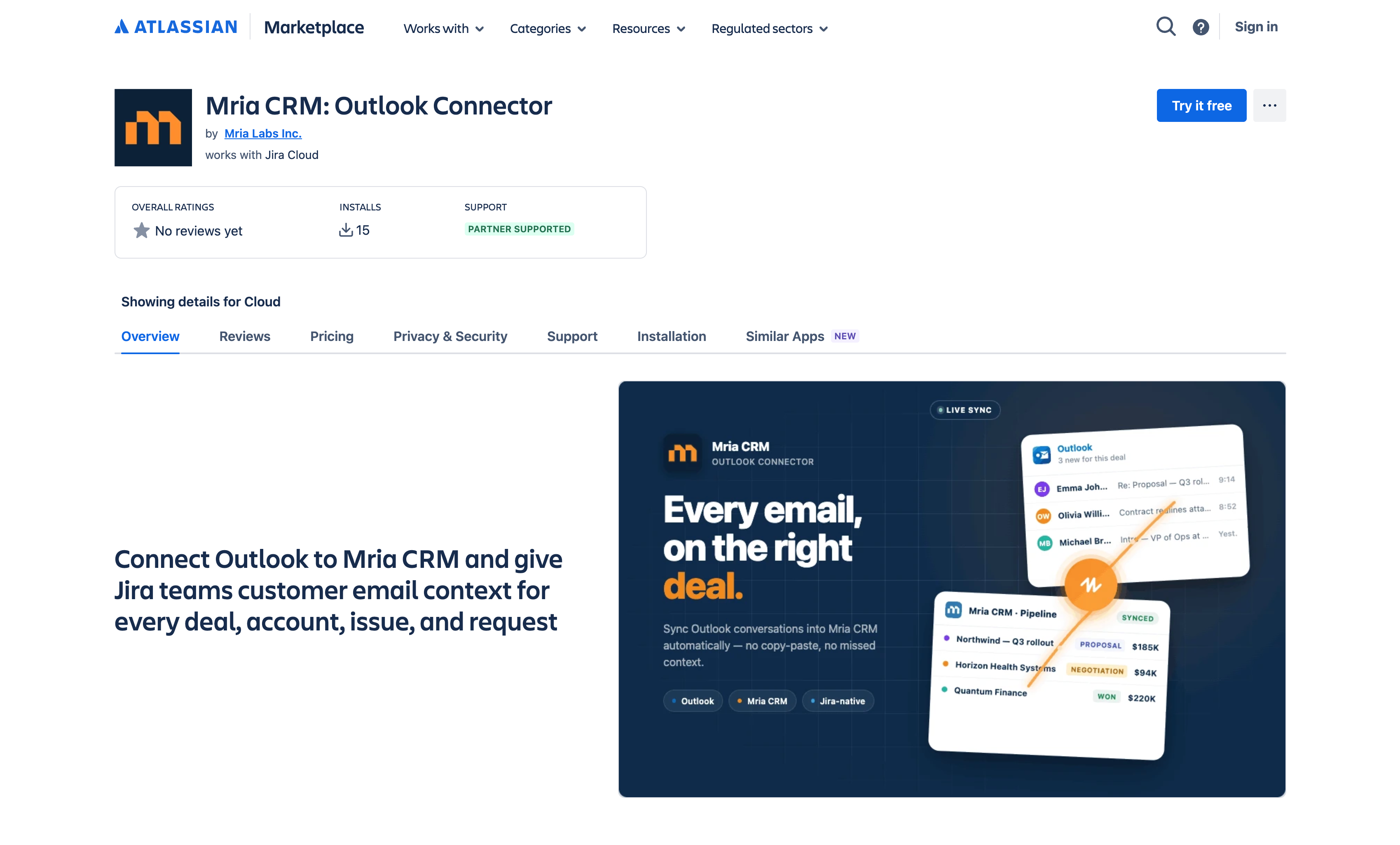
Connect Outlook to Mria CRM, send and receive emails from your CRM workspace, and keep communication organized around customer contacts inside Jira. Reduce inbox silos and give teams a clearer view of communication history.
What is Mria CRM: Outlook Connector?
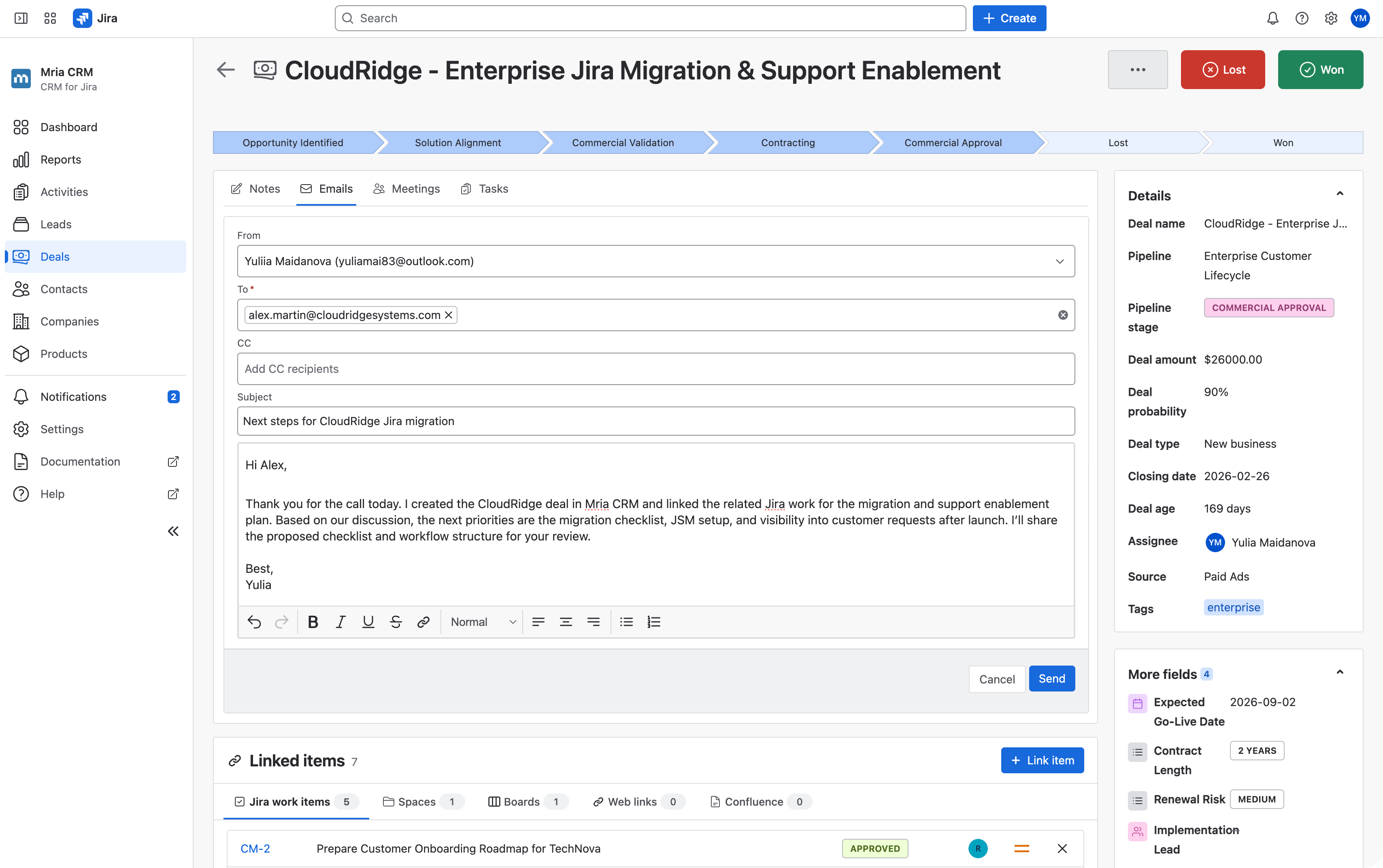
Mria CRM: Outlook Connector is an extension for Mria CRM that brings Outlook communication into the Jira-based CRM workspace. It allows teams to send, receive, and manage customer emails within Mria CRM, so important communication does not remain isolated in individual inboxes.
Mria CRM: Outlook Connector extends Mria CRM with an email layer for customer communication. Instead of treating email as a separate channel outside Jira, this approach brings communication history closer to the CRM records, activities, and customer-related work teams already managed in Mria CRM.
Key Features
Features Designed for Customer Communication in Jira
Discover tools that help Jira teams manage Outlook emails, follow communication history, and keep customer communication available inside Mria CRM
Outlook Communication in Mria CRM
Manage customer emails directly inside Jira.

Work With Outlook in Mria CRM
Send and receive emails from Mria CRM without switching back and forth between Jira and Outlook during customer work.

Keep Email History Organized
Keep Outlook communication organized in Mria CRM, so teams can review previous emails alongside customer details and activity history.

Reduce Inbox Silos
Keep important communication from staying locked in separate inboxes, where other teams cannot see previous customer interactions.
Connected Email Accounts & Visibility
Control how Outlook communication is connected and shared.

Connect Multiple Outlook Accounts
Allow users to connect their own Outlook accounts to Mria CRM and manage email communication from the same Jira-based CRM workspace.

Set Access for Each Account
Decide whether each connected Outlook account is private to the account owner or shared with teammates who need visibility into its email history.

Support Personal and Team Communication
Use private accounts for individual communication and shared accounts for team-managed email flows, such as sales, support, or account management.
Activity History & Team Alignment
Keep email communication part of the broader customer history.

Unified Activity Timeline
View Outlook emails together with other CRM activities, such as notes, meetings, tasks, and customer-related updates.
Faster Customer Follow-Up
Help teams understand previous communication before replying, escalating, or continuing work with a customer.

Better Team Alignment
Keep Jira teams aligned by making email history part of the same CRM workflow used for customer and Jira-related work.
Jira-Based Customer Workflow
Work with Outlook from your CRM workspace in Jira.

Work Without Leaving Jira
Use Outlook communication inside Mria CRM, directly within the Jira environment your team already uses.

Support Sales and Delivery Work
Give teams a clearer view of communication history when working with customers, accounts, requests, or related Jira work.

Keep Customer Work Connected
Bring email, CRM activities, and Jira-based customer work closer together in one workspace.
Security & Authentication
Connect Outlook securely inside the Mria CRM environment.

OAuth-Based Outlook Connection
Connect Outlook accounts through OAuth, so users authorize access without sharing their Outlook passwords with Mria CRM.
User-Controlled Access
Each Outlook account is connected by its owner through Google authorization, so teams can add email access without sharing credentials.
No Password Sharing
Users connect Outlook through OAuth, so Mria CRM does not require or store Outlook passwords.
Use Cases
How Mria CRM: Outlook Connector Fits Your Team

CUSTOMER SUPPORT
Respond with the history behind the request
Support teams often handle requests without seeing what was already discussed by email. With Outlook communication available in Mria CRM, teams can review previous communication before replying, reduce repeated questions, and provide more consistent customer support.

SALES & ACCOUNT MANAGEMENT
Keep customer communication close to the relationship
Sales and account teams rely on email for follow-ups, objections, approvals, and ongoing relationship management. Mria CRM: Outlook Connector brings Outlook communication into Mria CRM, so teams can review email history from the same Jira-based CRM workspace where customer records, activities, and related work are managed.

DELIVERY & PROJECT TEAMS
Understand the expectations behind customer work
Jira issues show what needs to be done, but customer emails often explain the expectations, priorities, and decisions behind the work. Mria CRM: Outlook Connector helps delivery and project teams access relevant email history in Mria CRM, so customer-related work is handled with better context.
How It Works
Get Started in 3 Simple Steps

Step 1
Install from Atlassian Marketplace
Install Mria CRM: Outlook Connector from the Atlassian Marketplace and add it to your existing Mria CRM workspace in Jira. Mria CRM for Jira is required.

Step 2
Connect Outlook Accounts
Connect Outlook accounts through Google authorization. Each user can connect Outlook and choose whether the account stays private or is shared with the team.

Step 3
Manage Emails in Mria CRM
Send, receive, and review Outlook emails directly in Mria CRM. Keep communication history available in the same workspace where your team manages customer relationships and related work.