Mria CRM: Outlook Connector is now live on the Atlassian Marketplace.
The new app brings Outlook email communication into Mria CRM, helping teams manage customer conversations inside Jira and keep important email history connected to the CRM records where customer work happens.
For teams that use Outlook every day, this release adds a practical layer to CRM work in Jira. Customer emails no longer have to stay separate from Leads, Contacts, and Deals. Outlook emails become part of the customer history in Mria CRM, alongside notes, meetings, tasks, files, linked Jira work, and connected Confluence pages.
Mria CRM Outlook Connector Overview
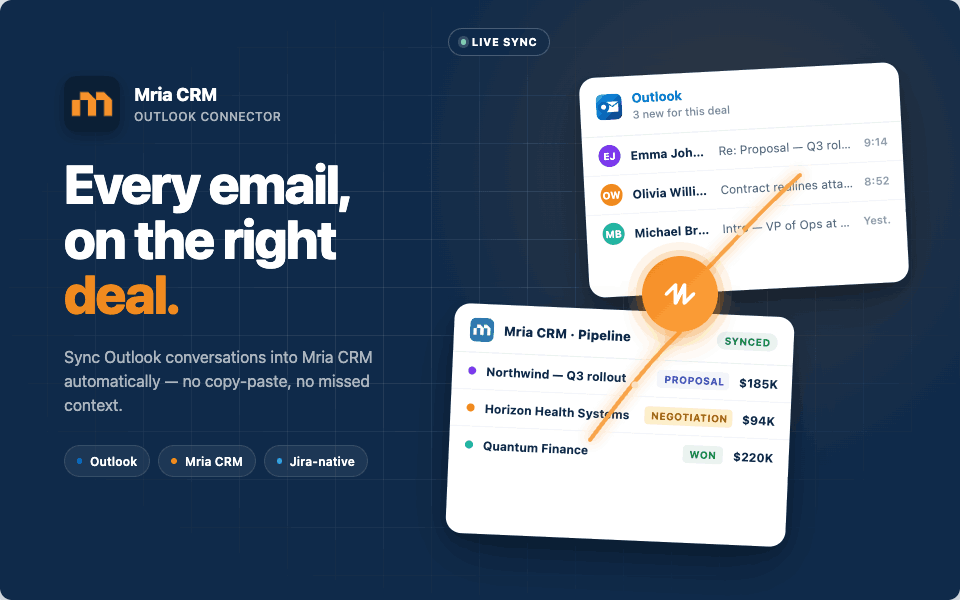
Mria CRM: Outlook Connector brings Microsoft Outlook communication into Mria CRM, so customer emails can be handled from the same Jira-based workspace where teams manage customer relationships and related work.
The connector works as an extension of Mria CRM and adds Outlook email functionality to CRM records. Users can connect their Outlook accounts, send emails from Leads, Contacts, and Deals, sync incoming messages, and keep customer email history connected to the records where follow-ups, decisions, and next steps are managed.
This gives teams more complete customer context inside Mria CRM. Instead of looking for important conversations across separate inboxes, users can review Outlook email history together with CRM activities, linked Jira work, and connected Confluence pages. Sales, support, account management, and delivery teams can understand what was discussed before acting on a deal, request, task, or customer update.
Mria CRM: Outlook Connector is available as a separate Atlassian Marketplace app for Jira Cloud. Mria CRM must be installed first, then the connector can be added to enable Outlook email integration.
Why Outlook Integration Matters for CRM in Jira
Customer relationships are not managed only through CRM fields, pipeline stages, and reports. A lot of important context still lives in email.
A lead may reply with a new requirement. A customer may confirm a next step. A contact may share details that affect a deal, support request, or delivery task. When those emails stay only in personal Outlook inboxes, the rest of the team may miss important context.
Mria CRM: Outlook Connector helps bring that communication into the same place where the team already manages customer records and Jira work.
With Outlook emails connected to Mria CRM, sales, support, account management, and delivery teams can review customer communication without switching between Jira, CRM records, and separate inboxes.
What Teams Can Do with Mria CRM: Outlook Connector
With the Outlook Connector installed, users can manage customer email communication directly from Mria CRM records.
Teams can:
- Send Outlook emails from Lead, Contact, and Deal records
- Sync incoming Outlook emails with matching CRM records
- View customer email history inside Mria CRM
- Reply, reply all, and forward synced emails
- Connect multiple Outlook accounts for different users
- Control who can see synced emails
- Define which incoming emails should or should not be synced
- Keep Outlook communication together with CRM activities and linked Jira work
This helps teams reduce manual email logging, improve visibility across customer-facing roles, and keep customer communication closer to the work happening in Jira.
Key Features of Mria CRM: Outlook Connector
Mria CRM: Outlook Connector focuses on the email workflows teams need most often when managing customer relationships in Jira: sending messages, syncing replies, reviewing communication history, and controlling how email data is shared.
The features below show how Outlook communication becomes part of daily CRM work in Mria CRM, from the first follow-up to ongoing account, support, and deal communication.
1. Send Outlook Emails from CRM Records
Users can compose and send Outlook emails directly from Lead, Contact, and Deal records in Mria CRM.
This keeps customer communication connected to the record from the start, so follow-ups, deal updates, and support-related conversations stay close to the customer context.
2. Sync Incoming Outlook Emails with Mria CRM
Incoming Outlook emails can be synced back into Mria CRM and connected to matching CRM records by email address.
This helps teams keep customer replies visible inside the CRM instead of leaving important context only in individual Outlook inboxes.
3. Keep Customer Email History Connected to Leads, Contacts, and Deals
Synced emails become part of the customer history in Mria CRM.
Teams can review Outlook conversations together with CRM activities, related Jira work, and connected Confluence pages before the next follow-up, support response, or deal update.
4. Connect Multiple Outlook Accounts
The connector supports multiple Outlook accounts, including personal mailboxes and shared addresses used for customer communication, allowing different users to connect their own mailboxes.
This supports customer-facing workflows where sales, support, account management, and delivery teams may all communicate with the same customer from different inboxes.
4. Manage Email Visibility
Users can control who can see emails synced from their Outlook account.
Visibility options include:
- Private: emails are visible only to the Outlook account owner
- Public: emails are visible to all users in the Mria CRM site
- Shared: emails are visible only to selected users
These options help teams collaborate around customer communication while keeping control over mailbox visibility.
5. Control Which Outlook Emails Are Synced
Users can define which incoming Outlook emails should be added to Mria CRM.
Available sync restriction options include:
- Sync all incoming emails
- Exclude emails from selected addresses
- Sync only emails from allowed addresses
This helps keep CRM email history relevant and avoids adding unnecessary inbox conversations to customer records.
6. Reply, Forward, Unlink, or Delete Synced Emails
Synced emails can be managed directly from Mria CRM.
Users can reply, reply all, forward, unlink an email from a specific CRM record, or delete a synced email from Mria CRM when needed. This keeps daily email actions close to the customer record while the original message remains in Outlook.
How to Start Using Mria CRM: Outlook Connector
To use Outlook integration in Mria CRM, teams need both apps installed on the same Jira Cloud site: Mria CRM as the main CRM app and Mria CRM: Outlook Connector as the email integration extension.
To start using Mria CRM: Outlook Connector:
- Make sure Mria CRM is installed on your Jira Cloud site.
Mria CRM: Outlook Connector works only with Mria CRM. If the main Mria CRM app is already installed, you can continue with the Outlook Connector setup. - Install Mria CRM: Outlook Connector from the Atlassian Marketplace.
The connector is installed as a separate app and becomes available from the Atlassian app switcher after installation. - Enable App REST APIs for Mria CRM.
Before Outlook emails can be synced with CRM records, an Atlassian site admin must enable App REST APIs for the Mria CRM app in Atlassian Administration. - Connect the Outlook Connector to Mria CRM.
Open Mria CRM: Outlook Connector and click Connect Mria CRM. After approving the Atlassian authorization request, the connector is linked to Mria CRM and ready for Outlook account connection. - Add an Outlook account.
Click Add Outlook Account, sign in with Microsoft, choose the Outlook account you want to connect, and approve the requested permissions. - Configure sync and visibility settings.
Set the account status, choose email visibility, and define restrictions for incoming email sync if needed. - Start using Outlook emails in Mria CRM.
Once the account is connected and active, users can send emails from Mria CRM records, view synced email history, and manage Outlook conversations from Mria CRM.
For detailed setup instructions, read the Outlook Integration documentation.
How Outlook Integration Works Inside Mria CRM
After setup, Outlook email functionality becomes available inside Mria CRM records. Users work with customer emails from the Emails tab in Leads, Contacts, and Deals.
1. Open the Emails Tab on a CRM Record
Users start from a Lead, Contact, or Deal in Mria CRM.
The Emails tab shows Outlook email communications associated with that record. This is where users can review email history, send new emails, and manage synced conversations.
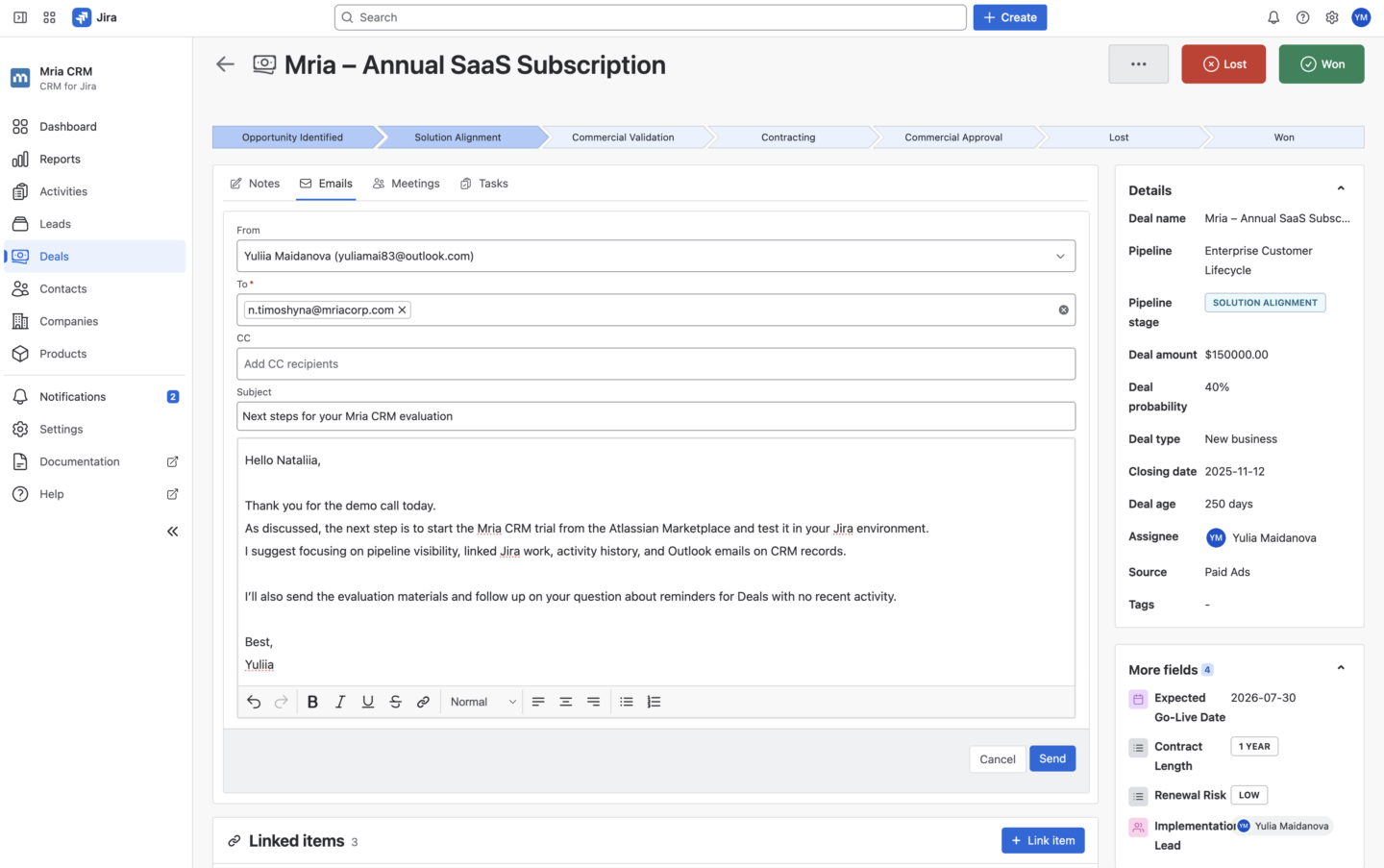
2. Send an Email Through a Connected Outlook Account
From the Emails tab, users can create a new email and choose one of the connected Outlook accounts as the sender.
The email is sent through Outlook, but it stays connected to the CRM record in Mria CRM. This keeps customer communication close to the Lead, Contact, or Deal where the follow-up started.
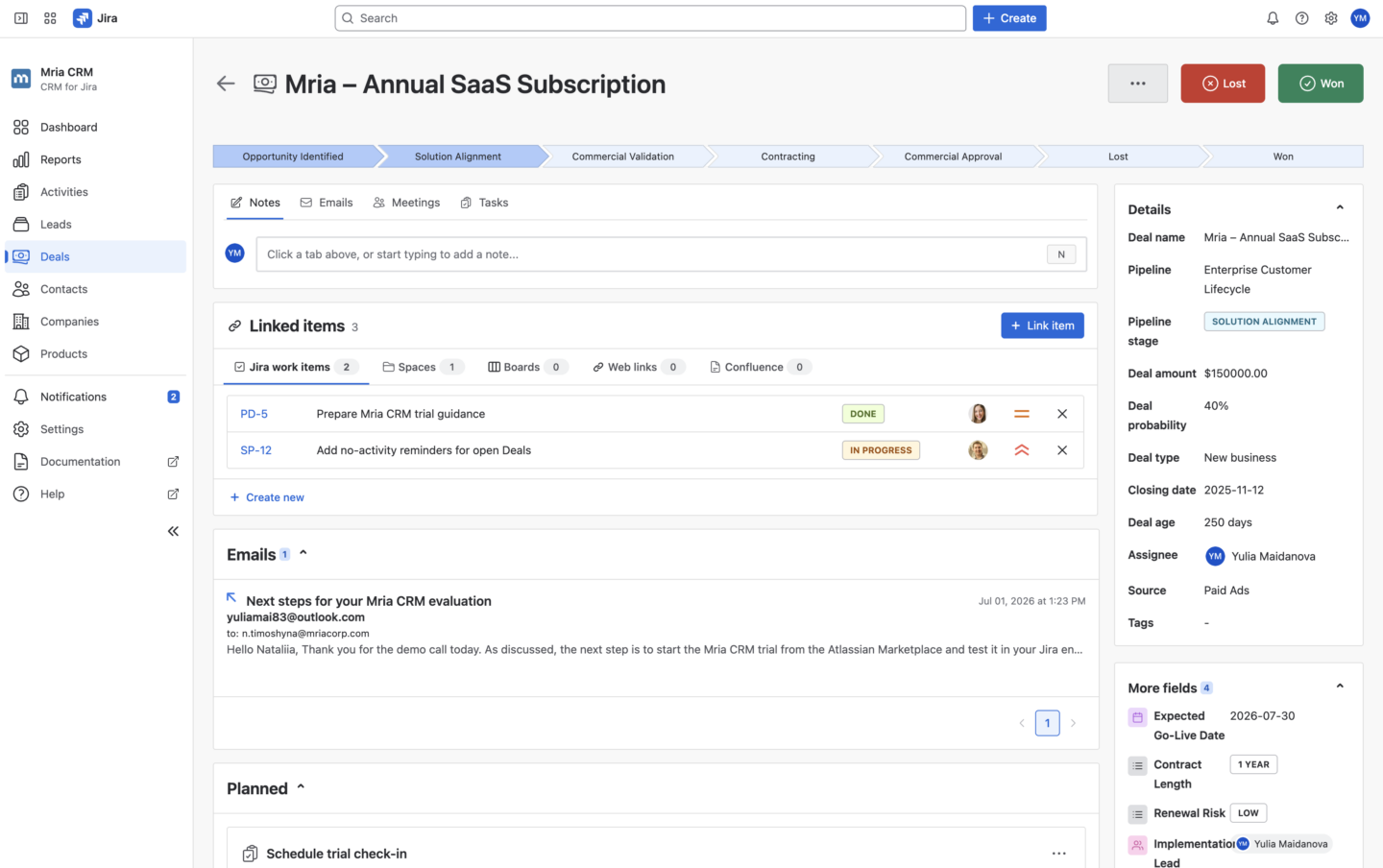
3. Sync Customer Replies Back to Mria CRM
When the customer replies in Outlook, the incoming email is synced back to Mria CRM.
The connector matches incoming emails with CRM records by email address, so replies can appear on the related Lead, Contact, or Deal without manual copying.
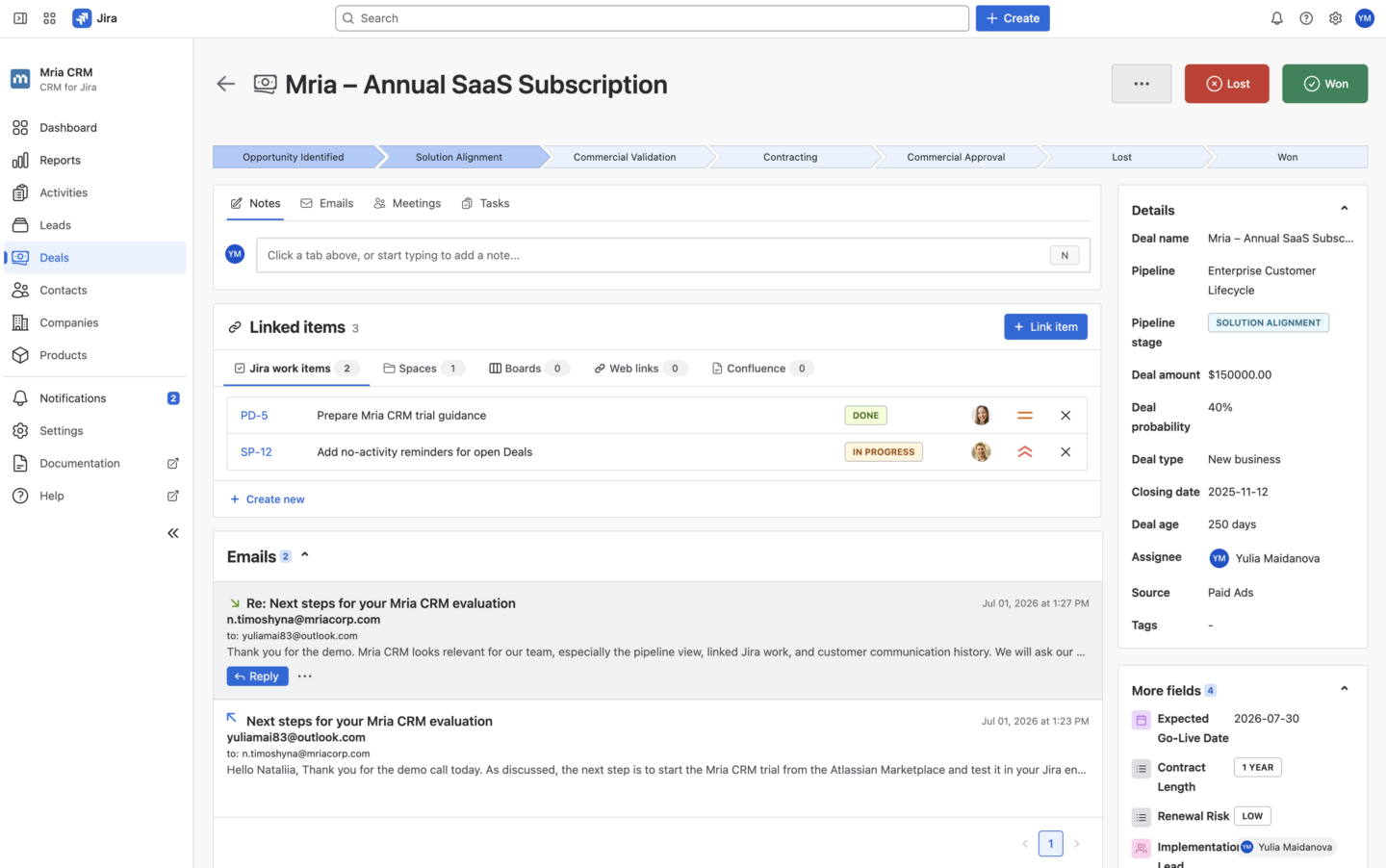
4. Review Email History with Customer Context
Synced emails stay in the record’s email history.
Teams can review Outlook conversations together with CRM activities, linked Jira work, and connected Confluence pages before the next follow-up, support response, or deal update.
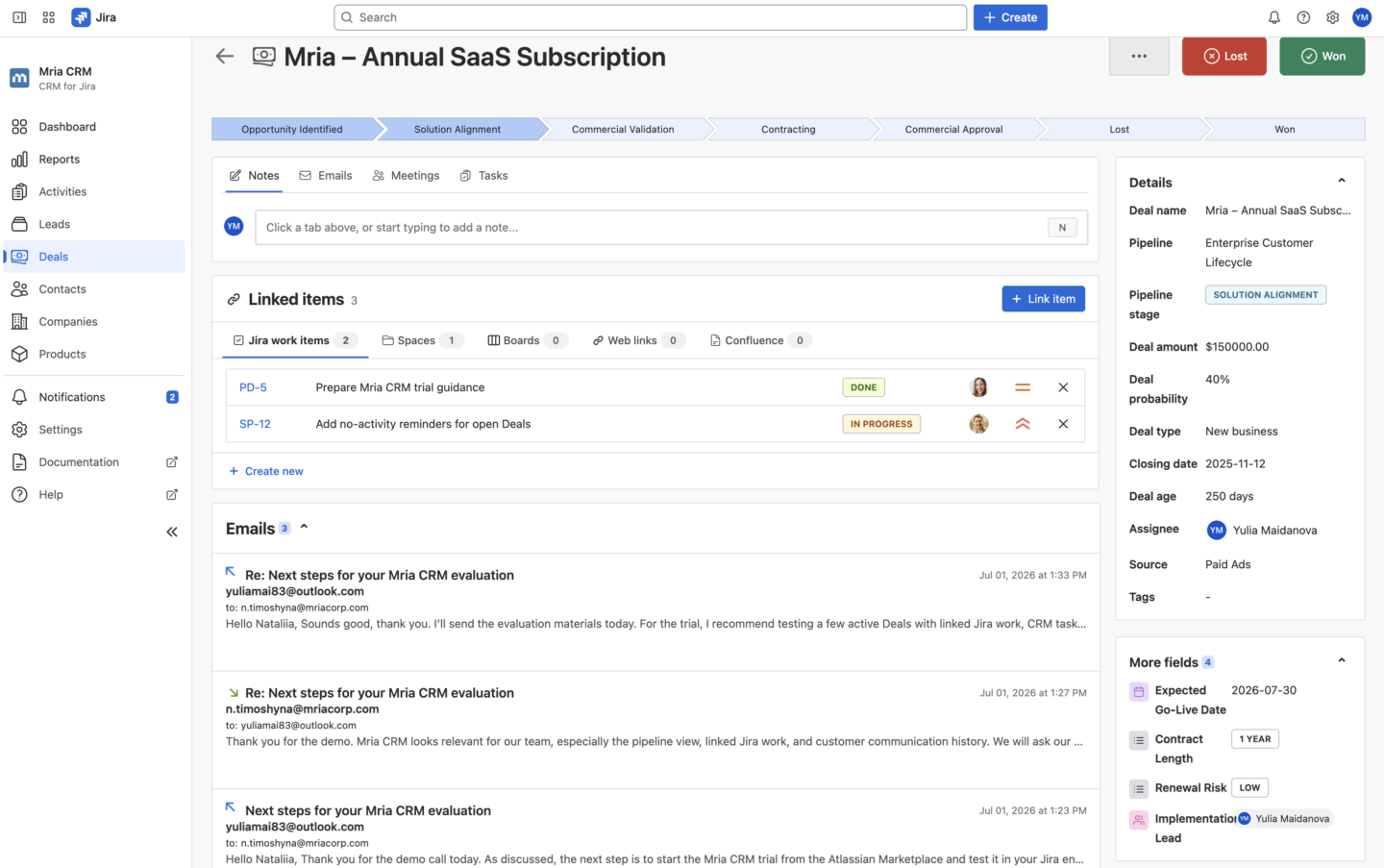
5. Manage Synced Emails from the CRM Record
Users can manage synced emails directly from Mria CRM.
Available actions include reply, reply all, forward, unlink from a record, and delete from Mria CRM.
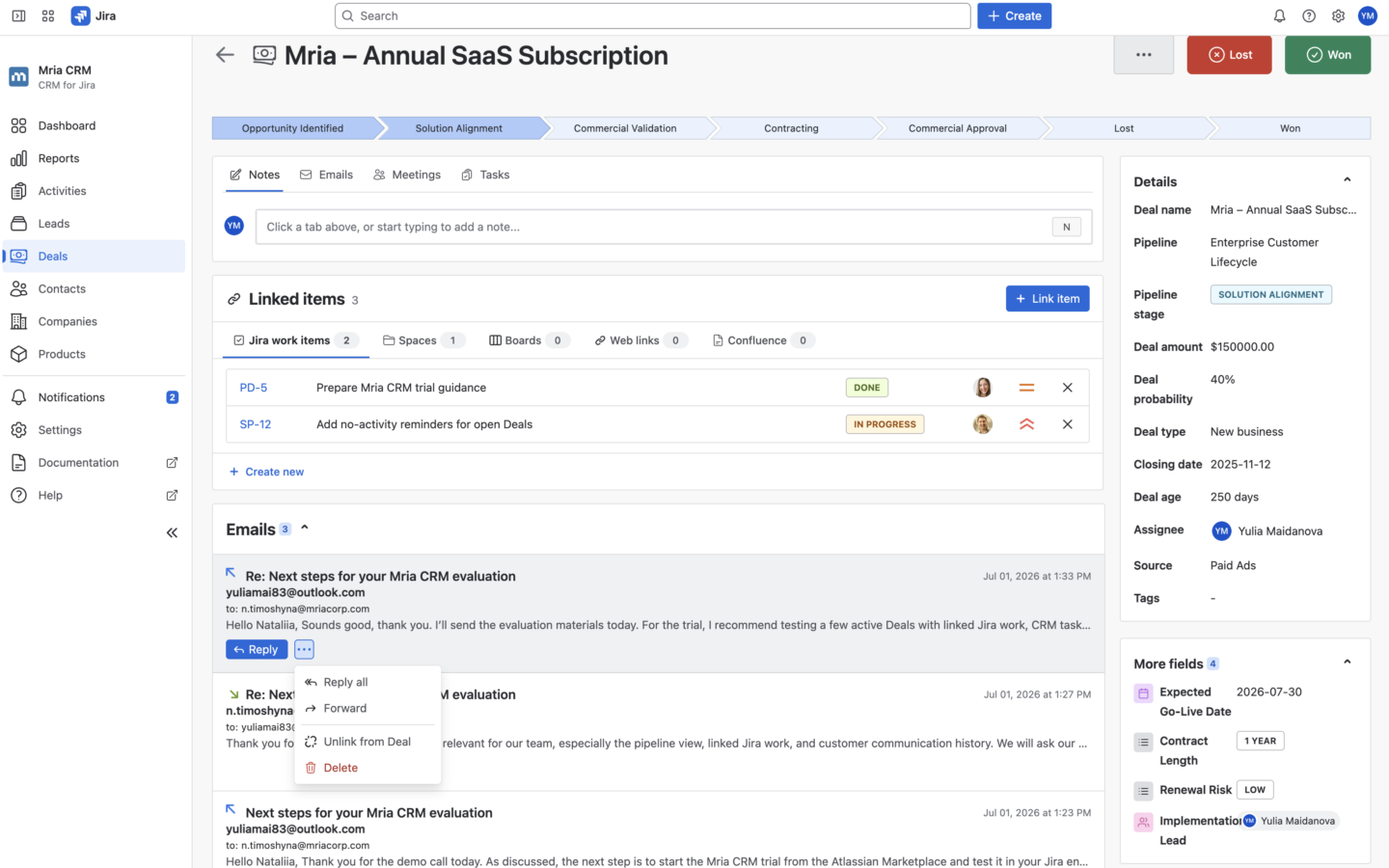
6. Control Visibility and Sync Rules
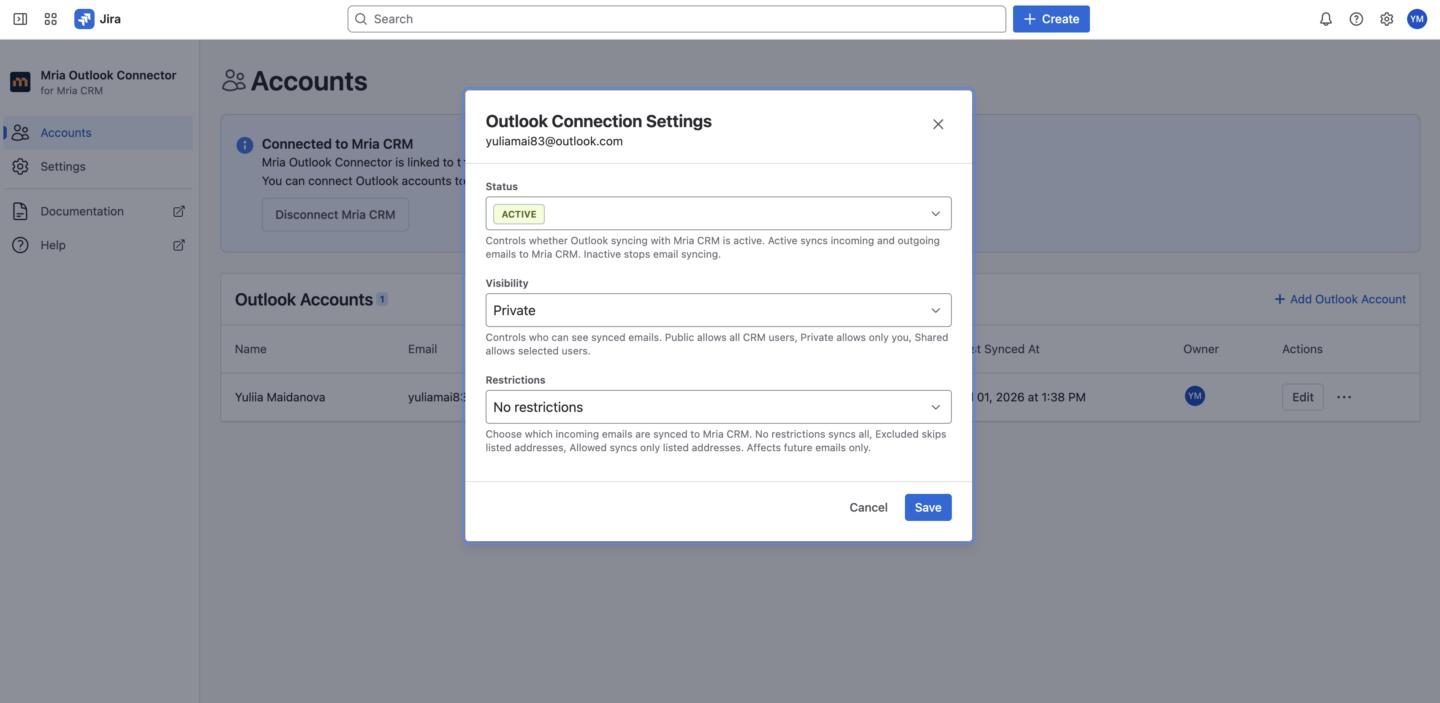
Visibility and sync rules are configured for each connected Outlook account in Mria CRM: Outlook Connector.
Users can choose whether synced emails stay private, are shared with selected users, or are visible to the full Mria CRM team. They can also control incoming sync by excluding selected email addresses or allowing only specific addresses.
These settings define which Outlook conversations appear in CRM records and who can see them.
Expanding Email Integration for Mria CRM
The release of Mria CRM: Outlook Connector expands email integration options for teams using Mria CRM.
Mria CRM already supports Gmail integration through Mria CRM: Gmail Connector. With the Outlook Connector now available, teams can connect the email platform they use every day, whether they work in Gmail or Microsoft Outlook.
Both connectors serve the same goal: keeping customer email communication close to CRM records in Jira. Emails can be connected with Leads, Contacts, and Deals, so teams can review conversations together with CRM activities, linked Jira work, and connected Confluence pages.
For Jira teams, this means more customer context in one place and fewer important conversations left only in individual inboxes.
Get Started with Mria CRM: Outlook Connector
Mria CRM: Outlook Connector is available now on the Atlassian Marketplace.
If your team already uses Mria CRM, you can install the Outlook Connector, connect your Outlook account, and start working with customer emails from Leads, Contacts, and Deals.
If you are new to Mria CRM, start with the main Mria CRM app first, then add the Outlook Connector to bring Microsoft Outlook communication into your CRM workflow in Jira.
To learn more:
- Book a demo to see how Mria CRM connects customer records, Jira work, Confluence context, and email communication in one workspace
- Install Mria CRM: Outlook Connector on the Atlassian Marketplace
- Read the Outlook Integration documentation