Today we are releasing an update that has been at the top of our customers’ wishlist. Custom Fields are now live across every core entity in Mria CRM — Leads, Deals, Contacts, Companies, and Products. This release also brings smarter Lead-to-Deal conversion, a complete change log for every custom field, and a series of improvements to Dashboard and Reports.
How Custom Fields Change the Way Your Team Uses Mria CRM
Every team that uses a CRM has its own way of working. Sales teams want to track contract length and renewal dates. Account managers want to mark customer health and expansion potential. Support teams want to capture SLA tier and entitlement. The standard fields cover the basics, but the work itself always has more dimensions than the default schema allows.
Without a way to add fields, this data ends up in description boxes, in notes, in spreadsheets on the side, or simply lost. For teams running CRM inside Jira, this was a particular pain point. The whole reason to bring CRM into Jira is to keep customer data in one structured place, connected to the work happening alongside it. But structure only works if it matches reality.
Custom Fields close this gap. Mria CRM now holds the full picture of a customer relationship, exactly as your team defines it.
Where Custom Fields Live in Mria CRM
Custom Fields are available on all five core entities: Leads, Deals, Contacts, Companies, and Products. Each entity has its own independent set of custom fields, configured separately in Settings. If you want the same field on Leads and Deals (a Lead Score, for example), you create it on both.
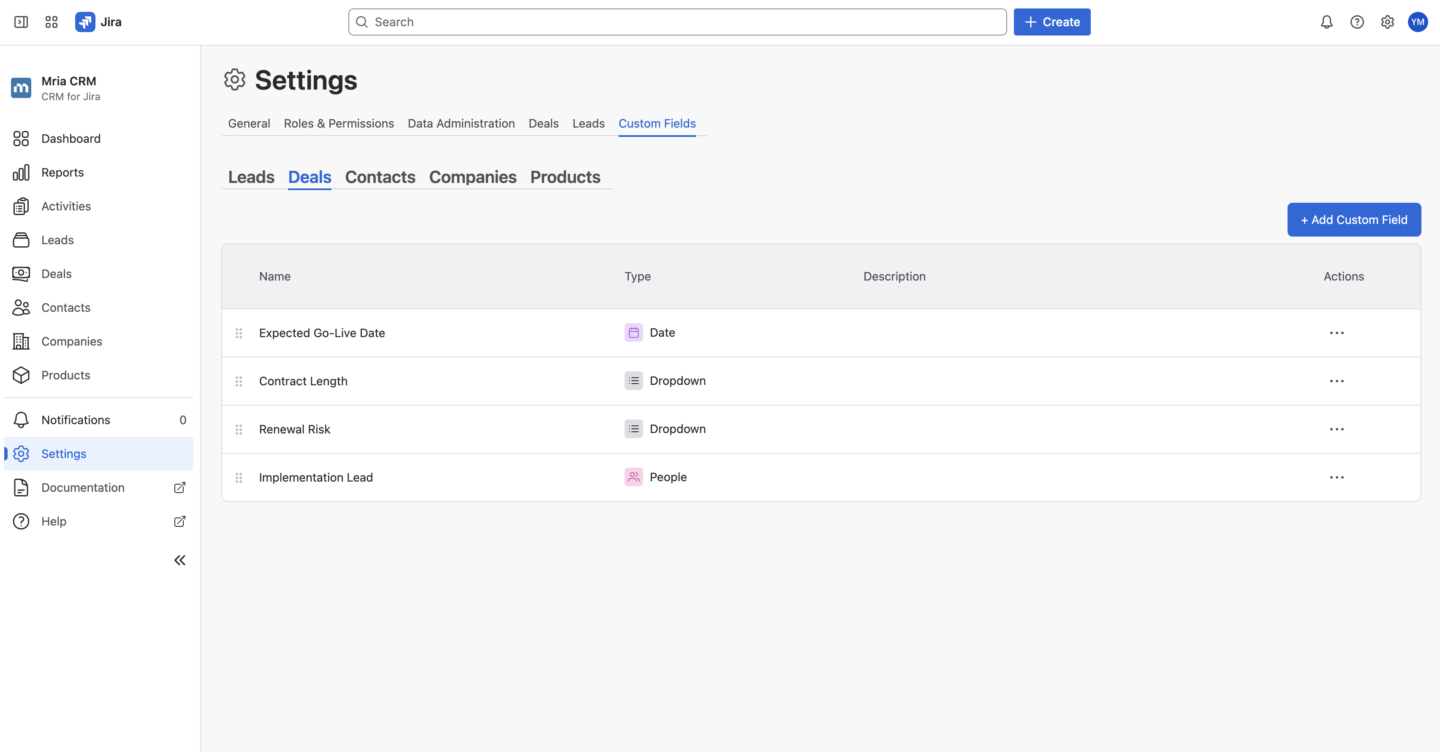
- In Settings. Admins manage Custom Fields under Settings → Custom Fields, with a separate tab for each entity. Each tab shows the existing fields with their name, type, and description, drag handles to reorder, and a menu to edit or delete. New fields are added with a single click and are immediately available across the CRM.
- On the record’s detail page. Every custom field appears in the More fields section on the right side of the page, alongside standard fields. This is where your team fills in and edits values day to day — opening a record, updating the data, moving on.
- In table views. Open Customize columns on any entity table view and toggle the custom fields you want to see. They become sortable, searchable columns alongside the standard ones. Column visibility and order are saved per user, so each person can shape the list around what they need to scan.
- In filters. Custom fields appear in the filter panel (Advanced tab) under their entity. Filter combinations (Basic & Advanced) work across standard and custom fields together.
- In reports. Deal custom fields are available as columns and breakdowns in deal-based reports. Support for custom fields in other report types is expanding.
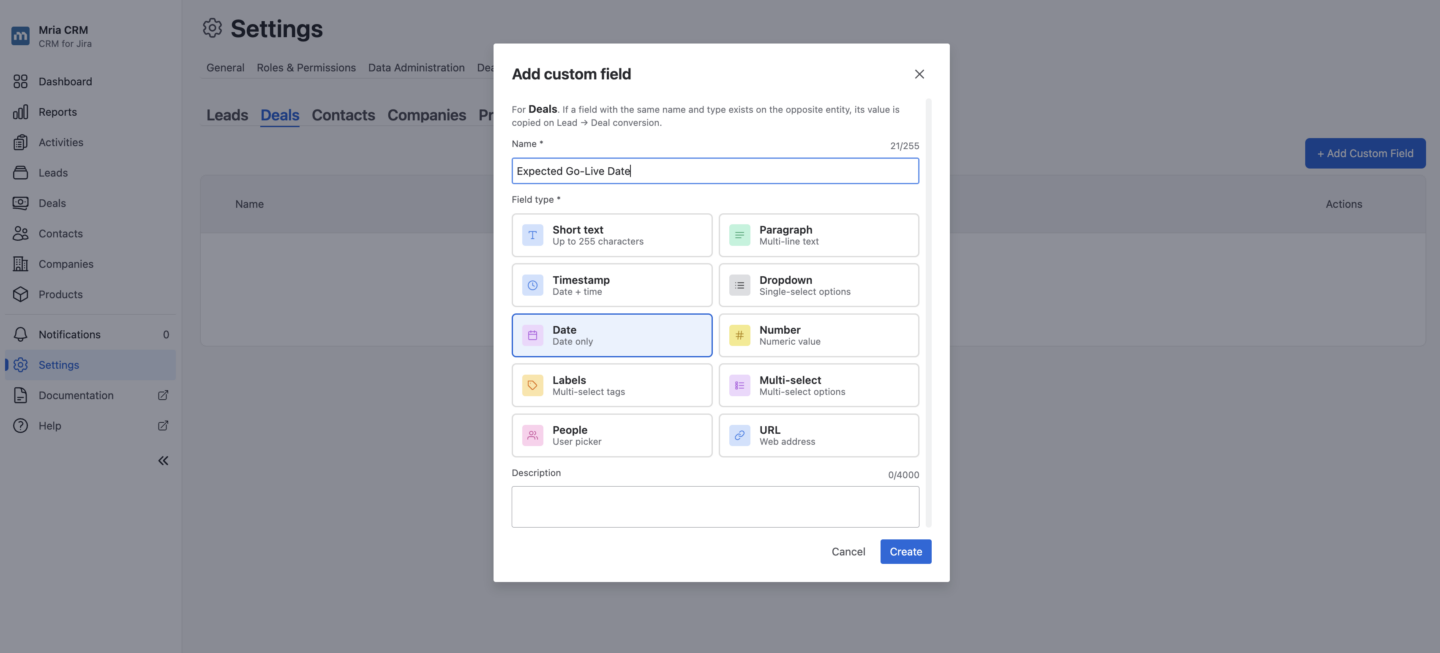
Ten field types are supported, covering text (short text and paragraph), structured choices (dropdown, multi-select, and labels with suggestions), quantitative data (number, date, timestamp), people pickers, and URLs.
How to Set Up Your First Custom Field
Custom Fields are configured by your Mria CRM admin in Settings.
1. Go to Settings → Custom Fields in Mria CRM
2. Select the entity you want to customize (Leads, Deals, Contacts, Companies, or Products)
3. Click Add field, choose a field type, and give it a clear name
4. Save
The field is immediately available across Mria CRM for everyone on your team — on every record of that entity, in list view columns, in filters, and in CSV exports.
For full details and a field-by-field reference, see the Custom Fields documentation.
Example: Custom Fields on an Enterprise Deal in Mria CRM
To make this concrete, here is what Custom Fields look like for a sales team running enterprise deals on Mria CRM.
For a deal like CloudRidge — Enterprise Jira Migration & Support Enablement, four custom fields on the Deal record carry the information the team needs throughout the lifecycle:
- Expected Go-Live Date (Date) — when the customer plans to be in production on Atlassian Cloud. Different from the Closing Date, because contracts are often signed months before go-live.
- Contract Length (Dropdown: 1 year, 2 years, 3 years) — the commitment level, which directly affects revenue scenarios and renewal planning.
- Renewal Risk (Dropdown: Low, Medium, High) — the team’s read on how likely this customer is to renew, updated throughout the engagement.
- Implementation Lead (People picker) — the Jira user from the delivery team who owns the migration after Closed Won.
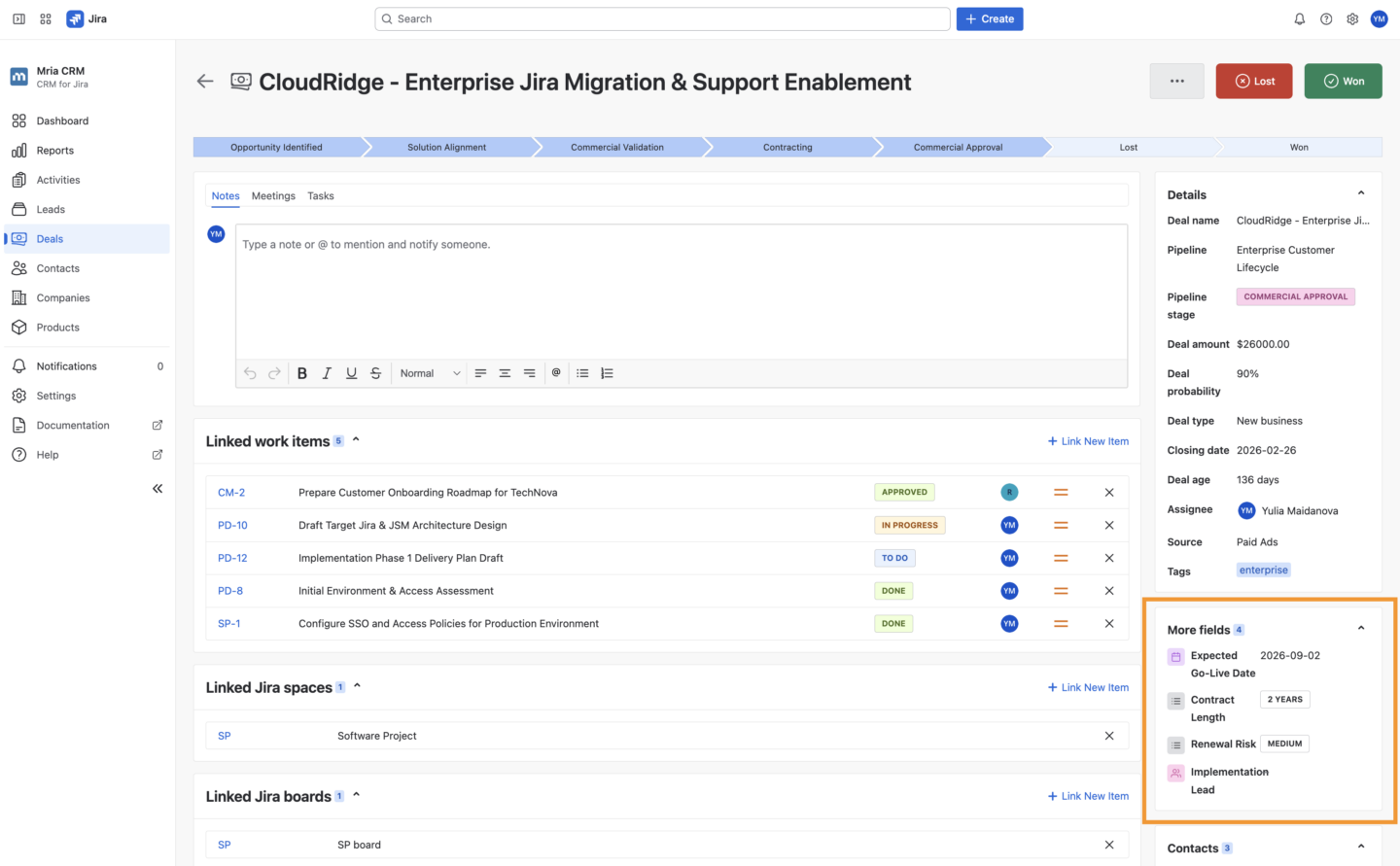
All four fields appear on the Deal’s detail page in the More fields section, available to fill in as the deal progresses.
The same fields show up as columns in the Deals table view, so the team can scan the entire pipeline by Renewal Risk or Expected Go-Live Date in seconds. When the team exports deals to CSV, the custom values come with them. And when the deal closes, the Timeline tab shows every change to those fields, with who made it and when.
This is what we mean by Custom Fields behaving like first-class fields throughout Mria CRM. They are not a separate area you have to remember to check. They show up where your team is already working.
What This Release Means for Mria CRM
Until now, Mria CRM was a CRM with a fixed schema and a defined feature set. From this release forward, it is a platform that teams configure around their own data, their own process, and their own way of working while still being a native Jira app, still Forge-built, still Runs on Atlassian, still connected to the Jira work happening alongside it.
This is the direction we have been moving since launch. Every release has added more depth: pipelines, reports, integrations, Gmail sync. Custom Fields are the piece that unlocks all of it for the real-world teams that actually run on Mria CRM.
Other Updates in This Release
Lead → Deal Custom Field Copy. When converting a Lead to a Deal, custom fields that exist on both entities with the exact same name and the same field type carry their values over automatically. No more re-entering the same data twice. If names or types differ, the fields are treated as separate — so create matching fields on both entities when you want values to follow through conversion.
Custom Field History on the Timeline. Every custom field edit is now logged on the record’s Timeline tab. You can see who changed which field, when, and the value before and after. History is preserved even after a field is deleted, so audit trails are complete.
Dashboard and Reports improvements. A new “All Pipelines” option lets you aggregate deal stages with identical names (like Won and Lost) across multiple pipelines, giving you a unified view of performance across workflows. Total rows now appear under every table in Reports. Deal probability is available in reports and filters. And when exporting with the Contact name column, an Email column is included automatically.
Get Started with Custom Fields in Mria CRM
Custom Fields are live in Mria CRM — open Settings → Custom Fields to start configuring fields for your team.
For deeper guidance, see the Custom Fields documentation and the full release notes.
If you want a walkthrough tailored to your team’s workflow, book a demo or reach out via our support team.
New to Mria CRM? Try it free on the Atlassian Marketplace and explore everything Custom Fields make possible from day one.