The latest Mria CRM releases add 13 gadgets for Jira dashboards, custom fields that link CRM records, and VAT settings for Products and Deals. Teams also get new dashboard widgets, forecast periods, PDF export, and additional ways to share emails and display notes.
What’s New in Mria CRM
- 13 Jira dashboard gadgets for sales metrics, assigned work, customer records, and CRM data linked to Jira queries.
- 10 new record-linking custom field types with single or multiple record selection.
- VAT settings for Products and Deals with Exclusive, Inclusive, and None modes.
- New dashboard widgets, forecast settings, KPI options, and PDF export.
- Save emails as notes and add a Notes block to CRM record pages.
- More configuration, reporting, file API, and usability updates.
13 New Mria CRM Gadgets for Jira Dashboards
Mria CRM data can now be displayed directly on Jira dashboards. We’ve added 13 gadgets that you can combine with the Jira gadgets your team already uses to review project, delivery, and support work.
| Gadget group | New gadgets |
|---|---|
| Sales metrics and charts | CRM Metrics, Pipeline Funnel, Revenue Trend, Leads by Status |
| Assigned records and activities | My CRM Activities, My Leads, My Deals, Assigned to Me |
| JQL-based views | CRM Records by JQL, Work Items by CRM Attribute, Revenue at Risk |
| Individual record views | Company Spotlight, Deal Spotlight |
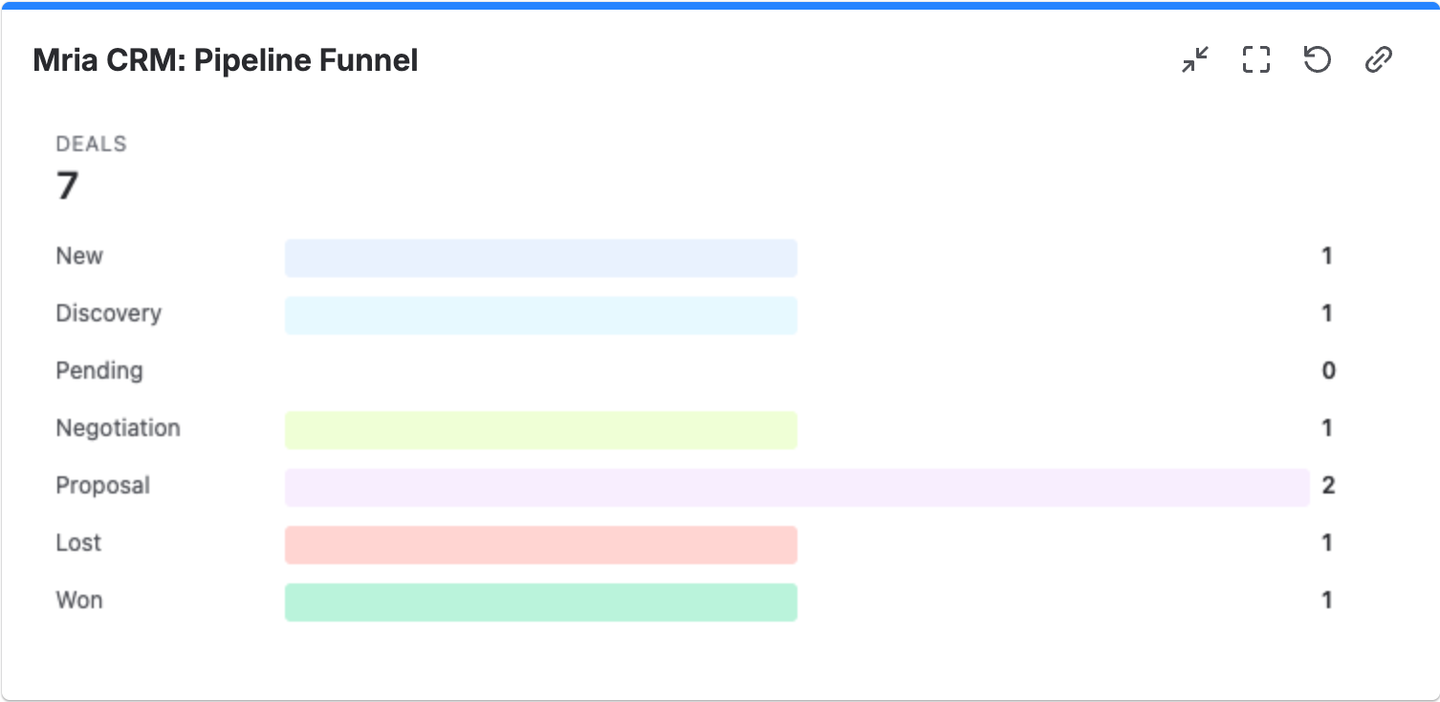
For example, a sales team can place Pipeline Funnel and Revenue Trend beside a list of pre-sales tasks. An account team can use Company Spotlight to review a selected customer alongside related Jira work. The JQL-based gadgets start with a query or saved filter and show CRM information connected to the matching work items.
Revenue at Risk shows linked open Deals and totals their amounts and weighted amounts. This adds commercial context when reviewing a set of Jira work items, such as unresolved product issues associated with active opportunities.
To add a gadget, open a Jira dashboard, select Edit → Add gadget, and search for Mria CRM. Choose the gadget, configure it, and save its settings.
Every viewer sees only the CRM information their Mria CRM role allows. The gadgets provide read-only views, with links to open the underlying records.
Explore Mria CRM Gadgets for Jira Dashboards.
New Custom Field Types for Linking CRM Records
We’ve added 10 new custom field types: Deal, Lead, Contact, Company, and Product, each available with single or multiple record selection.
These fields let your team define additional relationships between CRM records. Instead of entering a record’s name as text, users select the relevant record and can open it through the resulting link.
Example: Parent Companies and Deal Champions
- Parent Company on a Company record: create a Company-type custom field to identify the organization’s parent.
- Champion on a Deal: create a Contact-type custom field to identify the person supporting that opportunity.
- Buying Committee on a Deal: use a multiple-Contact field when several people need to be recorded in that role.
Administrators configure these fields in Settings → Custom Fields for the record type where the field should appear.
The selected records appear as links on record pages and in table columns. Filters use a record picker, exports include the linked record’s name and ID, and imports match records by name.
Each core record type now supports up to 1,000 custom fields.
Explore Custom Fields in Mria CRM.
VAT Settings for Products and Deals
VAT has replaced Tax in Products and Deals. Each Product now has a VAT mode and percentage, and the Products list includes a VAT column.
Three VAT modes are available:
- Exclusive: VAT is added to the product price.
- Inclusive: VAT is already included in the product price.
- None: no VAT is applied.
VAT on Deal Product Lines
When you add a Product to a Deal, the line inherits that Product’s VAT settings. You can adjust the mode and rate for the individual line.
Deals now display Net, VAT, and Total. The Total is used as the Deal amount, making the VAT treatment part of the amount shown on the opportunity.
For a single product line with a price of 100, a 20% VAT rate, and no discount, the difference is:
| VAT mode | Net | VAT | Total |
|---|---|---|---|
| Exclusive | 100.00 | 20.00 | 120.00 |
| Inclusive | 83.33 | 16.67 | 100.00 |
| None | 100.00 | 0.00 | 100.00 |
Workspace Defaults, Import, and Bulk Editing
Administrators can set a Default VAT mode and Default VAT % in General Settings. These values pre-fill new Products.
Product imports can map VAT Mode and VAT Rate, and bulk editing can update both settings across selected Products.
Existing tax rates have been converted to Exclusive VAT at the same percentage.
Explore Products and VAT settings or see General Settings.
New Dashboard Widgets, Forecast Settings, and PDF Export
Dashboards inside Mria CRM have also received several additions. These updates expand the available customer analysis and give teams more control over the periods and figures included in a review.
Seven New Company and Contact Widgets
We’ve added the following dashboard widgets:
- Companies by Industry, Companies by Country, and Companies by Size.
- Contacts by Job Title, Contacts by Company Type, and Contacts by Company Size.
- Contacts by two fields: a stacked view combining two dimensions, such as Company Size and Job Title.
The Custom field breakdown widget now supports Contacts, Companies, and Products, alongside Deals and Leads.
For example, if Companies have a custom field called Market Segment with values such as Enterprise, Mid-Market, and Small Business, the widget can show how many Companies fall into each segment.
Forecast Periods and Expanded KPI Cards
Forecast by Closing Month now has a Period setting. Choose all open Deals, the next 3, 6, or 12 months, or the current year. Deals outside the chosen window can be displayed in Overdue, Later, and No closing date groups, or excluded.
KPI cards can now display up to 12 figures, with additional counts for open and unassigned Leads, Contacts, and Companies. Dashboard widgets also follow the workspace’s date and number formats.
Export Mria CRM Dashboards to PDF
Dashboard PDF export is now available from the dashboard’s ⋯ menu.
The export produces an A4 landscape PDF, with several widgets on each page. Widgets follow their dashboard order, and KPI cards are kept together.
This gives teams a way to include the dashboard in a meeting pack or share a dated view of the figures being reviewed.
Explore Dashboards in Mria CRM.
Save Emails as Notes and Display Notes on Record Pages
New Save as Note Action for Emails
Save as note is now available for emails on Leads, Deals, and Contacts. It creates a note on the same record, making the email’s content available to everyone who can access that record.
For example, an account owner can save a customer’s scope confirmation or procurement update as a note so colleagues reviewing the record can read it.
Optional Notes Block for CRM Record Pages
We’ve added a dedicated Notes block for Lead, Deal, Contact, and Company pages. It lists the record’s notes directly on the page.
The block is hidden by default. Administrators can make it visible in Settings → Layouts and position it within the record layout.
For Contacts and Companies, notes are now created through the Notes tab and available in the Timeline, following the same activity structure as Leads and Deals.
Explore email and note activities or see Record Layouts.
Editable Industries and Company and Contact Types
Administrators can now add, rename, and remove industries under Settings → Companies → Industries.
Company and Contact types are also more configurable: Customer and Other can now be renamed or deleted like other types.
The first type in the Companies list is the default. When deleting a type that is in use, administrators choose which type should receive its records. The last remaining type cannot be deleted.
File Attachments Through the Mria CRM REST API
The REST API now supports attaching files to Leads, Deals, Contacts, and Companies, as well as listing, downloading, and deleting those files.
For integrations that create or update CRM records, this allows related documents to be handled as part of the same workflow. Files up to 10 MB are supported through both the API and the Files tab.
Explore REST API File Attachments.
Other Improvements in These Mria CRM Releases
- Sales Performance by Assignee: Open Amount and Weighted Open Amount are now available as optional columns through Customize table.
- Deal filtering: the Pipeline Stage filter now includes Won and Lost.
- What’s new in the app: a new sidebar item lists recent releases and links to their documentation. It can be replayed from Settings → General.
- Dashboard presentation: supported charts use configured colors, list widgets show colored stage and status chips, and assignees appear with their Jira pictures.
- Record history: a Deal’s Timeline now names the Product that was added or removed.
- Jira Service Management matching: the match panel identifies whether it found a Contact or a Company.
- Usability fixes: reloading a report no longer opens an access error, dialogs use consistent font sizes, and long stage names no longer overlap on the Deal stage bar.
Explore the Latest Mria CRM Updates
The new capabilities are available in Mria CRM. For version-by-version details and configuration guidance, see the full release notes.
To explore how these updates fit your team’s sales and customer workflows, book a demo or visit Mria CRM on the Atlassian Marketplace.