Mria CRM now connects customer data with more of the Atlassian platform, from Jira search and automation to Teamwork Graph, Rovo, and the MCP infrastructure behind agents built in Rovo Studio.
A customer relationship rarely exists in one place. The Deal may be managed in Mria CRM, the work behind it tracked in Jira, supporting knowledge documented in Confluence, and service conversations continued through email. Bringing these pieces together helps every team understand the customer behind the work.
This update adds Teamwork Graph support for CRM records, Jira Custom Fields for JQL and automation, and Mria CRM actions in Rovo Studio through Atlassian’s MCP infrastructure. Teams can build agents that create, search, and update Leads as part of wider Atlassian workflows. The release also introduces Deal Import, email attachments and historical mailbox synchronization, HTML Email Templates, and improvements to Lead import and conversion.
What’s new
- Jira Custom Fields for linked Leads, Deals, Contacts, Companies, and Products
- Atlassian Teamwork Graph support for Mria CRM records
- Mria CRM actions in Rovo Studio through Atlassian’s MCP infrastructure
- Deal Import from CSV and XLSX files
- Email attachments for messages sent from Contacts, Leads, and Deals
- Historical email synchronization for Gmail and Outlook
- HTML Email Templates with a live preview
- New Lead Import options for creating or linking Contacts and Companies
- Better Lead-to-Deal conversion defaults for activities and links
Use Linked Mria CRM Records in JQL and Jira Automation
Linking Mria CRM Deal or Lead to a Jira work item already gave teams access to customer context through the Mria CRM panel. The new Jira Custom Fields make those relationships available to Jira features that work with field data, including search, filters, boards, and automation.
Mria CRM adds five read-only fields:
| Jira Custom Field | CRM data it contains |
|---|---|
| Mria CRM Leads | Leads linked to the Jira work item |
| Mria CRM Deals | Deals linked to the Jira work item |
| Mria CRM Contacts | Contacts linked to the Jira work item |
| Mria CRM Companies | Companies linked to the Jira work item |
| Mria CRM Products | Products linked to the Jira work item |
The fields are populated from the relationships already managed in Mria CRM. Link a work item to a Deal once, and the same relationship appears in the Jira panel and the corresponding custom field. There is no second set of links to maintain.
Find Customer-Related Work With JQL
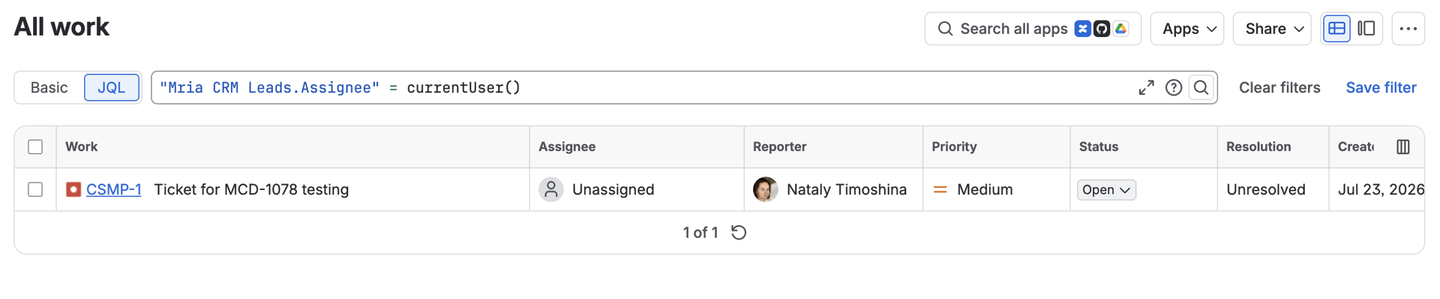
The custom fields and their sub-properties can be queried in JQL. For example:
"Mria CRM Leads.Assignee" = currentUser()This query finds Jira work items linked to Leads assigned to the current user.
Teams can use the fields to build saved filters and boards around customer relationships instead of relying only on project, issue type, or Jira assignee. Jira automation can also use CRM data in rule conditions and actions. A rule might react when a work item becomes connected to a Deal or notify the owner of the related Lead.
Because the fields are read-only, the underlying CRM relationship remains controlled by Mria CRM while Jira can use it in operational workflows.
Read Mria CRM Custom Fields in Jira documentation
Make CRM Records Available to Atlassian Search and Rovo
Mria CRM records can now be published to Atlassian Teamwork Graph, the shared data layer behind Atlassian Search and Rovo.
This allows CRM records to surface with the Jira work and Confluence content connected to the same customer. A team looking for information about an account can discover the sales record together with implementation work, support activity, product issues, and customer documentation across Atlassian.
Jira Custom Fields and Teamwork Graph support extend CRM context in different ways:
| Capability | What it changes |
|---|---|
| Jira Custom Fields | Makes linked CRM data queryable in JQL and usable in Jira filters, boards, and automation |
| Teamwork Graph support | Allows CRM records to surface in Atlassian Search and Rovo alongside Jira and Confluence content |
Together, they make customer relationships available beyond an individual CRM record or Jira panel. Sales context can participate in the same search and automation layer already used by delivery, service, and product teams.
Read the Teamwork Graph and Atlassian Search documentation
Build Rovo Studio Agents That Work With Mria CRM Records
Teamwork Graph gives Rovo the CRM context a user is permitted to see. Rovo Studio lets teams go further by building agents that can take actions in Mria CRM as part of a wider workflow.
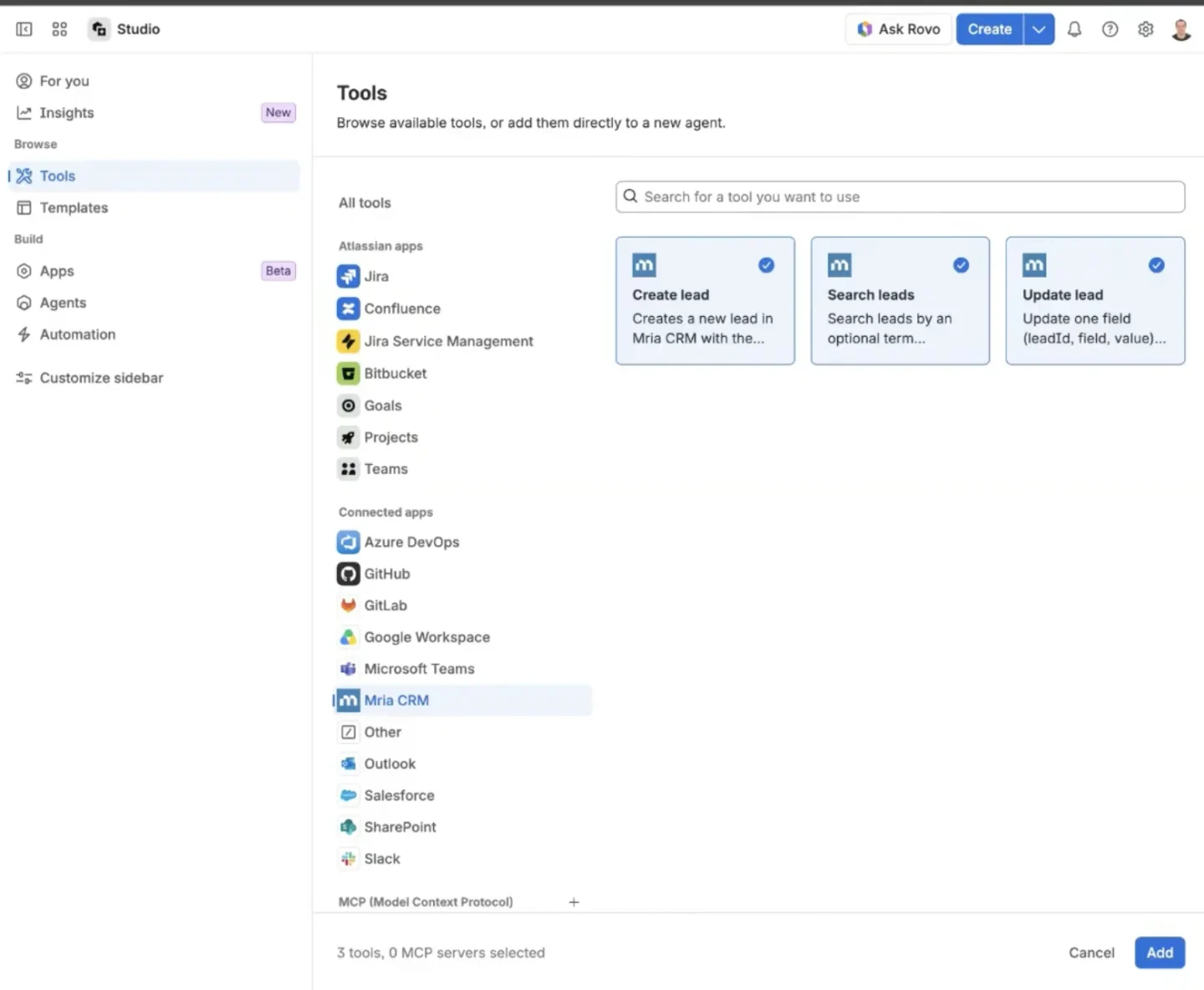
Mria CRM is available under Connected apps in the Rovo Studio tool browser with three actions:
- Create lead creates a new Lead in Mria CRM.
- Search leads finds Leads, with an optional search term.
- Update lead changes one field on a Lead using its ID, the field name, and the new value.
To add the actions, open Rovo Studio → Tools → Connected apps → Mria CRM, select the tools the agent needs, and add them to the agent.
Agents act with the permissions of the person using them. They can access and change only the Mria CRM records that person could work with directly. Adding a CRM tool to an agent does not grant additional access.
Atlassian provides the Rovo Studio builder, agent governance, and MCP infrastructure. Mria CRM contributes its CRM actions through Connected apps, so there is no separate Mria CRM MCP server to install, host, or configure.
Because Create lead and Update lead change CRM data, test an agent with non-critical records before making it available more widely.
Read the MCP and Rovo Studio documentation
Import Deals From CSV or XLSX Files
Deal Import completes bulk import across every main Mria CRM entity. Teams can now import Leads, Contacts, Companies, Products, and Deals without creating active opportunities one by one.
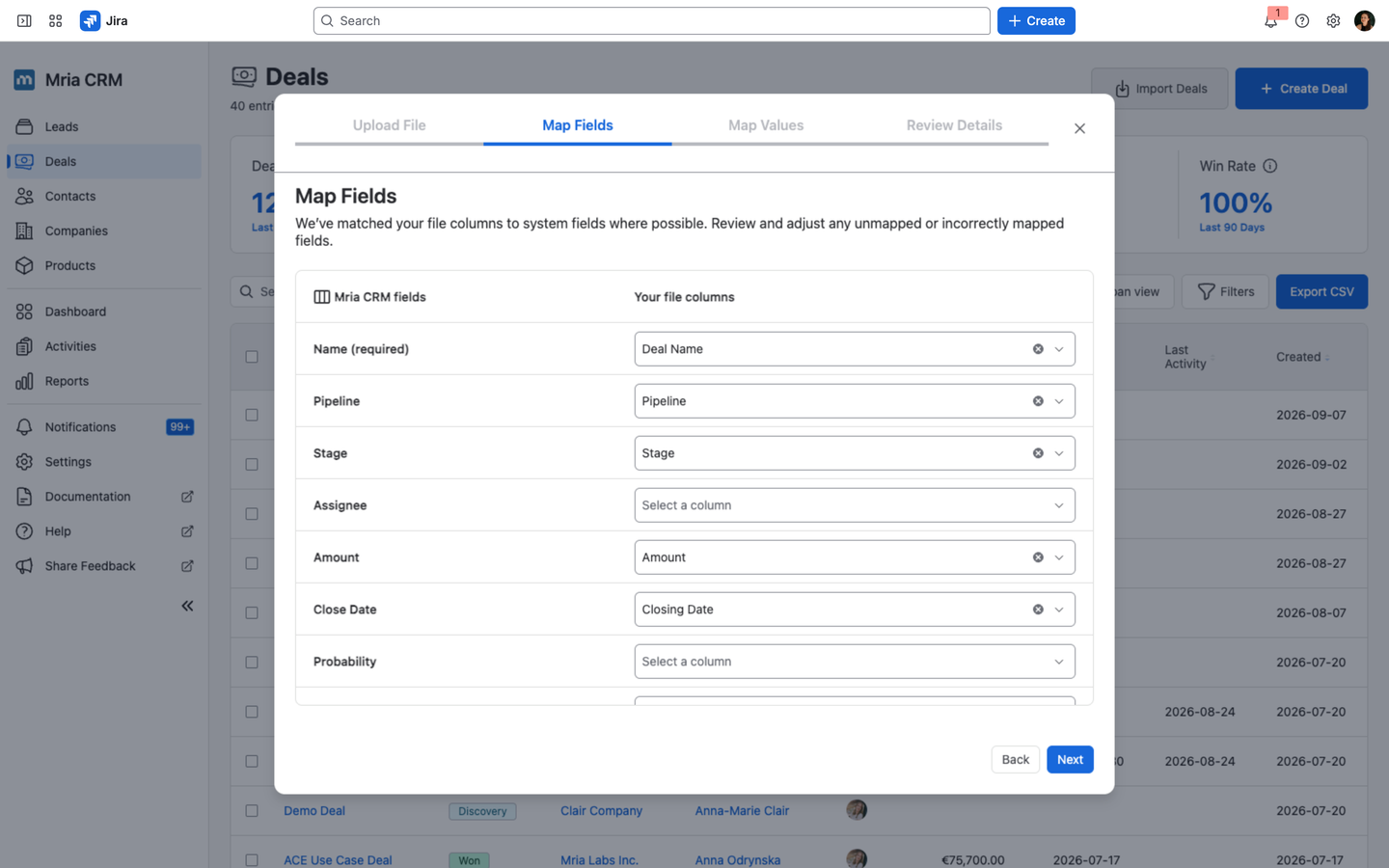
Open the Deals page and select Import Deals to upload a .CSV or .XLSX file of up to 3 MB. The wizard follows the same five-step process as the other Mria CRM imports:
- Upload File. Add your spreadsheet or download the sample file to see the expected column structure.
- Map Fields. Match file columns to system and custom Deal fields. Mria CRM first suggests mappings based on similar names.
- Map Values. Connect values from list-based columns to the Pipeline Stages and other options configured in your workspace.
- Review Details. Check the number of rows and choose how duplicates should be handled.
- Import File. Start the import and review the final summary of records added.
This makes it possible to move an active pipeline from another CRM, turn an existing sales spreadsheet into structured Deals, or add a large group of opportunities to the correct Mria CRM pipeline in one operation.
Deal imports and exports have their own tab under Settings → Data Administration → Deals. Each import remains visible with its owner, date, row count, and status, so teams can trace where a group of Deals came from.
Read the Deal Import documentation
Keep More of the Email Workflow Connected to Mria CRM Records
The latest release expands both sides of customer email work in Mria CRM. Users can send complete messages with attachments, identify attachments on incoming emails, recover conversations that predate the mailbox connection, and use HTML created outside the template editor.
Attach Files to Emails Sent From Mria CRM
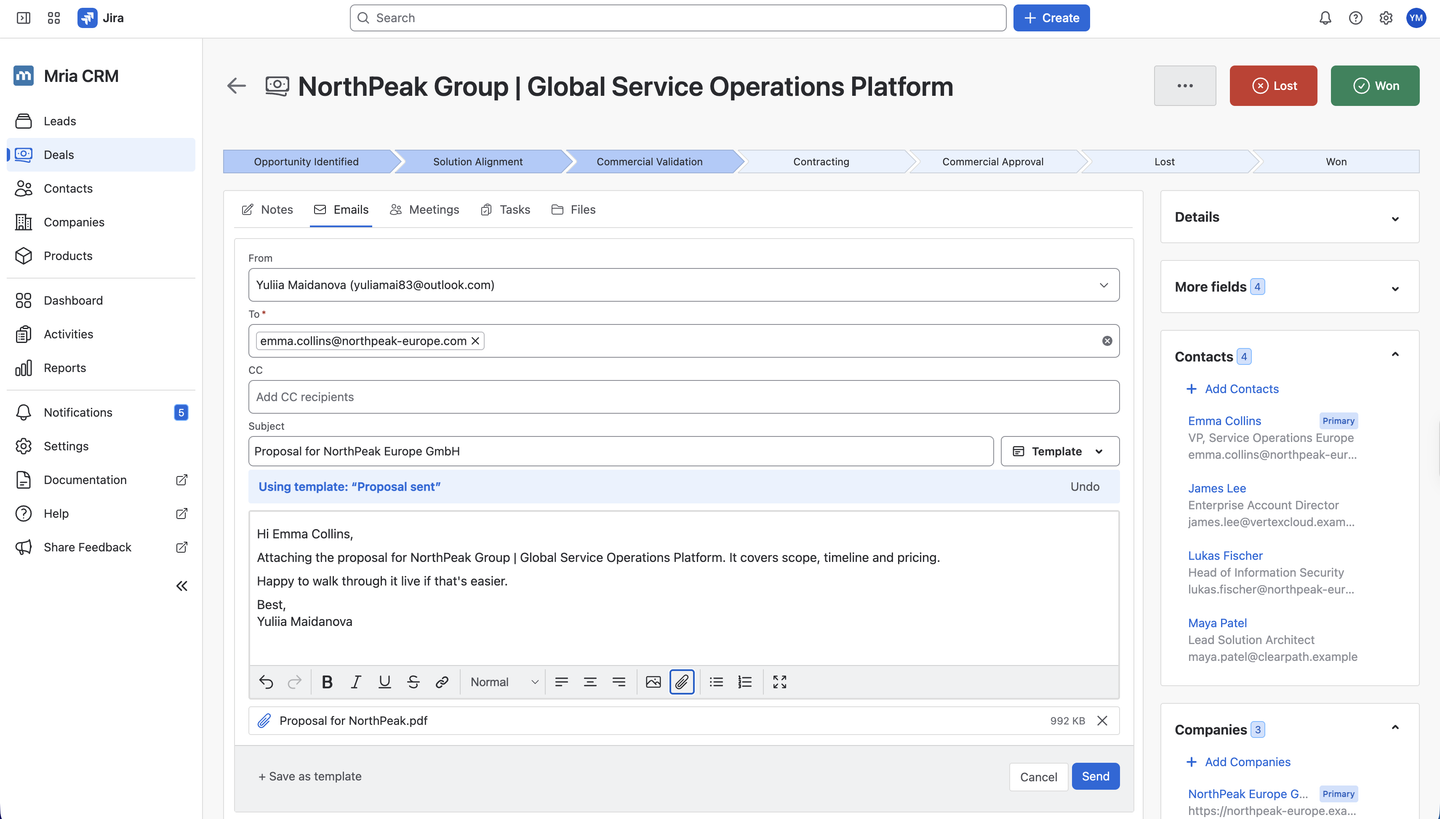
The email composer on Contacts, Leads, and Deals now includes an Attach files action. Add one or several files, send the message through a connected Gmail or Outlook account, and the attachments remain associated with the synchronized email in Mria CRM.
Supported file types are:
PDF, DOC, DOCX, XLSX, TXT, CSV, PNG, JPG, JPEG, GIF, JSON, and ZIP
Incoming messages now also show when they contain attachments. When a user needs to inspect or download a file, they can open the original message directly in Gmail or Outlook from Mria CRM.
Bring Earlier Gmail and Outlook Messages Into Mria CRM
Previously, email synchronization started with messages received after a mailbox was connected. Gmail and Outlook Connectors can now bring in emails that were already present in the mailbox.
This matters when a team connects an account after a customer relationship or Deal is already underway. Earlier discussions can become part of the CRM history instead of leaving the record with a conversation that begins halfway through the sales process.
The imported messages follow the visibility and synchronization settings of the connected mailbox.
Read the Gmail Integration documentation or Outlook Integration documentation
Create Email Templates From HTML
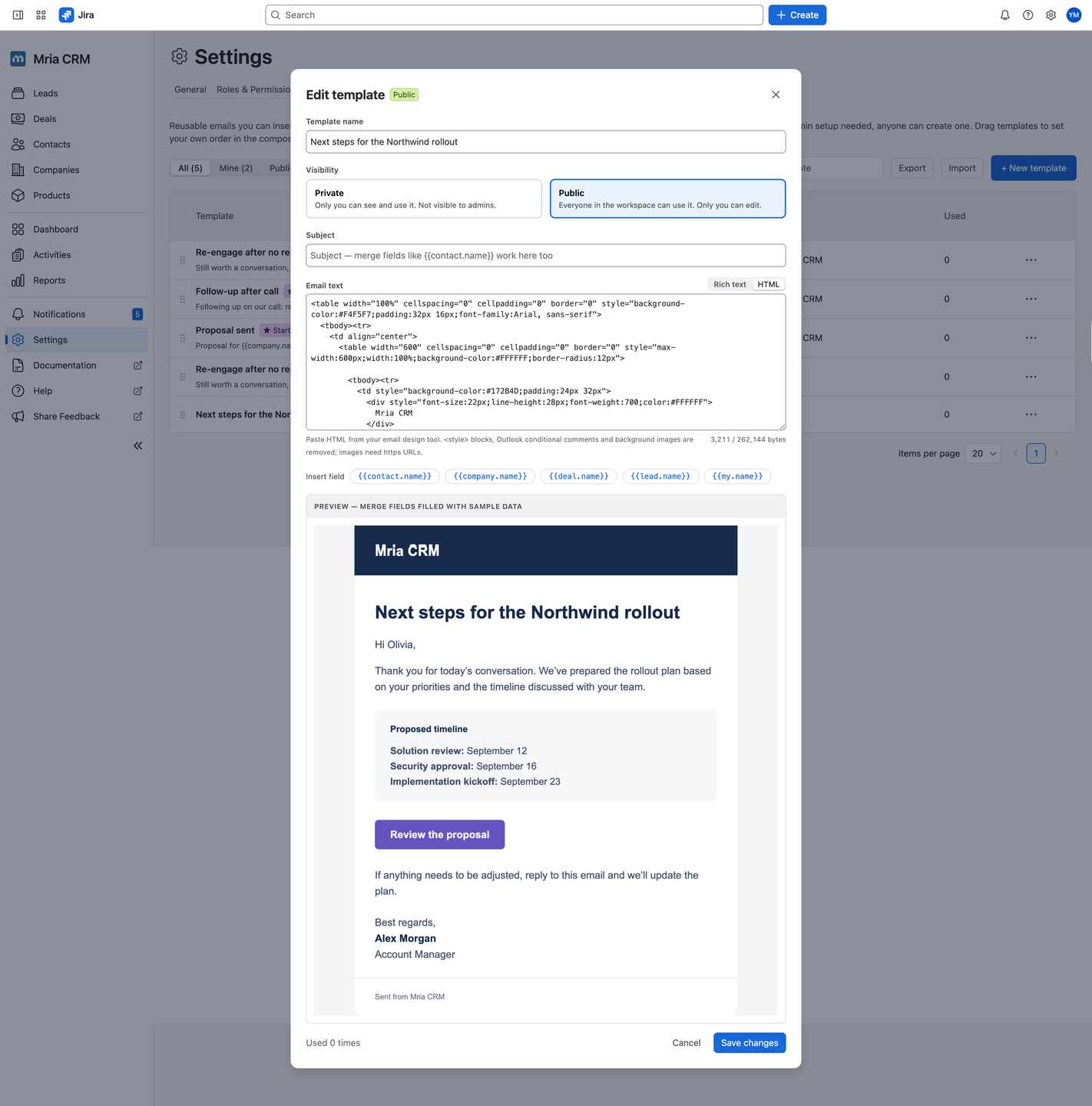
Email Templates now include a Rich text / HTML toggle. Teams can paste markup from an email design tool instead of rebuilding an existing layout in the rich-text editor.
A preview below the editor renders the template with sample CRM data as it is being created. Merge fields such as {{company.name}} appear as completed values, making it easier to check the subject, layout, and message before saving.
Mria CRM sanitizes pasted HTML before it is saved. For templates that come from another design tool:
- use inline CSS because
<style>blocks are removed; - do not rely on Outlook conditional comments or background images;
- serve template images through HTTPS URLs.
The three Starter templates included with each workspace can now also be deleted. Teams can keep the examples they use and remove the rest from the template picker.
Read the Email Templates documentation
Preserve Customer Relationships During Lead Import and Conversion
This release also improves the two points where Lead data usually changes shape: when Leads first enter Mria CRM and when a qualified Lead becomes a Deal.
Create or Link Contacts and Companies During Lead Import
Lead Import now includes two options that were already available for Contact Import:
- Link to existing Contacts / Companies
- Create new Contacts / Companies from Lead info
Mria CRM matches Leads to Contacts by email. Lead email addresses do not have to be unique, so several Leads can be connected to one Contact when they represent separate inquiries or opportunities from the same person.
Companies are linked to Leads through Contacts. Mria CRM uses the new or existing Contact to establish the Company relationship. If a Company name matches more than one Company record, the ambiguous match is skipped instead of creating an uncertain connection.
The result is a more complete import. Teams can bring in Lead records and their customer relationships together instead of importing a flat list and rebuilding every Contact and Company link afterwards.
Read the Leads Import documentation
Carry Activities and Links Into a Deal by Default
When converting a Lead into a Deal, Transfer activities from Lead to Deal and Transfer links are now selected by default.
Activities hold the history of calls, meetings, notes, tasks, files, and emails that led to qualification. Links connect the Lead to the Jira and Confluence work already associated with the opportunity. Leaving either behind can remove important context from the new Deal, and a missed transfer cannot be repaired by repeating the conversion.
Selecting both options by default protects that history while still leaving the user in control. Clear either checkbox when the activities or links should remain only on the original Lead.
Read the Lead-to-Deal Conversion documentation
Put Mria CRM Data to Work Across Atlassian
This release expands how customer data moves through Mria CRM and the wider Atlassian environment.
Jira Custom Fields make CRM relationships usable in JQL and automation. Teamwork Graph support makes CRM records discoverable with related Jira and Confluence work. Rovo Studio lets teams build agents that can take action on Leads. Deal Import brings an existing pipeline into the system, while the email and Lead improvements preserve more of the context accumulated before a Deal reaches the pipeline.
If you already use Mria CRM, start with the Jira Custom Fields, Teamwork Graph support, or Rovo Studio actions. If you are evaluating Mria CRM, start a 30-day trial to see how sales records, customer communication, and Jira work stay connected in one system.
Read the Release Notes
Try Mria CRM on the Atlassian Marketplace →