Sales teams lose a significant amount of context every time they switch between Gmail and their CRM. Emails get missed, conversations go unlogged, and deals move forward without a full picture of what was said. Today we are closing that gap.
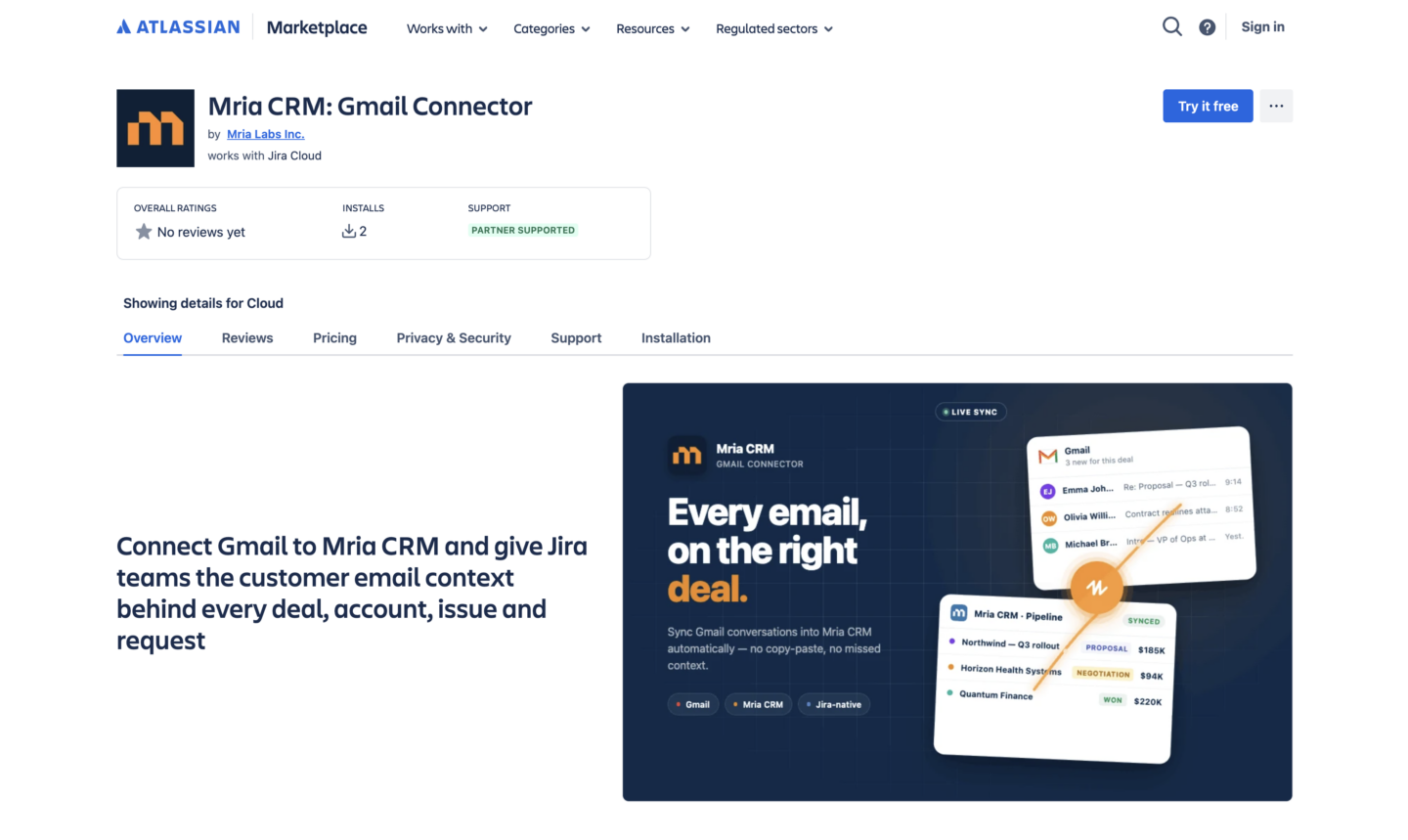
Mria CRM: Gmail Connector is now available on the Atlassian Marketplace. It connects your Gmail account to Mria CRM and automatically syncs every sent and received email to the matching Contact or Lead record. No manual logging, no copy-pasting, no switching tabs.
Key Features of Mria CRM: Gmail Connector
Mria CRM: Gmail Connector was built to keep your email conversations and your Mria CRM records in sync automatically, with full control over what gets shared and with whom. Here are the key features.
Bidirectional sync. Incoming Gmail messages are pulled into Mria CRM and linked to matching Contact and Lead records by email address. Emails composed inside Mria CRM are delivered through Gmail. The full conversation history lives right on the record it belongs to, visible to everyone who should see it.
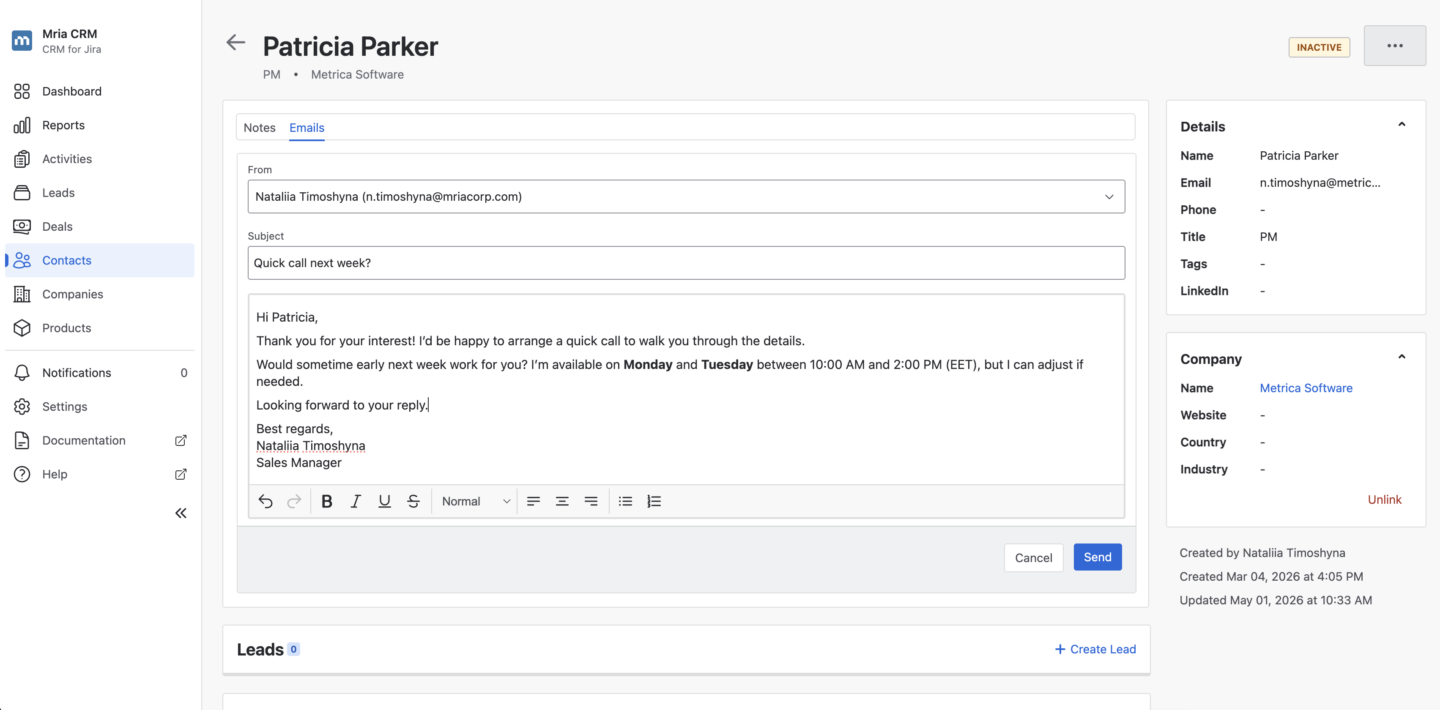
Compose and send emails without leaving Mria CRM. The Emails tab on every Contact and Lead record includes a built-in composer. Choose which connected Gmail account to send from, write your message with basic formatting support, and send. The email is delivered through Gmail and logged to the record instantly.
Multiple Gmail accounts per user. Connect a corporate inbox and a personal one simultaneously. All emails from all connected accounts sync into Mria CRM and link to the right records automatically.
Granular visibility controls. Not every email should be visible to everyone. Visibility can be set to Private (only you), Shared (specific teammates you select), or Public (all users on your Mria CRM site). Private is the default. Switching to Shared or Public requires explicit confirmation, so emails are never accidentally exposed. Shared visibility is useful for account teams working the same deals; Public works well for small teams where full transparency is the norm.
Incoming email restrictions. Choose which emails get synced at all. With no restrictions, everything comes in. Excluded addresses lets you blocklist specific senders, useful for filtering out internal team emails or notifications that have no place in CRM. Allowed addresses flips it to an allowlist, syncing only emails from contacts you care about. Restrictions apply to future emails only and never remove messages already synced.
Non-destructive pause and disconnect. Set any connected account to Inactive to pause syncing at any time. Emails already in Mria CRM stay exactly where they are. Disconnecting an account also keeps all previously synced emails attached to their CRM records by default, so removing the integration never means losing your conversation history.
How Mria CRM: Gmail Connector Works Inside Mria CRM
Open any Contact or Lead record in Mria CRM and switch to the Emails tab. That is where all the action happens.
Every email you have exchanged with that contact appears there automatically, matched by email address. The full conversation history is in one place: who sent what, when, and in which direction. No searching through Gmail, no cross-referencing threads. If the same email touches multiple records, it shows up on all of them.
From the same tab you can compose a new email, choose which connected Gmail account to send from, and hit Send without leaving the record. The email goes out through Gmail and is logged immediately.
One thing to keep in mind: sync runs every 5 minutes, not in real time. Emails you send from Mria CRM show a Pending badge until the next cycle delivers them through Gmail. Incoming emails from Gmail take up to 5 minutes to appear on the record. In practice this is fast enough that it rarely matters, but it is good to know when you are watching for a reply.
Why Mria CRM: Gmail Connector Is a Separate App
Not every team needs Gmail integration. Some rely on other email clients, some have dedicated tools for email tracking, and some simply prefer to keep their CRM focused on pipeline and contact management. Building Gmail sync into Mria CRM core would have forced every user to carry a feature many of them do not need.
Keeping Mria CRM: Gmail Connector as a separate app means teams install it only when they want it and pay for it only when they use it. Mria CRM stays lean and focused. The connector extends it for teams that need the connection between Gmail and their CRM records, without changing anything for teams that do not.
Security and Compliance of Mria CRM: Gmail Connector
Mria CRM: Gmail Connector is CASA-certified (Cloud Application Security Assessment), the certification Google requires for apps that access Gmail data on a user’s behalf. This is an independent verification that the connector meets Google’s own security standards, separate from Atlassian’s requirements.
Authorization uses standard Google OAuth through Google’s own consent screen. You choose exactly which Gmail account to connect, review the requested scopes before approving, and can revoke access directly from your Google Account settings at any time without touching anything in Mria CRM.
For teams and admins, visibility into connected accounts is built in. Admins can see all Gmail accounts connected across the entire Mria CRM site, which matters for IT oversight and compliance audits. Individual users can only edit or disconnect accounts they personally own; other users’ accounts are visible in the accounts list but read-only.
By default, disconnecting a Gmail account keeps all previously synced emails in Mria CRM. Admins can enable a global setting that gives users the option to also delete synced emails from Mria CRM on disconnect. This option is off by default so that removing the integration is never accidentally destructive to CRM data.
How to Set Up Mria CRM: Gmail Connector
Setup involves four distinct stages: installing the app, an admin step in Atlassian Administration, connecting Mria CRM inside the connector app, and each user adding their own Gmail account. The first three stages only need to be done once for the entire site.
Step 1: Install Mria CRM: Gmail Connector from the Atlassian Marketplace
Install Mria CRM: Gmail Connector from the Atlassian Marketplace. Once installed, it is accessible from the Atlassian app switcher.
Step 2: Admin — Enable App REST APIs in Atlassian Administration
Before anyone can use the connector, an Atlassian site admin must enable REST API access for Mria CRM. This is what allows the connector to read and write CRM records during sync. Without it, the connection will appear to succeed but no emails will sync.
Go to Atlassian Administration, select your site, open Site settings, go to Connected apps, select Mria CRM, scroll to App REST APIs, and click Enable app REST APIs. Once enabled, an ENABLED badge confirms it is active.
Step 3: Connect Mria CRM (done once)
Open Mria CRM: Gmail Connector from the Atlassian app switcher. On the Accounts page, click Connect Mria CRM. You will be taken to an Atlassian OAuth consent screen — choose your Atlassian site from the dropdown, review the requested permissions, and click Accept. The banner on the Accounts page will switch to Connected to Mria CRM.
Step 4: Add your Gmail account (each user)
On the Accounts page, click Add Gmail Account. You will be redirected to Google to sign in and approve the requested Gmail scopes. After authorization you are returned to the connector and your Gmail account appears in the accounts list, ready to sync.
From there, click Edit next to your account to configure visibility (Private, Shared, or Public) and restriction settings. If you are unsure, Private with no restrictions is a safe starting point.
Once your Gmail account is connected and active, open any Contact or Lead in Mria CRM and switch to the Emails tab. Your synced conversations will already be there, and you can start composing and sending emails without leaving the record.
The full setup guide with screenshots is in the documentation.
Get Mria CRM: Gmail Connector on the Atlassian Marketplace
Gmail integration has been one of the most requested additions to Mria CRM. We are glad it is finally here, and we are excited to see how teams put it to use.
Mria CRM: Gmail Connector is available now on the Atlassian Marketplace. Try it free and see how it fits into your workflow.
Install Mria CRM: Gmail Connector or read the documentation to learn more.
For questions or feedback, reach out through our support portal or book a demo to see it in action. And if you are on Outlook, stay tuned — it is next on our roadmap.