Activities capture the interactions and supporting information attached to a record. They sit behind their own tabs — Notes, Emails, Meetings, Tasks and Files — while what has already happened is gathered in the Timeline.
Not every entity has every tab:
| Entity | Notes | Emails | Meetings | Tasks | Files |
|---|---|---|---|---|---|
| Leads | ✓ | ✓ | ✓ | ✓ | ✓ |
| Deals | ✓ | ✓ | ✓ | ✓ | ✓ |
| Contacts | ✓ | ✓ | ✓ | ✓ | ✓ |
| Companies | ✓ | — | ✓ | ✓ | ✓ |
| Products | — | — | — | — | — |
Companies have no Emails tab. Mail is threaded against a Contact, so you write to a person rather than to an organization — open the Contact’s Emails tab instead.
Products have no activity tabs at all. A Product shows its linked Deals, Leads, Companies and Contacts, plus a Linked items section, and nothing else.
1. Notes #
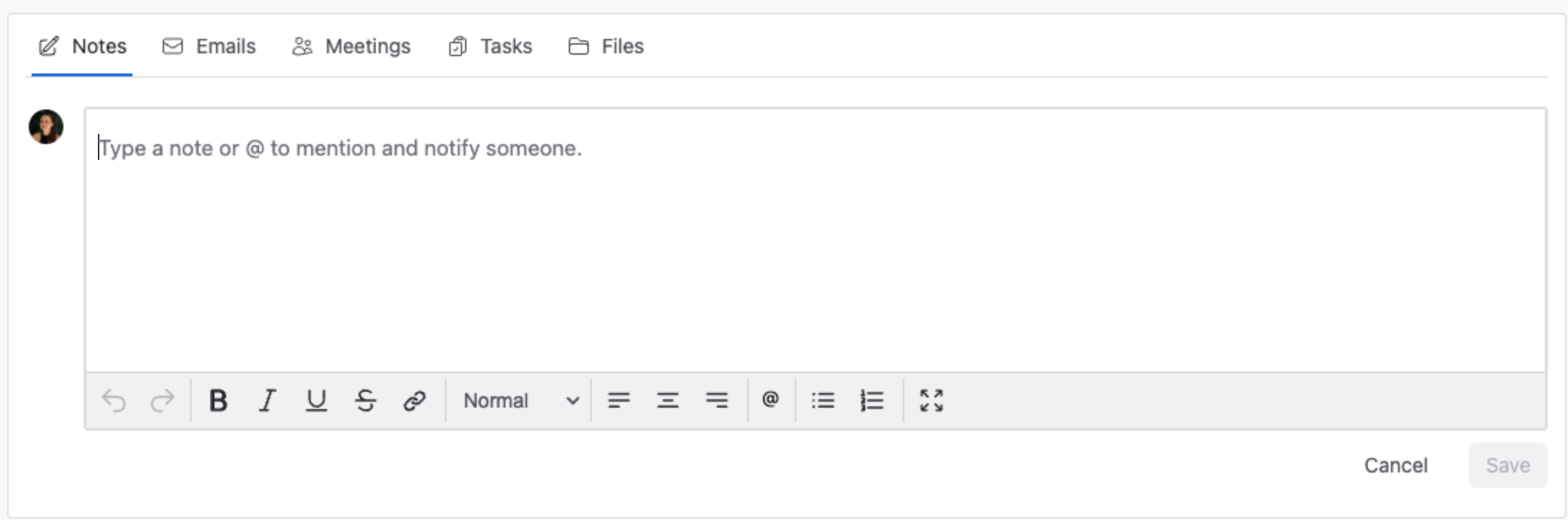
Add quick updates or observations.
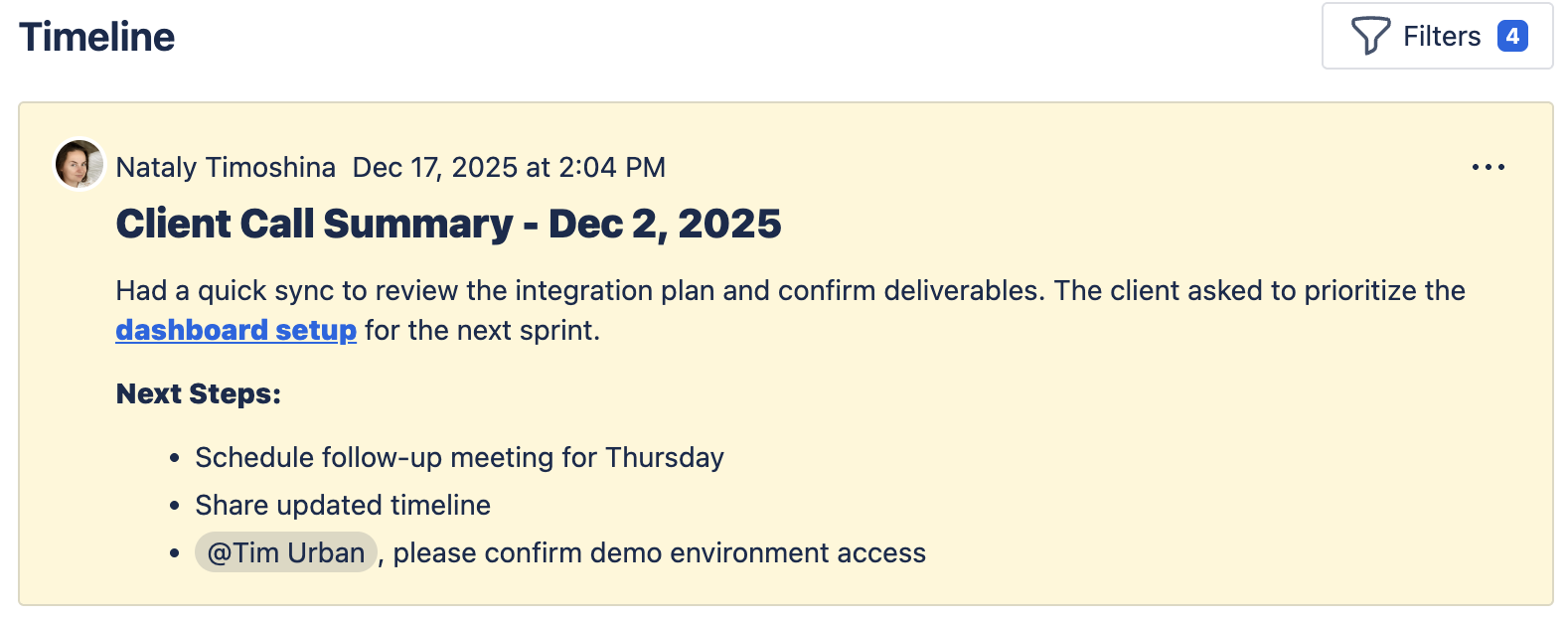
- They appear in the Timeline immediately after creation.
- Notes are useful for logging call summaries, customer insights, or internal reminders.
- An administrator can also show a Notes block on Lead, Deal, Contact and Company pages, listing the record’s notes on their own — see Layouts.
1.1. Mentions #
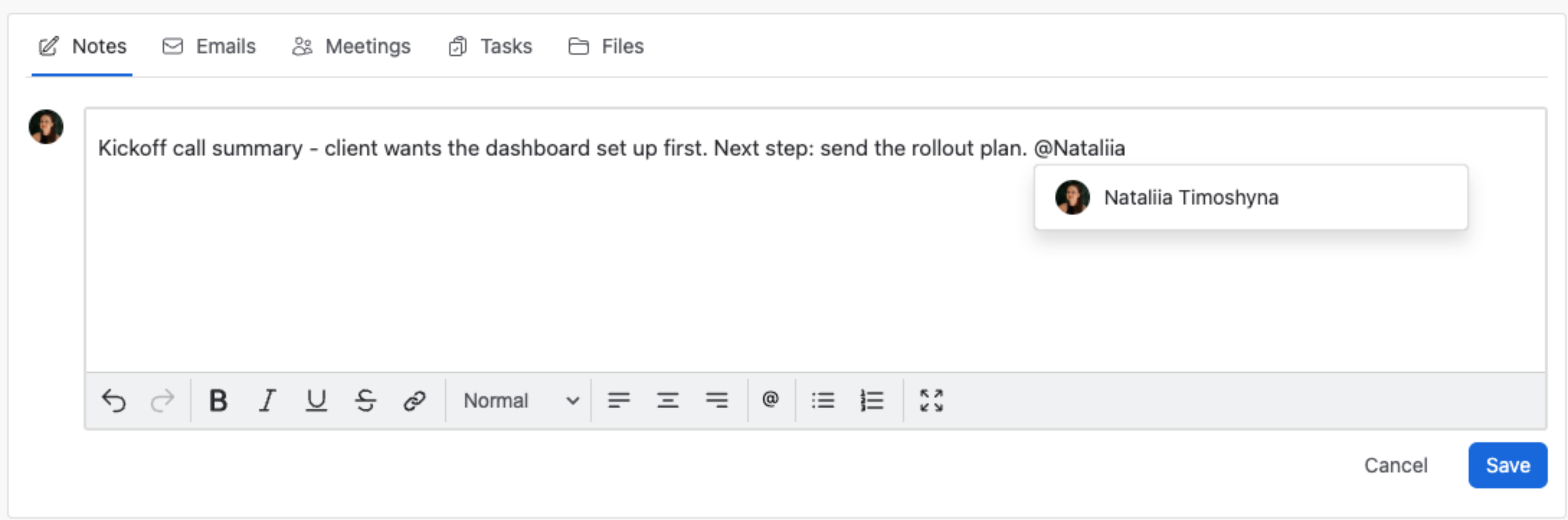
You can mention teammates directly in Notes using @username.
Mentioned users receive a notification so they don’t miss important updates.
2. Emails #
The Emails tab is where you write to a Contact and read the thread back. Messages sync both ways every 5 minutes, and each one is linked automatically to the matching Contact, Lead and Deal.
- Compose from the record itself — the recipient is pre-filled from it, and you can add CC recipients, insert a saved template, and put images inline.
- Synced messages are listed underneath the composer, newest first, with direction, sender, recipients, date and a preview.
- Save as note — in an email’s More actions menu, and next to Reply, Reply all and Forward when the email is open — turns the email into a note on the Lead, Deal or Contact. It then sits in the Timeline with the record’s other notes.
- Sending needs one of the connectors: see Gmail Integration or Outlook Integration for setup. Without a connected account the tab shows a prompt to add one.
A note is visible to everyone who can open the record
Synced emails follow the visibility of the mailbox they came from — they can be private to you (see Gmail Integration or Outlook Integration). A note does not. The confirmation says so: Saved as a note — Everyone who can open this lead can read it. Use it for the one email the team needs, not for whole threads.
3. Meetings #
Meetings are scheduled follow-ups linked to a Lead, Deal, Contact or Company.
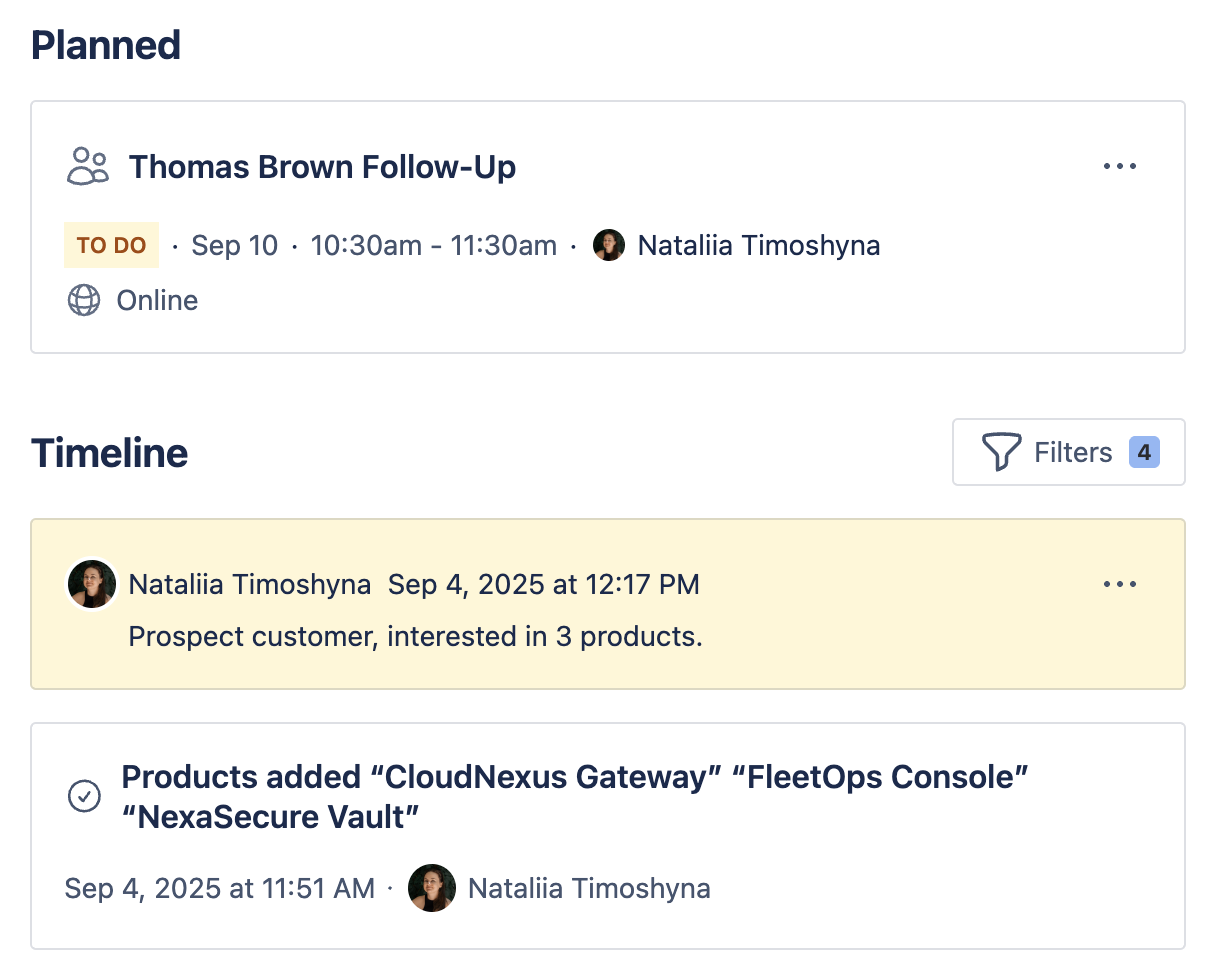
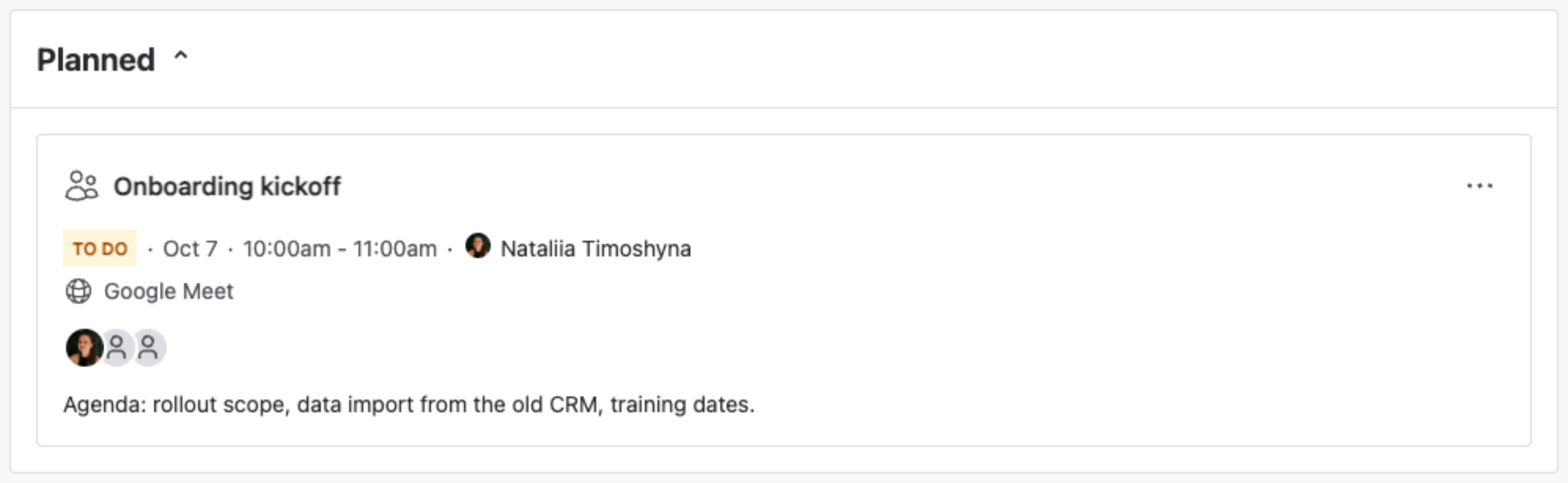
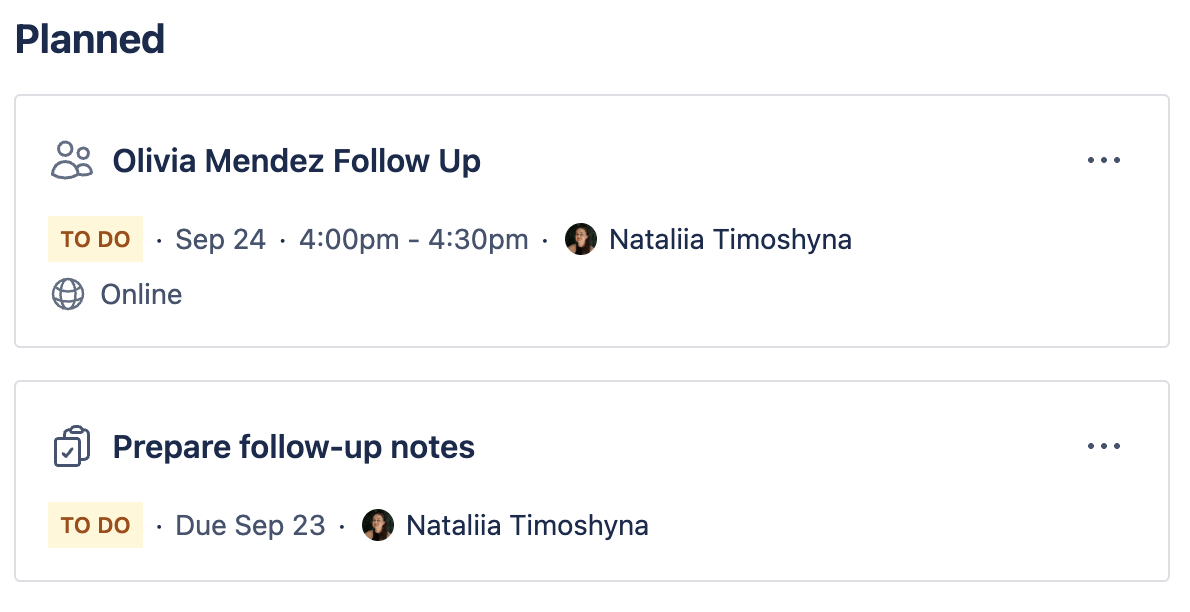
- Upcoming Meetings appear in the Planned section at the top of the Lead/Deal detail view.
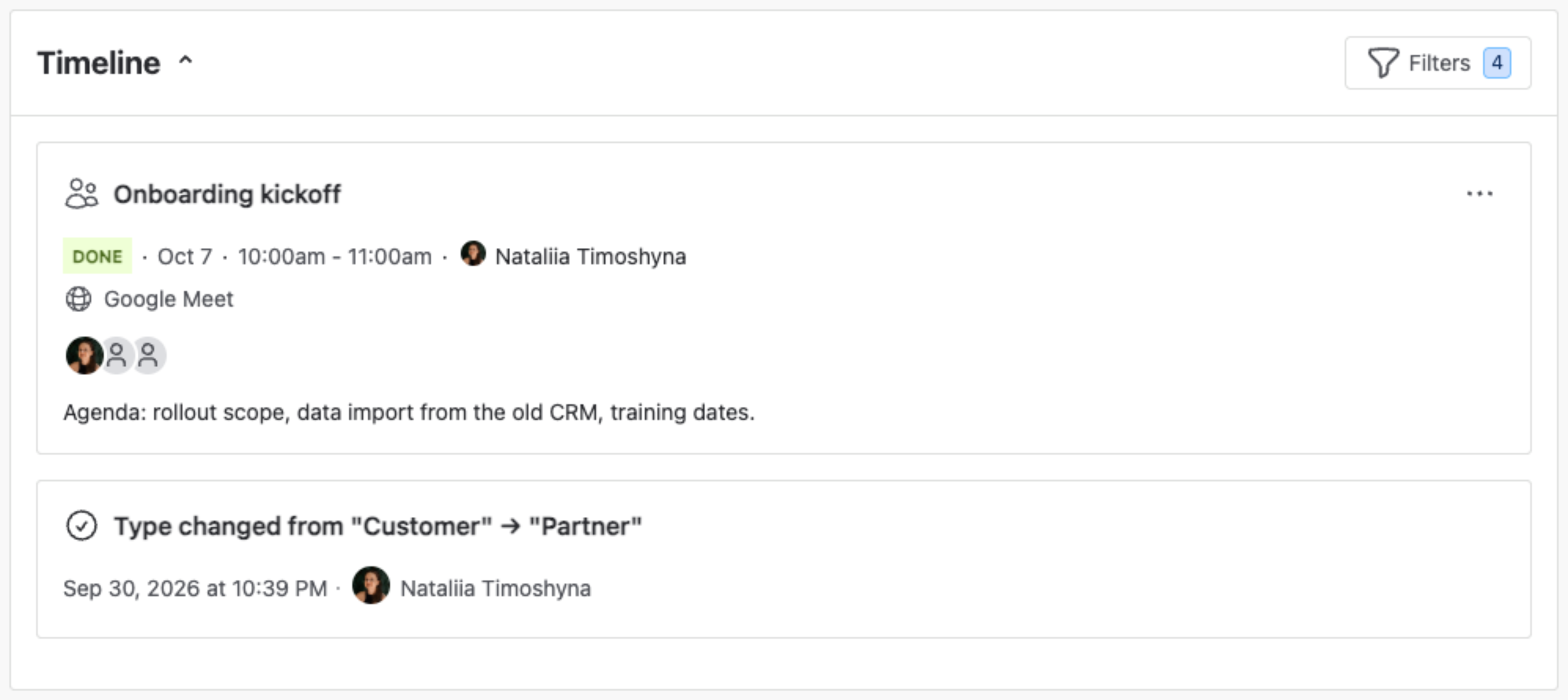
- Once the scheduled time has passed and the Meeting is marked complete, it moves into the Timeline.
3.1. Setting the meeting time #
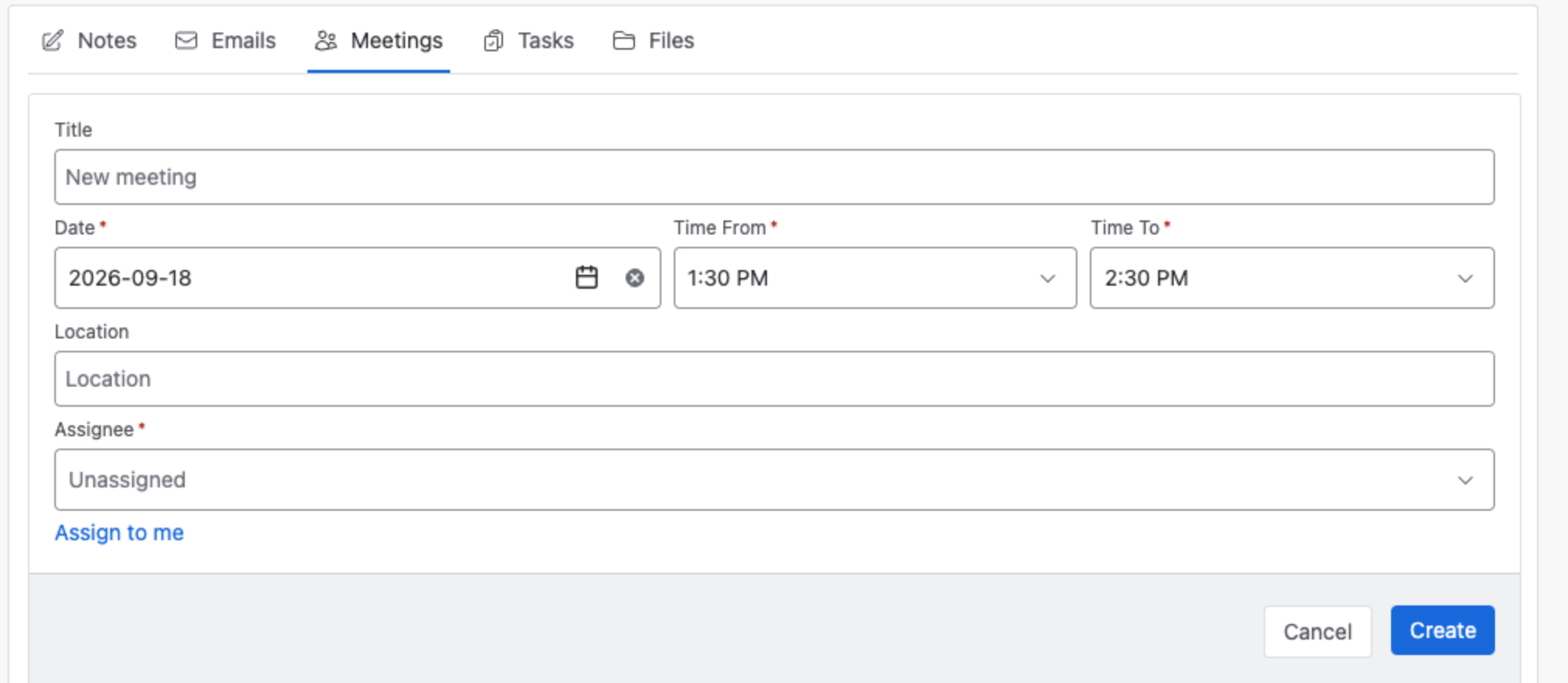
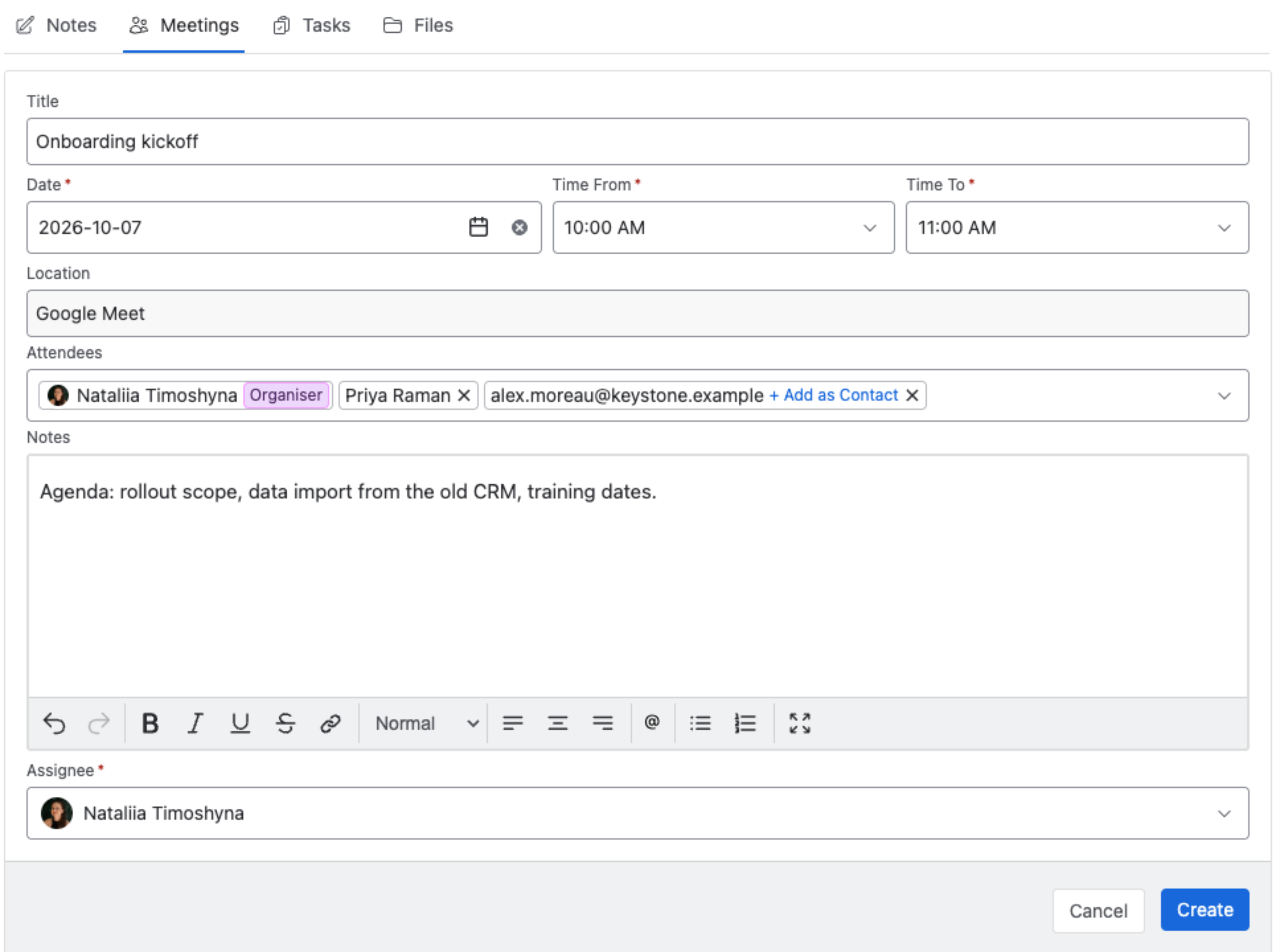
Date, Time From, Time To and an Assignee are all required — but the form opens with the first three already filled in: today’s date, a start time, and an end time an hour later. Move the start and the end follows it, keeping the hour. In practice a meeting needs only an assignee (use Assign to me to take it yourself) and, if you want one, a title. Location is optional free text, so it takes a meeting room just as happily as a video-call link.
The time fields offer a dropdown of preset slots, but you are not limited to them: click into the field and type any time you need (for example 09:47), then pick it from the list or press Enter. That is handy when a call doesn’t line up with the standard intervals, or when you’re logging one that already happened.
3.2. Attendees #
Attendees records who takes part. Start typing in Add users, contacts or emails:
- Mria CRM users — your colleagues. The assignee is always the first attendee, badged Organiser.
- Contacts — the suggestions start with the people on this record, but you can find any Contact.
- Email addresses — anyone else. + Add as Contact next to an address turns it into a Contact.
A Contact on the attendee list sees the meeting in the Planned section of their own record too, labeled with where it was booked — for example Meeting on Company - Brightpath Analytics.
Attendees are recorded, not invited
Mria CRM sends no calendar invitation, email or reminder to Contacts or email addresses on the list. Send the invitation from your calendar as usual.
3.3. Meeting notes #
The Notes field holds the agenda before the meeting and the outcome after it — one place, instead of a separate Note nobody connects to the meeting. It uses the same editor as Notes: formatting, lists, links and @mentions.
- The Planned card shows the attendees and the notes.
- Use ⋯ → Edit to add the outcome at any time; Mark as Done moves the meeting to the Timeline with its notes. The same menu offers Mark as Canceled and Delete.
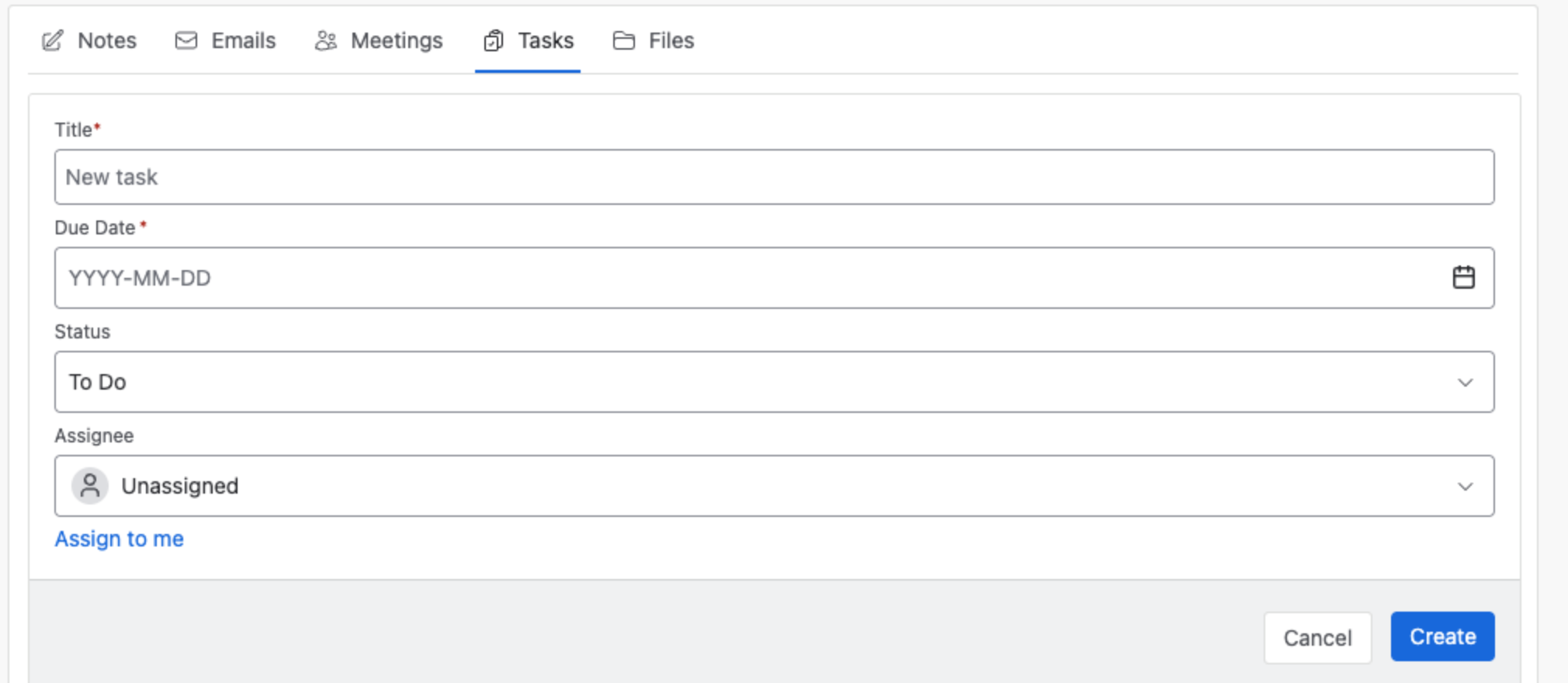
4. Tasks #
Tasks let you create actionable items.
- Open Tasks appear in the Planned section.
- Completed Tasks are automatically added to the Timeline.
- A Task has a Title and a Due Date (both required), plus Status (To Do / In Progress / Done) and an Assignee. The due-date box shows the expected format,
YYYY-MM-DD, until you pick a date.
5. Files #
Files can be uploaded directly onto a Lead, Deal, Contact or Company — contracts, proposals, signed quotes, or any supporting document that belongs with the record.
- Supported formats include .pdf, .doc, .docx, .xlsx, .txt, .csv, .png, .jpg, .jpeg, .gif, .zip and .json.
- Maximum size is 10 MB per file.
- Files stay in the Files tab for easy access and are not moved to the Timeline.
- Upload with the Upload files button, or drag files straight onto the drop area. Each attachment can be downloaded or removed from the list underneath.
- Files can also be attached from code — see REST API: Attaching Files.

6. Linked items #
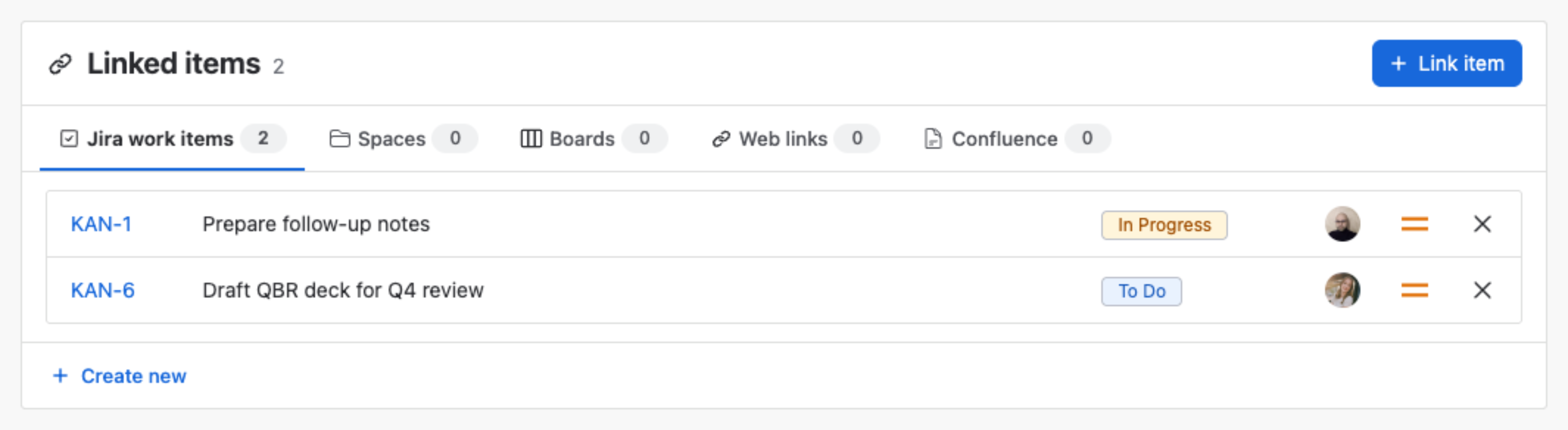
Linked items connect a Lead, Deal, Contact, Company or Product to related work elsewhere in Atlassian. The section groups its links into tabs, each showing a count so you can see at a glance what a record is attached to.
- Jira work items — search for an issue and link it, or use Create new to raise one already linked to this record.
- Spaces — a Jira project (“space” in the new Jira navigation). Despite the name this is a Jira link, not a Confluence one.
- Boards — Jira boards.
- Web links — any URL, with optional link text to describe it.
- Confluence — Confluence pages, by search or by pasting a link. See Confluence Integration for the full setup.
- From the Jira side, the Lead, Deal, Contact or Company is added back as a Web link on the issue, so the connection is visible from both products.

7. Filtering Activities #
The Filters panel in Activities applies only to the Timeline section.
- The Timeline shows past Activities only — such as completed Meetings, finished Tasks, and added Notes.
- Planned Activities (future Meetings or Tasks) always remain visible in the Planned section. Filters do not affect them.
Available options:
- Meetings – show or hide completed Meetings.
- Tasks – show or hide completed Tasks.
- Notes – show or hide Notes.
- Change Logs – show or hide system logs of key actions for this Lead or Deal (e.g., creation, linking Contacts, Companies, Products, etc.).
📌 Filters simply control what’s displayed in the Timeline — they don’t change or remove any underlying Activities.
💡 Note: You can create Tasks and Meetings with due dates in the past if you’d like to record previous interactions or track the historical activity of a Lead or Deal.
✅ Together, these Activities give you a full picture of the progress and interactions related to each Lead and Deal.


