The Zapier: Mailchimp Emails to Notes page shows Zapier writing into Mria CRM after a contact already exists. This page is the other common direction: something happens in another app, and a new Lead should appear in Mria CRM. The example takes a website form submission, but the Zap is the same for a Typeform response, a HubSpot form, a new row in a Google Sheet or any other Zapier trigger that carries a name and an email.
Before you start #
- You need the API by Zapier connection from Zapier: Mailchimp Emails to Notes, steps 1 to 6: an OAuth 2.0 integration with the Mria CRM scopes, the Zapier callback URL, and a connection whose test call succeeded.
- Creating Leads needs
write:crm:customin the connection’s scopes, an active license, and Create on Leads in the CRM role of the user who connected the account. - The example uses Zapier’s Catch Hook trigger fed with one sample submission, so the screenshots do not depend on a particular form tool. With a real trigger, map its own fields in step 3 instead.
The use case #
A prospect fills in the “Request a demo” form on the company website. Within a minute a Lead named after the company sits in Mria CRM, in the default lead status, with the person’s name and email on it, so sales can pick it up from the Leads list or the Kanban board without anyone re-typing anything.
- Trigger: the form tool sends the submission to Zapier.
- Action: an API by Zapier → API Request step calls
POST /leadswith the submission’s fields.
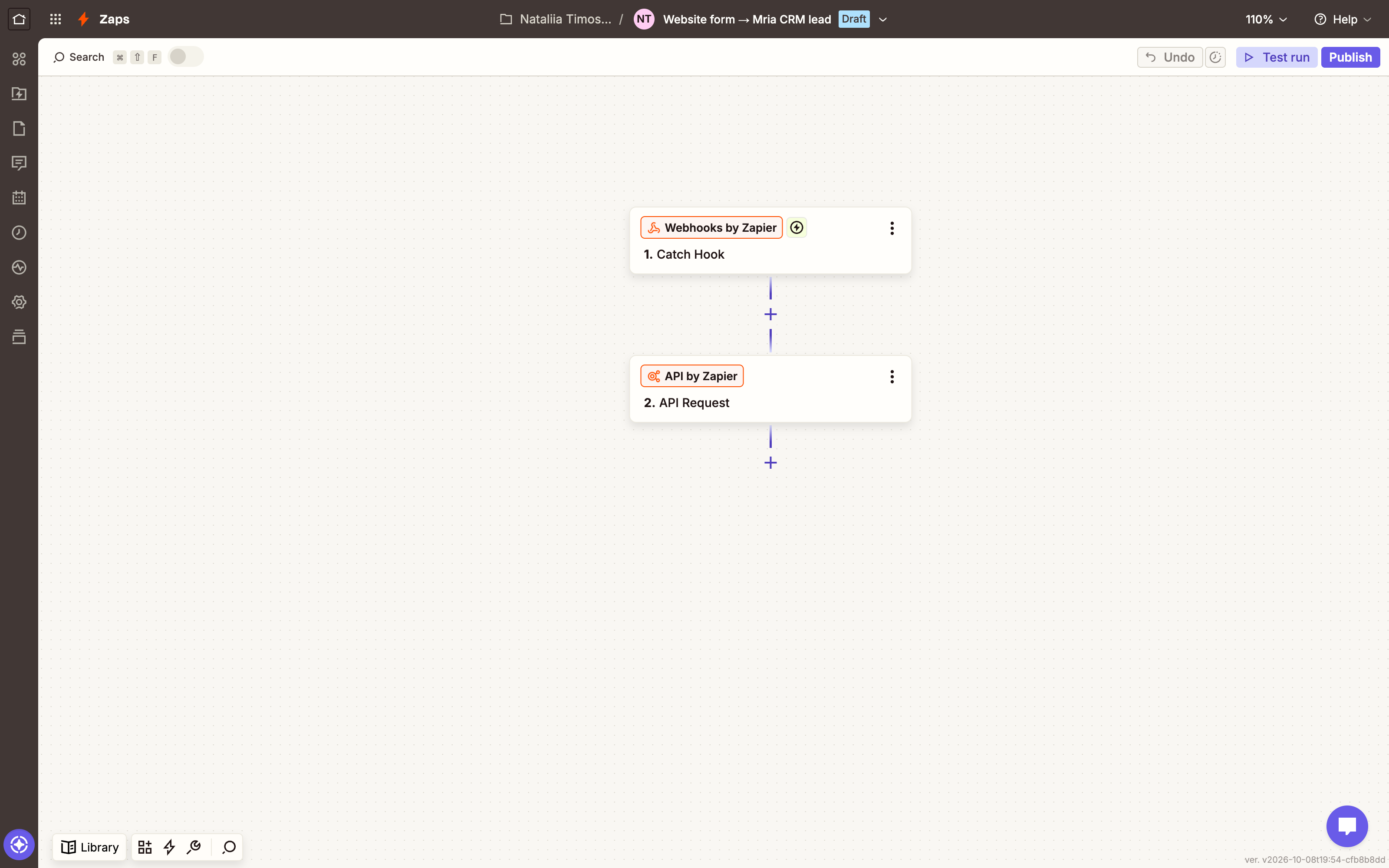
Step 1. The trigger #
Create a Zap and pick your source app and event. For the walkthrough the trigger is Webhooks by Zapier → Catch Hook. Zapier shows a URL; one test submission sent to it gives Zapier the sample fields that the next step maps.
curl -X POST https://hooks.zapier.com/hooks/catch/<your-hook-id>/ \
  -H "Content-Type: application/json" \
  -d '{"source": "Website contact form", "form": "Request a demo",
       "name": "Mateo Alvarez", "email": "mateo.alvarez@northwindlogistics.com",
       "company": "Northwind Logistics", "phone": "+1 415 555 0142",
       "message": "We run 40 trucks and want to track quotes in Jira."}'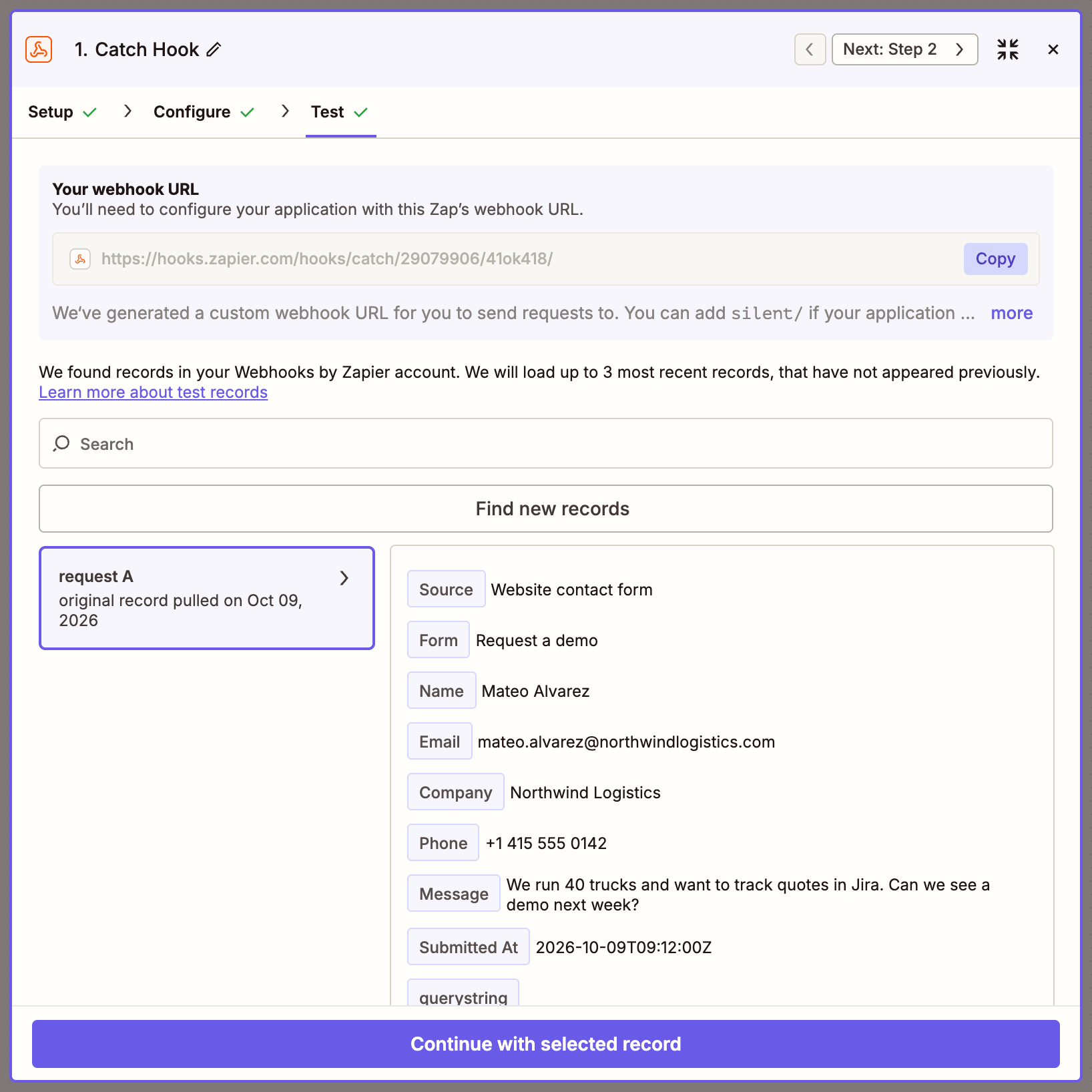
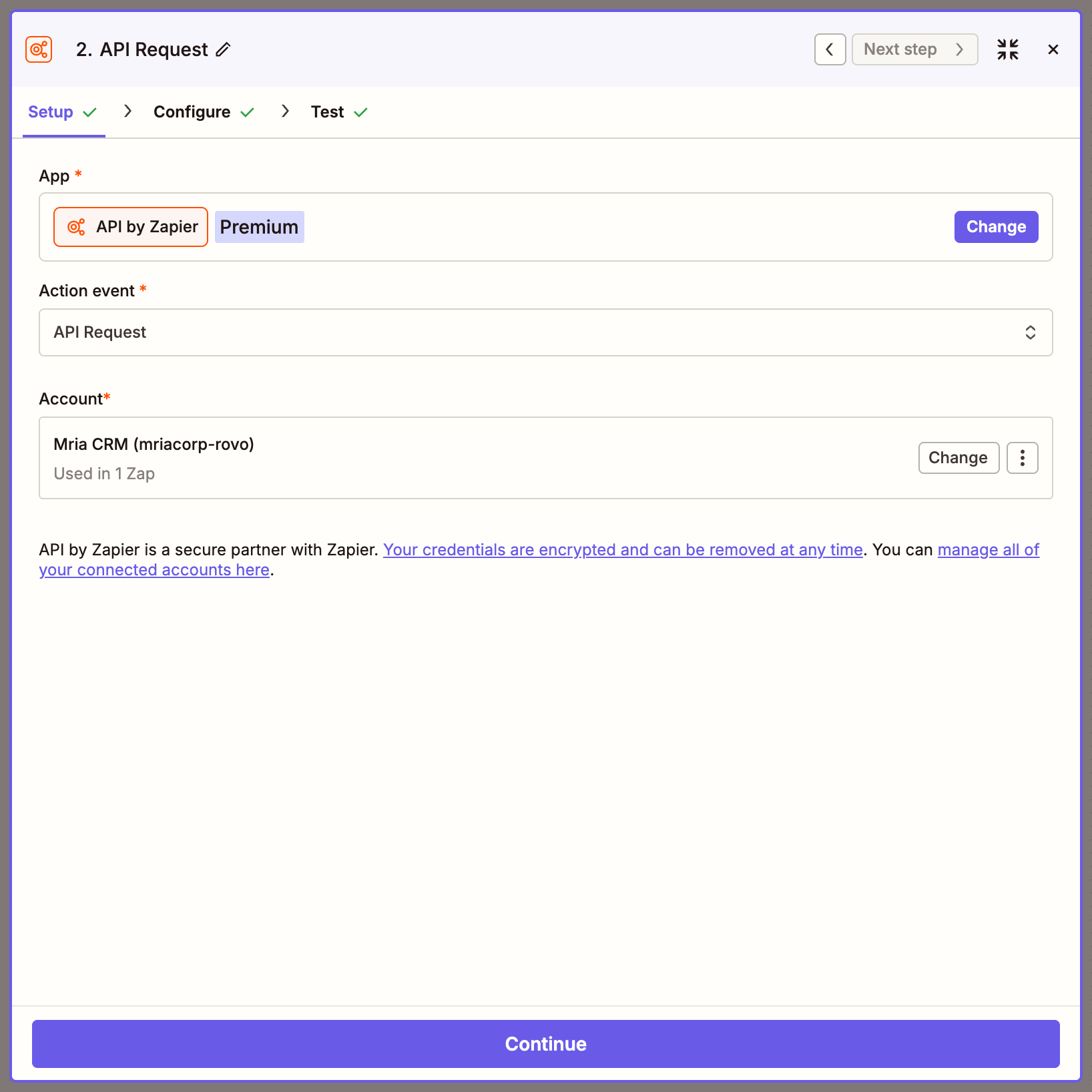
Step 2. Action: API by Zapier → API Request #
Add an action, choose API by Zapier, event API Request, and pick the Mria CRM connection. The account line shows which site and user the request will run as.
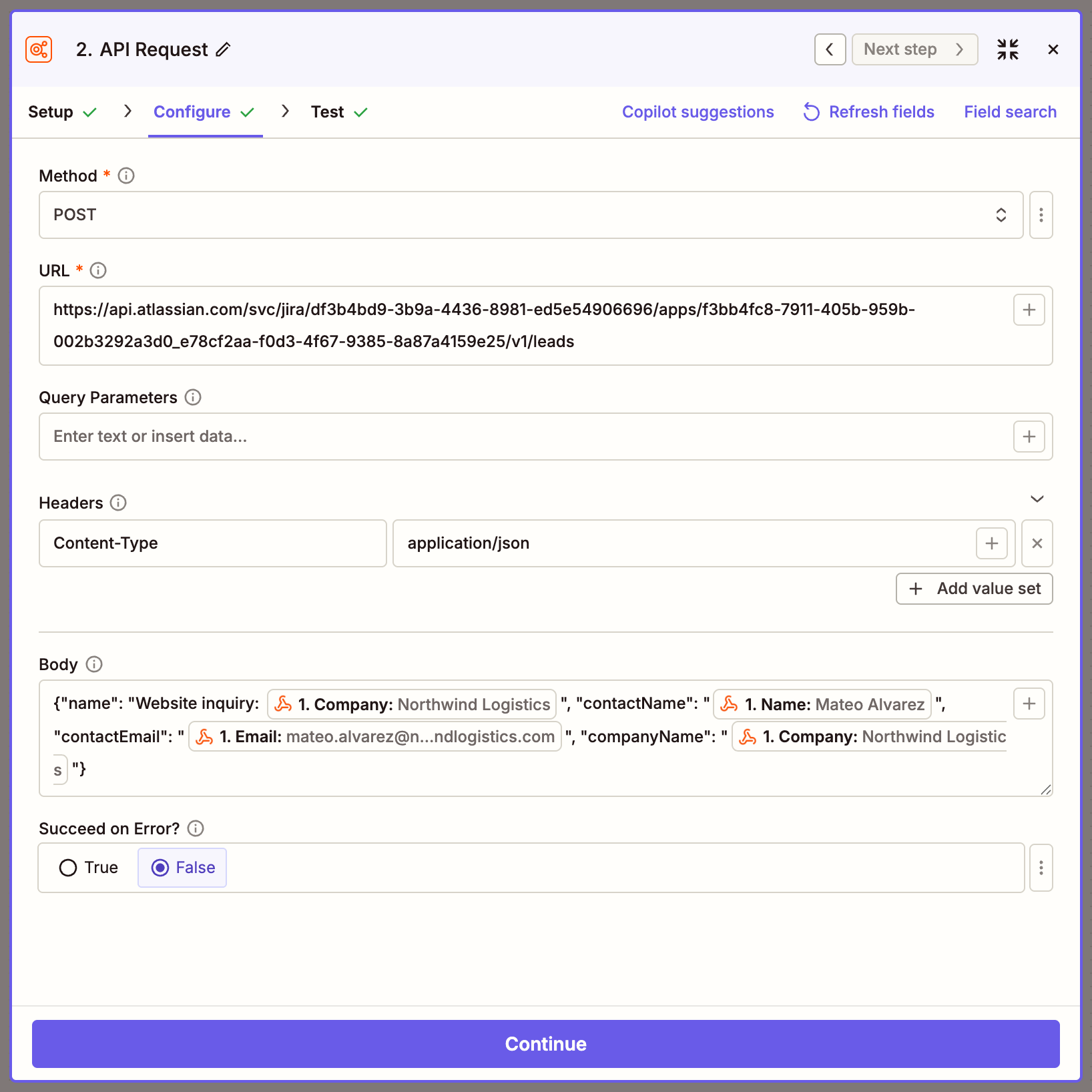
Step 3. Configure the request #
| Field | Value |
|---|---|
| Method | POST |
| URL | https://api.atlassian.com/svc/jira/<cloudId>/apps/f3bb4fc8-7911-405b-959b-002b3292a3d0_<envId>/v1/leads |
| Headers | Content-Type = application/json |
| Body | {"name": "Website inquiry: <company>", "contactName": "<name>", "contactEmail": "<email>", "companyName": "<company>"} |
Insert each trigger field with the + button next to the Body field. Three fields matter to the API: name is the Lead’s own name, contactName and contactEmail are required and describe the person. companyName is stored as text on the Lead. The other form fields are simply not sent.
No Contact or Company record is created by this request. The person’s name, email and company live on the Lead, which is how a Lead entered by hand behaves too; converting the Lead later creates the Contact. To attach an existing Contact instead, look it up first with POST /contacts/search and send its id as contactId — the pattern on Zapier: Mailchimp Emails to Notes.
Step 4. Test and publish #
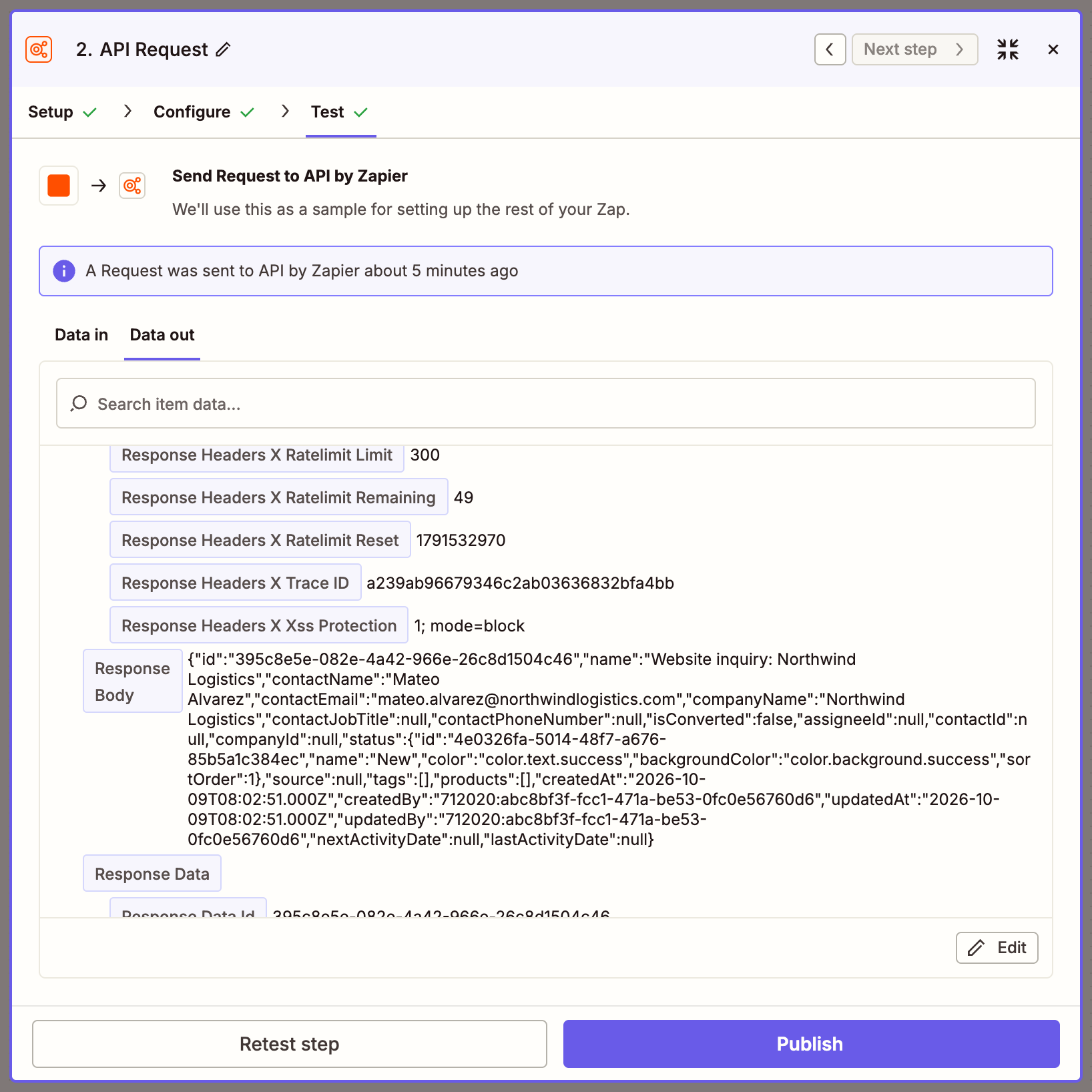
Test step sends the sample submission. A successful call answers 201 with the id of the new Lead. Publish the Zap once the test passes.
The result in Mria CRM #
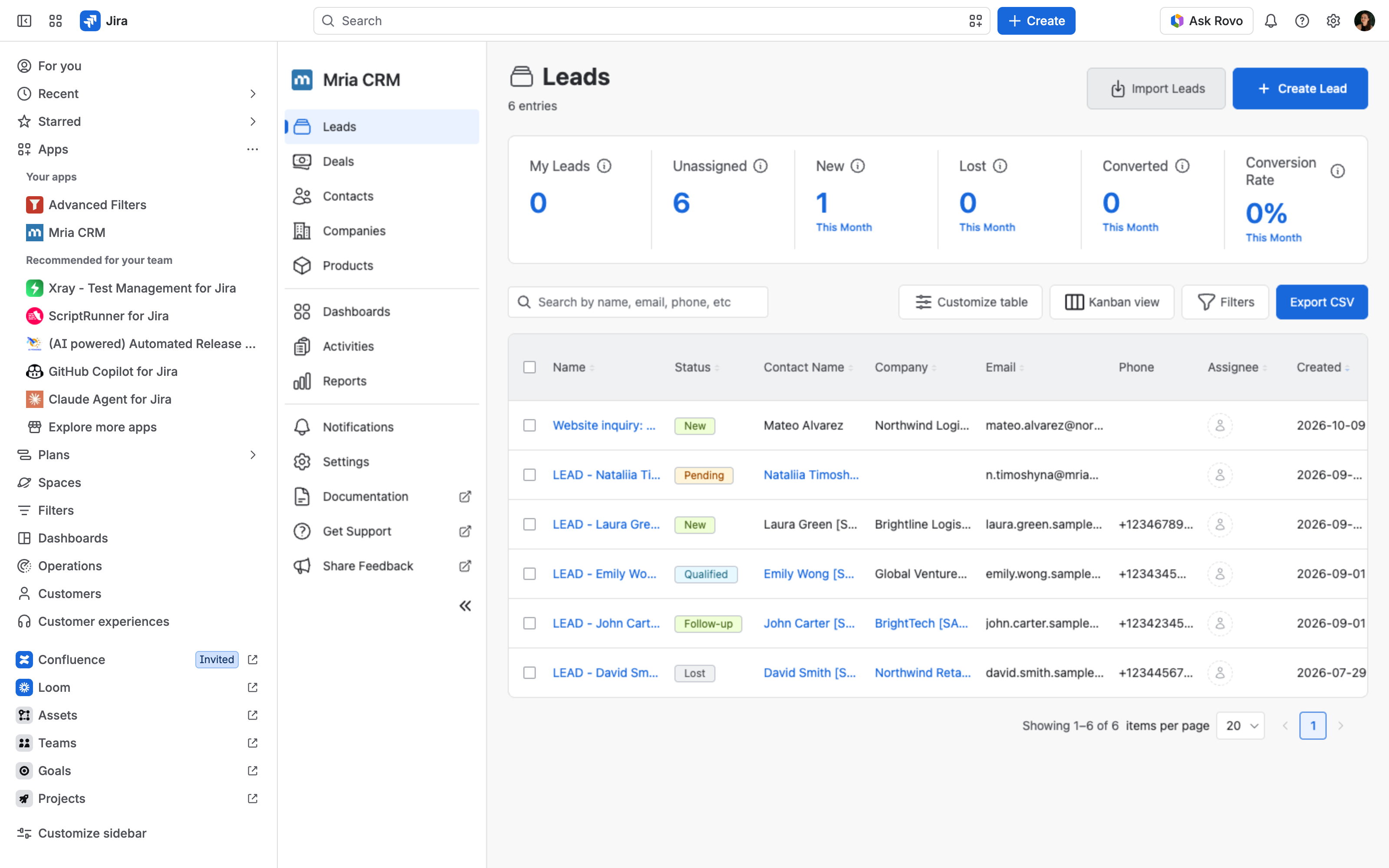
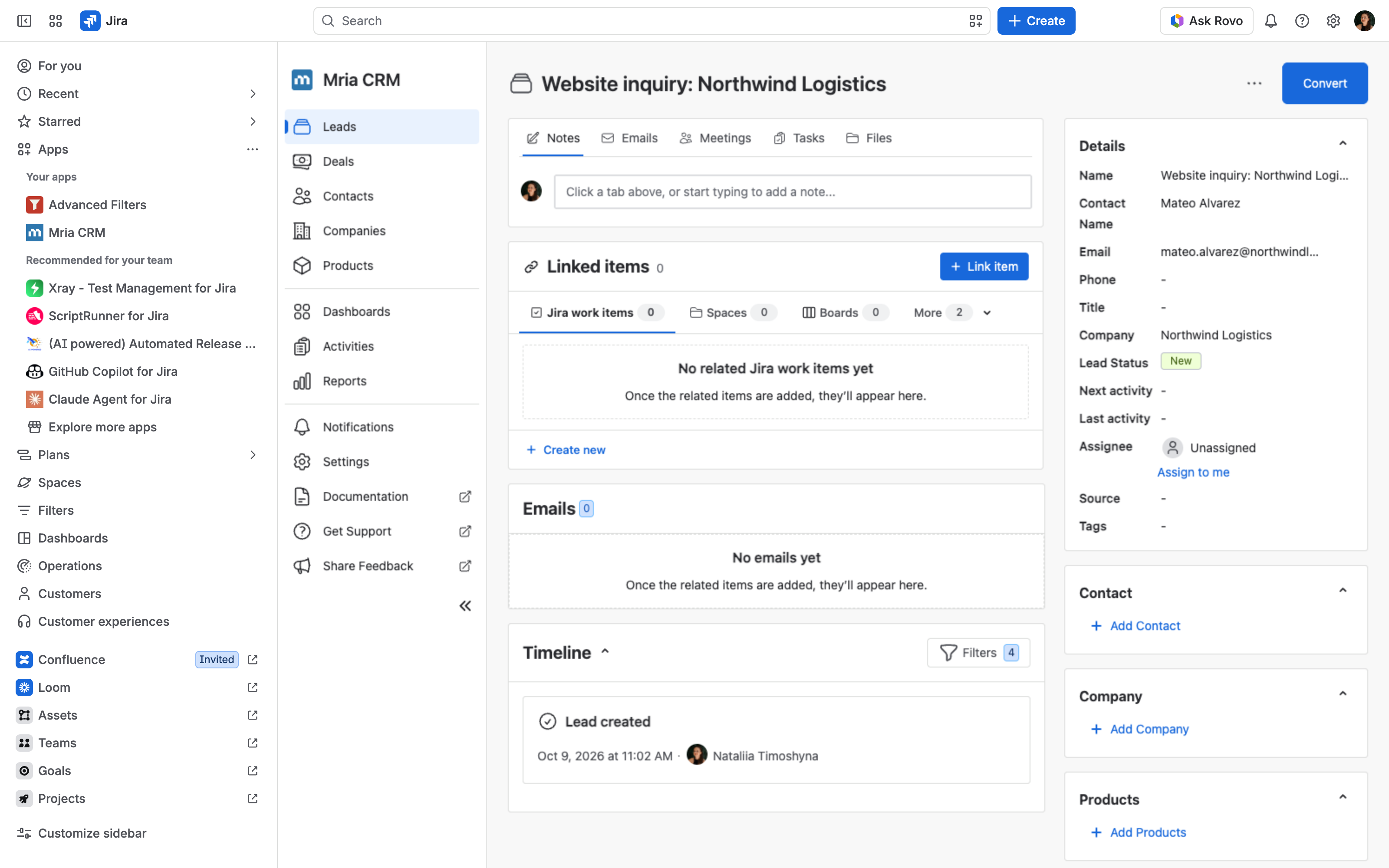
The Lead appears in the Leads list in the default status, with the contact details from the form, owned by nobody until a salesperson picks it up. Its timeline records the creation under the user who connected the account.
Variations #
- Set the status or the owner. Add
statusIdorassigneeIdto the body. Ids come fromGET /leadStatusesand from the user’s Atlassian account id. - Create the Contact at the same time. Send
"createNewContact": trueand the API creates a Contact from the name and email and links it. The call fails withEMAIL_ALREADY_EXISTSwhen that email already belongs to a Contact, so search first if duplicates are likely. - Avoid duplicate Leads. Put a second API Request before this one:
POST /leads/searchwith{"filter": {"search": "<email>"}}, then a Zapier Filter that continues only when Response Data Total is 0. - Keep the whole submission. Add a third request,
POST /leads/<Response Data Id>/notes, with the message and phone number as the note text.
This API is supported and actively developed, so it can change without notice. It builds on Atlassian’s Forge App REST APIs (Preview). Send feedback to the Mria CRM team.


