The lists behind your dropdowns #
Six value lists that Deals, Companies and Products choose from are managed in Settings, each on its own tab. They all work the same way, so you learn it once. Each tab opens with a line saying what its list is for.
| List | Where | Used by | Starts with |
|---|---|---|---|
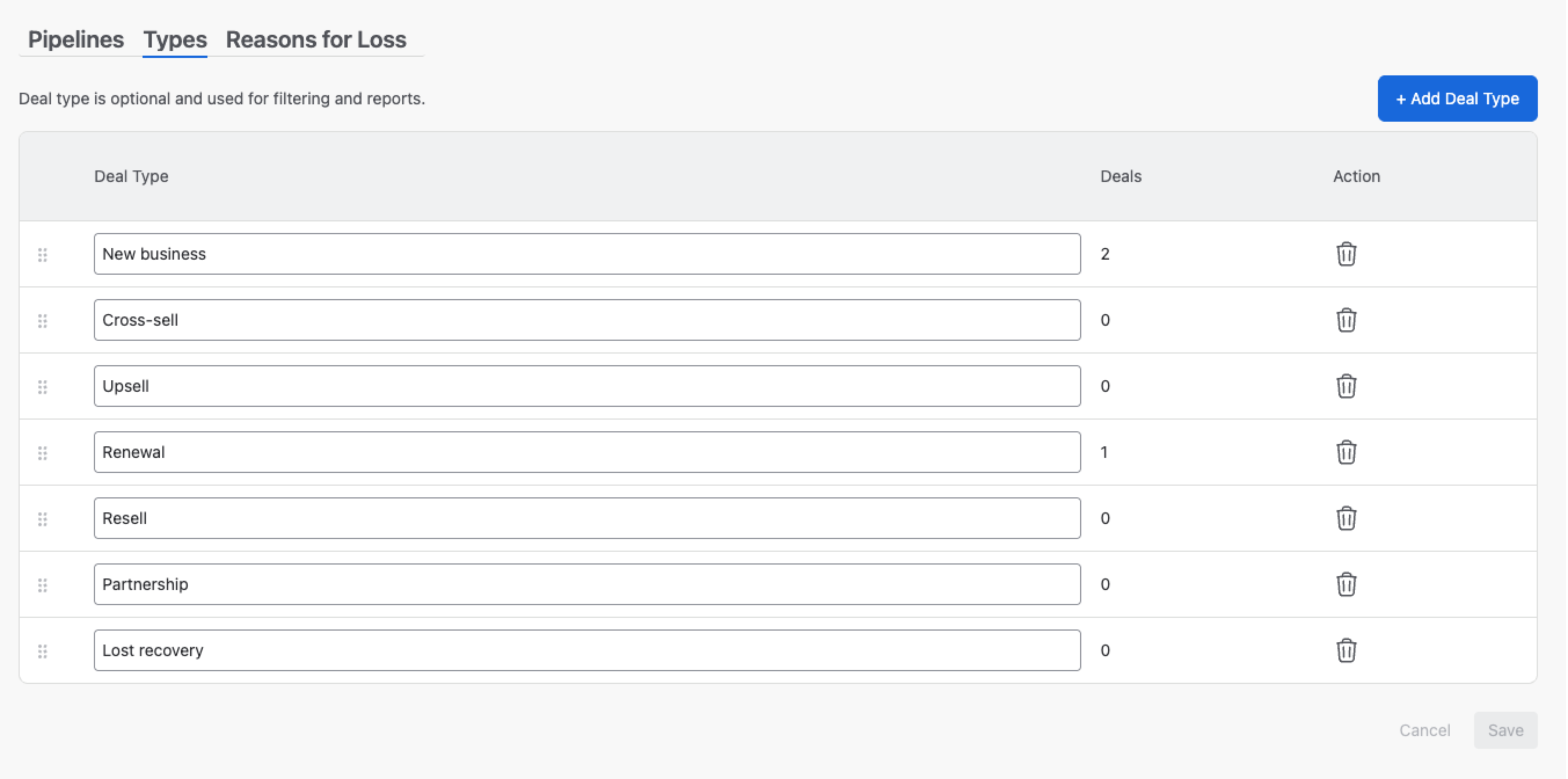
| Deal Types | Settings → Deals → Types | The Deal type field on every Deal, its filter, and deal reports. | New business, Cross-sell, Upsell, Renewal, Resell, Partnership, Lost recovery |
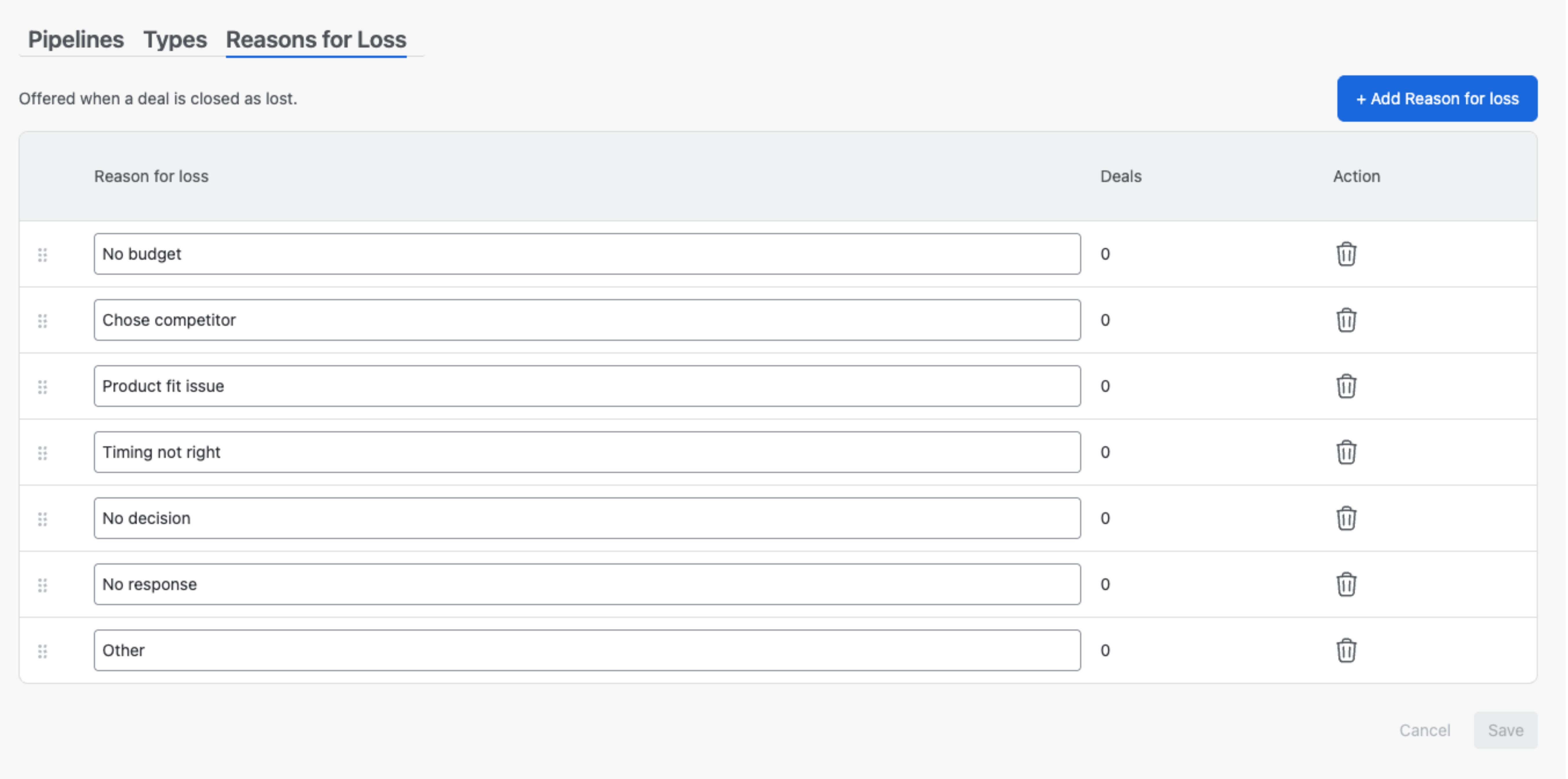
| Reasons for Loss | Settings → Deals → Reasons for Loss | The reason asked for when a Deal is closed Lost, the Lost Deals by Period report and the dashboards’ loss reasons. | No budget, Chose competitor, Product fit issue, Timing not right, No decision, No response, Other |
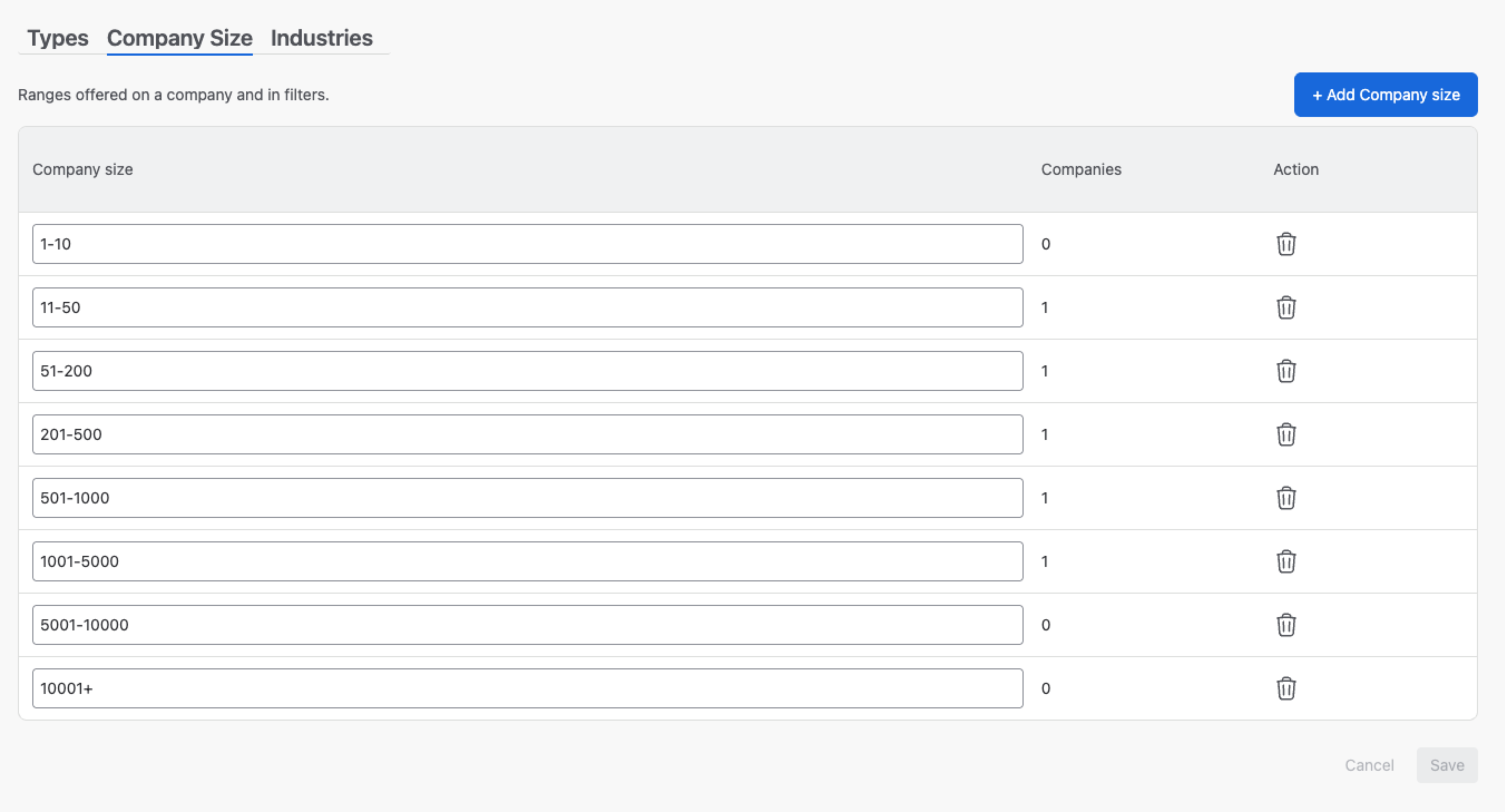
| Company Size | Settings → Companies → Company Size | The Company size field on Companies. | 1-10, 11-50, 51-200, 201-500, 501-1000, 1001-5000, 5001-10000, 10001+ |
| Industries | Settings → Companies → Industries | The Industry field on Companies, the Companies by Industry dashboard widget and the Companies import. | Education, Finance, Government, Healthcare, Manufacturing, Non-profit, Other, Retail, Services, Technology |
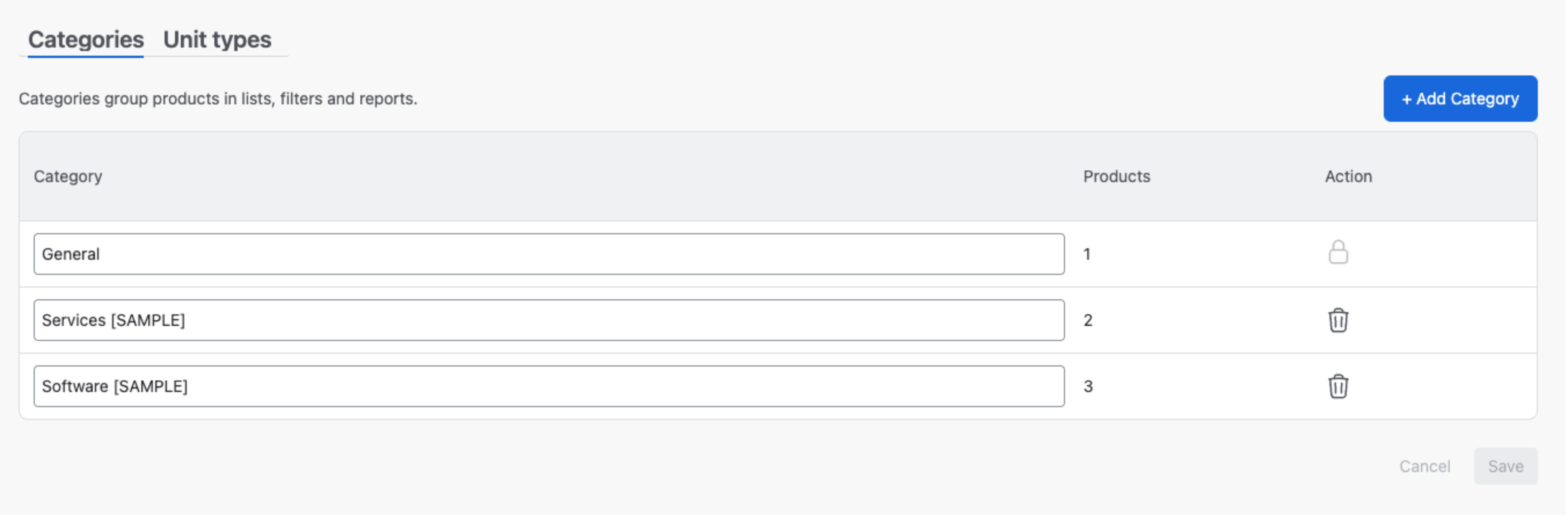
| Product Categories | Settings → Products → Categories | The Category of every Product. | General — a system category that can’t be deleted |
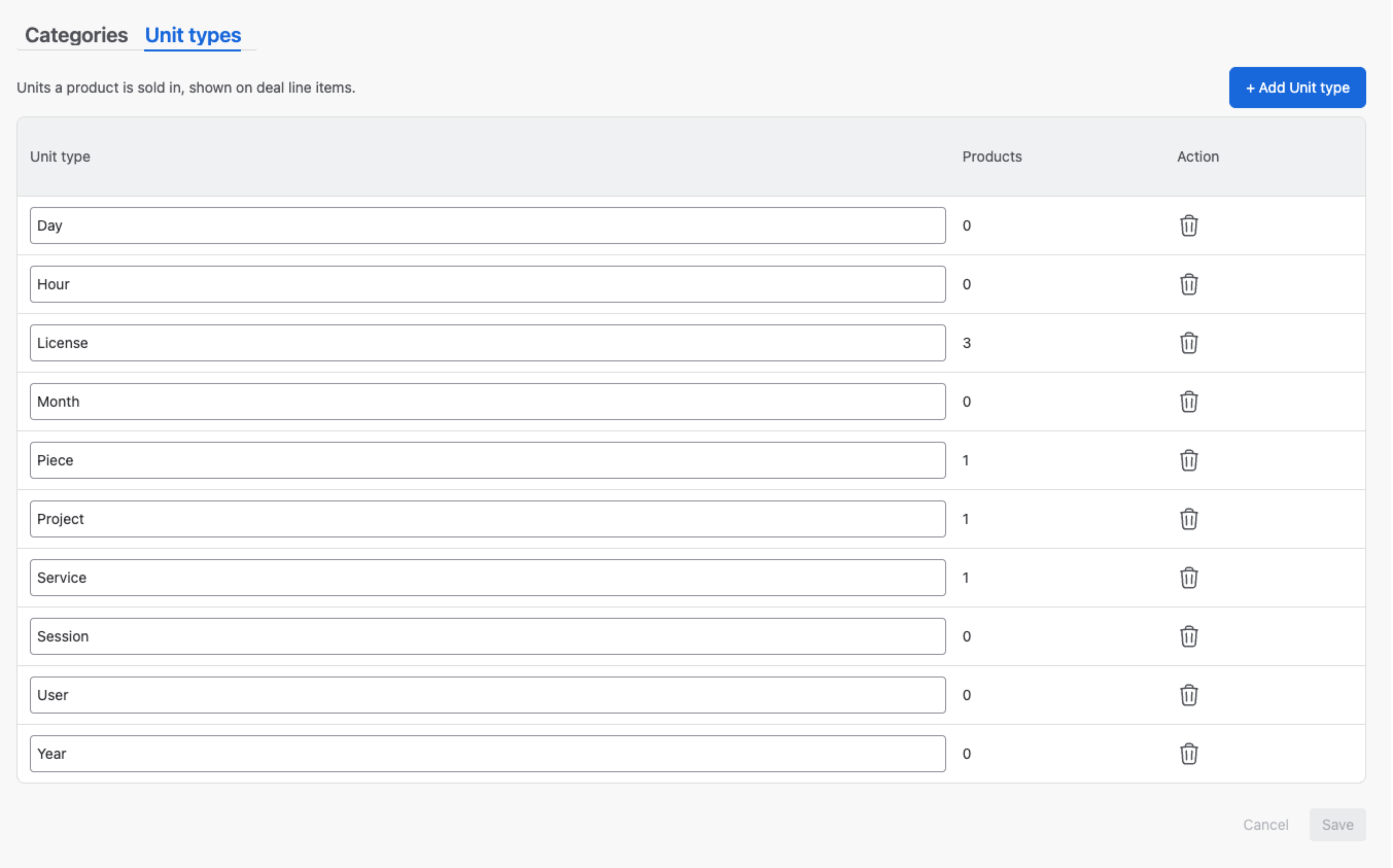
| Unit Types | Settings → Products → Unit types | The unit a Product is priced in. | Day, Hour, License, Month, Piece, Project, Service, Session, User, Year |
1. Editing a list #
- + Add a value at the top right. Names must be unique, ignoring case and surrounding spaces — new business next to New business reads Already exists.
- Rename a value by editing it in place. Records keep their value and show the new name straight away — nothing needs re-importing.
- The middle column counts the records using each value.
- Changes are staged: nothing applies until you click Save, and Cancel drops them.
- Deal Types and Reasons for Loss can be dragged into order — dropdowns list them in that order. The other lists are alphabetical.
Deleting a value #
A value nobody uses is deleted after a confirmation. A value in use can’t be: the dialog gives the count and the confirm button stays disabled until those records use something else.
Are you sure you want to delete the “New business” deal type? Used by 4 deals. Reassign them before deleting.
Who may edit each list follows the Configuration row for Deals, Companies or Products in Roles & Permissions.
2. Deal Types #
Settings → Deals → Types — The Deal type field on every Deal, its filter, and deal reports.
3. Reasons for Loss #
Settings → Deals → Reasons for Loss — The reason asked for when a Deal is closed Lost, the Lost Deals by Period report and the dashboards’ loss reasons.
4. Company Size #
Settings → Companies → Company Size — The Company size field on Companies.
5. Industries #
Settings → Companies → Industries — the Industry of every Company. Add the industries your customers are in — Telecommunications, say — and they can be picked on a Company at once, mapped to in the Companies import and counted by the Companies by Industry dashboard widget.
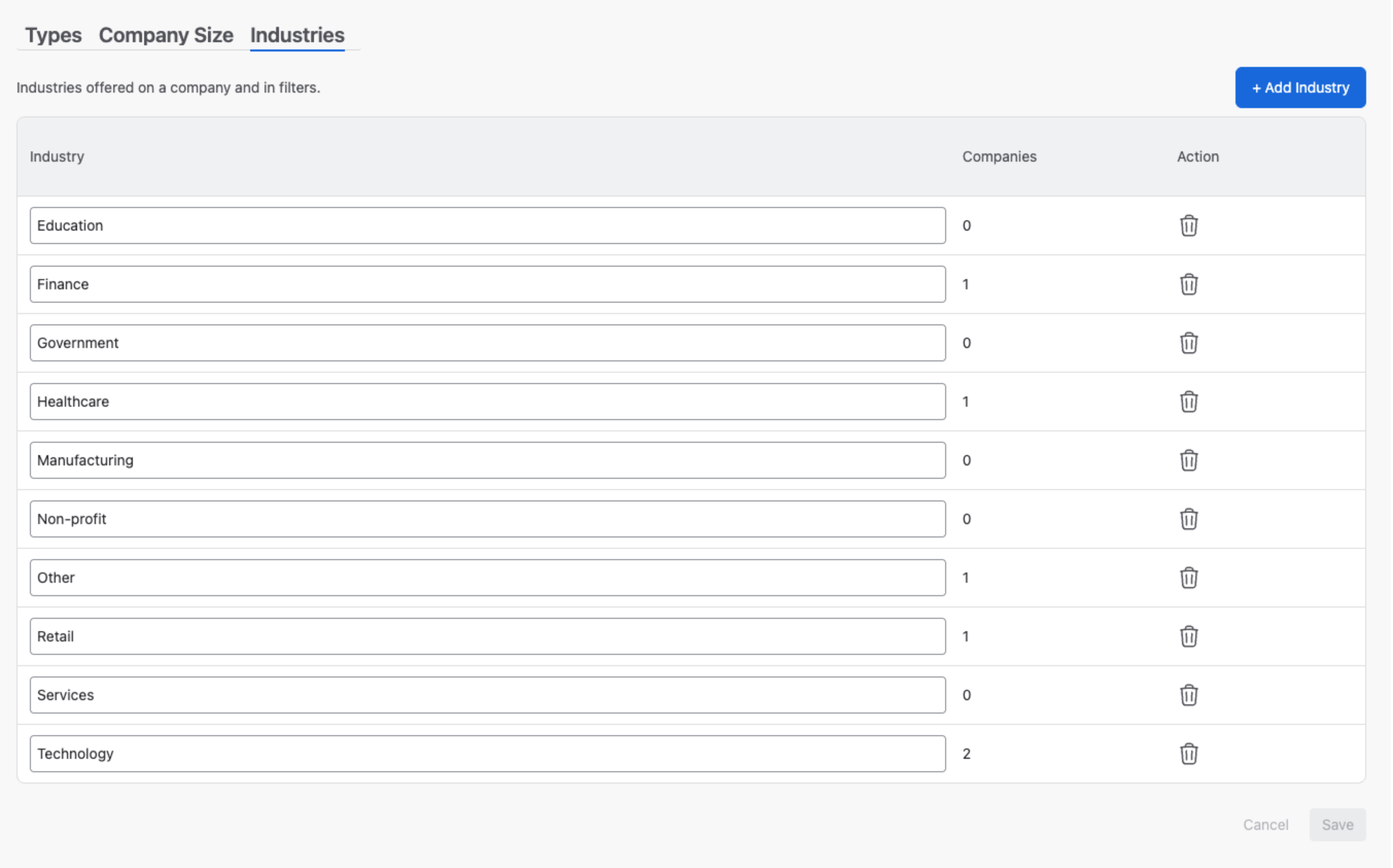
The list is alphabetical. An industry in use can’t be deleted — the dialog names how many Companies carry it — so move them first: filter Companies by that industry and change it with Edit fields in bulk.
6. Product Categories #
Settings → Products → Categories — The Category of every Product.
7. Unit Types #
Settings → Products → Unit types — The unit a Product is priced in.
Company and Contact types
The Types tabs next to these lists follow the same rules, and every type — Customer and Other included — can be renamed or deleted. See Company & Contact Types.
Related Pages #
- Pipelines Configuration — the other half of Settings → Deals.
- Company & Contact Types — the Types tab next to Company Size.
- Products — categories and unit types on a Product.
- Deals — deal type and the reason for loss on a Deal.


