Pipelines let you control how Deals move through your sales process — from the first step to Won or Lost. Each Deal always belongs to one pipeline and one stage inside it.
By default, every workspace has a Main Pipeline, but you can edit it or create more pipelines for different workflows.
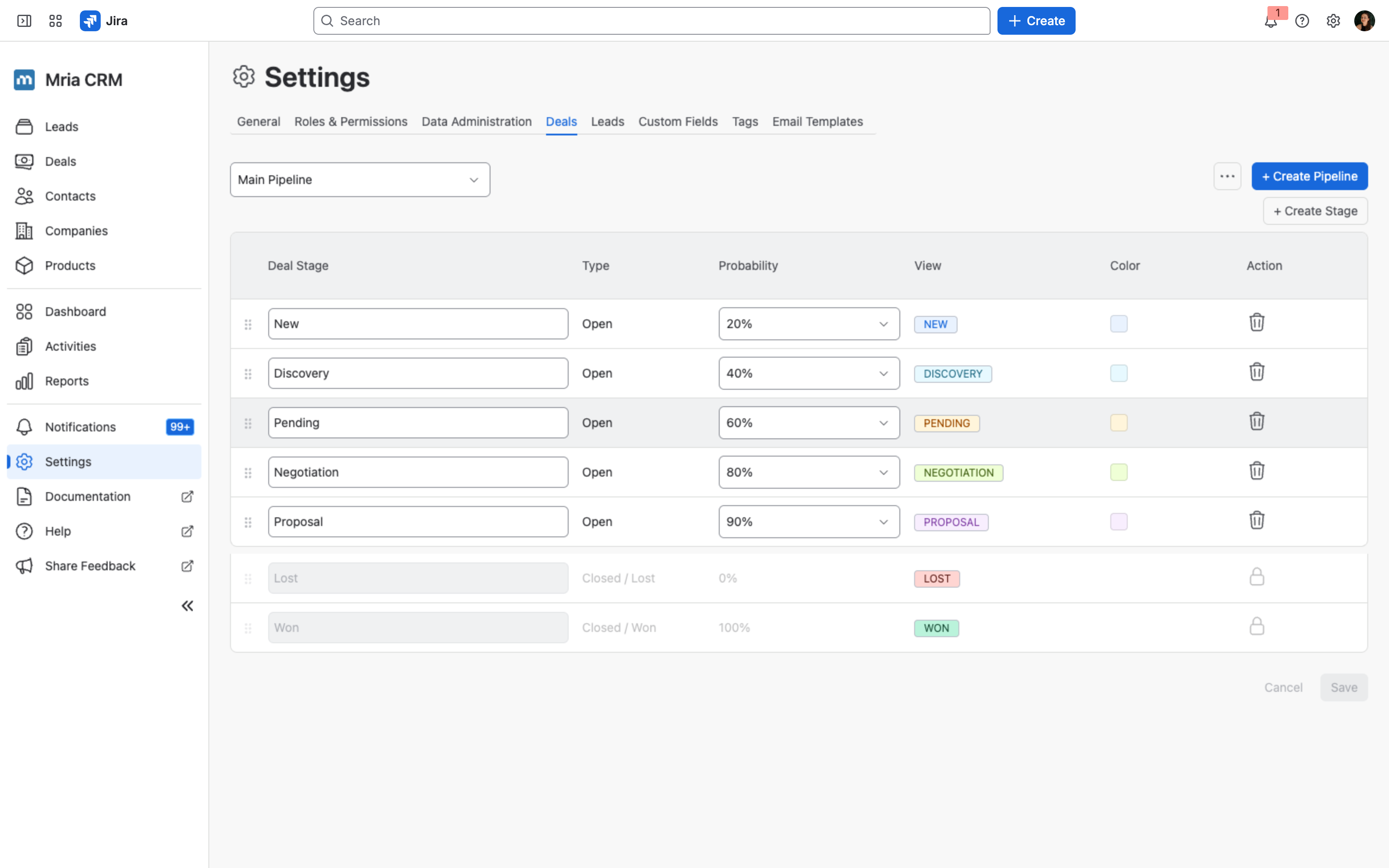
Settings → Deals has two more tabs next to Pipelines: Types and Reasons for Loss (the deal types). Both are covered on Configurable Lists.
Pipelines #
You can have up to 50 pipelines in one workspace.
Each pipeline:
- Has its own stages
- Can be renamed
- Can be deleted only if it has no Deals
When you create a new pipeline, it starts with default stages so you can use it right away.
Reordering pipelines #
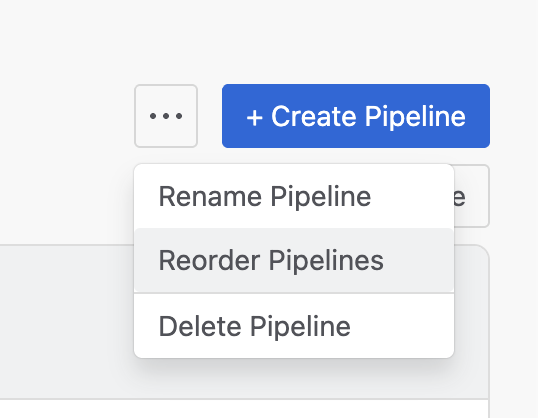
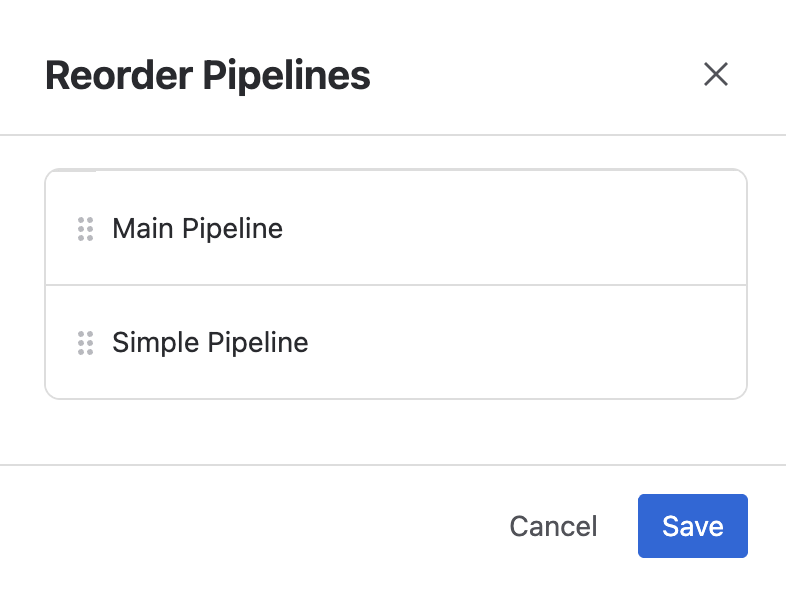
Pipelines can be reordered, and the first pipeline in the list is used as the default across the CRM.
Deleting a pipeline #
A pipeline cannot be deleted while any Deal still belongs to it. Move every Deal to another pipeline first — closing them does not help. The guard counts all Deals in the pipeline, Won and Lost included.
On a Main Pipeline holding 30 open and 13 closed Deals, the delete guard reports There are 43 linked deals — the 13 closed ones still count.
Stages #
Each pipeline can have up to 20 stages (including Won and Lost).
Each Deal stage has a Probability (%) value that represents the likelihood of a Deal being closed at that stage.
The value is picked from a predefined list (10%, 20%, 30% and so on). It is the default probability of every Deal in the stage, and so it drives every weighted amount: the Weighted Pipeline Value on the Deals page and on Dashboards, the Weighted line on each Deal, the Kanban column summaries, the weighted mode of dashboard charts, and the Weighted Amount column of the Pipeline by Stage report.
Won and Lost:
- Always exist
- Cannot be renamed
- Cannot be deleted
- Are closed stages
Every pipeline must have at least one open stage.
You can:
- Add stages
- Rename stages
- Reorder stages
- Change stage colors
- Delete open stages
Deleting a stage #
If a stage has Deals, the system will ask you to move them to another stage in the same pipeline before deleting it.
You cannot delete:
- Won
- Lost
- The last remaining open stage
Stage Colors #
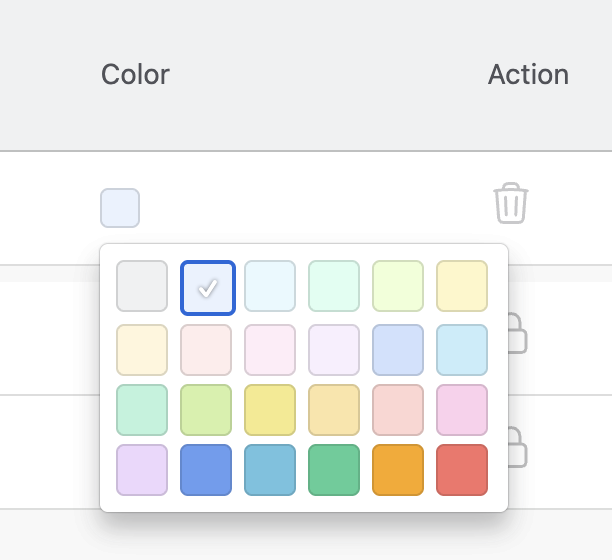
Each stage has a color.
These colors appear in:
- Deal boards
- Dashboards
- Pipeline funnels
They help visually track progress and understand reports faster.
Using Pipelines #
Deals #
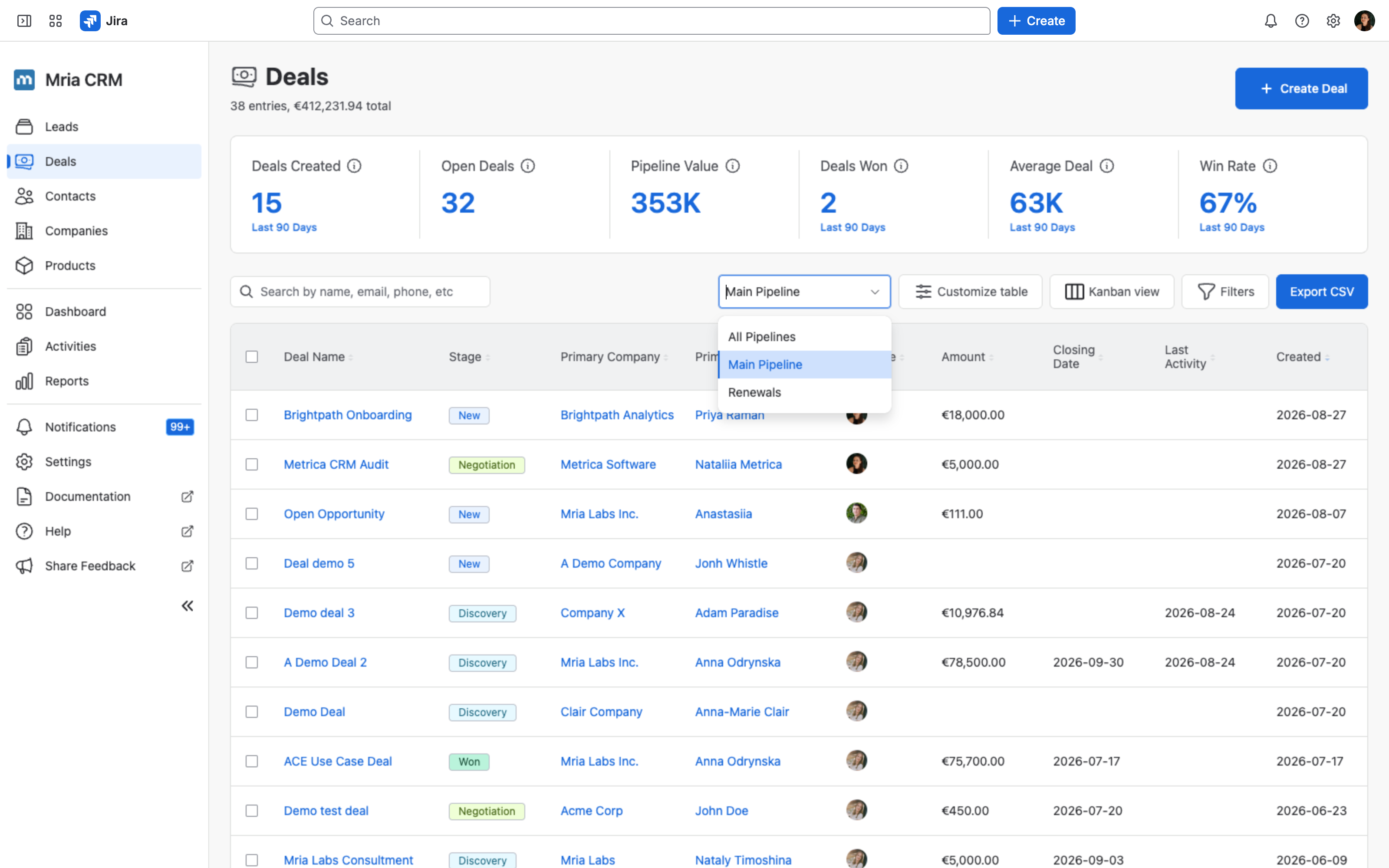
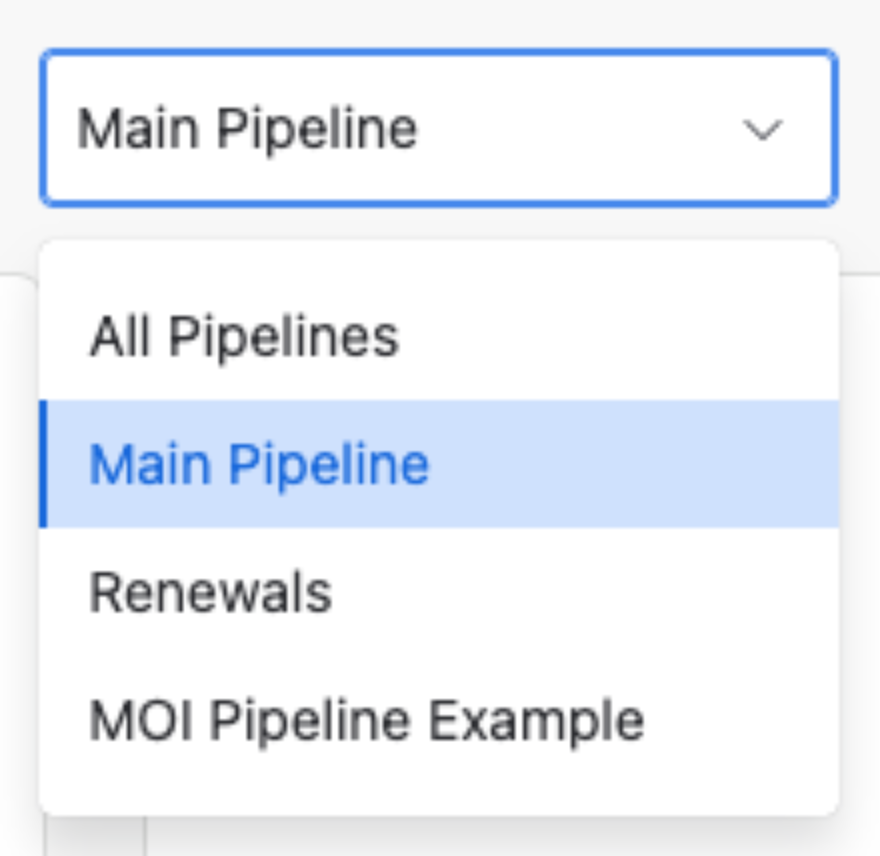
The Deals page has a Table view and a Kanban view. A pipeline selector sits in the toolbar of both views. Each pipeline shows only its own stages and Deals. One difference worth knowing: All Pipelines appears in the selector only in table view — in Kanban the list holds just the individual pipelines.
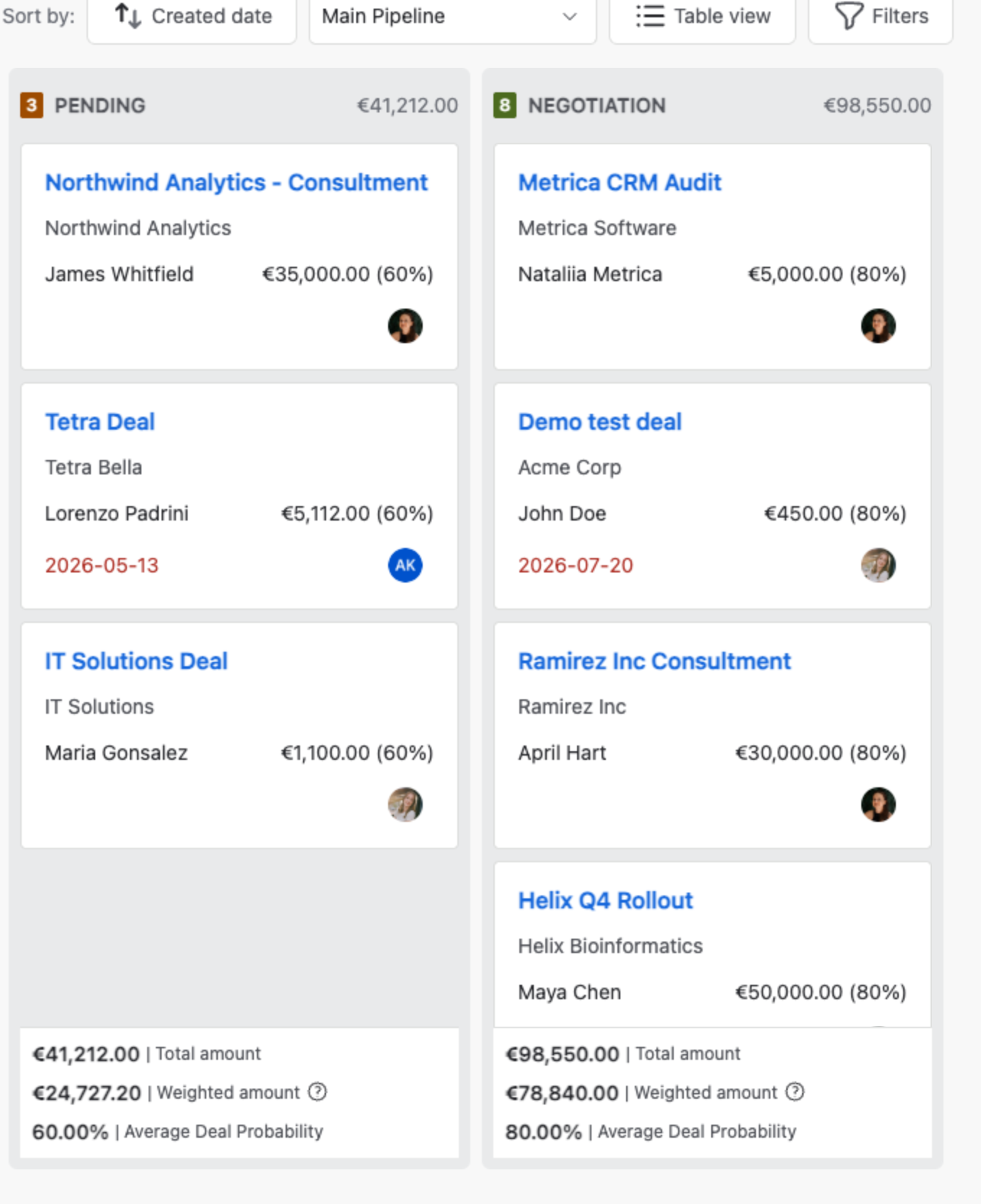
On the Kanban board each column header carries the stage total, and every card shows its own amount together with the stage probability. A summary pinned to the foot of each column gives the stage’s total amount, its weighted amount, and the average Deal probability.
Dashboards #
Pipeline filters control:
- Funnel charts
- Deal counts
- Revenue by stage
On Dashboards, the Pipeline filter at the top of the page includes the same All Pipelines option, and each widget can follow it or keep a pipeline of its own.
This lets you track and compare different sales flows separately.
All Pipelines #
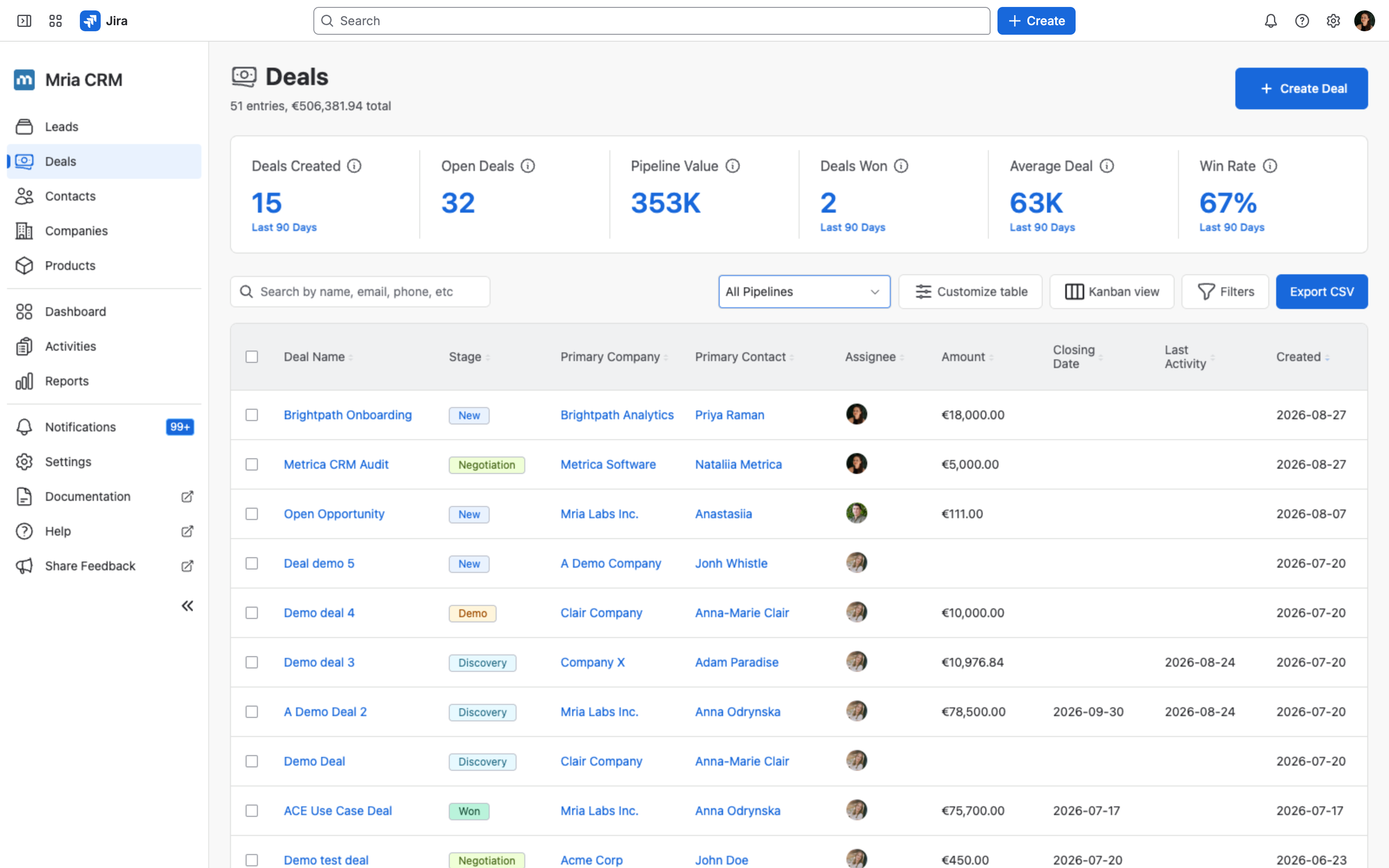
The All Pipelines option gives you a single, cross-pipeline view of every Deal in the workspace. It is available on the Deals page in table view, in the Pipeline filter of Dashboards, and in deal-based Reports.
How stages are aggregated #
When All Pipelines is selected, Mria CRM merges stages with identical names across pipelines and treats them as one stage:
- If two pipelines both contain a stage named Negotiation, their Deals share a single Negotiation stage — in the Deals table they all read Negotiation in the Stage column, and reports group them together.
- Won and Lost always aggregate, since they exist in every pipeline.
- A stage that exists in only one pipeline stands on its own. If only one pipeline has a Demo stage, Demo appears with just that pipeline’s Deals.
Stage matching is by exact name. If two pipelines have similar but differently spelled stages (e.g., Pending vs. On Hold), they will not aggregate — keep stage names consistent across pipelines when you want them to merge in this view.
Deal probability under All Pipelines #
Each Deal keeps its own probability — taken from its individual pipeline-stage probability (or any manual override). The merged stages don’t compute a combined probability; weighted totals still use each Deal’s individual probability.
When to use it #
- Cross-motion forecasting — get a single weighted total across all sales motions (e.g., new business + renewals).
- Top-of-funnel comparison — see how many Deals are sitting in New or Discovery across the whole org, not just one motion.
- Win/Loss reporting — review Won and Lost totals across every pipeline in one view.
Switch back to an individual pipeline whenever you need pipeline-specific stage breakdowns or want to move Deals between stages.


