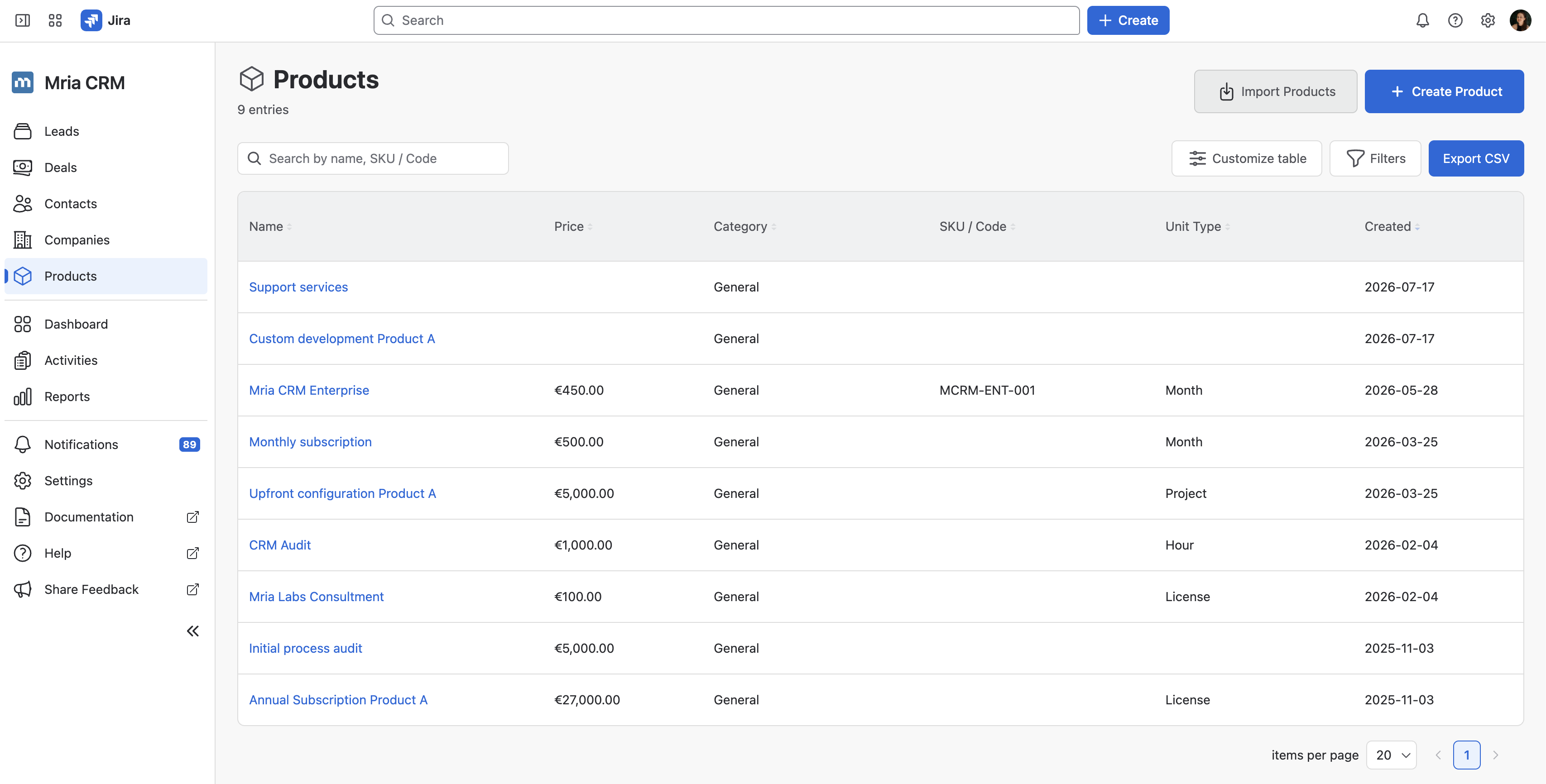
The Products Import tool allows you to bulk upload Products from external sources directly into Mria CRM.
You can access it either from the Products section (via the Import Products button in the top-right) or under Settings → Data Administration → Products — the process is identical in both places.
Getting Started #
Before importing, you can:
- Download a sample file (
.CSVor.XLSX) to understand the correct structure. - Export Products from another CRM or catalog — Mria CRM supports files exported “as is” from most common systems.
Compared to Contacts and Companies Imports, the setup here is simpler. Products do not include linking options to other entities during import, so the process focuses on uploading the file, mapping fields and values, and deciding how to handle duplicates.
Maximum file size: 3 MB
Step 1. Upload File #
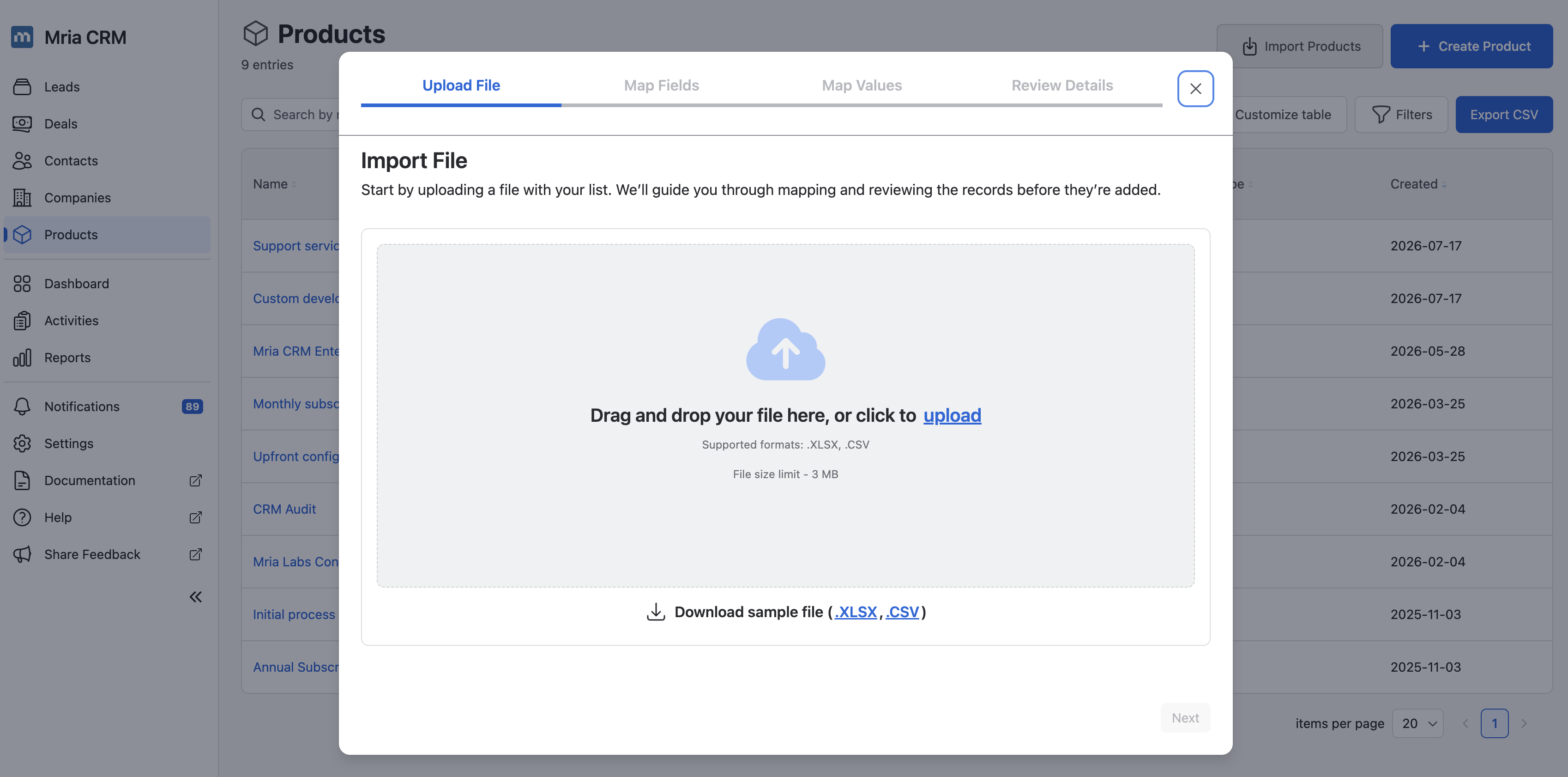
Drag and drop your file or click upload to browse your computer.
Supported formats: .XLSX, .CSV
Maximum file size: 3 MB
Once uploaded, click Next to move to the field-mapping step.
Step 2. Map Fields #
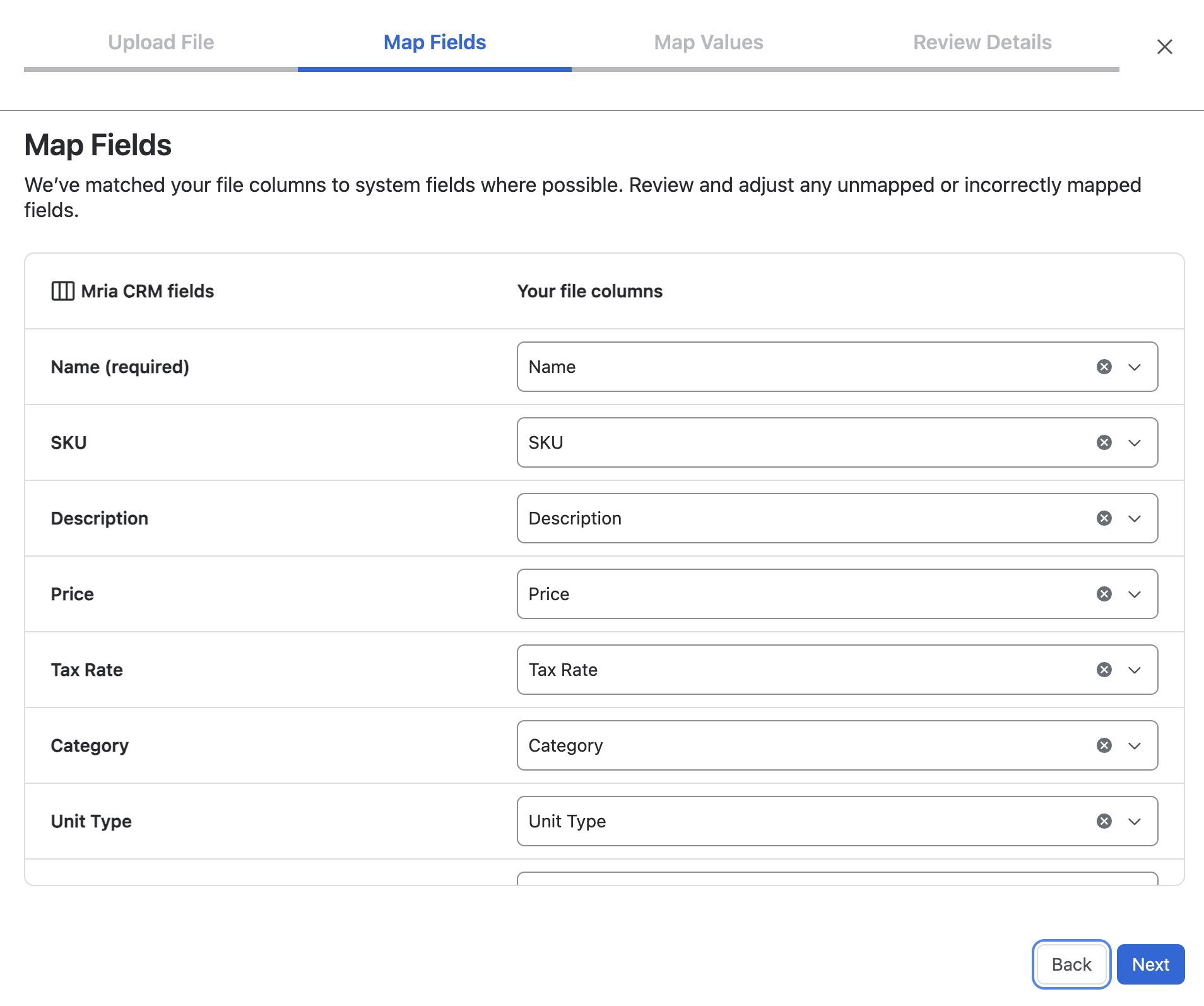
Mria CRM tries to auto-match your file columns to system fields based on similar names.
For example, columns like Product, Product Name, or Name may all map to Name automatically.
You can:
- Change the mapping by clicking ✕ next to a field and selecting another option.
- Leave an optional field unmapped — that column simply will not be imported. The required fields below are the exception: they have to be mapped for the import to run.
Required field:
- Name
Required fields cannot be skipped. If your file has no column for one of them, add it before uploading rather than trying to map around it.
Optional fields may include:
- SKU
- Description
- Price
- VAT Mode
- VAT Rate
- Category
- Unit Type
VAT Mode accepts None, Exclusive or Inclusive — excl. and incl. work too. Any other value is reported as Invalid VAT mode; fix the cell or clear it.
Custom fields: Any Custom Fields configured on Products also appear in this list alongside the standard fields. They follow the same auto-match rules — a column named Launch Date will map to a Launch-Date custom field automatically. You can map, change, or skip them just like any other field.
Two file columns can be mapped onto a single field — map a first-name and a last-name column onto Name and the wizard joins them, with a Join with choice of Space, Comma, Hyphen or None and a live preview. See Contacts Import for the detail.
Step 3. Map Values #
For fields whose values come from a fixed list — the system Unit Type field, plus any custom Dropdown, Multi-select, or Labels field on Products — Mria CRM matches the values in your file to the options configured in the CRM.
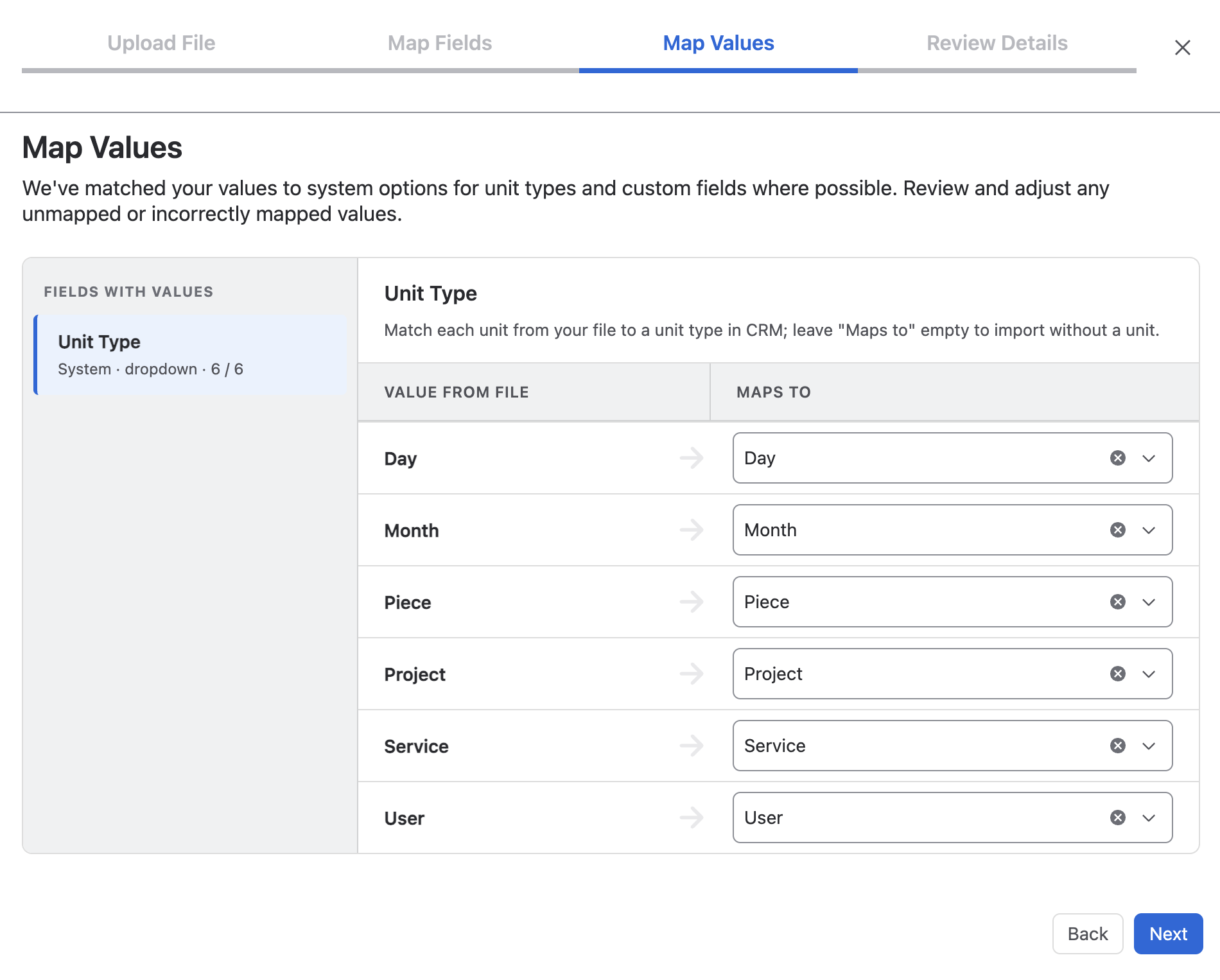
The Fields with values sidebar on the left lists every field that needs value mapping. For each one, you’ll see:
- The field name and whether it’s a System field or a Custom field.
- The field type (dropdown, select, multi-select, labels).
- A counter showing how many file values are mapped vs. the total found (for example,
6 / 6means every value found in your file is mapped).
Click any field in the sidebar to review and adjust its mapping on the right. For each value found in your file, choose the matching CRM option from Maps to — or leave it empty to skip that value (the row will be imported without a value for that field).
Unit Type is the system picklist here — file values like Day, Month, Piece, Project, Service, or User map to the corresponding CRM Unit Type options. If a file value doesn’t match any CRM option and you leave it empty, those rows are imported without a unit.
Step 4. Review Details #
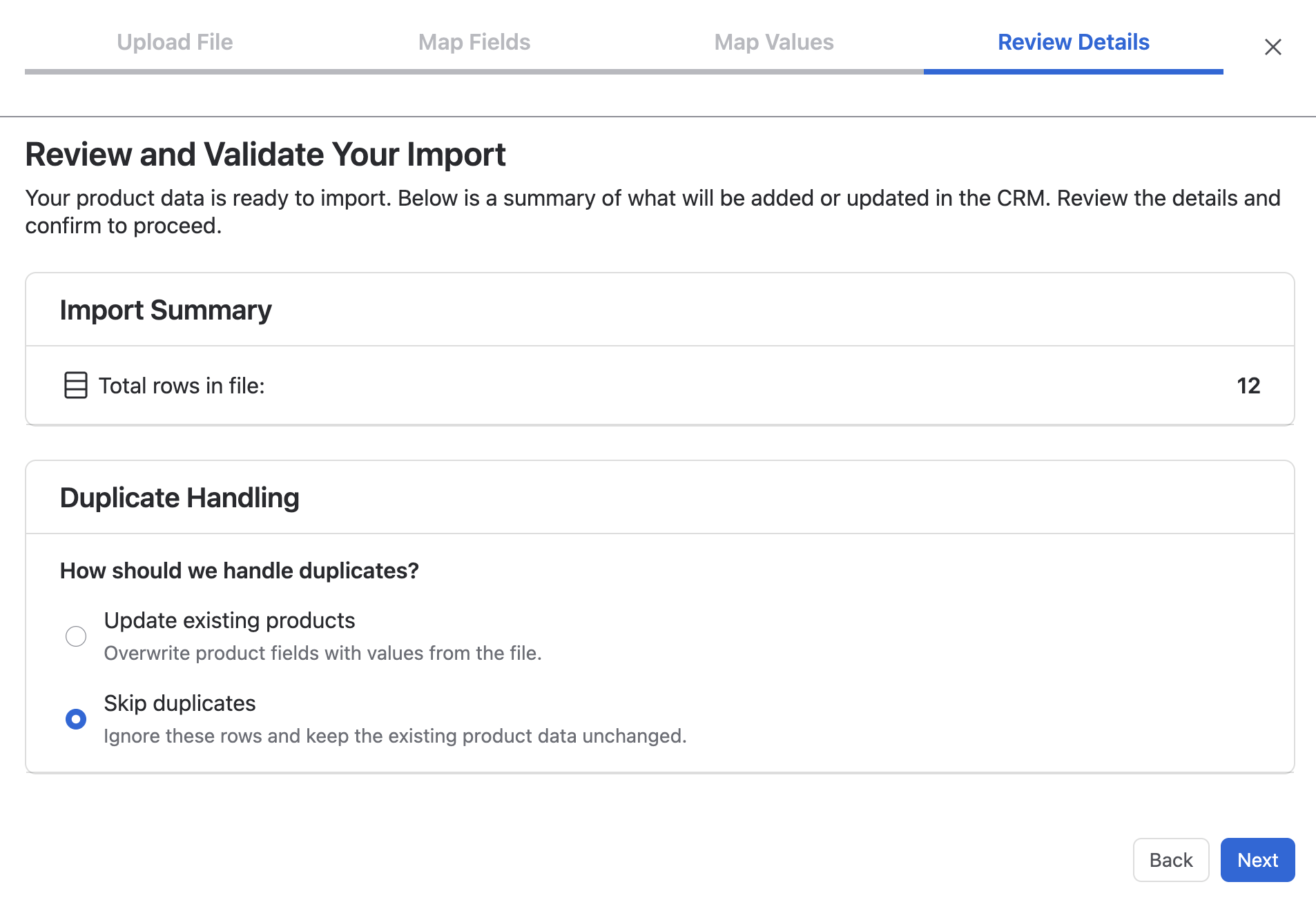
Before importing, review the Import Summary to confirm the row count, then choose how the system should handle duplicate Products.
Duplicate matching #
Products are matched by Name only. If a Product with the same Name already exists in Mria CRM, it will be treated as a duplicate — regardless of how other fields (SKU, Price, Category, custom fields) compare.
Because matching is by Name, make sure your file’s Name column is clean before importing — trailing spaces or capitalization differences will be treated as different Products.
Duplicate handling options #
1. Update existing products #
If a matching Product already exists in CRM, Mria CRM will overwrite its fields with values from your file.
This updates Product details such as:
- Price
- VAT Mode and VAT Rate
- Unit Type
- Category
- Description
- Custom fields
- and other imported fields
2. Skip duplicates #
If a matching Product already exists, that row will be ignored and the existing CRM record will remain unchanged.
Step 5. Import in Progress #
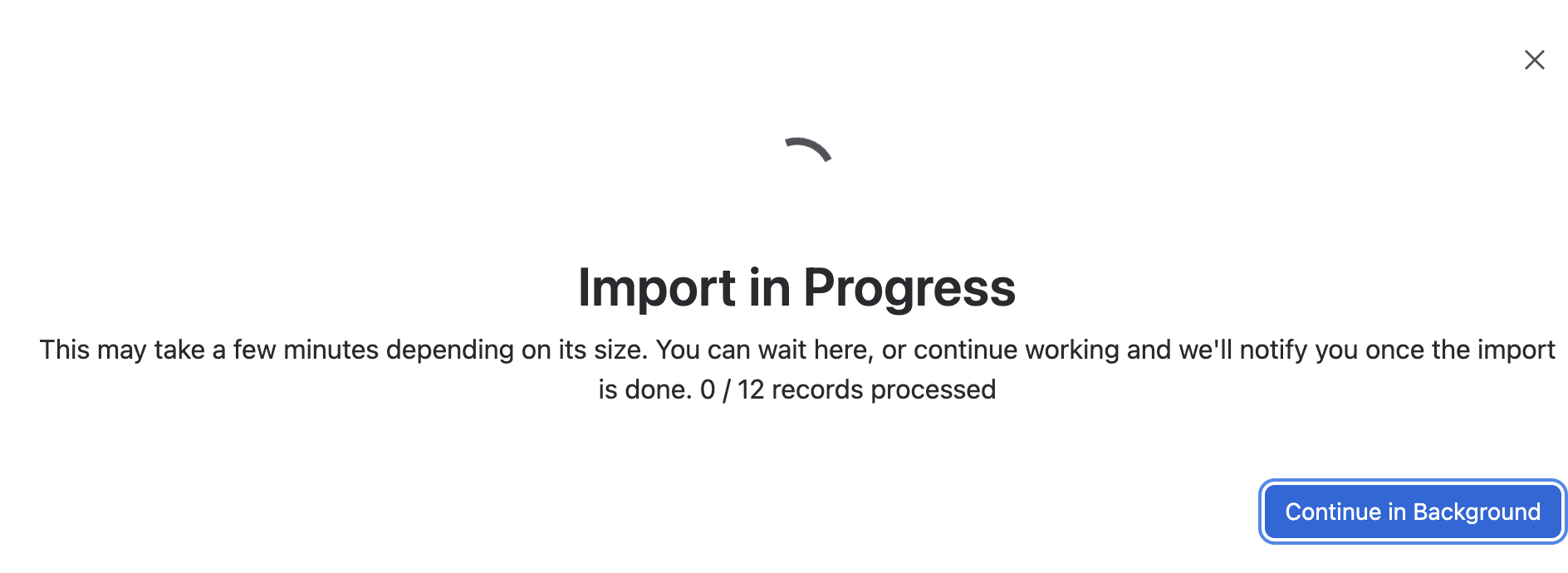
When the import starts, you’ll see a progress indicator with a running count of records processed (for example, 0 / 12 records processed).
You can stay on this screen or click Continue in Background and keep working — the import will proceed automatically and you’ll be notified when it finishes.
Step 6. Import Completed #
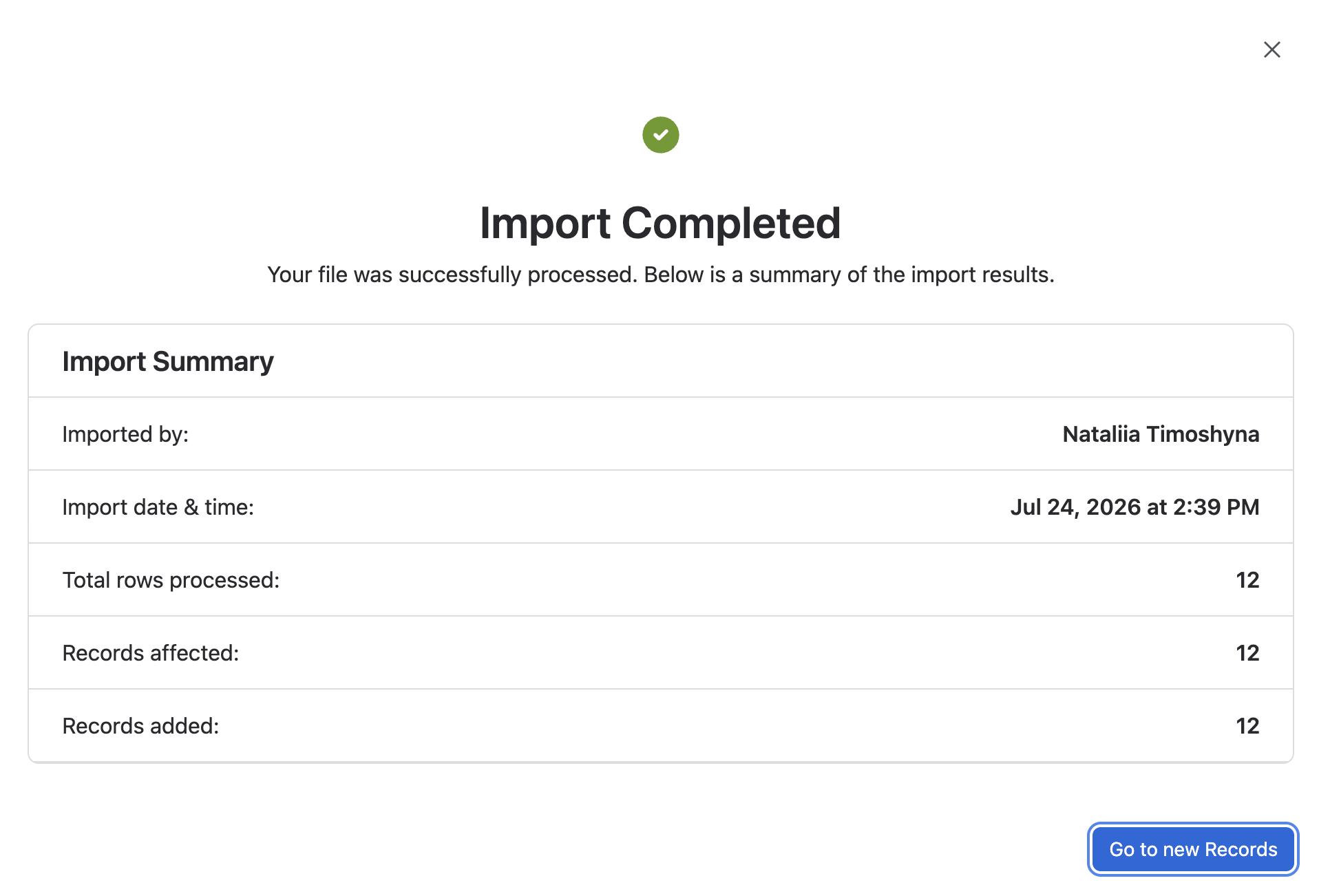
After a successful import, you’ll see:
- Imported by
- Import date & time
- Total rows processed
- Records affected
- Records added
Click Go to new Records to view the imported Products.
Viewing Imported Products #
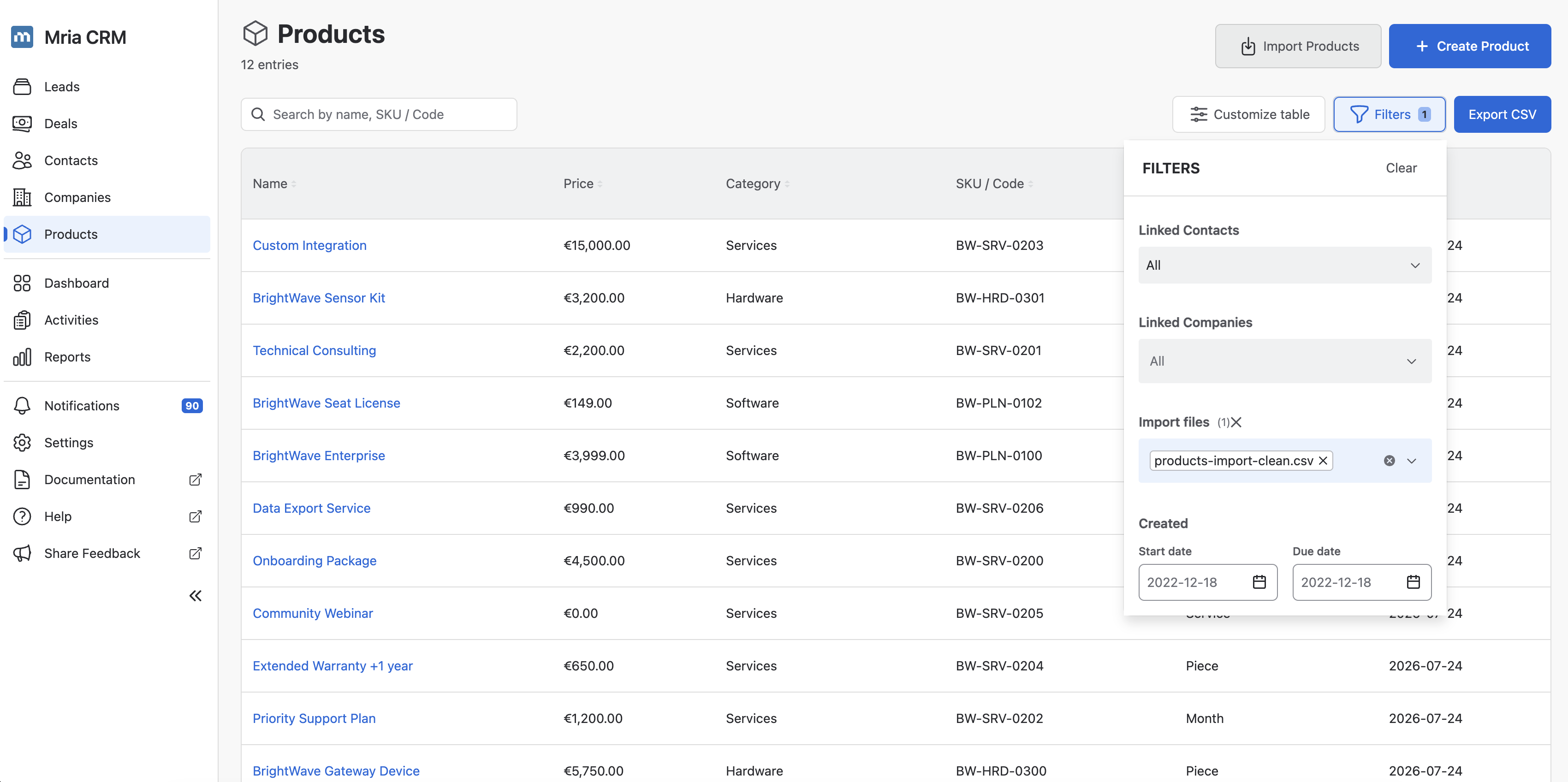
You can find imported Products in several ways:
- From the notification you receive after the import finishes.
- From Settings → Data Administration → Products, by clicking the number in the Records column for the file you imported.
- From the Products list, using the Filters panel — the Import files filter lets you pick one or more import files and see exactly the Products that came from each.
Handling Import Errors #
If your import fails, don’t worry — all Products processed before the error remain saved in Mria CRM.
You can re-upload the same file and run the import again. Then choose the duplicate handling option that best fits your case:
- Update existing products — to refresh the Products that were already imported before the error
- Skip duplicates — to import only the remaining Products and leave already processed ones unchanged
This is especially helpful if the import stopped halfway due to a temporary platform issue.
Notifications #
When the import finishes, you’ll receive a notification in Notifications about the result.
This helps you confirm whether the import completed successfully or needs to be retried.


