Every form on your website, straight into Mria CRM #
A contact form, a demo request, a pricing-page signup, a webinar registration: anything that can send an HTTP POST can create a Lead in Mria CRM. No Zapier, no spreadsheet in between, and no one copying names across by hand.
The flow on this page receives the form’s data through Jira Automation’s Incoming webhook trigger, checks whether the person is already a Lead, creates the Lead if they are not, and writes their message on it as a note. A second submission from the same email adds a note to the existing Lead instead of creating a duplicate.
1. What you get #
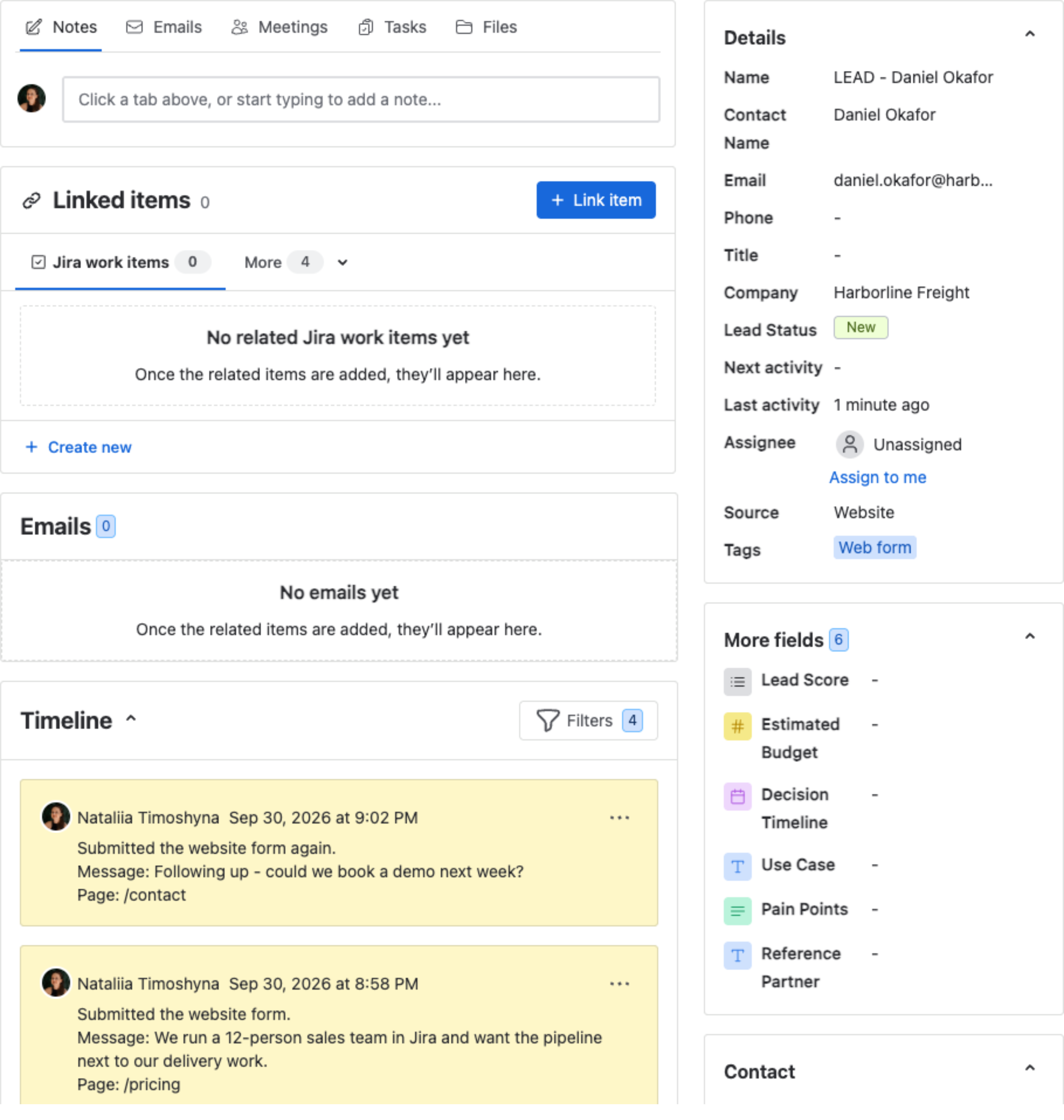
The form above arrived twice from the same person. The result is one Lead — LEAD – Daniel Okafor, company Harborline Freight, source Website, tag Web form — with both messages on its timeline and the page each came from.
2. The flow at a glance #
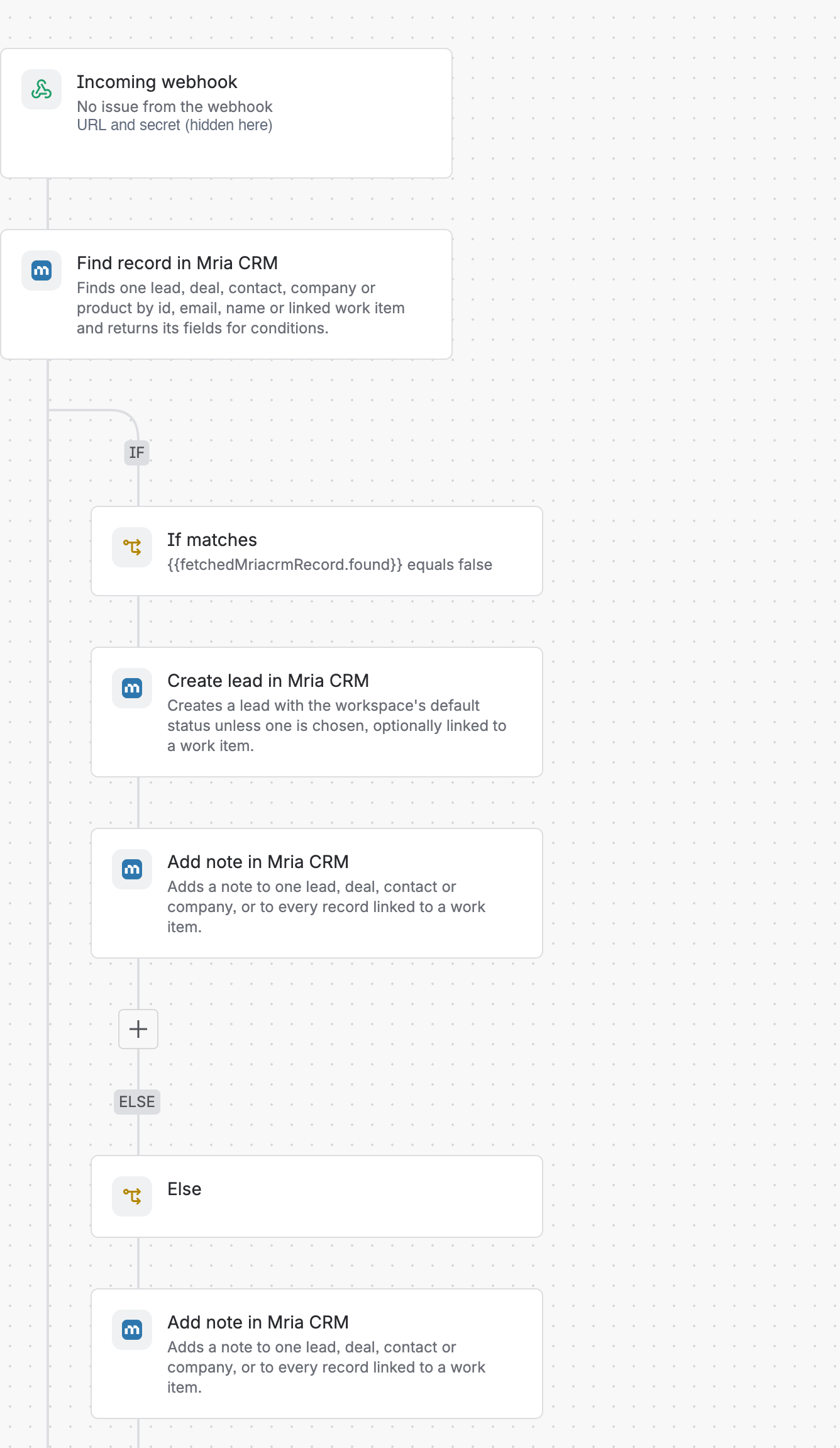
- Incoming webhook — receives the form data.
- Find record — looks for a Lead with that email.
- If/else —
{{fetchedMriacrmRecord.found}}equals false? - If: Create lead and Add note with the message.
- Else: Add note to the Lead that already exists.
3. Build it #
You need permission to create automation flows in Jira, and a Mria CRM role that can create and edit Leads — the steps run as you.
Step 1. Create the flow and its trigger #
- In Jira, open Settings → System → Global automation (or a space’s own automation settings) and choose Create flow → Create from scratch.
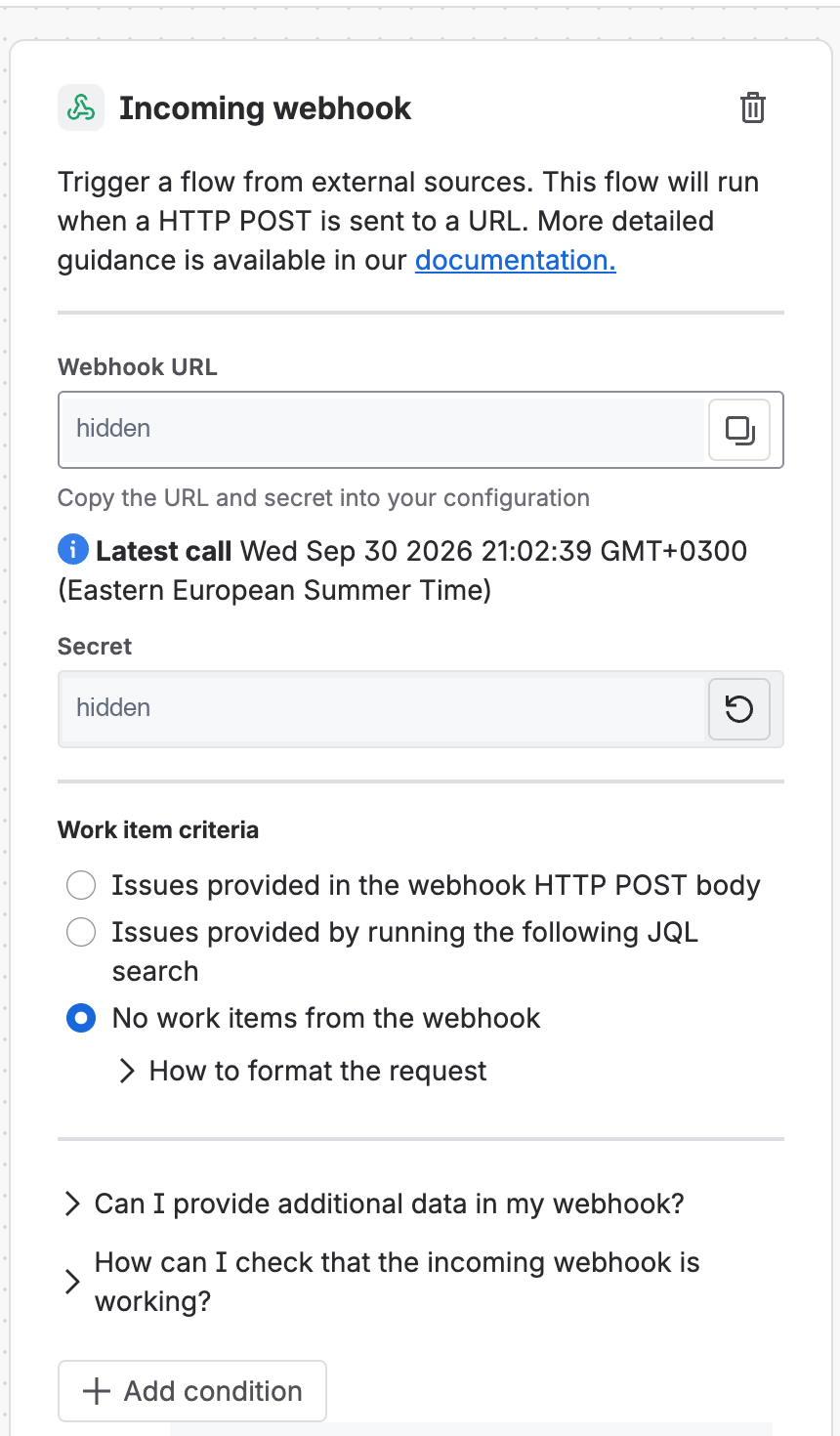
- Pick the trigger Incoming webhook.
- Under Work item criteria select No work items from the webhook. A form submission is not about a work item, and the flow cannot be saved until one option is chosen.
- Save the flow once. Jira then shows the Webhook URL. Click the button next to Secret to generate one, and copy both — you need them in section 4.
The URL and the secret together are a key
Anyone who has both can create Leads in your CRM. Keep them on a server, never in a web page’s HTML or JavaScript, where every visitor can read them. If they leak, generate a new secret — the old one stops working at once — and update the sender.
Step 2. Find record — is this person already a Lead? #
Add the action Find record in Mria CRM. If this is your first Mria CRM step, click Connect first. Then set:
| Field | Value |
|---|---|
| Find by | |
| Record type | Lead |
{{webhookData.email}} |
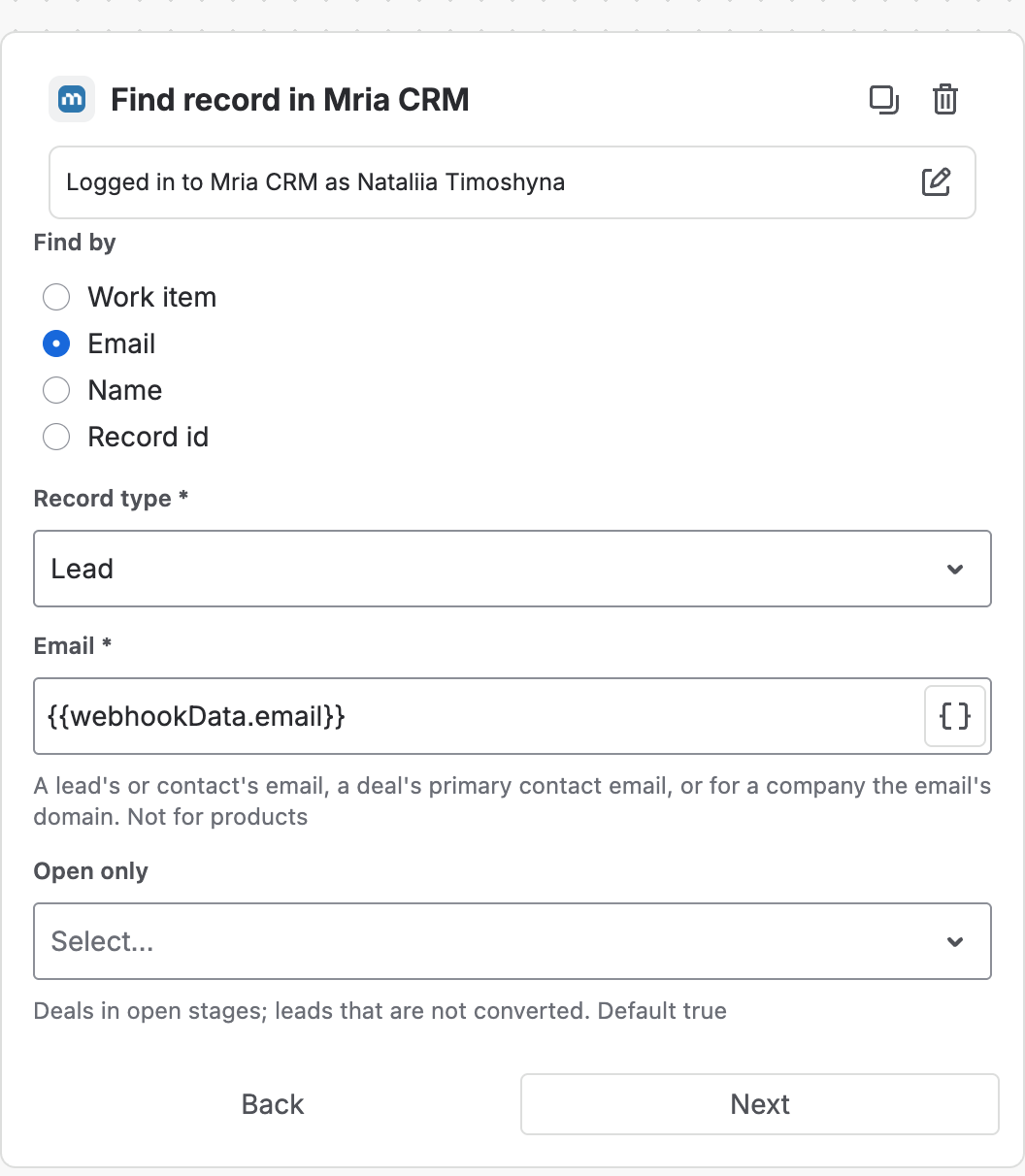
Every top-level field of the JSON body is available as {{webhookData.<field>}}. The names are case-sensitive and must match what your form sends.
Step 3. Branch on the result #
Add an If/else block. In the If part add the condition Compare two values: {{fetchedMriacrmRecord.found}} equals false.
Step 4. If not found: create the Lead #
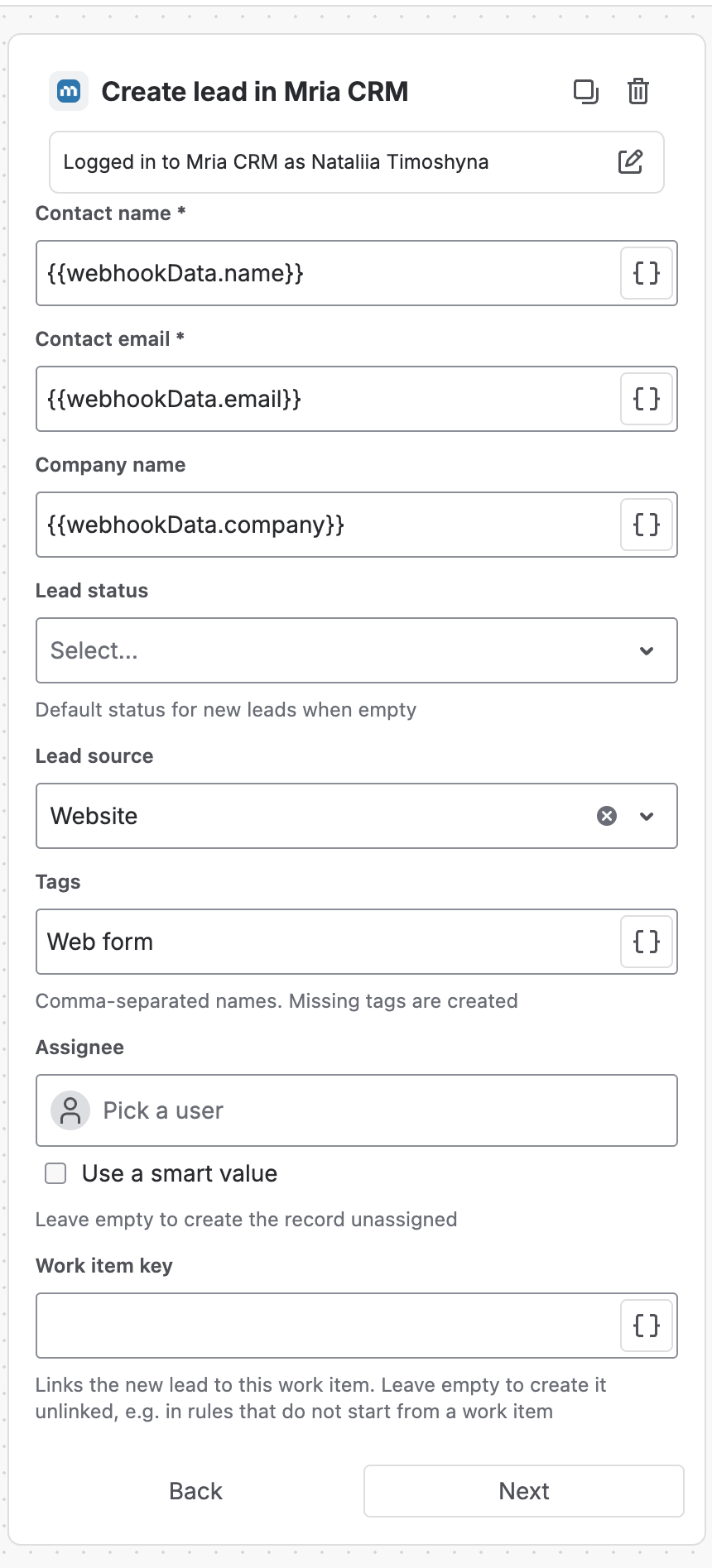
Inside the If part, add Create lead in Mria CRM:
| Field | Value |
|---|---|
| Contact name | {{webhookData.name}} |
| Contact email | {{webhookData.email}} |
| Company name | {{webhookData.company}} |
| Lead source | Website |
| Tags | Web form |
| Work item key | empty — there is no work item |
Then, still inside If, add Add note in Mria CRM:
| Field | Value |
|---|---|
| Add to | One record by id |
| Record type | Lead |
| Record id | {{createdMriacrmLead.id}} |
| Content | Submitted the website form.Message: {{webhookData.message}}Page: {{webhookData.page}} |
Step 5. Else: note the repeat visit #
In the Else part, add another Add note in Mria CRM with Record id {{fetchedMriacrmRecord.id}} and a content line such as Submitted the website form again.. Returning visitors are often the warmest; this is where the sales team sees them come back.
Step 6. Turn it on #
Save the flow and switch it on. Until it is on, calls to the URL do nothing.
4. Send the form data #
The form, or the server behind it, sends one POST per submission:
- URL: the Webhook URL from the trigger.
- Header
Content-Type: application/json. - Header
X-Automation-Webhook-Tokenwith the secret. - Body: a JSON object. Its field names are yours to choose — they only have to match the smart values in the flow.
{
  "name": "Daniel Okafor",
  "email": "daniel.okafor@harborline.example",
  "company": "Harborline Freight",
  "message": "We run a 12-person sales team in Jira and want the pipeline next to our delivery work.",
  "page": "/pricing"
}
Test it from a terminal #
curl -X POST '<webhook URL from the trigger>' \
  -H 'Content-Type: application/json' \
  -H 'X-Automation-Webhook-Token: <secret from the trigger>' \
  -d '{"name": "Daniel Okafor", "email": "daniel.okafor@harborline.example", "company": "Harborline Freight", "message": "Could we book a demo?", "page": "/pricing"}'
From your own site’s code #
// Server side only - a form handler, an API route or a serverless function.
await fetch(process.env.MRIA_WEBHOOK_URL, {
  method: 'POST',
  headers: {
    'Content-Type': 'application/json',
    'X-Automation-Webhook-Token': process.env.MRIA_WEBHOOK_SECRET,
  },
  body: JSON.stringify({ name, email, company, message, page }),
});
// WordPress: after your form plugin has validated a submission.
wp_remote_post( MRIA_WEBHOOK_URL, array(
'headers' => array(
'Content-Type' => 'application/json',
'X-Automation-Webhook-Token' => MRIA_WEBHOOK_SECRET,
),
'body' => wp_json_encode( array(
'name' => $name,
'email' => $email,
'company' => $company,
'message' => $message,
'page' => $page,
) ),
) );From a form builder #
Most form builders and landing-page tools can send each submission to a webhook URL. Two things decide whether you can point one straight at the flow:
- Custom headers. The tool must let you add the
X-Automation-Webhook-Tokenheader. If it cannot, send the submission to a small server-side function of your own that adds the header and forwards it. - The shape of its JSON. Many tools nest answers —
{{webhookData.data.email}}rather than{{webhookData.email}}. To see exactly what yours sends, add a temporary Log action with{{webhookData}}at the top of the flow, submit a test entry, and read it in the audit log.
5. Check that it worked #
Open the flow’s Audit log. Every call is a row; expand it to see each step and which branch ran.
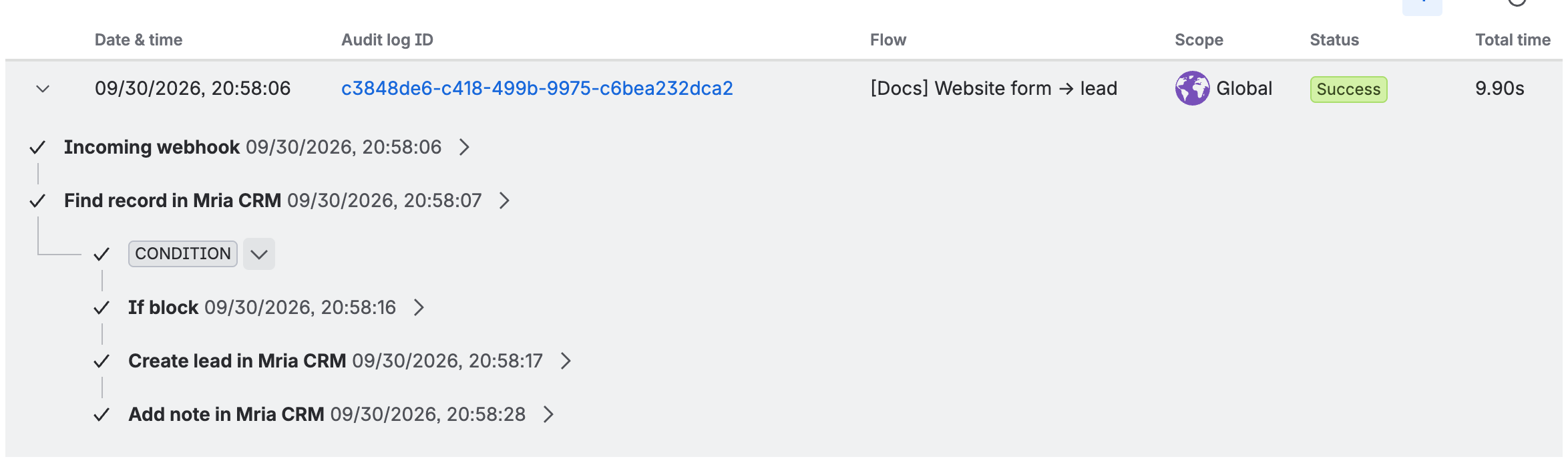
The trigger’s panel also shows Latest call with the time of the last request it received.
6. Make it yours #
- Route to an owner. Set Assignee on Create lead to the SDR who works inbound, or add If/else blocks on
{{webhookData.country}}or{{webhookData.product}}with a different owner in each. - Track the campaign. Send UTM parameters with the form and put
{{webhookData.utm_campaign}}into Tags, next to Web form. - Start qualified. A demo request can skip the New queue: pick a Lead status such as Contacted on the create step of that form’s flow.
- One flow per form, or one for all. Send a
formfield and set Lead source or tags from it, or give each form its own flow and URL. - Open a follow-up task in Jira. After Create lead, add Jira’s Create work item action, then Link item to Mria CRM record with Work item key
{{createdIssue.key}}, Record type Lead and Record id{{createdMriacrmLead.id}}. - Keep junk out. Add a condition that
{{webhookData.email}}is not empty before Find record, and a honeypot field on the form itself.
7. Troubleshooting #
| What you see | Why, and what to do |
|---|---|
| Nothing in the audit log after a submission | The request never reached the flow. Check that the flow is on, the URL is complete, and the header name is exactly X-Automation-Webhook-Token. |
| “Invalid Incoming webhook trigger” when saving | Choose an option under Work item criteria — No work items from the webhook. |
| The Lead is created but a field is empty | The JSON field name and the smart value differ, or the tool nests its data. Log {{webhookData}} and compare. |
| Create lead fails | A name or email is missing or invalid, or the lead source does not exist in the workspace. The audit log names the field. |
| The same person became two Leads | Find record must come before Create lead and search by the same email the Lead is created with. |
| Aborted — Monthly flow executions have been exceeded | The site reached its monthly automation usage. Runs resume next month or on a larger plan. |
Every submission is one flow run toward your site’s monthly automation usage.
Related Pages #
- Jira Automation — how Mria CRM steps work, and the other use cases.
- Automation Actions Reference — every field of Find record, Create lead and Add note.
- Leads — what the sales team sees once the Lead is in.
- REST API — the alternative when a developer would rather call Mria CRM directly.


