Use Mria CRM from ChatGPT, Claude and other AI clients #
Mria CRM is also an MCP server. Any AI client that can connect to a remote MCP server — ChatGPT, Claude, Claude Code and others — can read and change your CRM in a conversation, with the same four tools the Mria CRM Assistant uses in Rovo. There is nothing to install or host: Atlassian runs the server, your Atlassian admin switches it on for the site, and each person connects their own client with their own Atlassian account.
This page is for the admin who turns it on and for anyone connecting a client. For Rovo chat inside Atlassian, see Mria CRM in Rovo.
1. What the server offers #
Four general tools cover every record type: Leads, Deals, Contacts, Companies and Products, their notes, tasks, meetings, files, custom fields and linked items.
| Tool | What it does |
|---|---|
| Describe CRM operations | Tells the client which reads and changes exist and what each one needs. A client calls it first, and again whenever it is unsure. |
| Read CRM data | Any read: lists and searches with filters, single records, notes, tasks, meetings, timelines, linked items, custom fields, reference lists and metrics. Never changes data. |
| Create CRM data | Creates a record or adds something to one — a Lead, Contact, Company, Deal, Product, note, task, meeting or link. Also converts a Lead and closes or clones a Deal. |
| Update CRM data | Changes an existing record, or one of its notes, tasks, meetings or custom field values. Cannot delete. |
A client shows them under these names, with Mria CRM’s own description of each — for example “Read Mria CRM data: leads, contacts, companies, deals, products, activities, links, custom fields, reference lists, metrics. Never changes data. Filters take ids, not names: read the reference list first, e.g. /v1/leadStatuses.”.
Nothing deletes. Reports, dashboards, import and export, email and settings stay in Mria CRM — the same limits as in Rovo.
Your permissions, not the client’s
Every call runs as the person who connected the client, with that person’s Mria CRM role. The client sees what you can see and can change what you can change; changes also need an active Mria CRM license. Connecting a client grants nobody anything new, and a user without a Mria CRM role gets no data at all.
2. Admins: turn it on for the site #
External MCP access is off by default and is set per site, by an Atlassian organization admin. Until it is on, the site does not even appear on the client’s consent screen.
- Open Atlassian Administration and select your organization if you have more than one.
- In the sidebar expand Apps, expand Sites and select the site where Mria CRM is installed.
- Select Connected apps, find Mria CRM and under Actions choose View app details.
- Scroll to Tools. Expose tools to MCP-compatible apps shows Disabled. Click Enable tools and confirm.

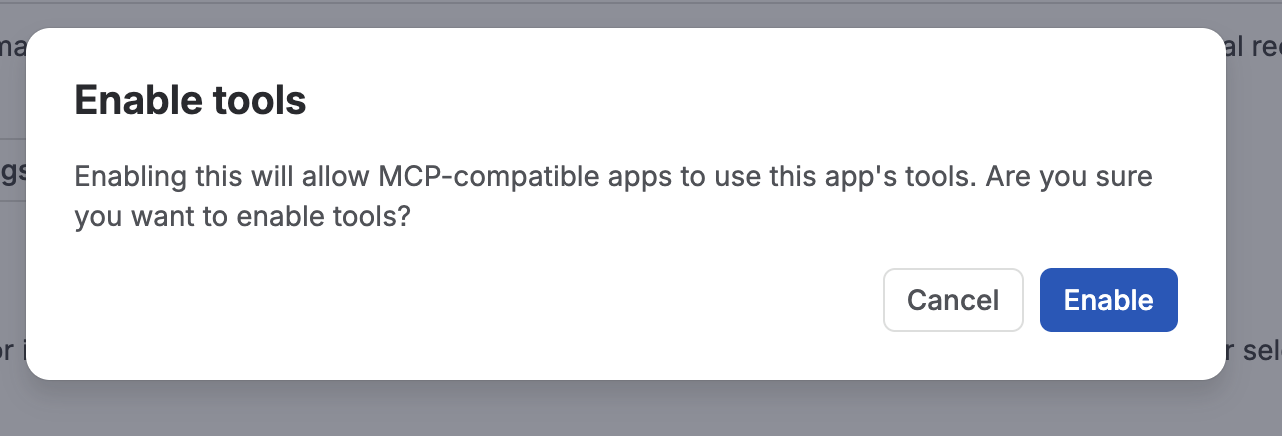
The section then reads Enabled and offers Disable tools to switch it off again.

The switch is all or nothing: it exposes the four tools together. What each person can then do with them is decided by their Mria CRM role — someone with view-only rights can ask questions and nothing else. If the site has more than one Mria CRM installation (a staging copy, for example), each one has its own switch.
Two different MCP servers
Atlassian’s own Rovo MCP Server gives AI clients Jira and Confluence; this page is about Mria CRM’s, which gives them the CRM. They are enabled separately and connected separately, and a client can use both at once.
Atlassian’s own write-up of the setting: Configure tools for an external MCP server.
3. Connect a client #
Every client needs the same two things — Mria CRM’s server URL, and an Atlassian sign-in:
Server URLhttps://mcp.atlassian.com/forge/f3bb4fc8-7911-405b-959b-002b3292a3d0
When the client connects it opens Atlassian’s consent screen in a browser. Sign in with your Atlassian account, pick the site (only sites where Mria CRM is installed and the tools are enabled are listed), review the scopes and tools, and approve. Authentication is OAuth 2.1: the client never sees your Atlassian password, and you can revoke it later from your Atlassian account’s connected apps.
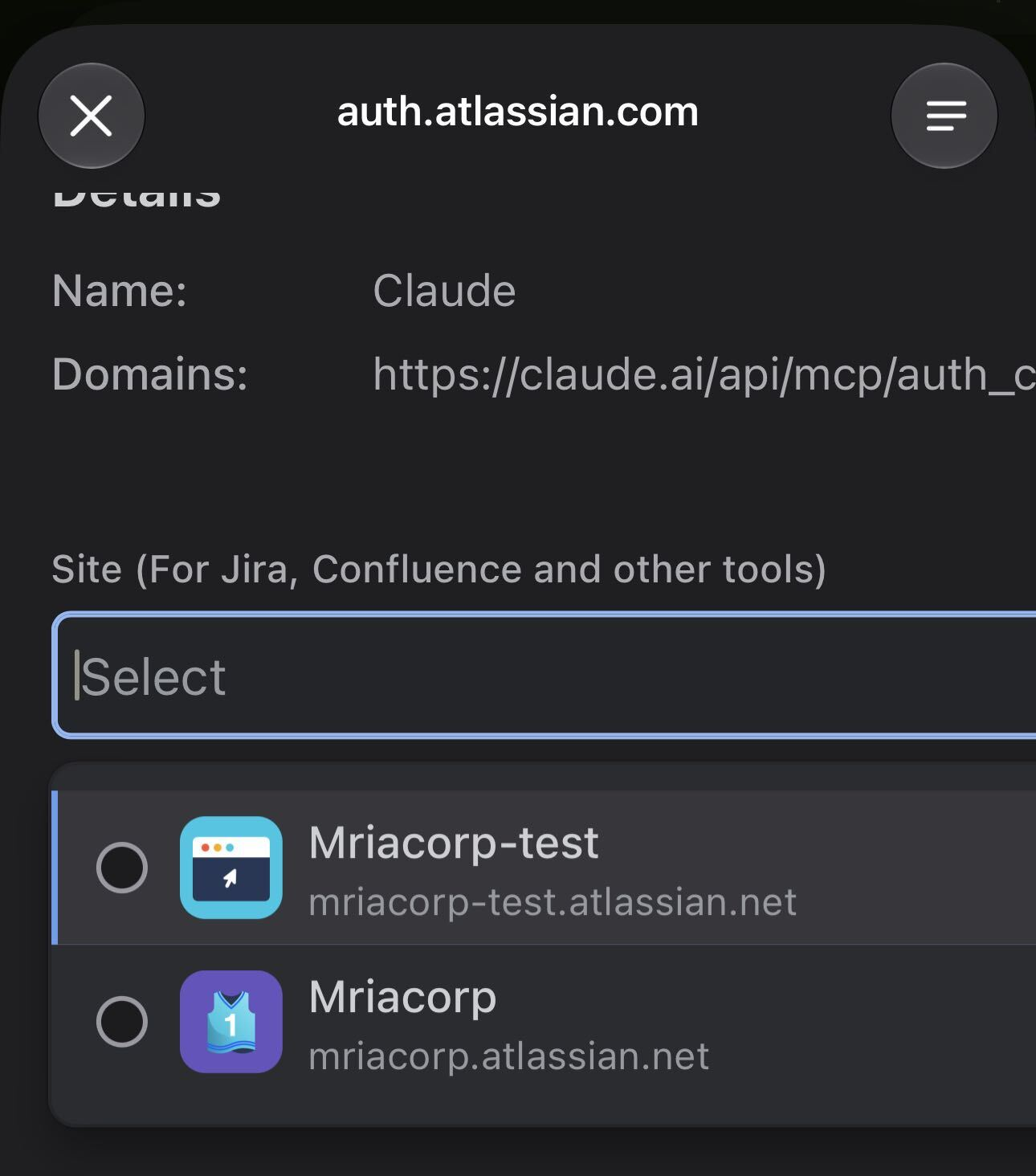
The site step of the consent screen, here from Claude’s mobile app: only sites with Mria CRM installed and the tools enabled are offered.
ChatGPT #
Custom MCP servers are available in ChatGPT Business and Enterprise / Edu, on ChatGPT web only. A workspace admin or owner adds and publishes the server; members then use it. (A Pro account can connect a custom server for read actions only.)
- As a workspace admin or owner, go to Plugins, select the plus button, then Add custom MCP server.
- Enter a name such as Mria CRM. Under Connection paste the server URL above and choose OAuth as the authentication.
- Read the risk warning, tick I understand and want to continue and select Create as a plugin. ChatGPT opens the Atlassian consent screen and then lists the discovered tools.
- Test it in a chat, then publish it for the workspace from the Admin Console (Plugins → Manage Legacy Apps → Drafts → Publish). Until it is published, only you can use it.
- Each member installs the plugin from Settings → Plugins and connects their own Atlassian account when prompted. In a chat, type
@and pick it, or choose it from the + menu.
ChatGPT keeps a snapshot of the tools it found when the server was published. When Mria CRM adds a tool, an admin refreshes the tool list in the workspace app settings; new actions start disabled. OpenAI’s guide: Connecting custom MCP servers in ChatGPT.
Claude #
Custom connectors are available in Claude on the Free (one connector), Pro, Max, Ultra, Team and Enterprise plans, on the web, in Claude Desktop and in Cowork. On Team and Enterprise an Owner (or, on Enterprise, a role that can manage libraries) adds the connector for the organization; on individual plans you add it yourself.
- Individual plans: Customize → Connectors → + Add → Add custom connector. Team and Enterprise owners: Organization settings → Connectors → Add → Custom → Web.
- Enter a name such as Mria CRM and the server URL above, then Continue. Keep the detected authentication settings and click Add.
- Click Connect and complete the Atlassian consent screen. On Team and Enterprise each member connects individually from Customize → Connectors.
- In a conversation, open the + menu → Connectors and switch Mria CRM on. The Search and tools menu lets you leave out individual tools for that conversation.
Anthropic’s guide: Getting started with custom connectors using remote MCP.
Claude Code and other clients #
Any client that supports remote MCP servers over HTTP with OAuth works the same way: add the URL as a remote server and complete the Atlassian sign-in. In Claude Code, for example:
claude mcp add --transport http mria-crm https://mcp.atlassian.com/forge/f3bb4fc8-7911-405b-959b-002b3292a3d0then run /mcp to connect. This is the flow Atlassian documents in Build a Rovo MCP hello world app; other clients vary, so check the client’s documentation.
4. Using it #
Ask in plain words, as you would the Mria CRM Assistant: “Which leads came in this month and still have no owner?”, “Give me the full picture of Northwind Retail”, “Add a note to the Website Redesign deal that the proposal went out today”. The client first asks Describe CRM operations what exists, then reads or changes with the other tools, so the first answer in a conversation can take a moment longer.
Every record in a reply can be opened in Mria CRM, and every change appears on the record’s timeline under your name.
Changes are confirmed by the client, not by Rovo
In Rovo chat every change goes through Atlassian’s Please review card. An external client has no such card: what stands between a request and a change is the client’s own approval step. Keep it on — Always ask for Mria CRM’s app permissions in ChatGPT, and tool approval in Claude without Allow always for the create and update tools. A change that went through cannot be undone from the chat; set the value back or fix it in Mria CRM.
5. Troubleshooting #
“This connector has no tools available”, or the tool list is empty #
The connection succeeded but the site you picked gives this account nothing. Check, in this order:
- The tools are not enabled on that site. Section 2 above — and note that it is per site, so a second site needs its own switch.
- You have no Mria CRM role on that site. Ask your CRM admin to add you in Roles & Permissions, then reconnect.
- You picked the wrong site on the consent screen. Disconnect the connector and connect again.
The site is not listed on the consent screen #
Only sites where Mria CRM is installed and the tools are enabled are offered. Ask your Atlassian admin to enable them for that site.
One admin can use it, nobody else can #
In ChatGPT Business and Enterprise only admins and owners can add a custom MCP server, and it has to be published before other members see it. In Claude Team and Enterprise an Owner adds the connector and each member then connects it. Atlassian’s switch is per site and applies to everyone, so this is a client-side step, not a Mria CRM one.
“Permission denied” or “the license is not active” #
Your Mria CRM role does not cover that data or that action, or the Mria CRM license has lapsed. The same request would fail in the app.
Each tool appears several times #
The site has more than one Mria CRM installation — a staging copy, for example — and each one exposes its own tools. Ask your Jira admin which one is production; the extras can be switched off per installation in Atlassian Administration.
Do we need Rovo? #
Nothing has to be set up in Rovo: the switch in section 2 is the only Atlassian-side step. Atlassian’s guide to that setting does say that when an AI client calls via MCP it consumes Rovo credits from the organization’s shared pool, per call, so check your Rovo usage allowance before rolling it out widely.
Is this supported? #
Connecting Rovo MCP tools to third-party AI clients is a Preview feature of Atlassian’s platform. In Atlassian’s words it is “fully supported” and “suitable for early adopters in production environments”, but “remains under active development and may be subject to shorter deprecation windows”. Mria CRM’s side — the four tools and the permissions behind them — is the same code the Rovo assistant uses.
Related Pages #
- Mria CRM in Rovo — the same tools in Rovo chat, with Atlassian’s review card.
- Rovo: Permissions and Safety — whose rights apply and what can never happen.
- Rovo Studio: Build Your Own Agent — the four tools in an agent you design.
- Roles & Permissions — the roles every call is checked against.
- REST API — programmatic access for your own integrations.
- Jira Automation — the same actions in rule-based flows, without chat.


