Mria CRM steps inside Jira Automation #
Mria CRM adds nine actions to Jira Automation. Any flow you build in Jira — started by a work item event, a schedule, a manual trigger or a call from another system — can create Leads, Deals and Contacts, find and update records, link work and add notes, without anyone opening the CRM.
Automation itself is Atlassian’s. Mria CRM contributes the steps, so everything you already know about building flows — conditions, branches, smart values, the audit log — works the same with Mria CRM in the middle.
1. The nine actions #
Search for Mria CRM in the action list of any flow. The actions appear under Other apps.
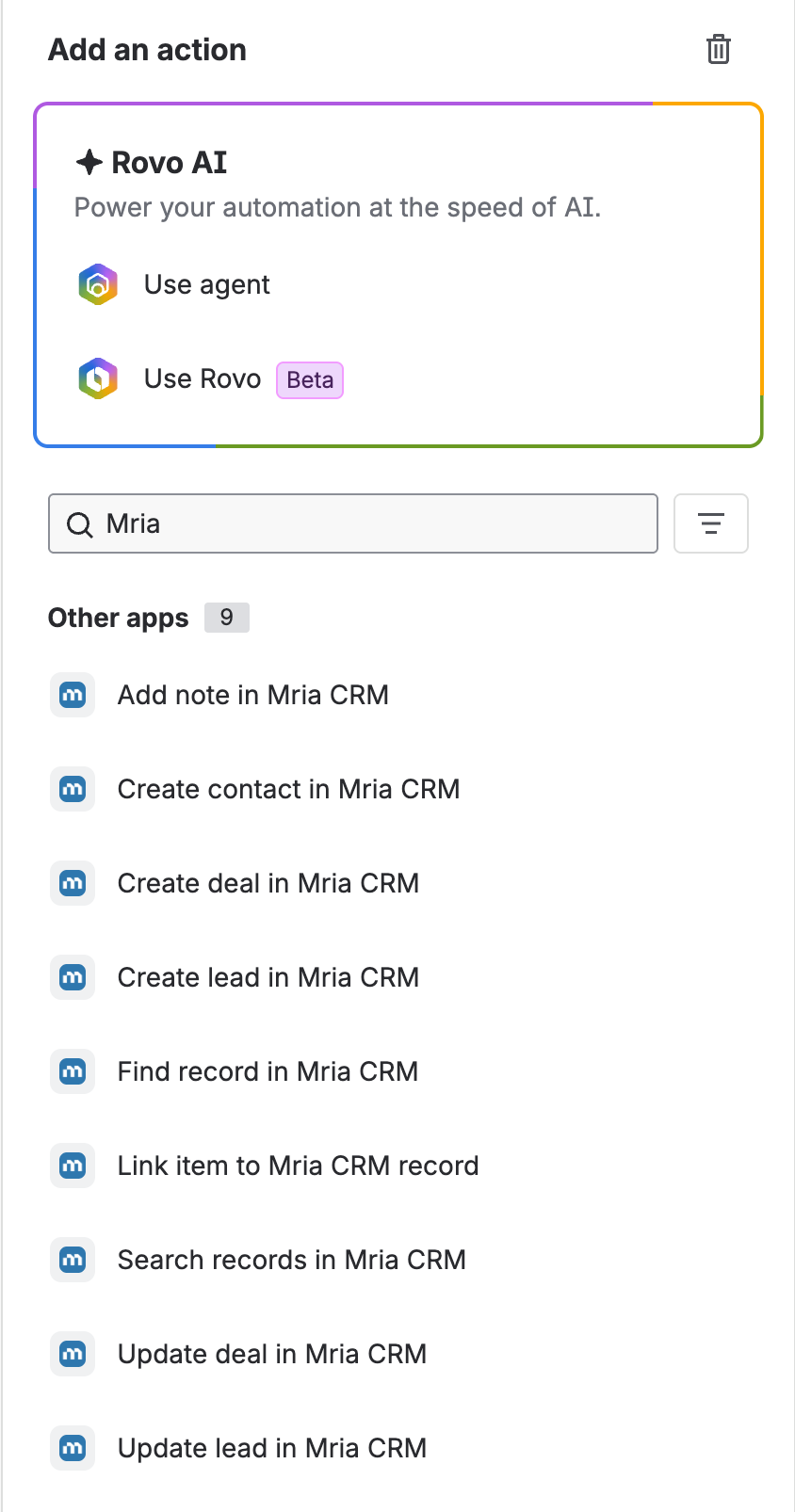
| Action | What it does | Smart values it returns |
|---|---|---|
| Create lead | Creates a Lead from a person’s name and email, optionally with a status, source, tags, an owner and a linked work item. | {{createdMriacrmLead.…}} |
| Create deal | Creates a Deal in a pipeline and open stage, with amount, closing date, owner, Contacts, Companies and a linked work item. | {{createdMriacrmDeal.…}} |
| Create contact | Creates a Contact, links it to a Company by name (or creates the Company), sets a type and links a work item. | {{createdMriacrmContact.…}} |
| Link item | Links a work item, Confluence page, Jira space, Jira board or web link to any Lead, Deal, Contact, Company or Product. | {{updatedMriacrmLink.…}} |
| Find record | Finds one record by work item, email, name or id, and hands its fields to the rest of the flow. | {{fetchedMriacrmRecord.…}} |
| Search records | Lists up to 150 records that match filters, or everything linked to a work item, for a branch to loop over. | {{fetchedMriacrmRecordsList.…}} |
| Update lead | Changes status, source, owner or tags on one Lead, or on every open Lead linked to a work item. | {{updatedMriacrmLead.…}} |
| Update deal | Changes stage, amount, probability, closing date, owner or tags; a Won or Lost stage closes the Deal. | {{updatedMriacrmDeal.…}} |
| Add note | Adds a plain-text note to one record, or to every record linked to a work item. | {{createdMriacrmNote.…}} |
Every field, output and error of each action is on Automation Actions Reference.
2. Before you start #
Connect Automation to Mria CRM #
The first Mria CRM step you add to a flow asks you to connect Atlassian Automation to Mria CRM. Click Connect. It takes a second, and from then on every Mria CRM step shows which account it uses — Logged in to Mria CRM as <name>.
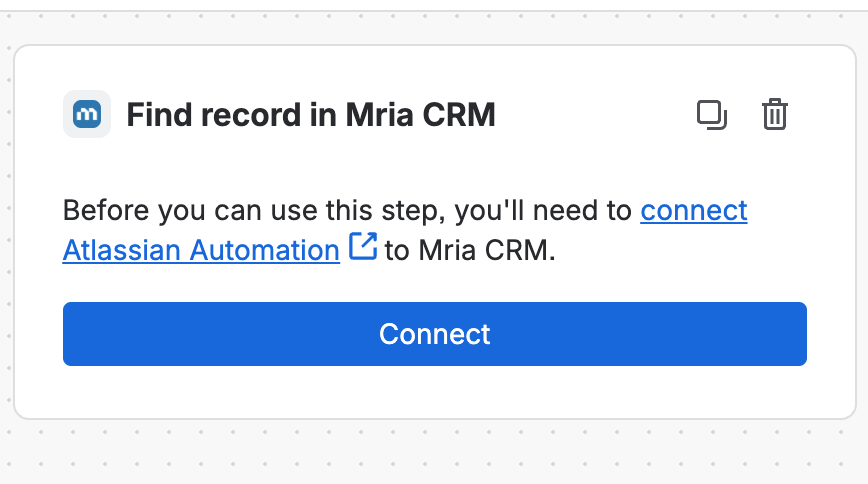
Steps run as the connection owner #
A Mria CRM step does its work as the person who owns the connection, not as the flow’s actor and not as whoever triggered the flow. That has three consequences:
- Their role decides what the step may do. A Create lead step owned by someone without Create on Leads fails, and a record they cannot see is simply not found. Permissions come from Roles & Permissions — an automation never gets more access than the person behind it.
- Their name is on the change. Notes, status changes and new records appear on the timeline under the connection owner, exactly as if they had made the change by hand.
- Choose the owner deliberately. If a colleague builds the flow and later leaves, the connection goes with them. The pencil icon next to
Logged in to Mria CRM as …switches a step to another connection.
Creating or changing records also needs an active Mria CRM license, like the same change made in the app.
3. How a step finds its record #
Steps that act on existing records take one of two references:
| Reference | Use it when | What happens |
|---|---|---|
| Work item key | The flow starts from a work item. The field is pre-filled with {{issue.key}}. | Update and note steps act on every matching record linked to that work item. Find record returns the most recently updated one. |
| Record id | An earlier step found or created the record — for example {{fetchedMriacrmRecord.id}} or {{createdMriacrmLead.id}}. | The step acts on exactly that one record. |
Set one or the other, never both. A step with both filled in fails with Set exactly one of Record id and Work item key..
Flows that do not start from a work item
A scheduled flow or an incoming webhook has no {{issue.key}}. In those flows, clear the Work item key field of every create step — the record is then created unlinked — and look records up by email, name or id instead.
4. Smart values #
Each action hands its results to the steps after it as smart values. Click { } next to any field and open the Mria CRM step in the smart value panel to see them all, each with a one-line explanation.
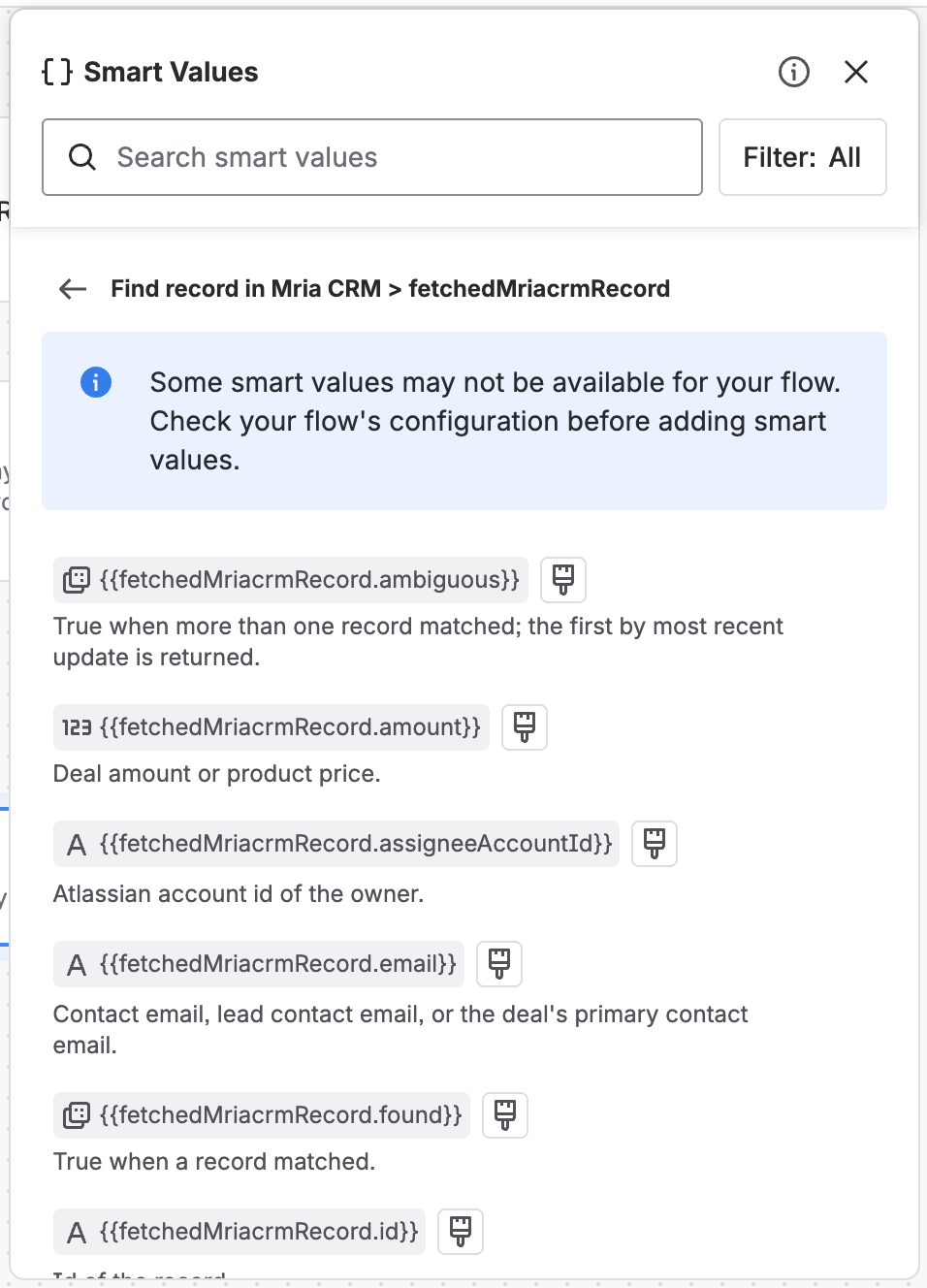
| Action | Context | Example |
|---|---|---|
| Find record | fetchedMriacrmRecord | {{fetchedMriacrmRecord.found}} |
| Search records | fetchedMriacrmRecordsList | {{fetchedMriacrmRecordsList.size}} |
| Create lead | createdMriacrmLead | {{createdMriacrmLead.url}} |
| Create deal | createdMriacrmDeal | {{createdMriacrmDeal.id}} |
| Create contact | createdMriacrmContact | {{createdMriacrmContact.id}} |
| Link item | updatedMriacrmLink | {{updatedMriacrmLink.linkedCount}} |
| Update lead | updatedMriacrmLead | {{updatedMriacrmLead.updatedCount}} |
| Update deal | updatedMriacrmDeal | {{updatedMriacrmDeal.closed}} |
| Add note | createdMriacrmNote | {{createdMriacrmNote.notesCreated}} |
CRM data is also readable without any Mria CRM step: the five Mria CRM custom fields put linked Leads, Deals, Contacts, Companies and Products on every work item, for JQL conditions and {{issue.…}} smart values.
5. What a step does inside Mria CRM #
A Mria CRM step changes records through the same services as the app itself. So a change made by a flow behaves like one made by a person:
- It is recorded on the record’s timeline.
- It sends the usual notifications — a new owner hears about the assignment, a Deal owner about a moved closing date.
- It updates counters, weighted amounts and the Mria CRM custom fields in Jira.
- It respects the same validation: a required field, a duplicate contact email or a closed Deal is refused with a readable message in the audit log.
6. Good habits and limits #
- Creates are not deduplicated. Running a Create lead, Create deal, Create contact or Add note step twice produces two records or two notes. Put Find record or Search records in front of it and branch on the result — every use case on the pages below does this.
- Links are safe to repeat. Linking a work item, page, space or board that is already linked changes nothing. Web links are the exception: each run adds one.
- Bulk steps have a ceiling. An update or note by work item acts on at most 150 linked records; Search records returns at most 150 rows (50 by default); Create deal accepts up to 50 Contacts and 50 Companies; a note holds up to 10,000 characters.
- A run that finds nothing still succeeds. Find record returns
found = false, and update and note steps report a count of 0, so the flow carries on. Branch on those values rather than expecting an error. - Automation usage applies. Flows with Mria CRM steps count toward your Jira plan’s monthly automation usage like any other. Once the site reaches its limit, Jira aborts runs with
Monthly flow executions have been exceededuntil the next month. - Copied flows may ask you to log in again. A duplicated flow’s Mria CRM steps can read
This connection needs to be re-authenticated. Click Resolve and log in, or use the pencil icon to switch the step to your own connection. - Check which installation you picked. If your site has more than one Mria CRM installation — a staging copy, for example — the action list shows each one’s actions under the same names. Pick the one for the CRM you mean to change.
7. Use cases #
Each page walks through a complete flow, built and run against a live Mria CRM, with the settings of every step:
- Capture Leads from Web Forms — turn any website form, landing page or signup tool into Leads, with no middleware and no duplicates.
- HubSpot Leads to Mria CRM — a HubSpot workflow posts every Marketing Qualified Lead to an Incoming webhook; the flow creates the Lead tagged with the stage and linked back to HubSpot, or tags and notes the repeat qualification on the existing one.
- Pipedrive Leads to Mria CRM — a Pipedrive automation (or a plain Webhook) posts every new lead with the secret in the URL; the flow creates the Lead tagged with the Pipedrive label and linked back to Pipedrive, or tags and notes the new Pipedrive lead on the existing one.
- Zoho CRM Leads to Mria CRM — a Zoho CRM workflow rule posts every qualified lead through its webhook action; the flow creates the Lead tagged with the Zoho rating and linked back to Zoho, or tags and notes the repeat qualification on the existing one.
- Salesforce Leads to Mria CRM — a record-triggered Flow with an HTTP Callout posts every hot lead; the flow creates the Lead tagged with the rating and linked back to Salesforce, or tags and notes the repeat on the existing one.
- Daily Lead Sync from Other CRMs — a Scheduled flow pulls a lead feed once a day and fans each lead out to a webhook flow that creates or tags it; the same page shows the REST API route with a Python script.
- Service Desk Requests to CRM — link every request to the customer’s Contact, add requesters you do not know yet, and open upsell Deals from upgrade requests.
- Delivery Milestones to Deals — move Deals and record milestones as the work behind them gets done.
- Won Deals to Jira Work Items — a Scheduled flow searches for deals in the Won stage and, for each one that has no work item yet, creates a kick-off work item in the delivery project, links it to the deal and notes the hand-off on the deal; the link is the duplicate guard, so every deal gets exactly one work item.
- Scheduled Clean-up and Digests — sweep stale Leads and overdue Deals every week, and send the team a list of what needs attention.
A flow starts from something that happens in Jira, from a schedule, a manual trigger or an incoming webhook. Starting a flow from an event inside Mria CRM itself — a Deal reaching Won, a new Lead — is planned as a separate feature.
Related Pages #
- Mria CRM Custom Fields in Jira — read CRM data in JQL and in any flow’s conditions.
- Jira Integration — linking work items to records by hand, and the Mria CRM panel.
- JSM Integration — Mria CRM inside the service desk.
- Roles & Permissions — what the connection owner’s role allows a step to do.


