Tags let you label and group records for quick filtering and segmentation. Each of the four core entities — Leads, Deals, Contacts, and Companies — keeps its own set of tags.
Tags are configured under Settings → Tags, on four tabs: Leads, Deals, Contacts, and Companies. Each tab manages the tags for that entity independently.
Tags are a lightweight, free-form way to label records. If you need a structured field with predefined options instead, see Custom Fields (the Labels and Multi-select field types).
The Tags list #
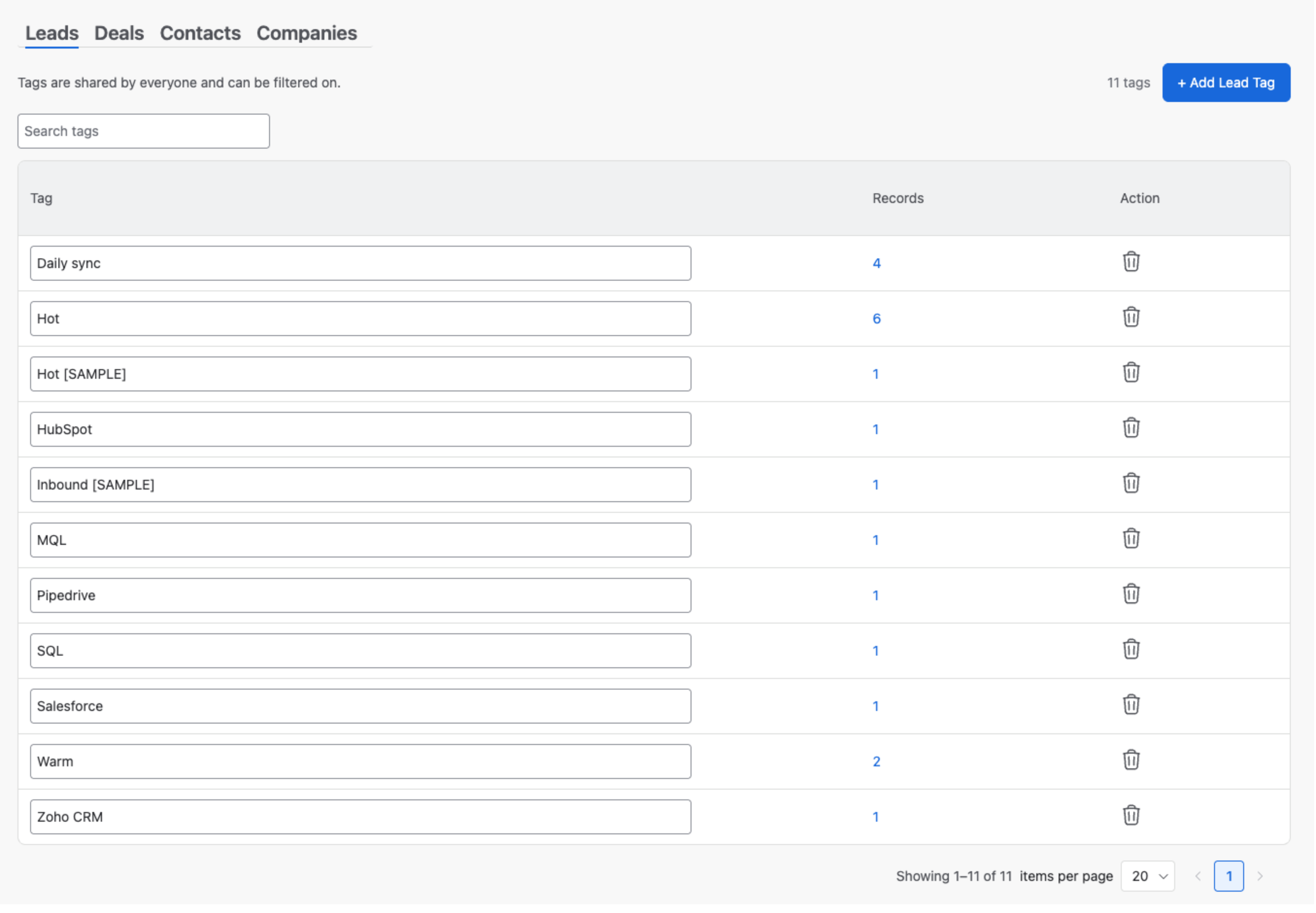
Select a tab (Leads, Deals, Contacts, or Companies) to manage that entity’s tags. For each tag the table shows:
- Tag — the tag name. Click it to rename the tag inline.
- Records — how many records of that type currently use the tag.
- Action — a trash icon to delete the tag.
Use the Search tags box to find a tag by name. The counter next to the + Add … Tag button — 11 tags here — shows how many tags exist on the current tab.
How tags appear here #
A tag shows up in this list in one of two ways:
- Added from here — click + Add [Entity] Tag (for example, + Add Lead Tag) and enter a name.
- Created while working with records — when someone types a new tag on a specific Lead, Deal, Contact, or Company while editing it, or when a tag comes in through an import, that tag is created automatically and appears here.
Either way, this page is the single place to see and manage every tag for the selected entity.
Renaming a tag #
Edit the name inline in the Tag column. The new name applies everywhere the tag is used.
Deleting a tag #
Click the trash icon in the Action column. What happens next depends on whether the tag is in use:
- If no records use the tag, it is deleted right away.
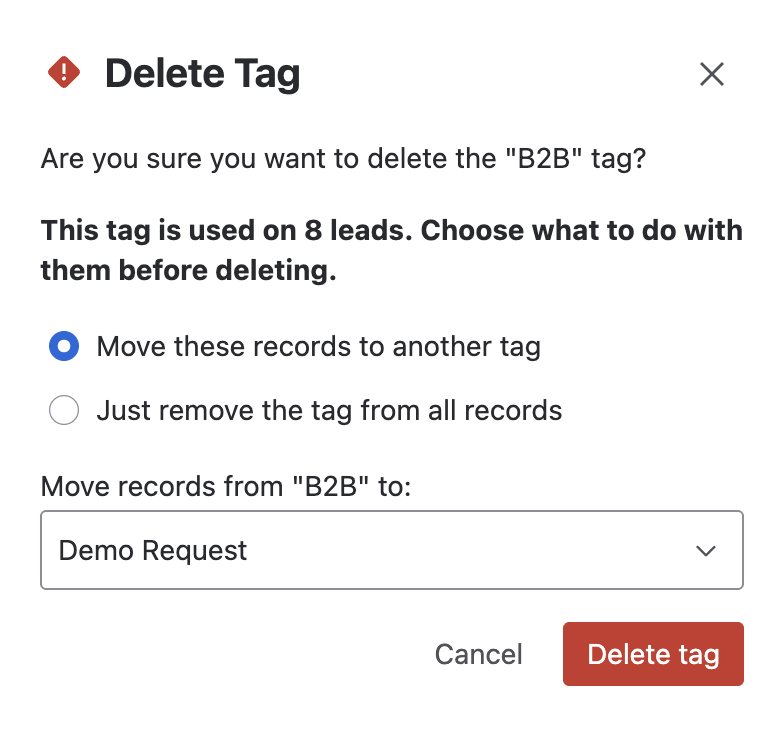
- If the tag is used, a Delete Tag dialog opens with two choices:
- Move these records to another tag — pick a replacement tag from the dropdown; all records are reassigned to it and the original tag is deleted. Handy when you’ve misspelled a tag or want to merge two tags into one.
- Just remove the tag from all records — deletes the tag and clears it from every record, without reassigning.
Confirm with Delete tag, or click Cancel to keep it.


