Deals Import lets you create Deals in bulk from a .CSV or .XLSX file — a pipeline exported from another CRM, a spreadsheet a sales team already keeps, or a list handed over after an acquisition.
Getting Started #
Open Deals and click Import Deals above the list. Before importing you can:
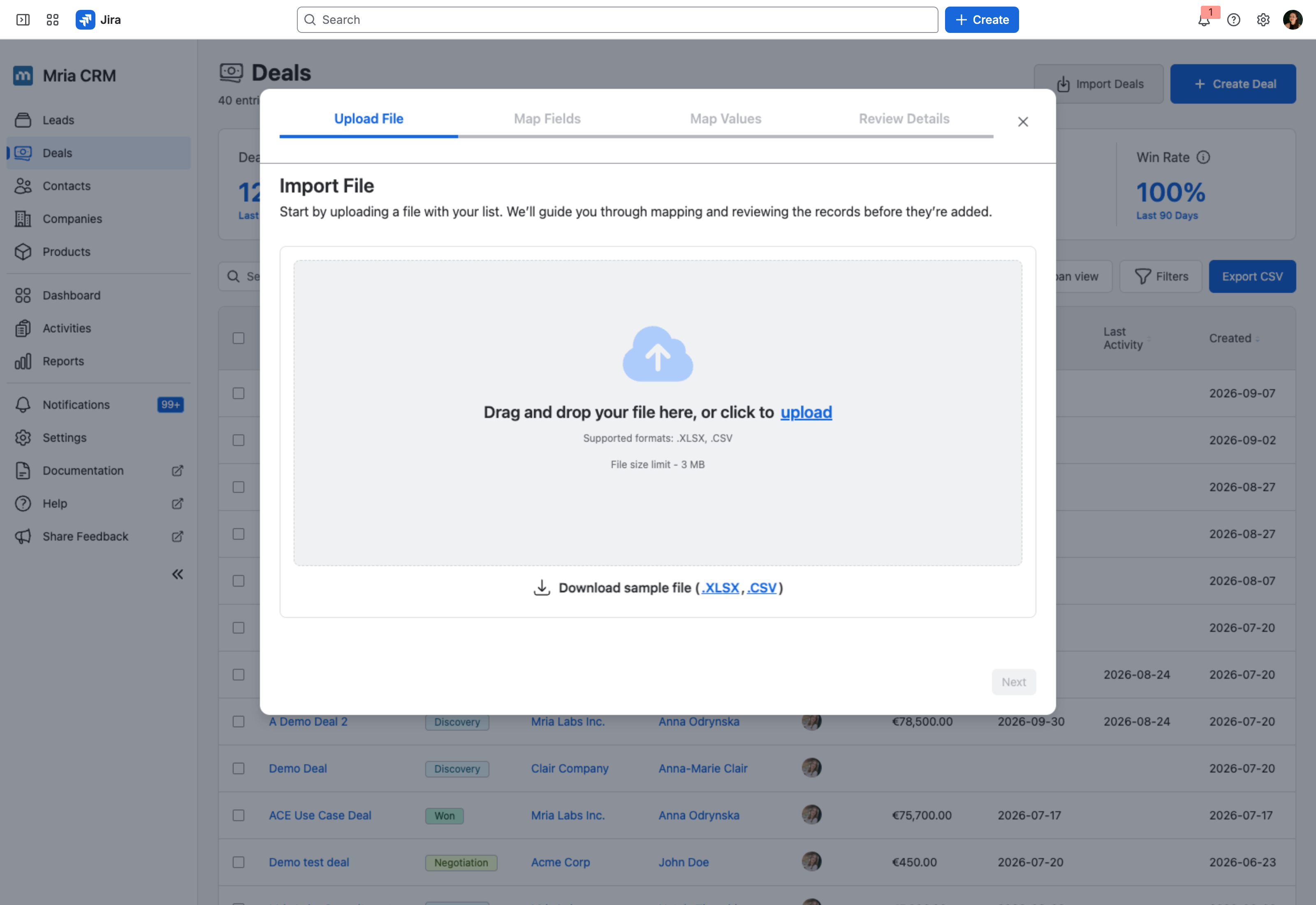
- Download a sample file (
.CSVor.XLSX) from the first step, to see the expected column layout. - Check that the pipeline stages your file uses exist in your workspace — see Pipelines Configuration. Anything unrecognized is matched by hand in step 3.
Maximum file size is 3 MB. Large imports work, but splitting a very long file into a few smaller ones makes it much easier to tell what happened if something looks wrong afterwards.
Step 1. Upload File #
Drag your file onto the drop zone or click upload to browse. Supported formats: .XLSX, .CSV.
The file is parsed as soon as it lands, and the wizard moves on to field mapping by itself.
Step 2. Map Fields #
Mria CRM matches your column headers to Deal fields by name first, and shows you what it worked out. You can change any mapping, or leave a column unmapped to ignore it.
Custom Fields configured on Deals appear in this list alongside the system fields.
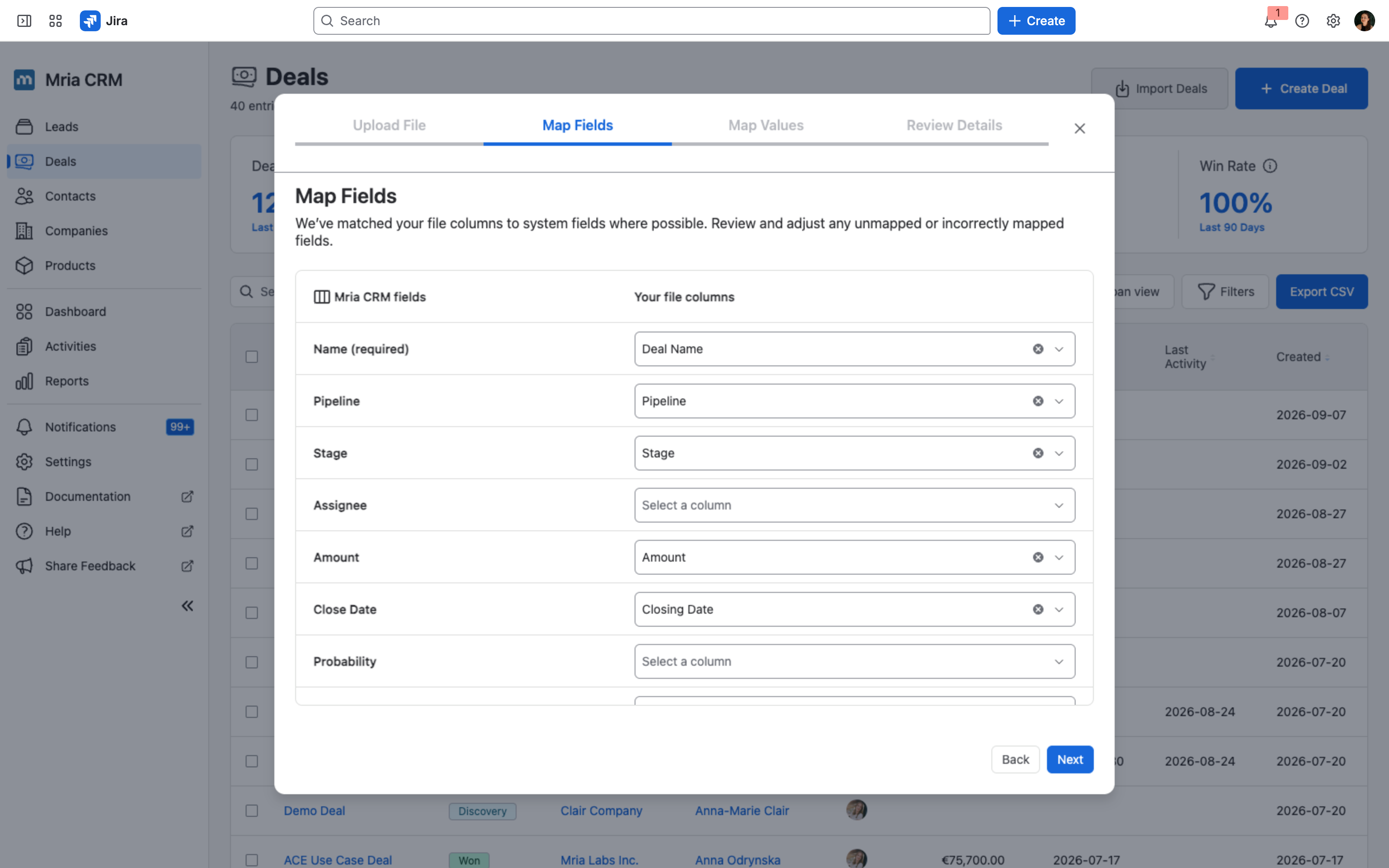
A column you leave unmapped is simply dropped — the rest of the row still imports. That is the tidy way to handle a spreadsheet that carries notes or internal codes you do not want in the CRM.
Probability #
Probability is a percentage, and files coming out of other systems write it either way round. Both forms are accepted and land on the same value:
| In your file | Stored as |
|---|---|
0.2 or 0.20 | 20% |
20 | 20% |
0 | 0% |
100 | 100% |
Because a decimal fraction is read as a percentage, a value below 1% cannot be expressed on import — 0.2 always means 20%, never 0.2%. Set those by hand on the Deal afterwards if you need them.
Two file columns can be mapped onto a single field — map a first-name and a last-name column onto Name and the wizard joins them, with a Join with choice of Space, Comma, Hyphen or None and a live preview. See Contacts Import for the detail.
Step 3. Map Values #
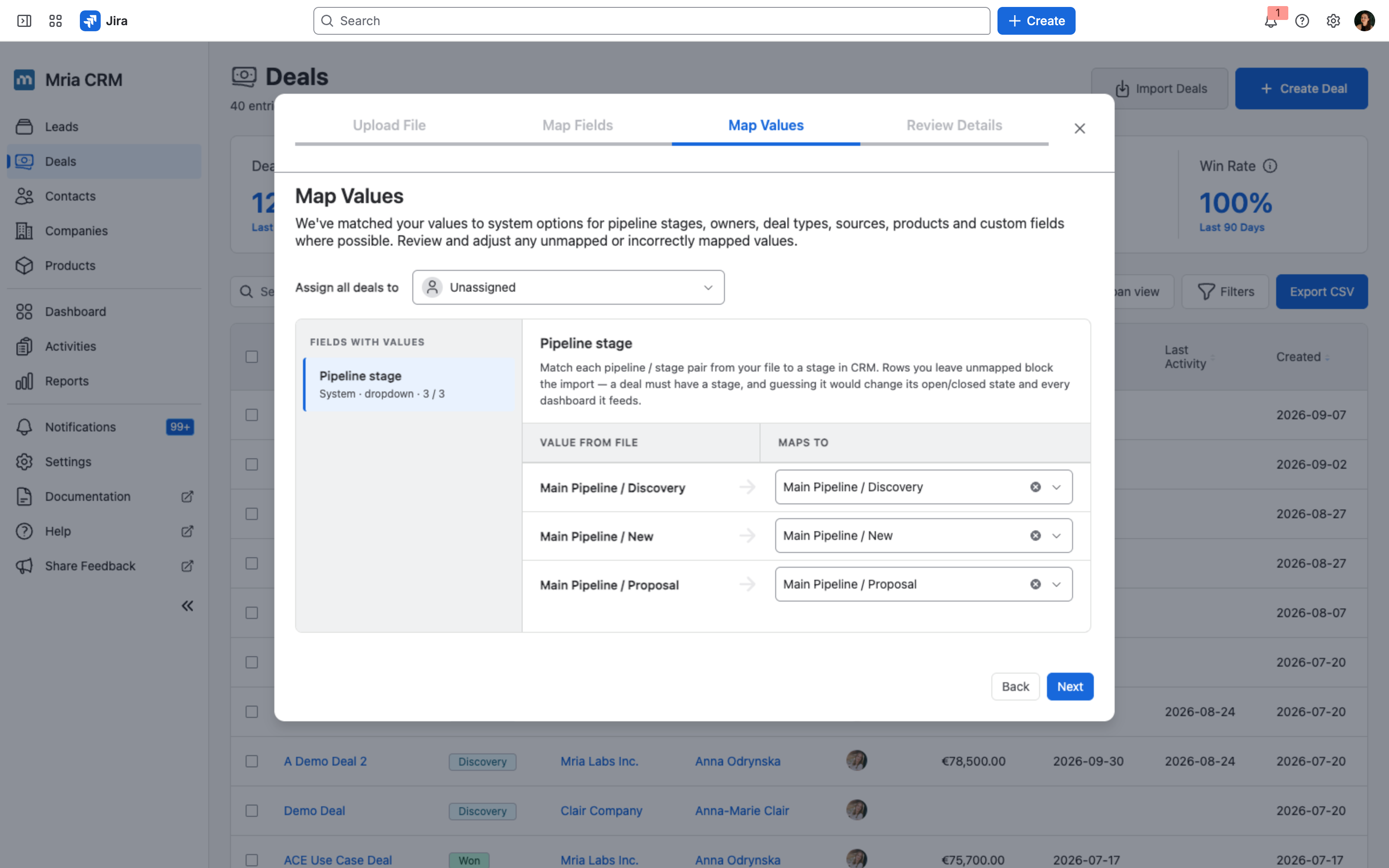
Columns backed by a fixed list — pipeline stage, and any dropdown custom fields — need their values lined up with what your workspace actually has. The Fields with values sidebar lists each one with a matched count, so you can see at a glance whether anything needs attention.
You can also assign every imported Deal to one user from the dropdown at the top of this step.
Step 4. Review Details #
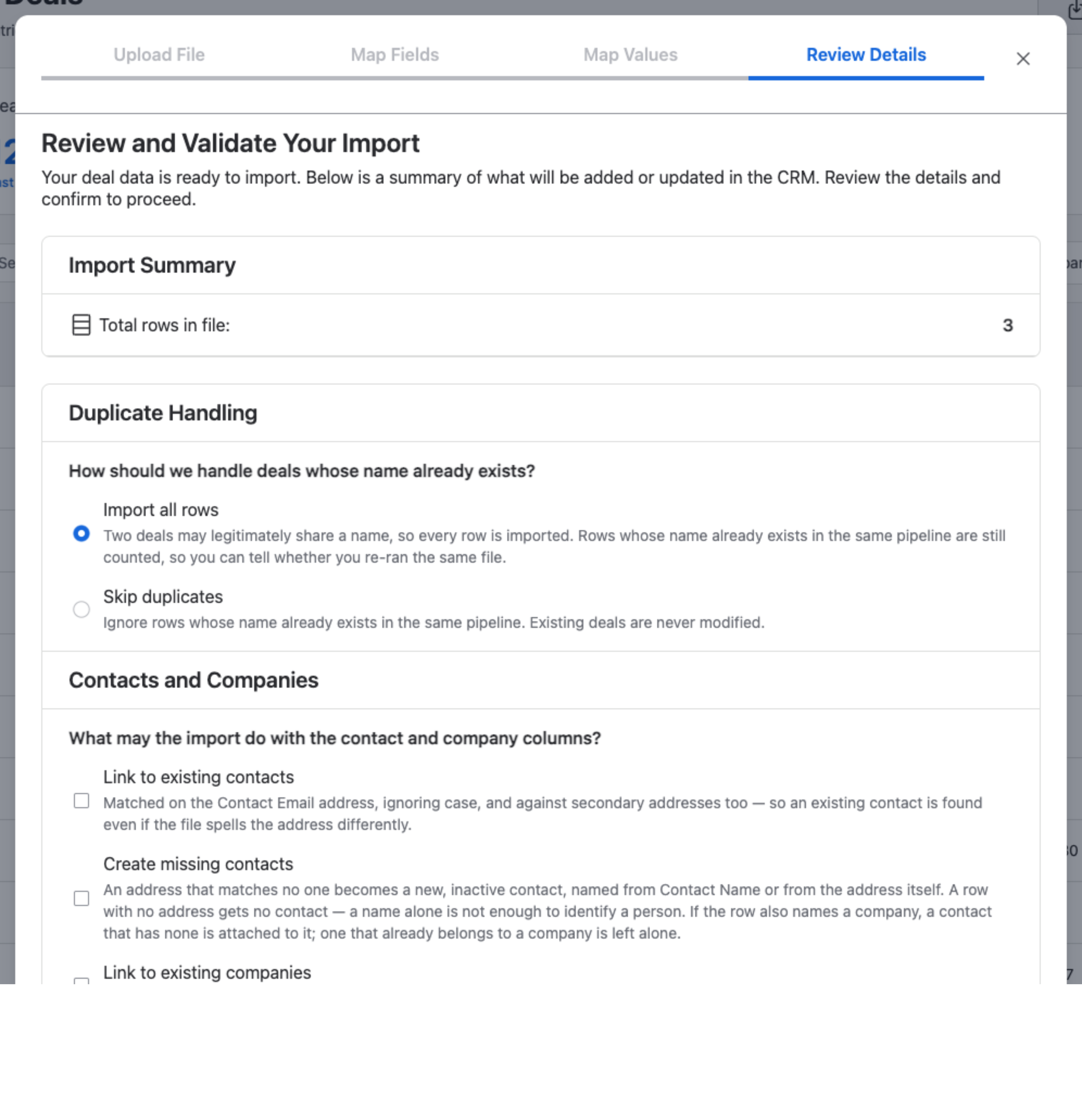
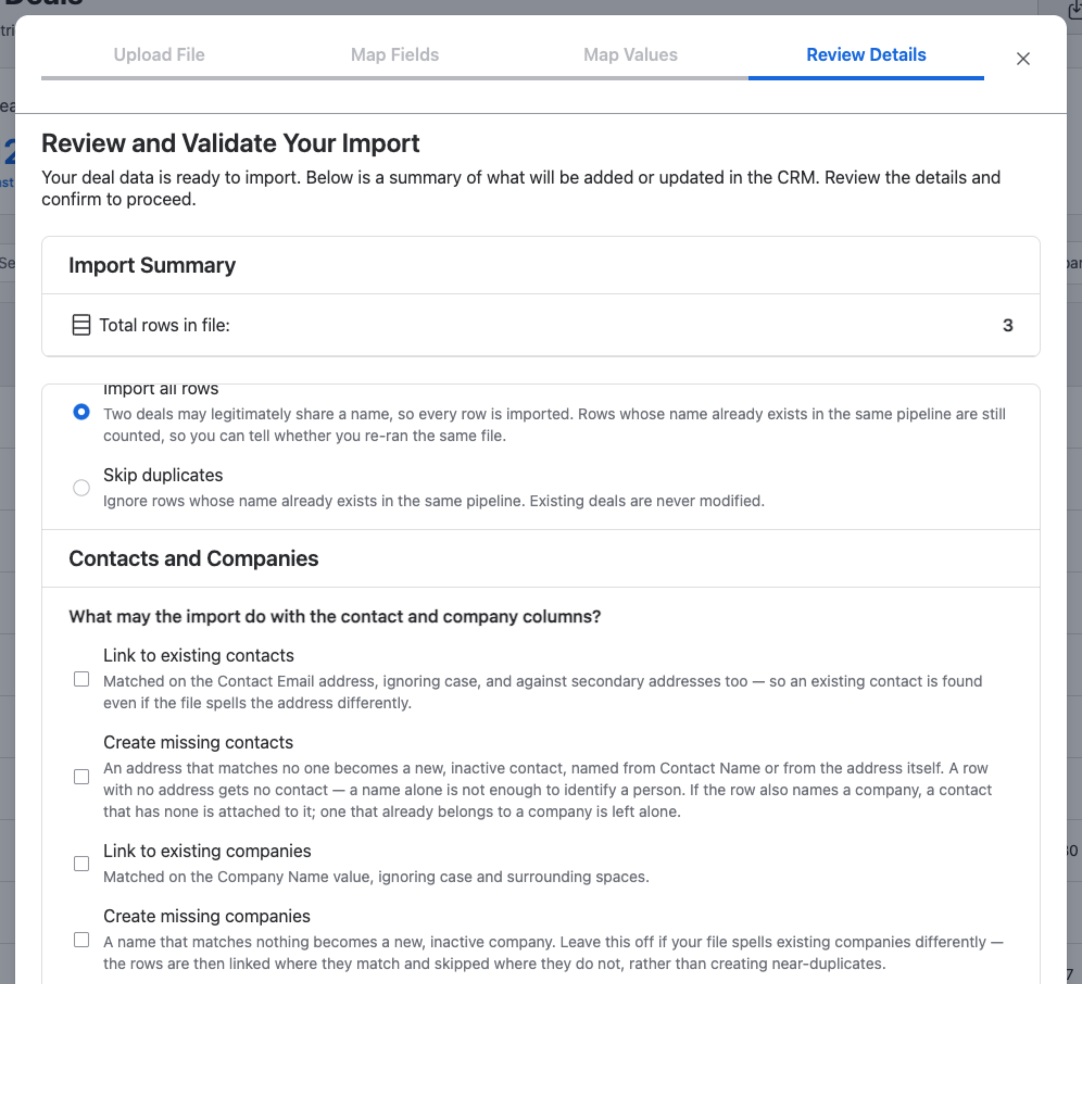
The last step before anything is written. It shows the row count and the two sets of choices that decide what the import is allowed to do.
Duplicate Handling #
Deals are matched on name within a pipeline — deliberately loose, because unlike a Contact’s email a Deal name is not an identifier.
| Option | What it does |
|---|---|
| Import all rows | Every row is imported. Two Deals may legitimately share a name, so this is the default. Rows whose name already exists in the same pipeline are still counted, so you can tell whether you have re-run the same file. |
| Skip duplicates | Rows whose name already exists in the same pipeline are ignored. Existing Deals are never modified. |
Neither option updates an existing Deal. Import creates Deals; to change ones you already have, use bulk Edit fields on the Deals list instead.
Contacts and Companies #
Four checkboxes decide what the import may do with the Contact and Company columns in your file. All four are off by default — an import with none of them ticked creates Deals with no Contact or Company attached.
| Option | What it does |
|---|---|
| Link to existing contacts | Matched on the Contact Email address, ignoring case, and against secondary addresses too — so an existing Contact is found even if the file spells the address differently. |
| Create missing contacts | An address that matches no one becomes a new, inactive Contact, named from Contact Name or from the address itself. A row with no address gets no Contact — a name alone is not enough to identify a person. If the row also names a Company, a Contact that has none is attached to it; one that already belongs to a Company is left alone. |
| Link to existing companies | Matched on the Company Name value, ignoring case and surrounding spaces. |
| Create missing companies | A name that matches nothing becomes a new, inactive Company. Leave this off if your file spells existing Companies differently — rows are then linked where they match and skipped where they do not, rather than creating near-duplicates. |
If your file came out of another system, the safe first pass is to tick only the two Link to existing boxes. Import, look at what ended up unlinked, fix the spelling in the file, and only then consider the Create missing options.
Step 5. Import File #
Pressing Next on the review step is what starts the import — there is no separate Import button. A progress indicator runs, then Import Completed confirms the result:
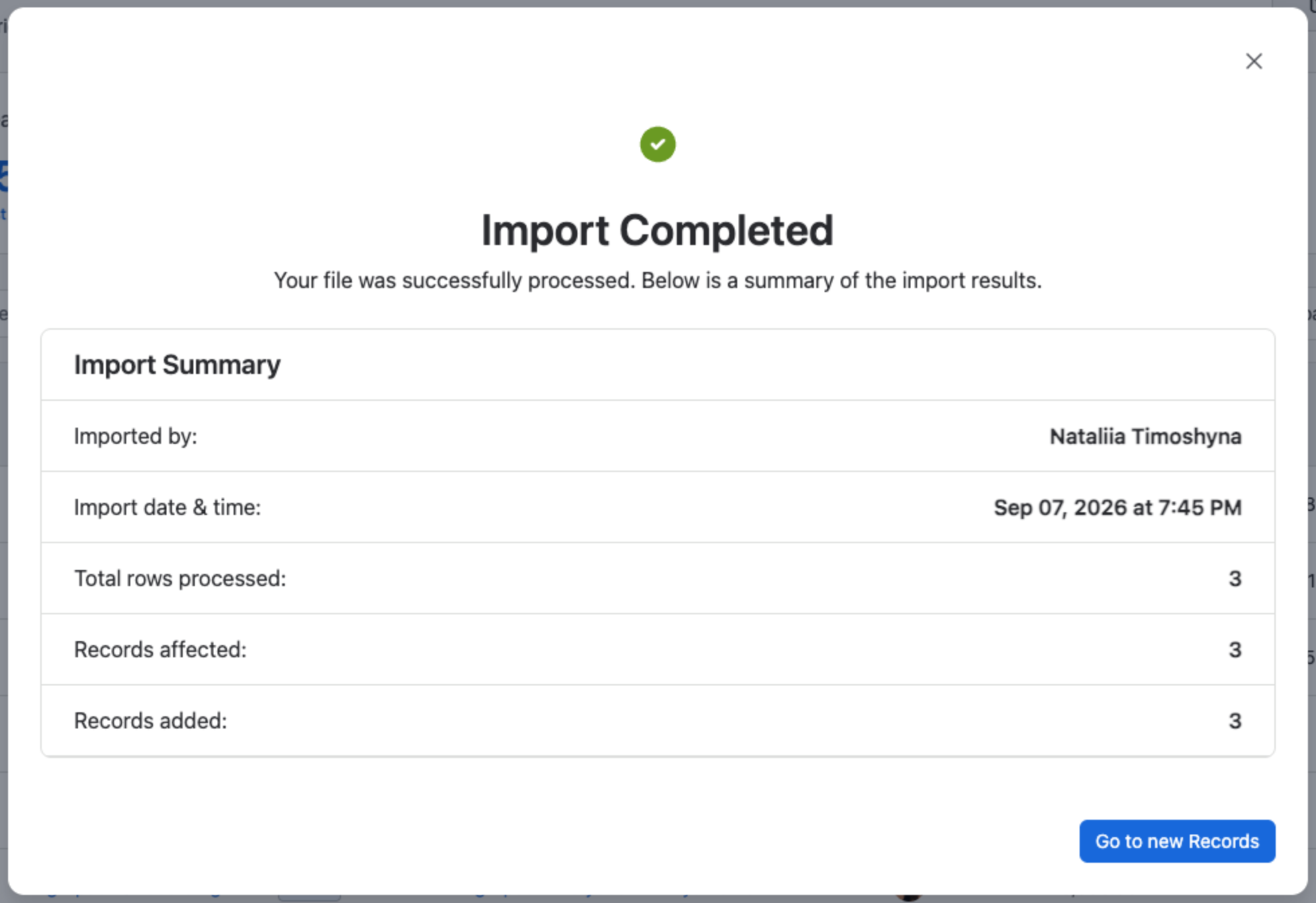
- Imported by and Import date & time — the same details that show up in the import history.
- Total rows processed — how many rows the file had.
- Records affected and Records added — added counts new Deals; affected counts every row the import acted on, so the two differ when rows are skipped as duplicates.
Go to new Records takes you straight to the imported Deals on the Deals list.
Where imports are recorded #
Every deal import and export is listed under Data Administration → Deals, with the file name, row count, who ran it, status and date.
The Deals list also has an Import files filter (under Filters → Basic), which is the quickest way to find — or bulk delete — everything that came in from one file.
Related Pages #
- Leads Import — the same wizard for Leads, with its own linking options.
- Contacts Import — matches on email and can update existing Contacts.
- Deals — everything else about working with Deals.


