Service desk requests that land on the right customer #
Support and sales look at the same customers from different tools. These flows close the gap from the service desk side: every new request is linked to the requester’s Contact, a requester the CRM does not know yet becomes one, and an upgrade request opens a Deal for sales.
They work in any Jira Service Management space. Manual linking and the Mria CRM panel on requests are on JSM Integration.
1. Link every request to the customer’s Contact #
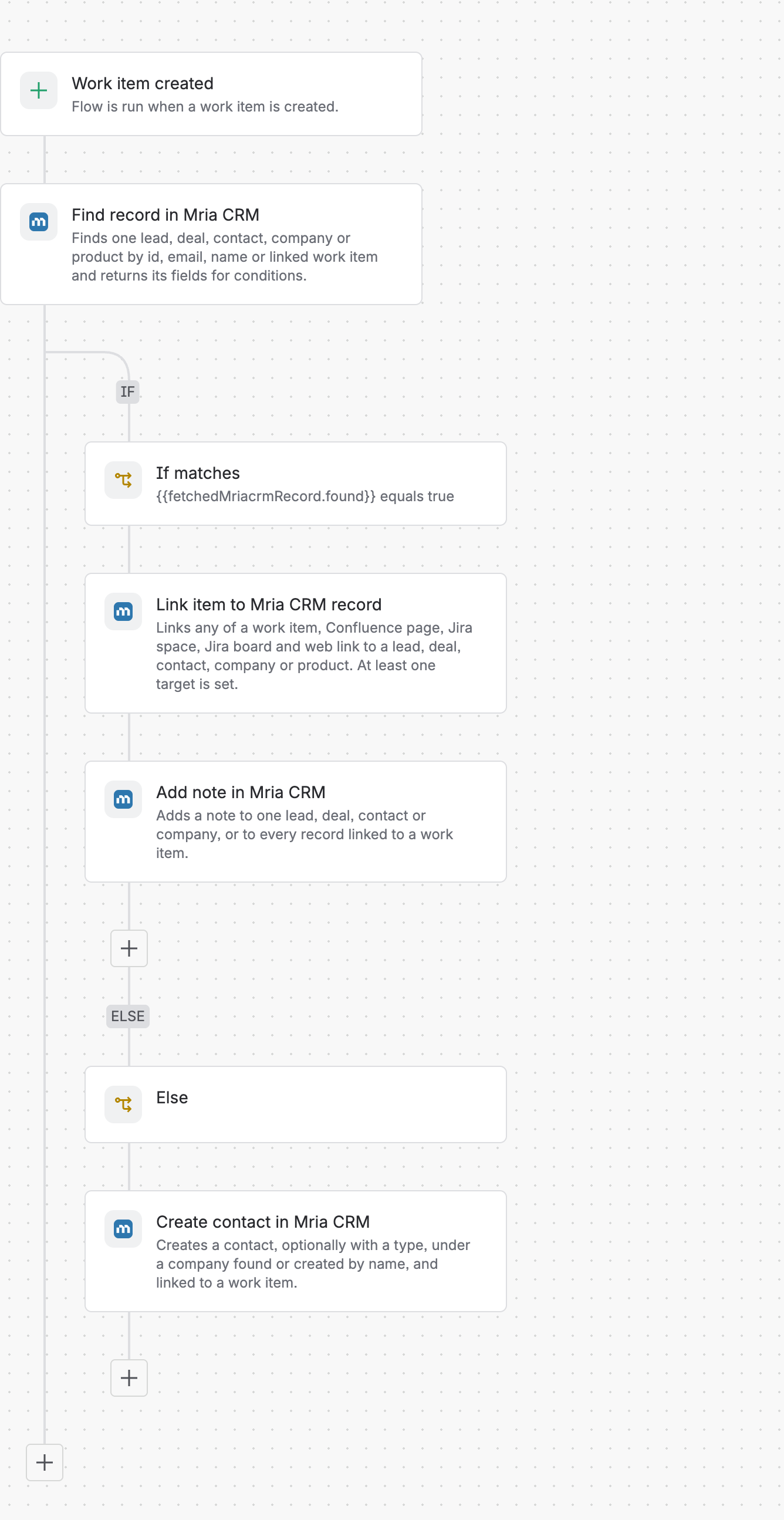
Trigger: Work item created, scoped to your service space.
Find the requester #
Find record in Mria CRM — Find by Email, Record type Contact, Email {{reporter.emailAddress}}.
If the Contact exists: link and note #
If/else block, If: {{fetchedMriacrmRecord.found}} equals true. Inside it:
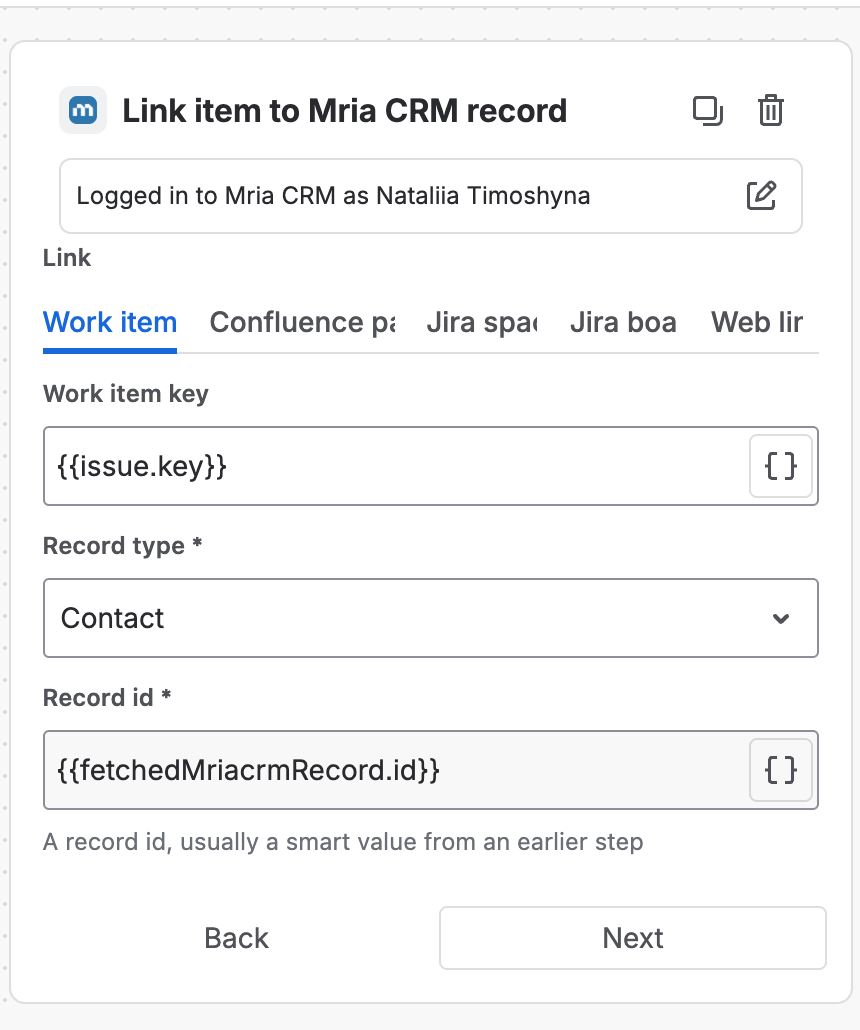
- Link item to Mria CRM record — Work item key
{{issue.key}}, Record type Contact, Record id{{fetchedMriacrmRecord.id}}. - Add note in Mria CRM — One record by id, Contact,
{{fetchedMriacrmRecord.id}}, contentNew request {{issue.key}}: {{issue.summary}}.
Else: add the requester to the CRM #
Create contact in Mria CRM in the Else part:
| Field | Value |
|---|---|
| Name | {{reporter.displayName}} |
{{reporter.emailAddress}} | |
| Company | {{issue.Organizations.first.name}} — the request’s organization, if your space uses organizations |
| If no company has this name | Keep the name on the contact only |
| Type | Inherit from company |
| Work item key | {{issue.key}} — the new Contact is linked straight away |
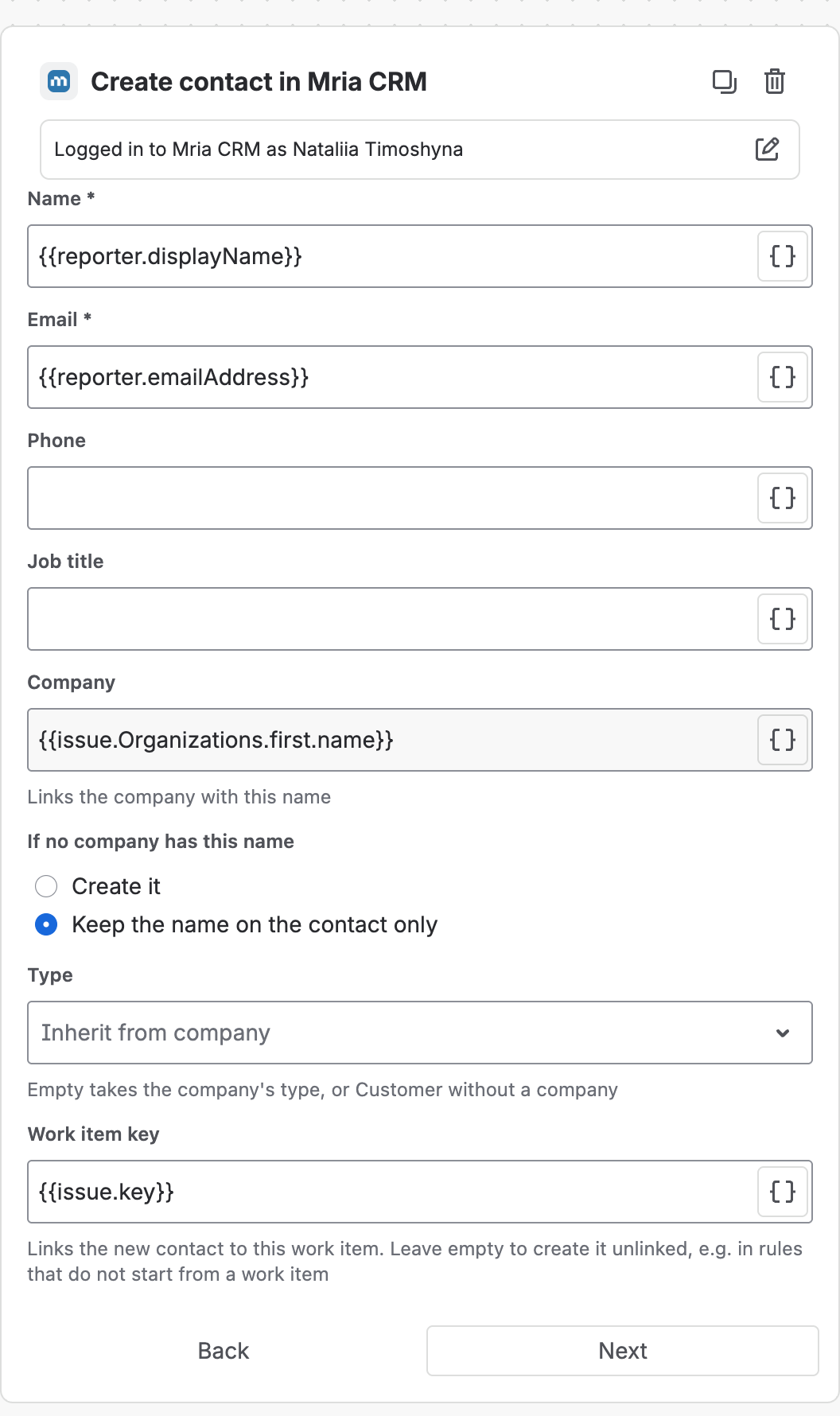
Why keep the name only? Organization names typed by customers are not always the names in your CRM. Keeping the text on the Contact lets someone match it to the right Company later, instead of the flow creating near-duplicates. Choose Create it if your organizations mirror your Companies exactly.
Result: every request shows up in the Contact’s Linked items and in the Mria CRM panel on the request, and the Contact’s timeline reads as a history of what the customer asked for.
2. Upgrade request → upsell Deal #
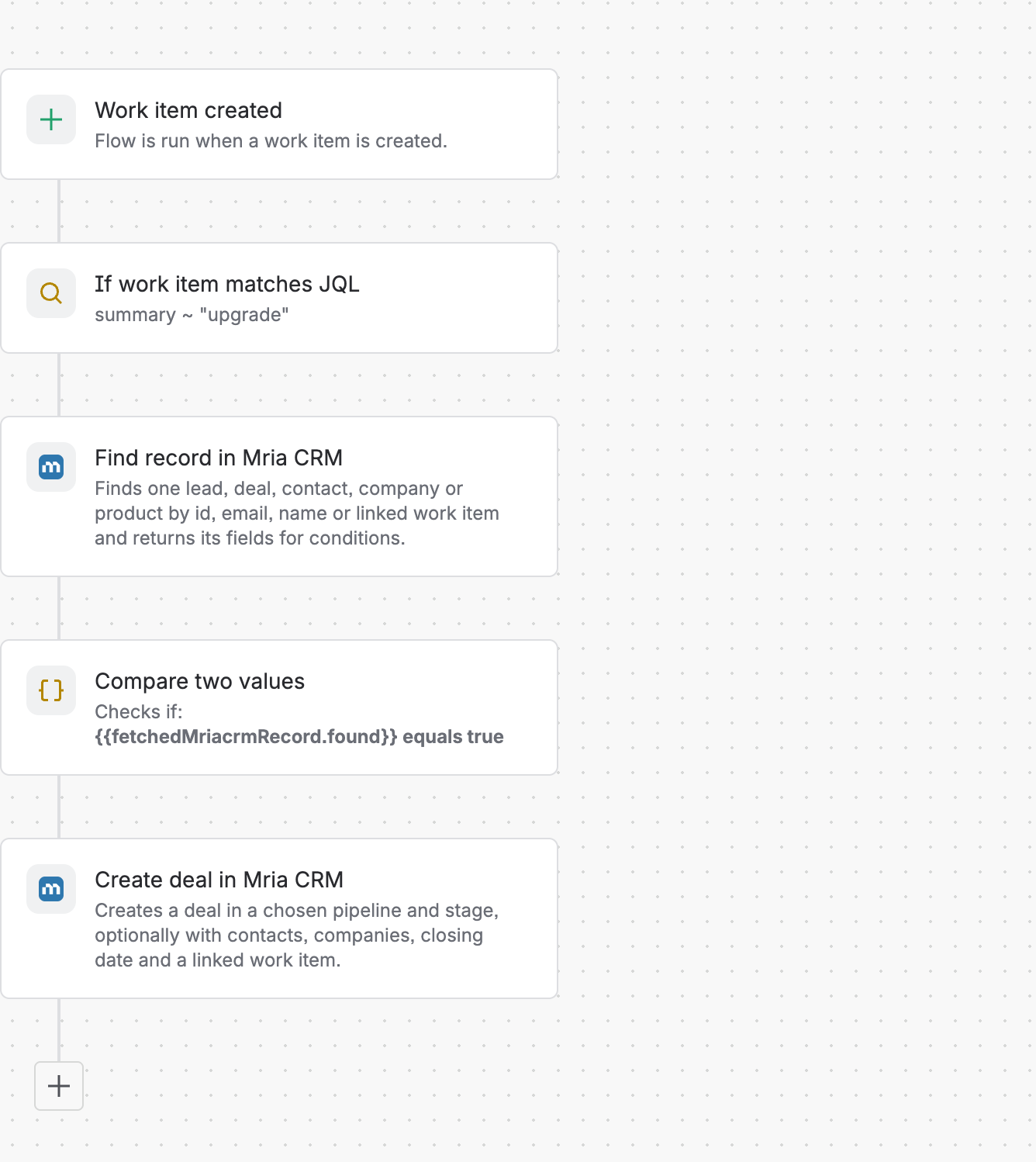
A customer asking support for a bigger plan is a sales conversation. This flow hands it over.
- Trigger: Work item created, scoped to the service space.
- If work item matches JQL:
summary ~ "upgrade". With a dedicated request type, test the request type instead. - Find record in Mria CRM — Email, Contact,
{{reporter.emailAddress}}. - Compare two values:
{{fetchedMriacrmRecord.found}}equalstrue— only known customers get a Deal. - Create deal in Mria CRM:
| Field | Value |
|---|---|
| Deal name | Upgrade: {{issue.summary}} |
| Pipeline / Stage | Main Pipeline / Discovery |
| Contacts | {{reporter.emailAddress}} — becomes the primary Contact |
| Work item key | {{issue.key}} |
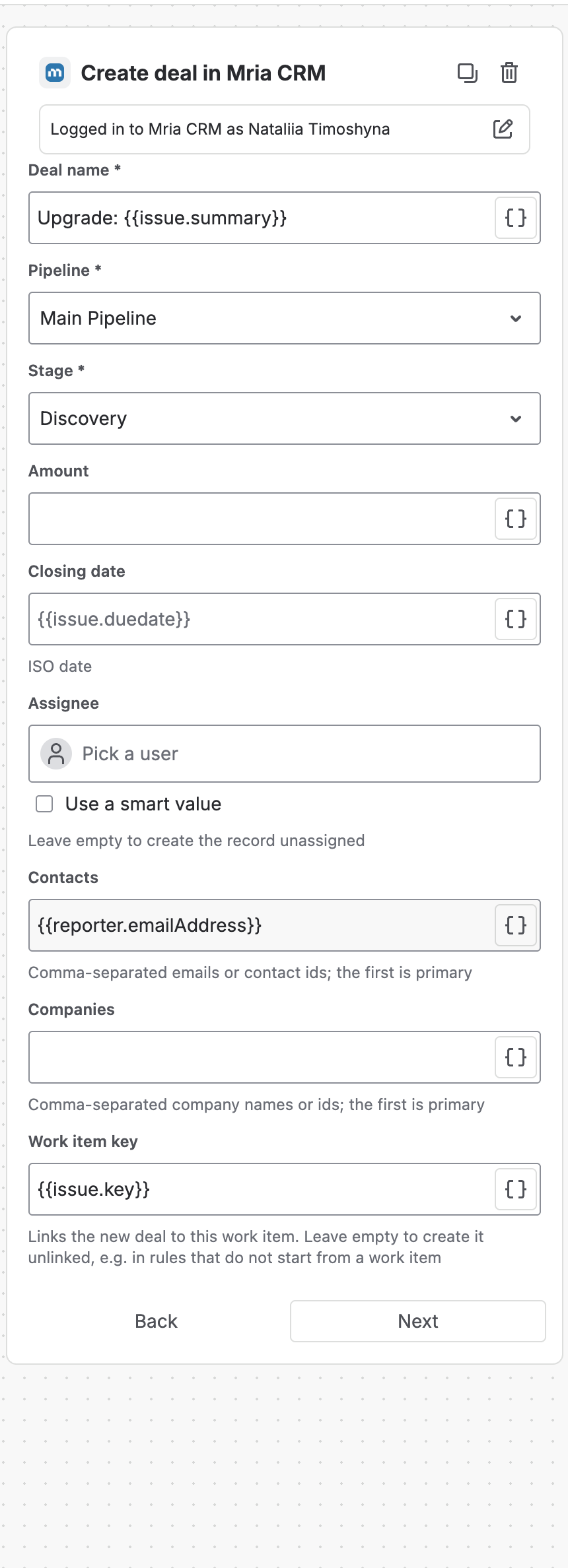
Set Assignee to the account manager, or leave it empty for the team to pick up. The Deal is linked to the request, so support sees it in the request’s Mria CRM panel and sales can read the request from the Deal.
3. More recipes #
Close the loop when a request is resolved #
Trigger: Work item transitioned to Resolved. Add note in Mria CRM — Records linked to a work item, Record type All (linked to the work item), content {{issue.key}} resolved: {{issue.resolution.name}}. Every Contact, Company and Deal the request touches gets the outcome on its timeline.
Flag tickets that put a big Deal at risk #
Trigger: Field value changed — Priority. Then Find record by Work item, Record type Deal; a condition that {{fetchedMriacrmRecord.amount}} is greater than 50000; then a Jira comment or a Slack message to the owner and an Add note on the Deal. Support sees revenue exposure without leaving the queue.
Put the account manager on the ticket #
Find record by Email, Record type Company, {{reporter.emailAddress}} — a Company is found by the email’s domain. Then Link item to that Company and Jira’s Edit work item to set a user field to {{fetchedMriacrmRecord.assigneeAccountId}}.
Related Pages #
- JSM Integration — Mria CRM inside the service desk.
- Automation Actions Reference — every field of the actions used here.
- Contacts — Contact types, statuses and linked items.


