Rated Hot in Salesforce, worked in Jira: every hot lead becomes a Mria CRM Lead #
Large sales organisations run on Salesforce while the teams that scope and deliver the work plan in Jira. This flow carries the hand-off without code on either side: when a Salesforce lead is rated Hot, a record-triggered Flow posts it to Jira Automation, and Mria CRM gets a Lead with the person’s details, the rating as a tag, a link back to the Salesforce record and a note saying why it arrived. A person who is already a Lead gets the tag and the note instead of a duplicate.
The Jira side is the same shape as HubSpot Leads to Mria CRM and Zoho CRM Leads to Mria CRM. What is specific to Salesforce is the sender: a Flow with an HTTP Callout action, which needs a Named Credential, a sample request to shape the body, and an asynchronous path. This page spends its time there.
1. What you get #
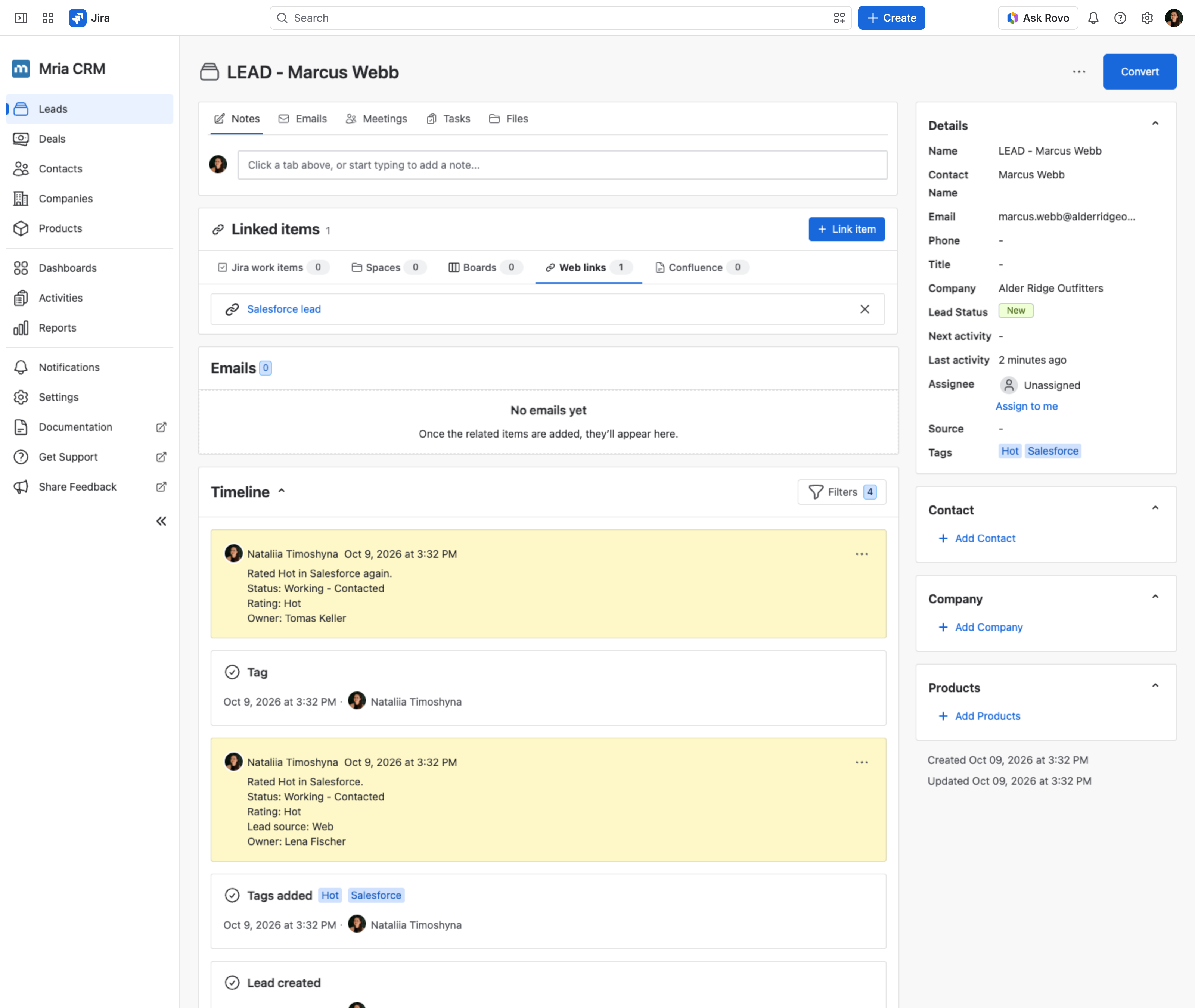
A Salesforce lead, Marcus Webb of Alder Ridge Outfitters, was rated Hot while being worked. Seconds later Mria CRM holds LEAD – Marcus Webb tagged Salesforce and Hot, with a web link to the Salesforce record and a note with the status, rating, lead source and owner. When the lead was reassigned and rated Hot again, the existing Lead got the tags re-applied and a second note instead of a duplicate.
2. The flow at a glance #
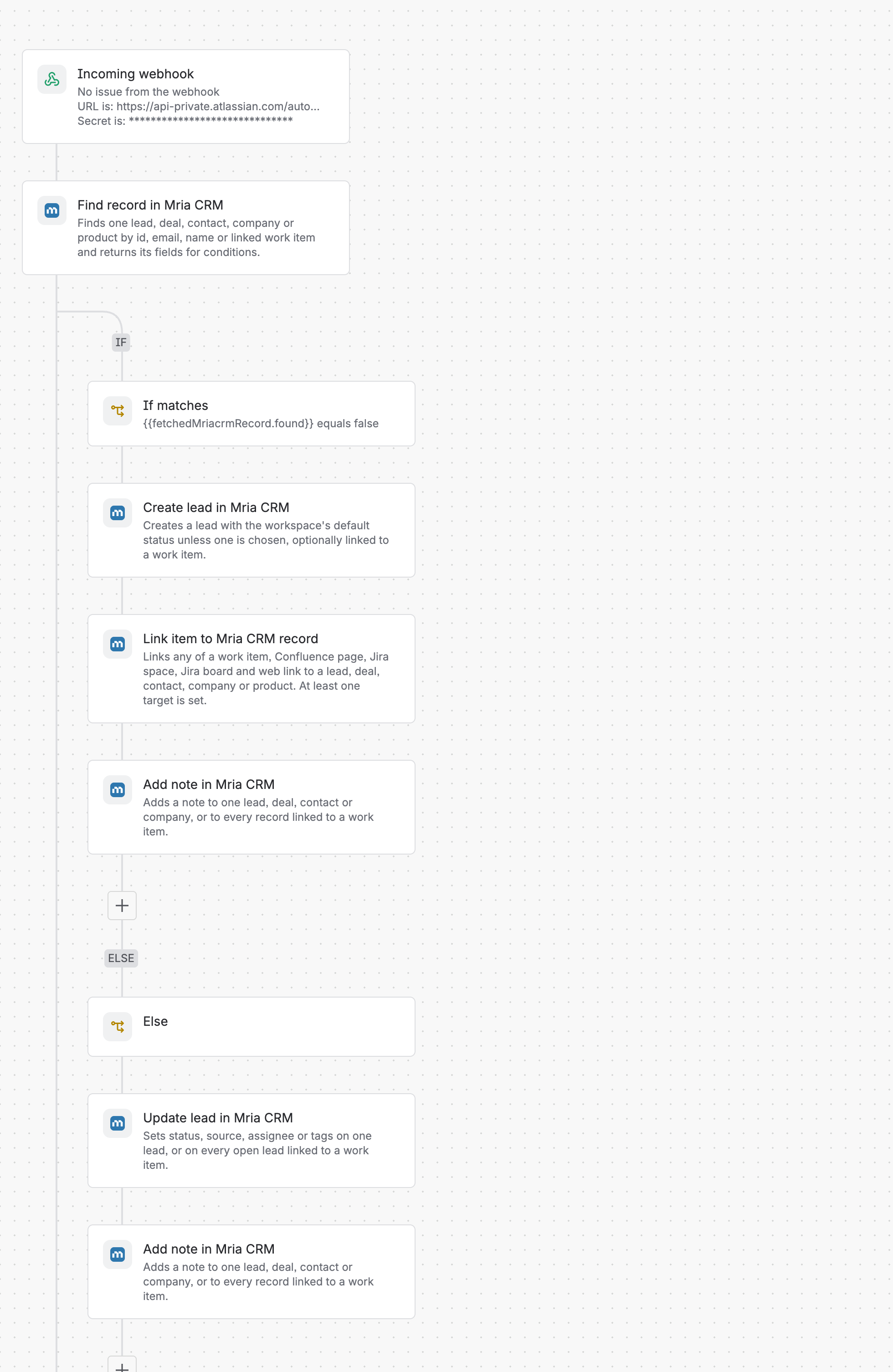
- Incoming webhook — receives the lead from the Salesforce Flow.
- Find record — looks for a Lead with that email.
- If/else —
{{fetchedMriacrmRecord.found}}equals false? - If: Create lead (rating as a tag), Link item (web link to the Salesforce record) and Add note.
- Else: Update lead (adds the rating as a tag) and Add note on the Lead that already exists.
3. Build the Jira side #
You need permission to create automation flows in Jira, and a Mria CRM role that can create and edit Leads; the steps run as you. Section 4 covers Salesforce.
Step 1. Create the flow and its trigger #
- Open Settings → System → Global automation and choose Create flow → Create from scratch.
- Pick the trigger Incoming webhook.
- Add one action (the Find record below) and save the flow with Save without enabling. Jira cannot issue the webhook URL for a flow that is not saved, and it will not save a flow without an action.
- Back on the trigger, set Work item criteria to No work items from the webhook and click Generate secret. Copy the Webhook URL and the secret for section 4.
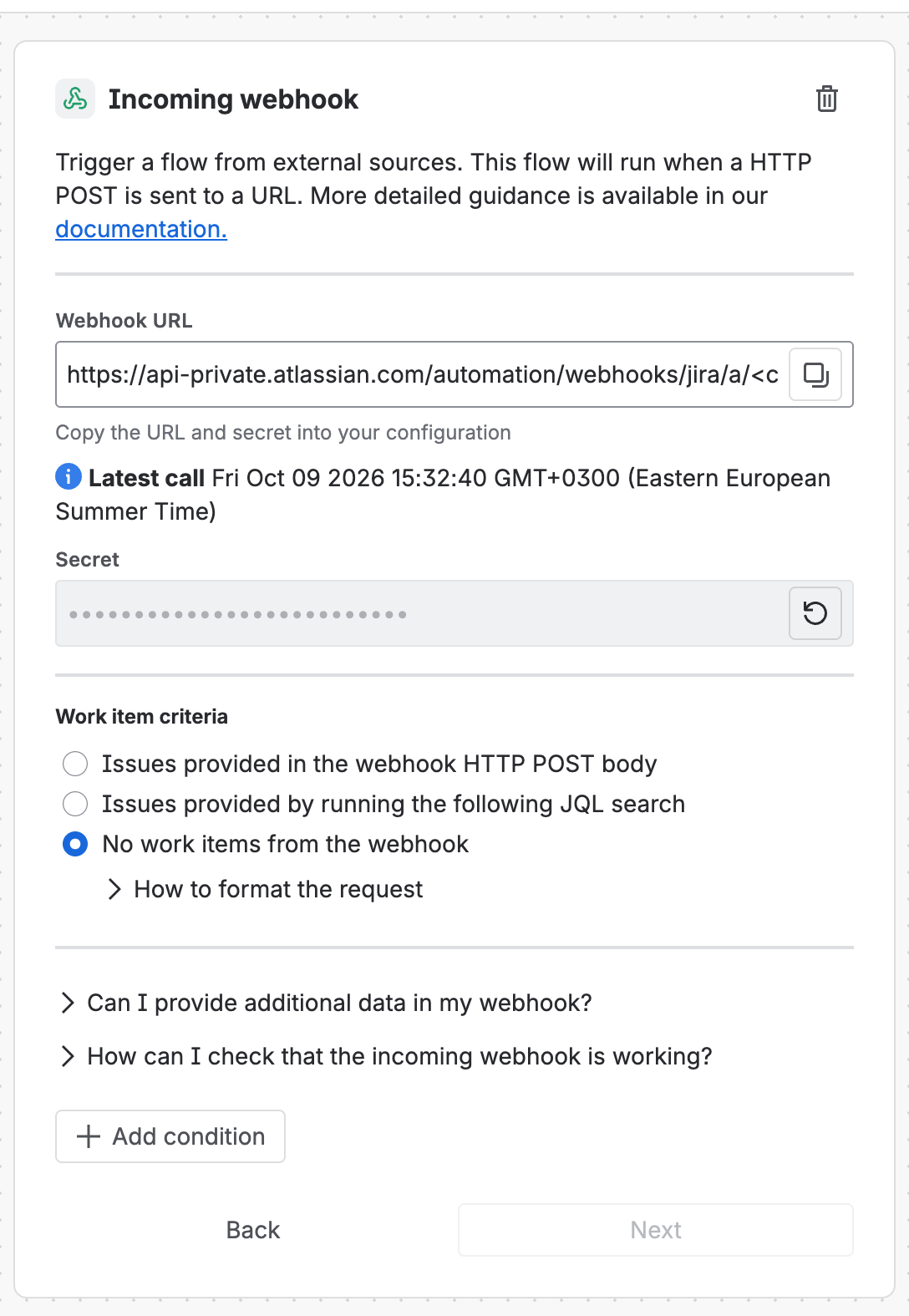
The URL and the secret together are a key. Anyone who has both can create Leads in your CRM. In Salesforce the secret lives in the Named Credential, which only administrators can open, and the Flow never shows it. If it leaks, generate a new one; the old one stops working at once.
Step 2. Find record — is this person already a Lead? #
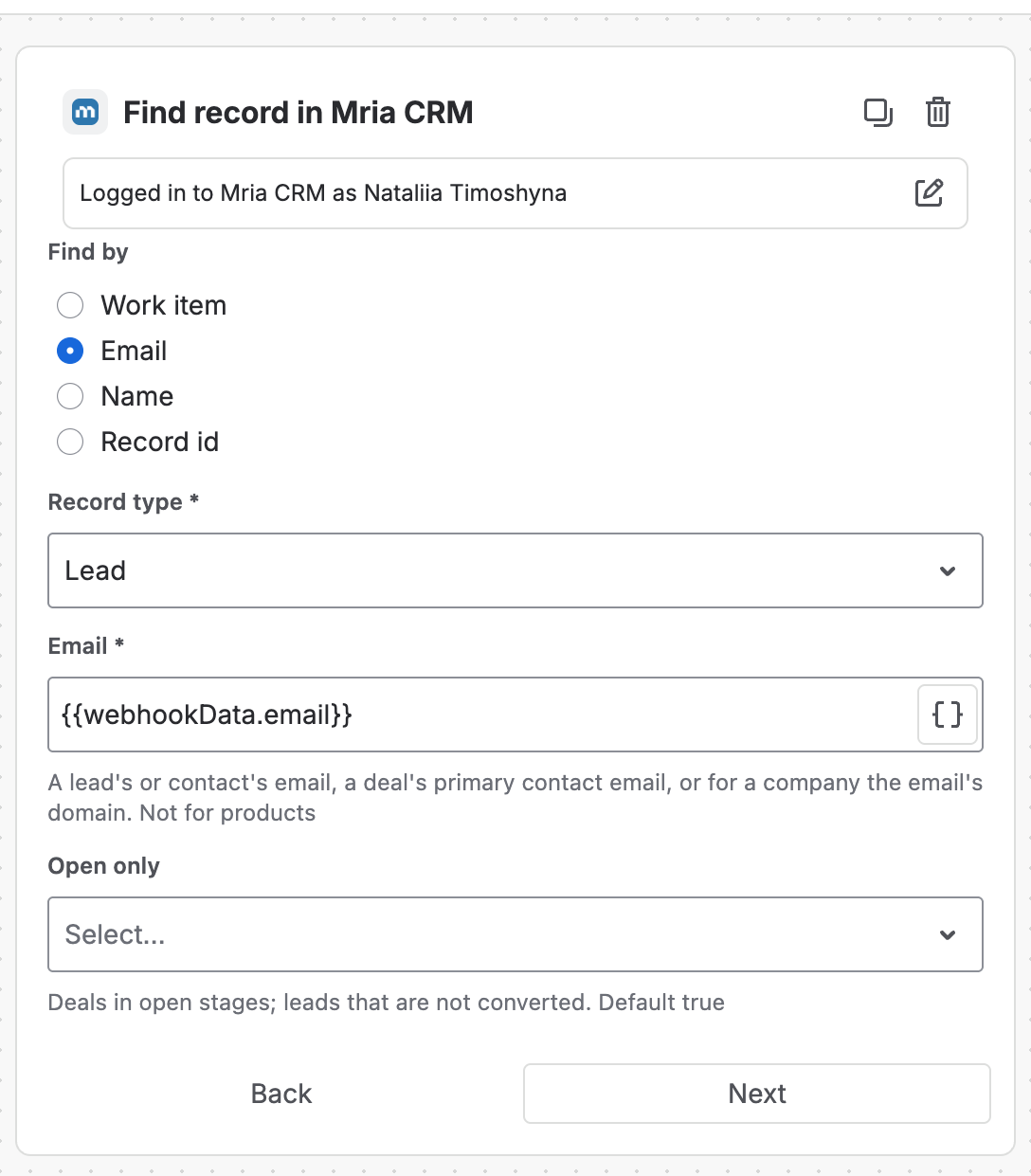
Add Find record in Mria CRM. If this is your first Mria CRM step, click Connect first.
| Field | Value |
|---|---|
| Find by | |
| Record type | Lead |
{{webhookData.email}} |
Step 3. Branch on the result #
Add an If/else block. In the If part choose Add condition → {{smart values}} condition: first value {{fetchedMriacrmRecord.found}}, condition equals, second value false.
Step 4. If not found: create the Lead and link Salesforce #
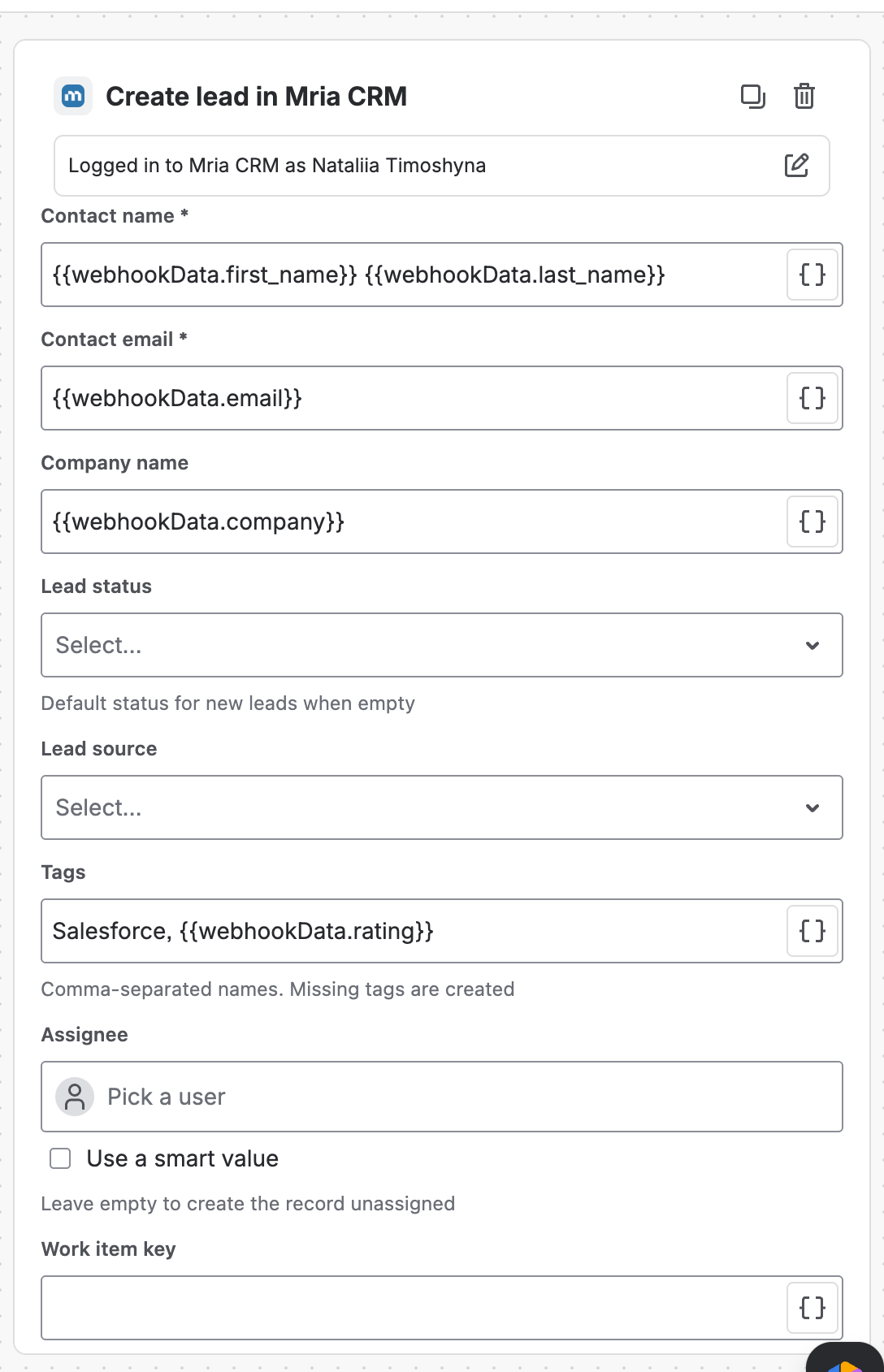
Inside the If part add Create lead in Mria CRM:
| Field | Value |
|---|---|
| Contact name | {{webhookData.first_name}} {{webhookData.last_name}} |
| Contact email | {{webhookData.email}} |
| Company name | {{webhookData.company}} |
| Lead source | empty, or a source that exists in your workspace (Settings → Lead sources) |
| Tags | Salesforce, {{webhookData.rating}} — the Salesforce rating (Hot, Warm, Cold) becomes a tag; missing tags are created |
| Work item key | empty — there is no work item |
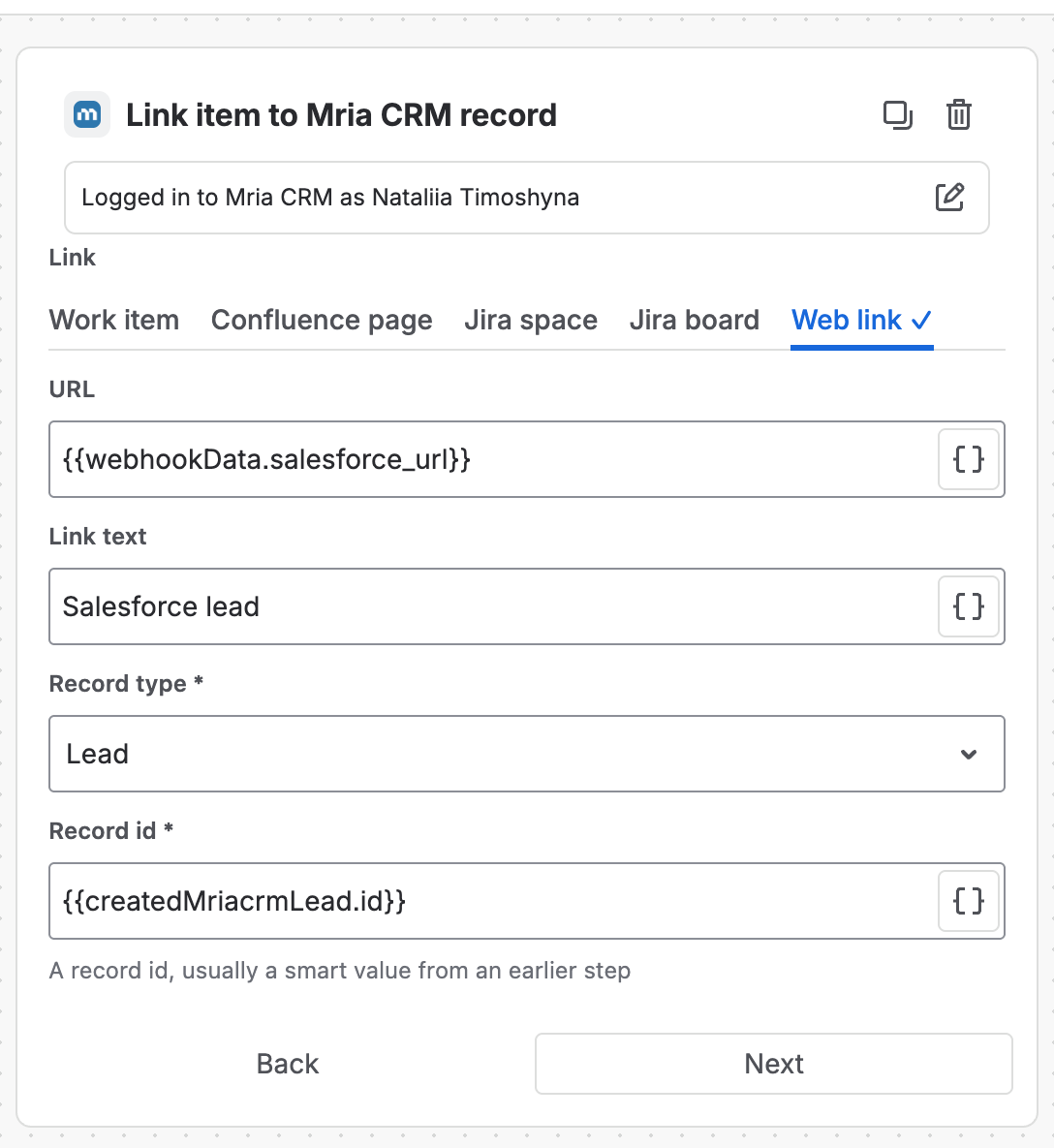
Then Link item to Mria CRM record, tab Web link, so the Lead opens the Salesforce record in one click:
| Field | Value |
|---|---|
| URL | {{webhookData.salesforce_url}} |
| Link text | Salesforce lead |
| Record type | Lead |
| Record id | {{createdMriacrmLead.id}} |
And Add note in Mria CRM with Add to = One record by id, Record type Lead, Record id {{createdMriacrmLead.id}} and this content:
Rated Hot in Salesforce.
Status: {{webhookData.status}}
Rating: {{webhookData.rating}}
Lead source: {{webhookData.lead_source}}
Owner: {{webhookData.owner}}
Step 5. Else: tag and note the repeat #
In the Else part add Update lead in Mria CRM with Update = One lead by id, Record id {{fetchedMriacrmRecord.id}} and Tags Salesforce, {{webhookData.rating}}. Leave Tags mode empty: its default, add, keeps the tags the Lead already has and adds the new ones.
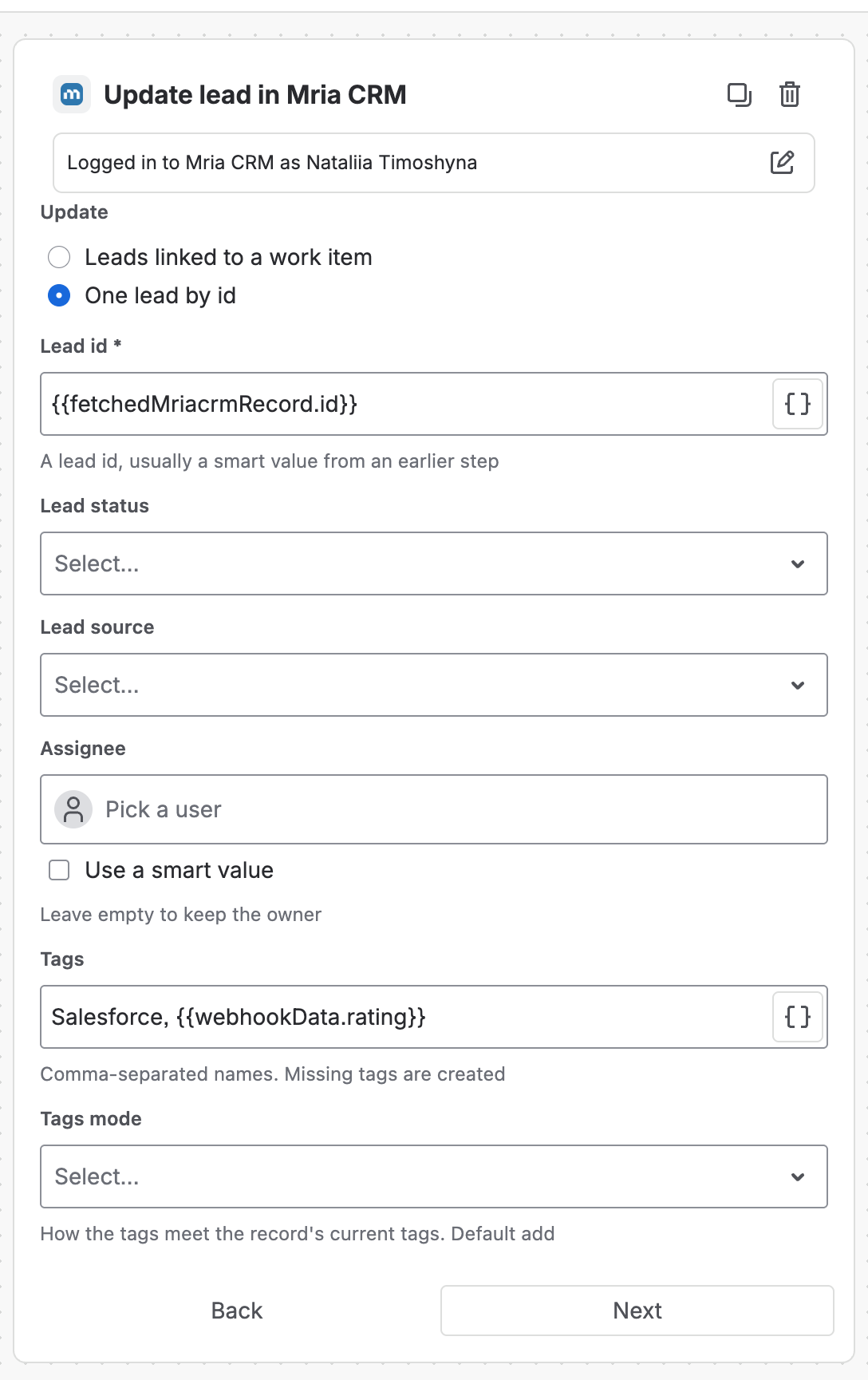
Then another Add note in Mria CRM with Record id {{fetchedMriacrmRecord.id}} and a content such as Rated Hot in Salesforce again. Status: {{webhookData.status}} / Owner: {{webhookData.owner}}.
Step 6. Turn it on #
Save the flow and switch it on. Until it is on, calls to the URL do nothing.
4. Send the lead from Salesforce #
Salesforce Flow Builder’s HTTP Callout action (generally available for POST since Winter ’24, Enterprise edition and above) posts a JSON body you shape from a sample, with no Apex. It needs three things: a credential that holds the Jira URL and secret, a sample request so Flow can build the body, and a record-triggered Flow that runs the callout asynchronously. Everything below is done in Setup.
Step 1. Credentials that carry the URL and the secret #
- Setup → Named Credentials → External Credentials → New. Label Jira Automation, Authentication Protocol Custom. Save, then under Principals click New: Parameter Name Jira Automation, Sequence Number 1, Identity Type Named Principal. Save.
- Still on the external credential, under Custom Headers click New: Name
X-Automation-Webhook-Token, Value = the secret from the Jira trigger, Sequence Number 1. Save. The secret now travels as a header on every callout and never appears in the Flow. - Named Credentials → New (the new type, not New Legacy). Label Jira Automation, URL = the Webhook URL from the Jira trigger, External Credential = Jira Automation, untick Generate Authorization Header. Save.
- Setup → Permission Sets: create one (for example Jira Automation callouts), open External Credential Principal Access, enable the Jira Automation principal, and assign the set to the users whose lead edits should trigger the callout.
If your org cannot add custom headers (older named-credential setups), put the secret in the URL instead: Named Credential URL = the Webhook URL, and in the callout action set URL Path to /<secret>. Jira accepts the secret as the last path segment.
Step 2. The record-triggered Flow with the callout #
- Setup → Flows → New Flow → Record-Triggered Flow. Object Lead, trigger A record is created or updated, condition Rating Equals Hot, and Only when a record is updated to meet the condition requirements so a lead that stays Hot does not post on every edit. Optimize for Actions and Related Records (after save).
- Callouts are not allowed on the immediate path of a record-triggered Flow. Under the Start element choose Add Scheduled Paths → Run Asynchronously and build the rest on that path.
- On the asynchronous path add an Action element and click Create HTTP Callout. Name the external service JiraAutomation, pick the Named Credential, Next.
- Configure Invocable Action: Label Post lead to Jira, Method POST, URL Path
/(or/<secret>for the URL variant). Under Provide Sample Request paste the JSON below and click Review; under Provide Sample Response paste{}for status 200 — Jira answers with an empty JSON body — and click Review. Done. - Back on the action, set Body to a new resource: type Variable, data type Apex-Defined, Apex class the one ending in
_IN_body. - Add an Assignment element before the action that fills the body from the triggering record, then save and Activate the Flow.
{
  "first_name": "Marcus",
  "last_name": "Webb",
  "email": "marcus.webb@alderridgeoutfitters.com",
  "company": "Alder Ridge Outfitters",
  "status": "Working - Contacted",
  "rating": "Hot",
  "lead_source": "Web",
  "owner": "Lena Fischer",
  "salesforce_url": "https://yourdomain.lightning.force.com/lightning/r/Lead/00QKj00000M4rXpMAJ/view"
}| Body field | Assignment value |
|---|---|
| first_name | {!$Record.FirstName} |
| last_name | {!$Record.LastName} |
{!$Record.Email} | |
| company | {!$Record.Company} |
| status | {!$Record.Status} |
| rating | {!$Record.Rating} |
| lead_source | {!$Record.LeadSource} |
| owner | {!$Record.Owner:User.Name} |
| salesforce_url | a formula resource: "https://yourdomain.lightning.force.com/lightning/r/Lead/" & {!$Record.Id} & "/view" |
Why not Outbound Messages: Salesforce’s classic workflow outbound message is a SOAP envelope with Salesforce field names, not the JSON Jira Automation reads into {{webhookData}}, and it cannot carry the token header. The Flow callout sends exactly the body the Jira flow expects.
Flow’s Debug run shows the callout’s request and the status code; once active, failed callouts appear in the Paused and Failed Flow Interviews list and the owner gets a flow error email.
Test it from a terminal #
The same request the Flow sends, with a sample lead:
curl -X POST '<webhook URL from the trigger>' \
  -H 'Content-Type: application/json' \
  -H 'X-Automation-Webhook-Token: <secret from the trigger>' \
  -d '{"first_name": "Marcus", "last_name": "Webb", "email": "marcus.webb@alderridgeoutfitters.com",
       "company": "Alder Ridge Outfitters", "status": "Working - Contacted", "rating": "Hot",
       "lead_source": "Web", "owner": "Lena Fischer",
       "salesforce_url": "https://alderridge.lightning.force.com/lightning/r/Lead/00QKj00000M4rXpMAJ/view"}'
5. Check that it worked #
Open the flow’s Audit log. Every accepted call is a row; expand it to see each step and which branch ran. The Lead itself shows the tags, the link and the note on its page.
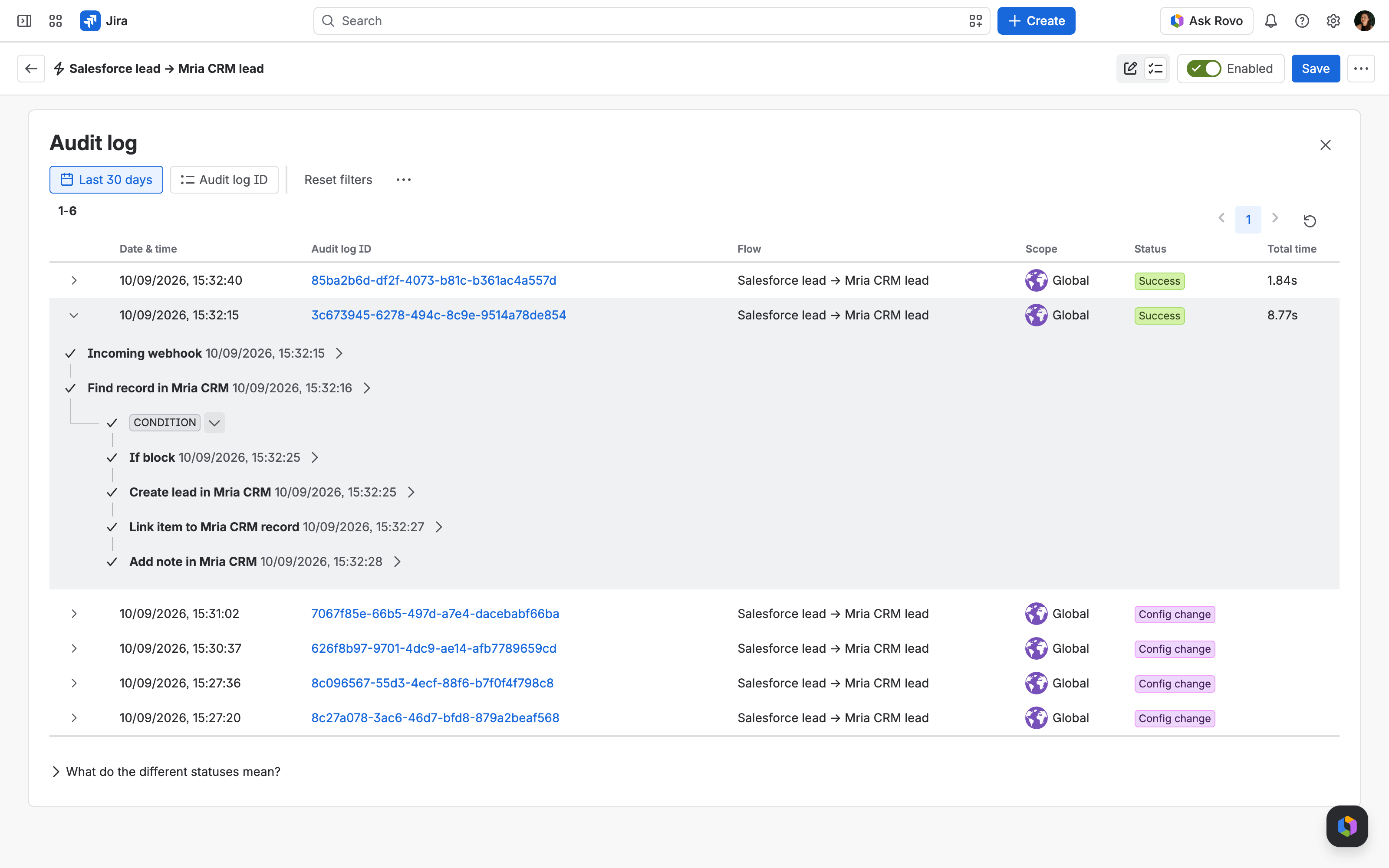
A wrong secret is answered with HTTP 200 and nothing runs. Jira acknowledges the request but drops it silently, so the Flow debug shows a successful callout while the audit log stays empty. Only a request with no secret at all gets a 400. If the audit log has no row for a call, check the header first.
6. Make it yours #
- Route by owner. Send
{!$Record.Owner:User.Email}asowner_emailand branch on it to set the Lead’s Assignee. - Opportunities instead of leads. A second Flow on Opportunity with Stage = Closed Won can post to a flow that runs Create deal in a Won stage; see the Actions Reference.
- Converted leads. Trigger on IsConverted = true and let the Else branch run Update lead with status Converted.
- Several ratings. Drop the Rating condition and keep the tag: Hot, Warm and Cold then all arrive, each tagged, and the Mria CRM Leads view can filter by tag.
7. Troubleshooting #
| What you see | Why, and what to do |
|---|---|
| Flow debug shows the callout succeeded, the audit log has nothing | The secret header is wrong or missing: Jira answers 200 and drops the call. Compare the custom header on the external credential with the trigger’s secret. |
| Flow error: callouts are not allowed from this context | The action sits on the immediate path. Move it to a Run Asynchronously scheduled path. |
| Flow error about the external credential principal | The running user is not in the permission set that grants External Credential Principal Access. Assign it. |
| The Lead is created but a field is empty | The Assignment misses that body field, or the sample request named it differently. Open the action, compare the sample with the Assignment. |
| Create lead fails on Lead source | The source Salesforce sends does not exist in the workspace. Add it under Settings, or leave the field empty. |
| The same person became two Leads | Find record must search by the same email the Lead is created with, and the body must carry Email. |
| Aborted — Monthly flow executions have been exceeded | The site reached its monthly automation usage. Runs resume next month or on a larger plan; Salesforce does not retry a callout, so re-save the leads later or resume the failed interviews. |
Related Pages #
- Jira Automation — how Mria CRM steps work, and the other use cases.
- Automation Actions Reference — every field of Find record, Create lead, Update lead, Link item and Add note.
- HubSpot Leads to Mria CRM — the same flow fed by a HubSpot workflow.
- Zoho CRM Leads to Mria CRM — the same flow fed by a Zoho CRM workflow rule.
- Salesforce Help: Configure an HTTP Callout Action — Salesforce’s documentation of the action.
- Trailhead: Create HTTP Callouts with Flow Builder — a guided setup of the credentials and the action.


