Arrange what every record page shows #
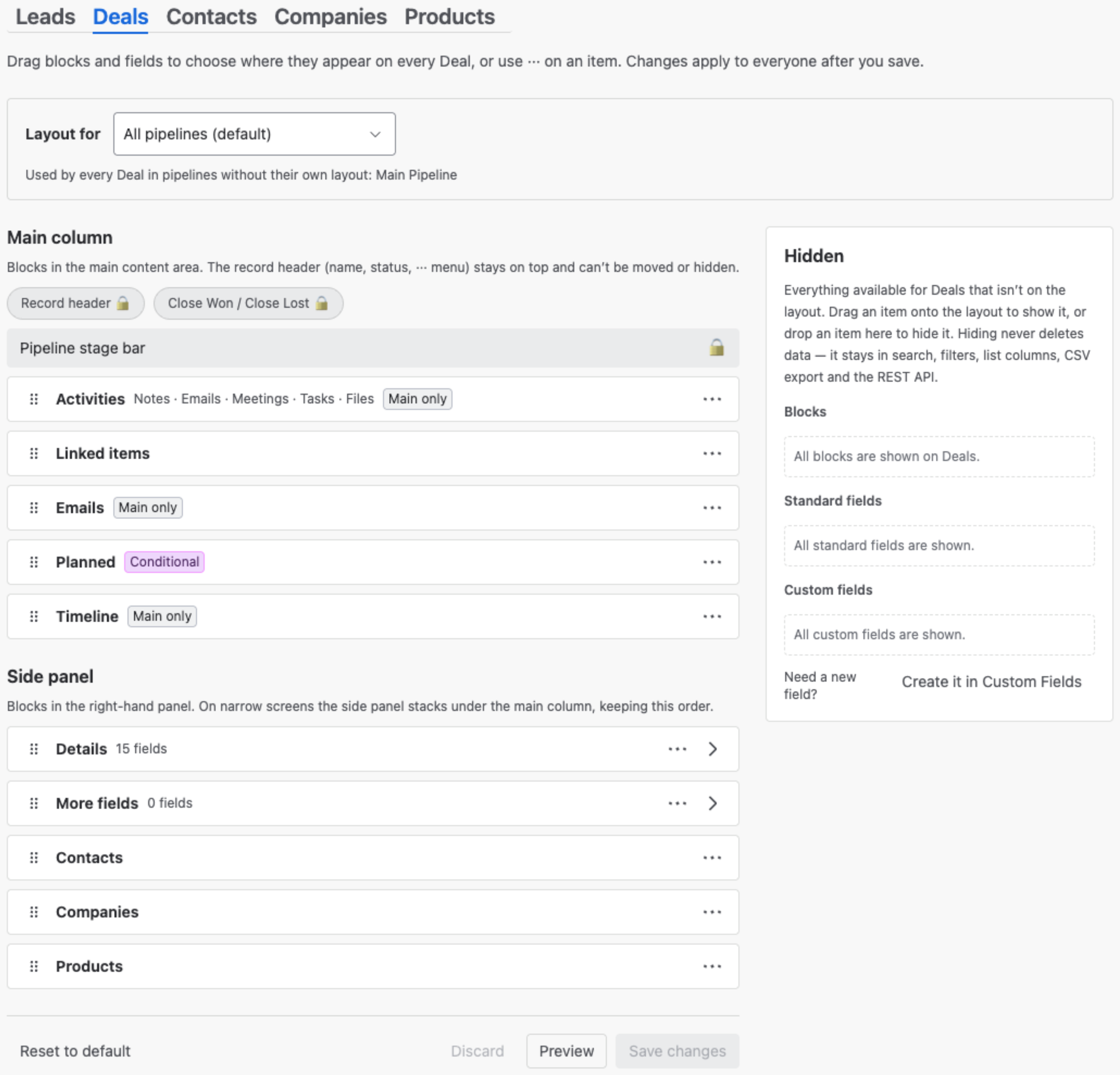
Settings → Layouts decides which blocks a record page shows, where they sit and in what order — and which fields the Details panel lists. There is one layout per record type, applied to everyone; Deals can also have a layout per pipeline.
Use it to put the information your team reads first at the top: move custom fields from the side panel into the main column, take away a block nobody uses, or start Timeline collapsed.
1. Who can change layouts #
The Leads, Deals, Contacts, Companies and Products sub-tabs appear for users whose role has Edit on that record type’s Configuration row in Roles & Permissions. Everyone else simply sees the result on every record.
2. The editor #
| Area | What it holds |
|---|---|
| Main column | Blocks in the main content area, top to bottom. The record header — name, status and the ··· menu — always stays on top. |
| Side panel | Blocks in the right-hand panel. On narrow screens the side panel stacks under the main column, keeping this order. |
| Hidden | Everything available for that record type that is not on the layout, grouped as Blocks, Standard fields and Custom fields. |
Lozenges on a block tell you what it allows:
| Mark | Meaning |
|---|---|
| 🔒 Locked | Part of the page’s frame: the record header, Close Won / Close Lost and the Pipeline stage bar. They cannot be moved or hidden. |
| Main only | Works only in the main column — Activities, Emails and Timeline. Moving one to the side panel is refused with the reason, for example Timeline only works in the main column. |
| Conditional | Shown on a record only when it has something to show. Planned appears when the record has an open Task or Meeting. |
On a Deal, for example, the shipped layout is:
| Main column | Side panel |
|---|---|
| Record header 🔒 · Close Won / Close Lost 🔒 · Pipeline stage bar 🔒 · Activities (Notes, Emails, Meetings, Tasks, Files) · Linked items · Emails · Planned · Timeline | Details (15 fields) · More fields (your custom fields) · Contacts · Companies · Products |
3. Moving and hiding blocks #
Drag a block by its handle ⠿, or use its ··· menu, which does the same from the keyboard:
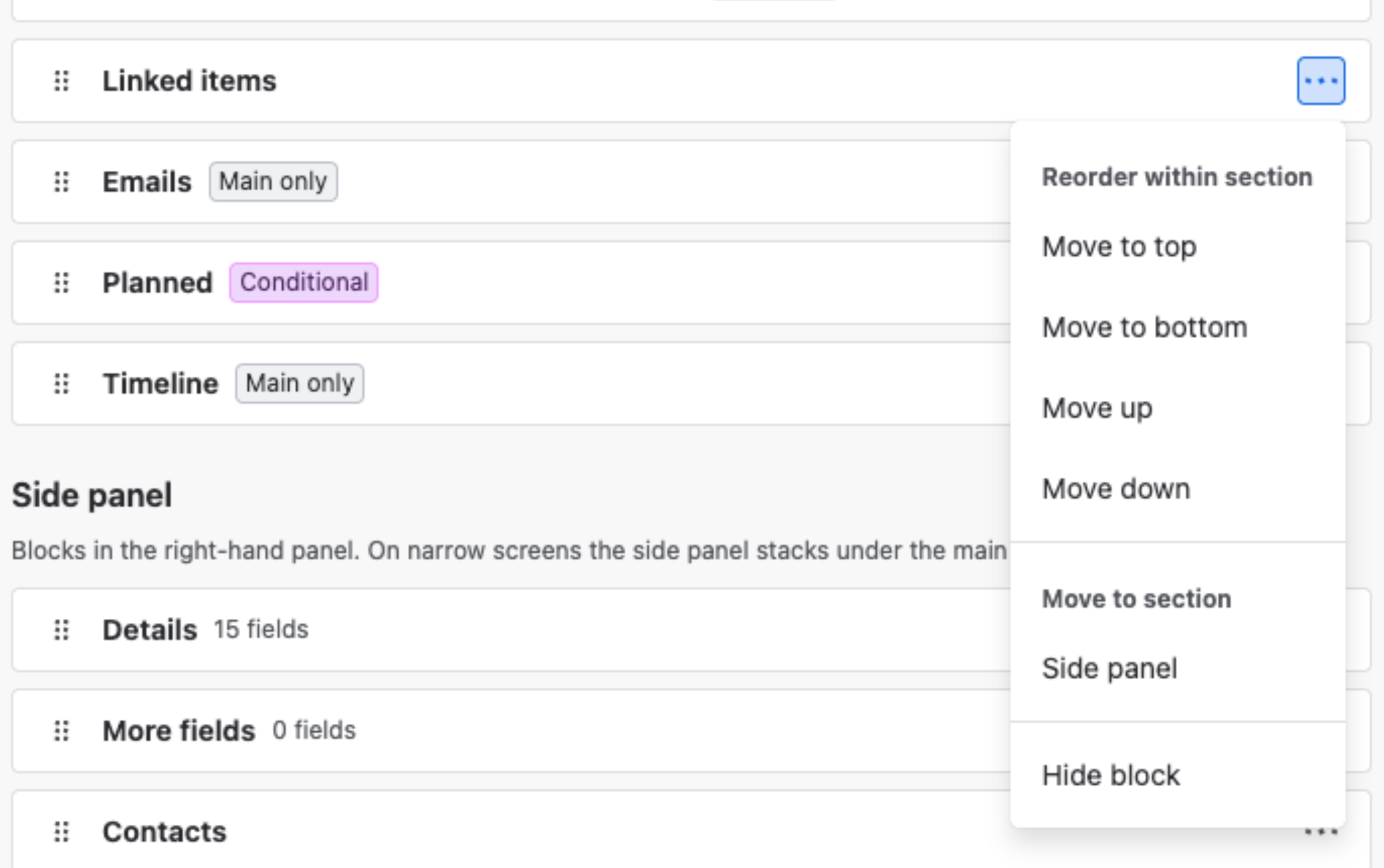
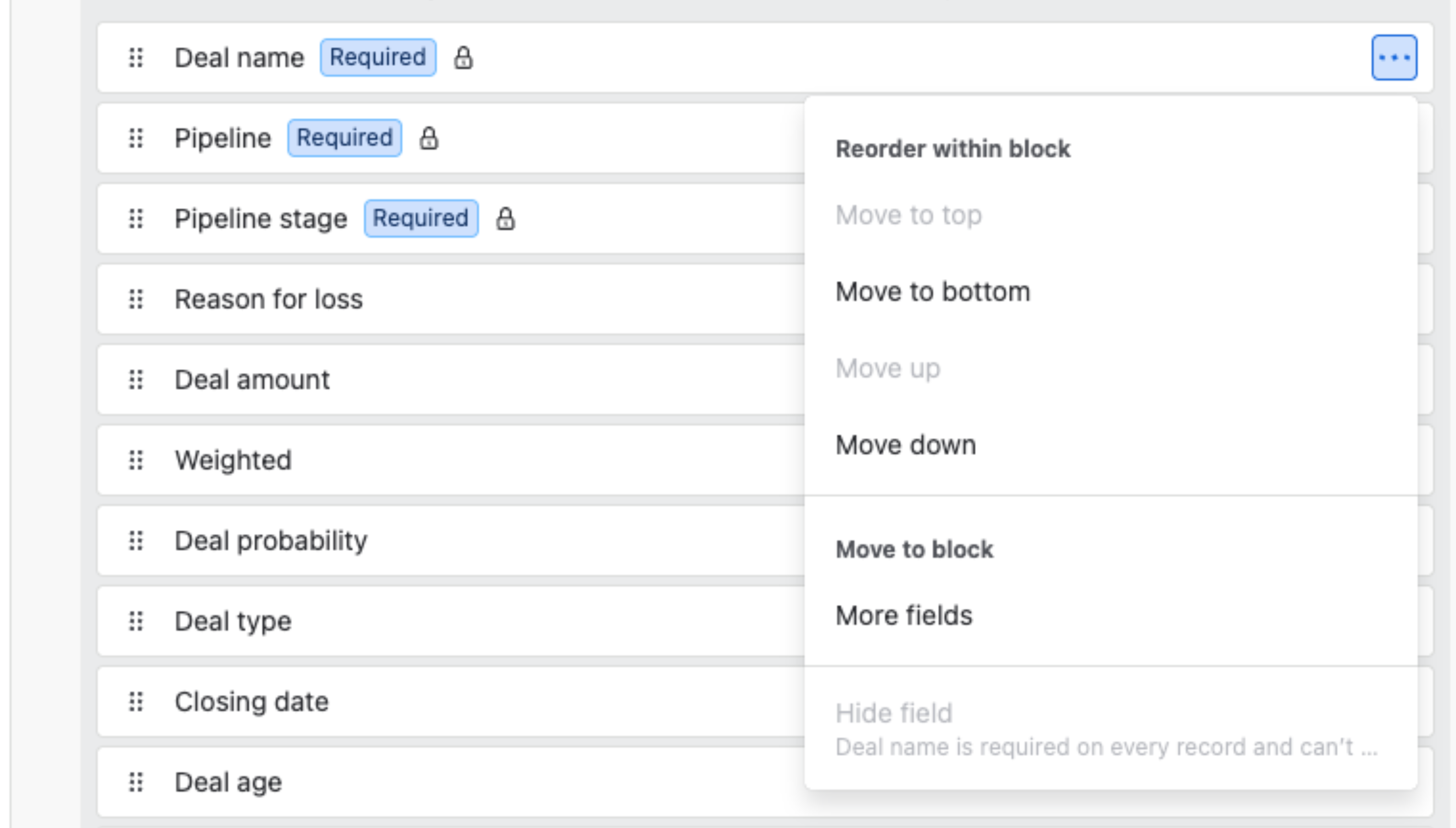
- Reorder within section — Move to top, Move to bottom, Move up, Move down.
- Move to section — from the main column to the side panel or back, where the block allows it.
- Collapsed by default — the block starts collapsed on every record. A user who expands or collapses it themselves keeps their own choice.
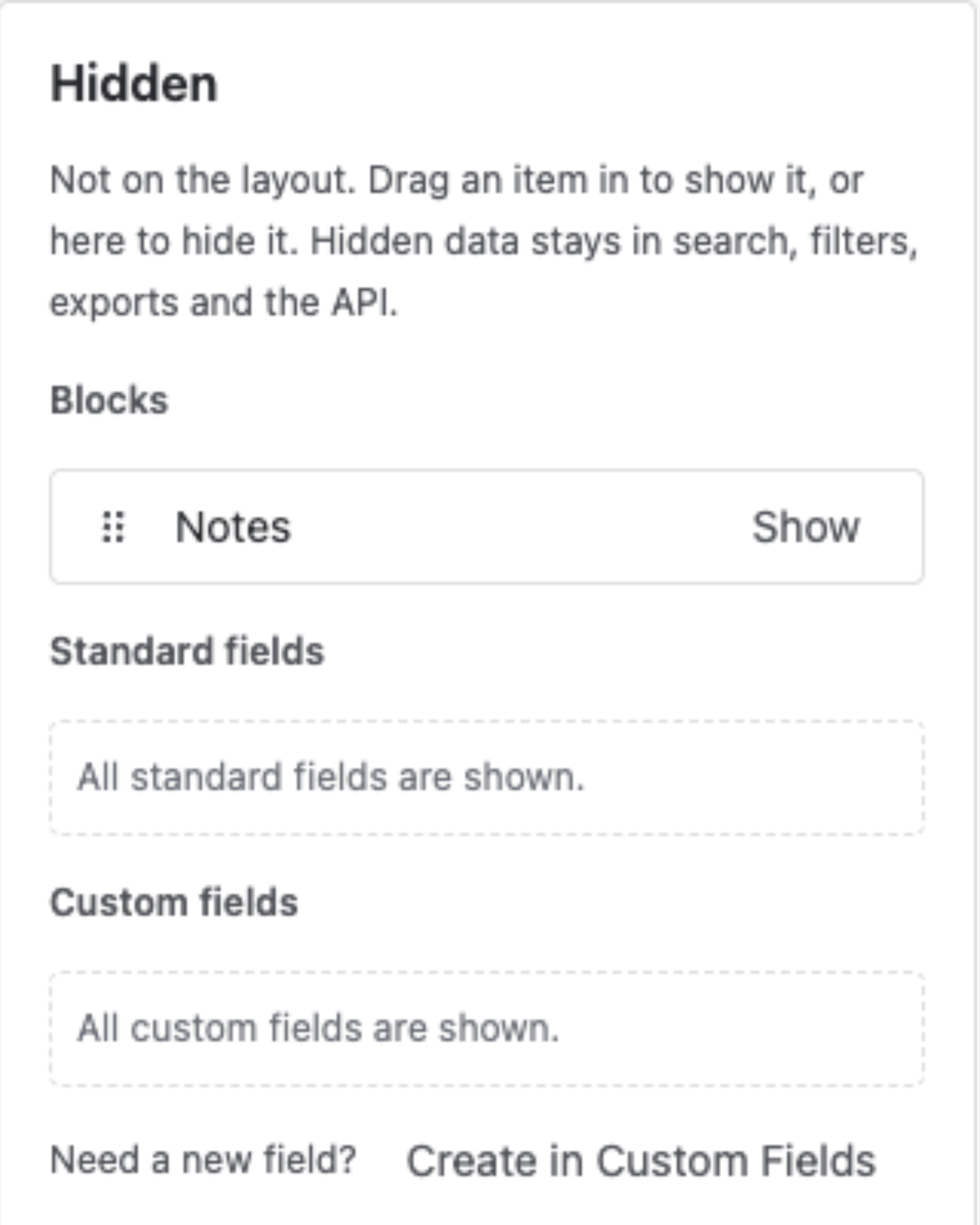
- Hide block — moves it to the Hidden panel. Drag it back, or use Show, to bring it back.
Hiding never deletes data
A hidden block or field is only taken off the record page. Its data stays in search, filters, list columns, CSV export and the REST API.
- Activities is one block. Hiding it removes the whole tab strip — Notes, Emails, Meetings, Tasks and Files, or on Products the Linked Deals, Leads, Companies and Contacts tabs — and the editor asks first, naming the tabs that go. Individual tabs can’t be hidden separately.
- The main column can’t be empty. Hide its last block and Save changes is disabled with Main column is empty. A record page needs at least one block in Main.
The Notes block #
Leads, Deals, Contacts and Companies can show a Notes block that lists the record’s notes on the page itself, instead of only in the Notes tab and the Timeline. It ships hidden on all four. To show it:
- Open the record type’s tab, find Hidden → Blocks → Notes, and click Show — or drag it into the main column.
- Move it where you want it. It lands right under Activities and works in the main column only.
- Click Save changes.
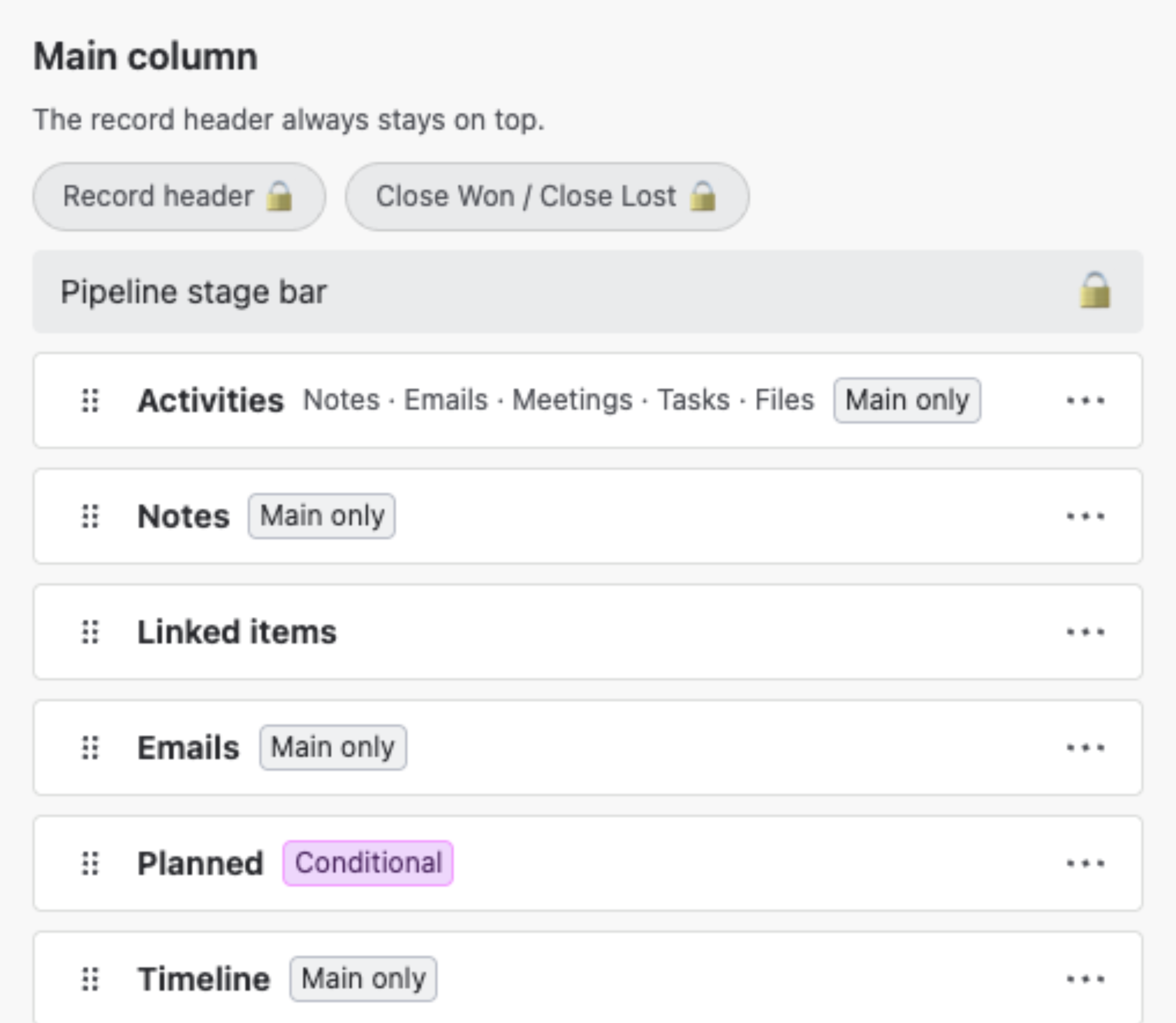
On the record, the block shows how many notes there are and each note with its author and time. Notes are still written and edited in the Notes tab of Activities — see Activities Breakdown.
4. Fields in Details and More fields #
Details and More fields show a field count. Click the chevron to open the list: drag a field to reorder it, or move it between Details and More fields — a custom field placed in Details renders among the standard ones.
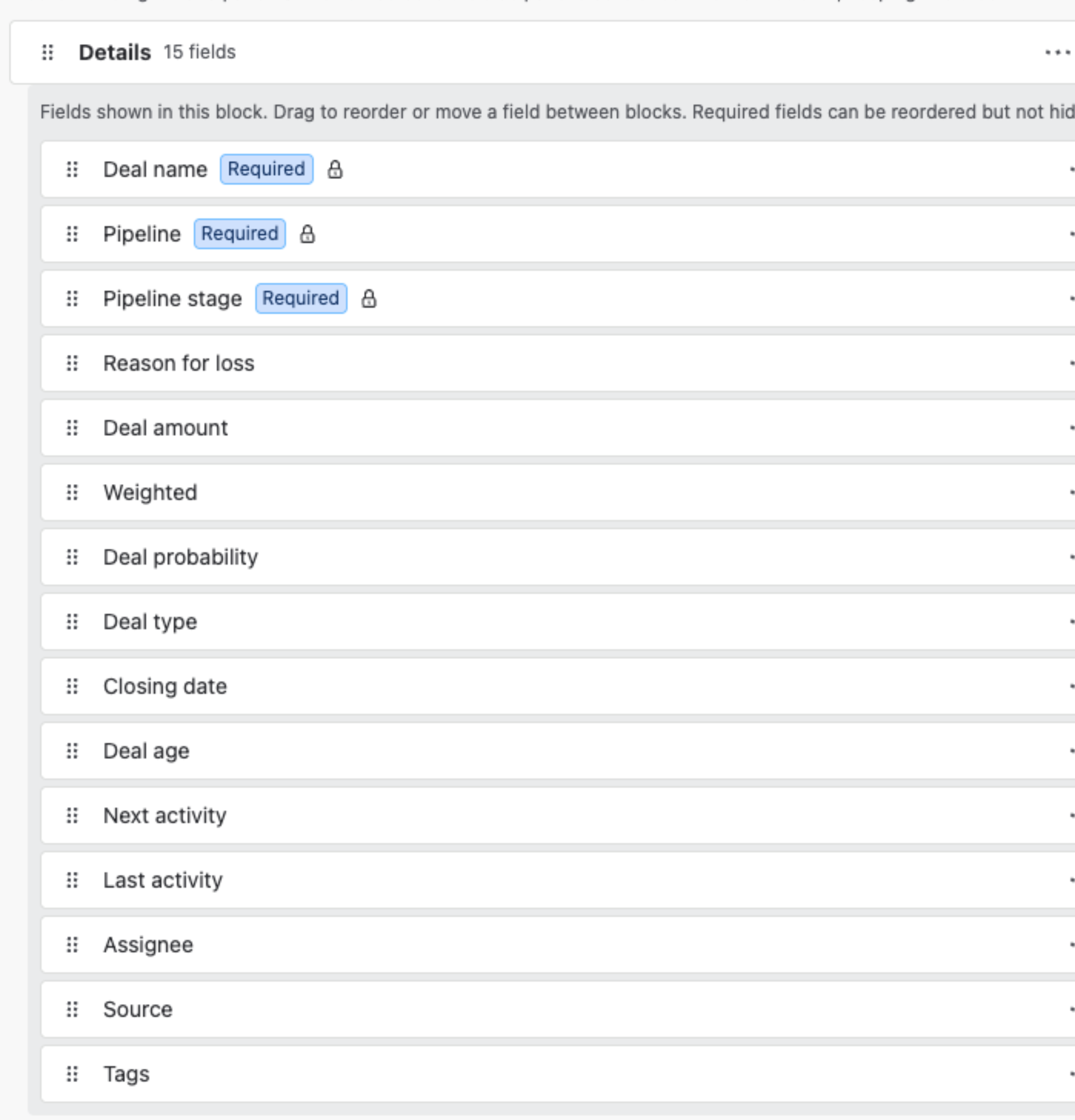
Fields every record must have — on a Deal, Deal name, Pipeline and Pipeline stage — carry a Required lozenge. They can be reordered but not hidden; the menu says why:
- Hidden fields go to the Hidden panel under Standard fields or Custom fields.
- A new custom field joins every layout automatically. To add one, create it in Custom Fields — the Hidden panel links there.
- On Products, the standard fields live together in Product information and stay there; custom fields move freely.
5. A layout per pipeline #
On the Deals tab, Layout for picks what you are editing:
- All pipelines (default) — used by every Deal whose pipeline has no layout of its own. The line under the selector names those pipelines.
- A pipeline — save changes here and only that pipeline’s Deals use the result. It drops off the default’s list.
To go back, open the pipeline and choose Follow ‘All pipelines’ layout. The confirmation names the pipeline and says it applies immediately and can’t be undone; unsaved changes in the editor are discarded.
6. Preview, save and reset #
The footer holds Reset to default, Discard, Preview and Save changes. Discard and Save stay disabled until something changes.
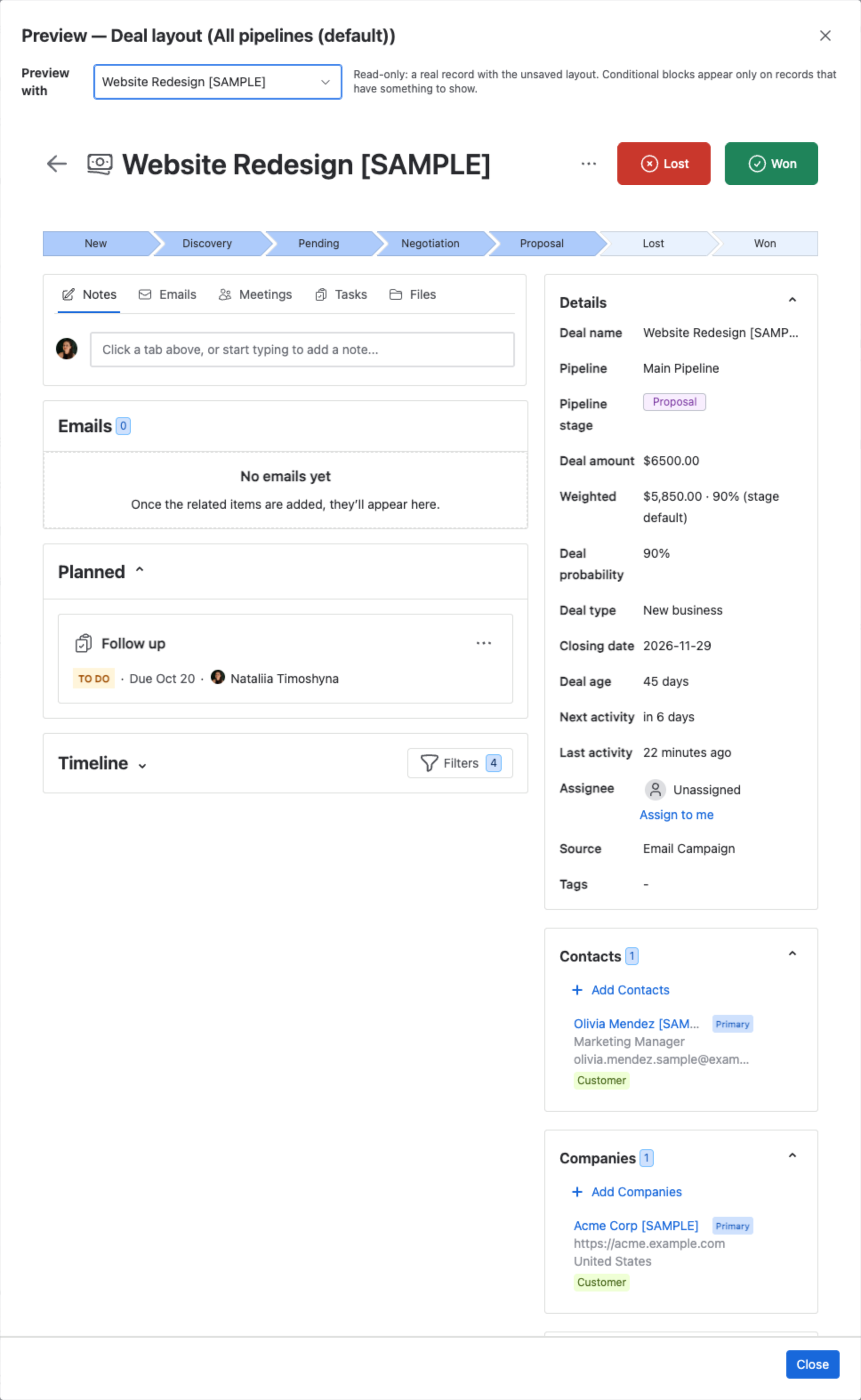
- Preview shows a real record — pick it at the top — with your unsaved layout. It is read-only. Conditional blocks appear only on records that have something to show, exactly as on the record itself.
- Save changes applies the layout to everyone at once. The editor notes who saved last and when.
- Reset to default lists the shipped arrangement before you confirm: hidden blocks and fields become visible again and Collapsed by default is switched off. Nothing applies until you click Save changes, and users’ own collapse choices are left alone.
7. From a record #
Users who can edit the layout see ⚙ Configure at the foot of a record’s side panel, under Created and Updated. It opens the layout editor for that record type — on a Deal, with the Deal’s pipeline already selected.
Related Pages #
- Custom Fields — add the fields a layout places.
- Roles & Permissions — the Configuration rows that allow editing a layout.
- Pipelines Configuration — the pipelines a Deal layout can be set for.
- Activities — what the Activities and Planned blocks contain.


