Prospecting in Pipedrive, delivery in Jira: every hot lead becomes a Mria CRM Lead #
A sales team that prospects in Pipedrive and a delivery team that lives in Jira see each other’s work late. This flow fixes that for leads: when a lead is added in Pipedrive (or reaches a label you choose), Pipedrive posts it to Jira Automation, and Mria CRM gets a Lead with the person’s details, a link back to the Pipedrive lead and a note saying where it came from. A person who is already a Lead gets the note instead of a duplicate.
The Jira side is the same shape as HubSpot Leads to Mria CRM and Capture Leads from Web Forms: an Incoming webhook, a Find record, a branch. What is specific to Pipedrive is that it cannot send a custom header, so the secret travels in the URL, and that there are two ways to send the lead: an Automation with a webhook action, or a plain Webhook. This page covers both.
1. What you get #
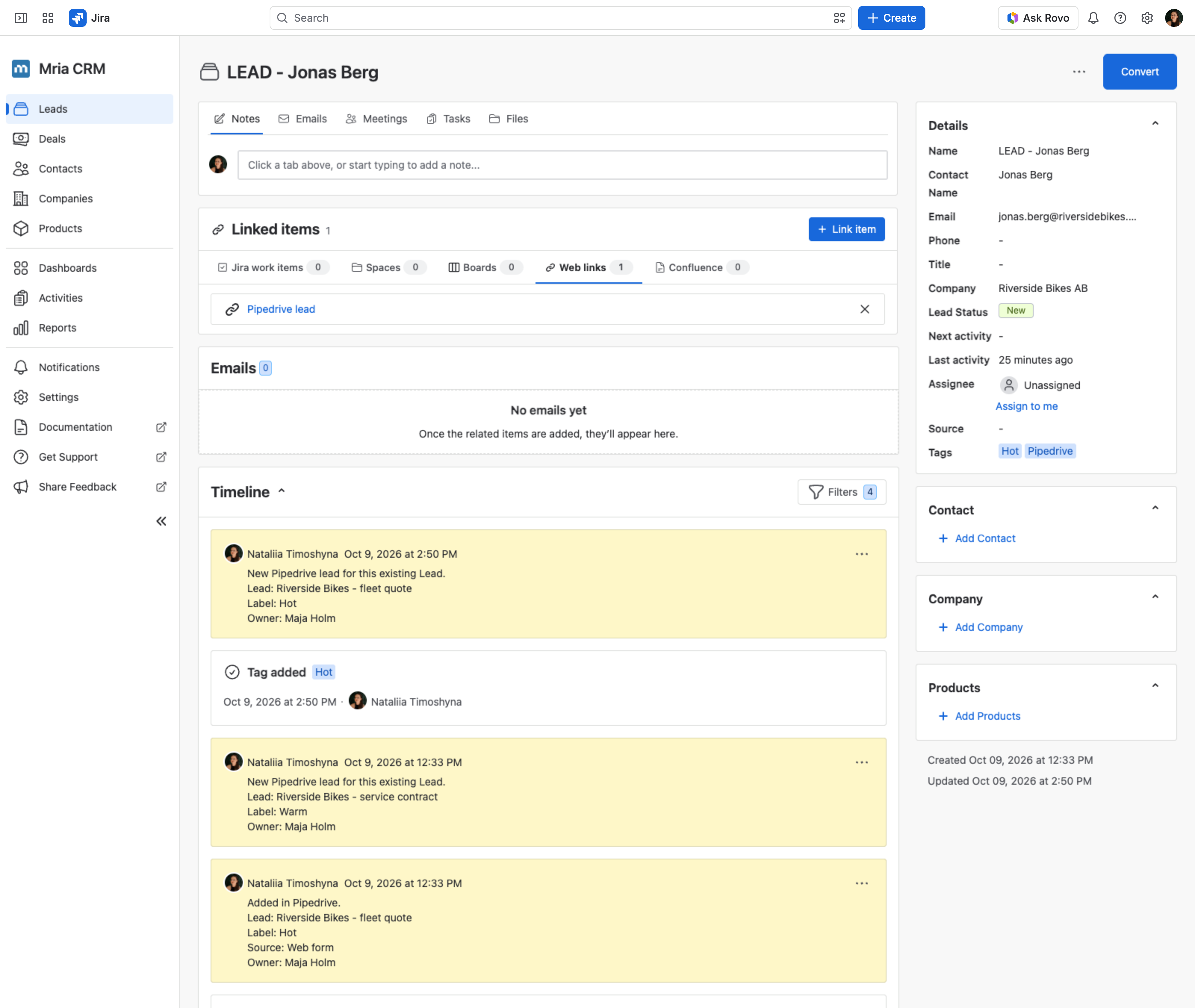
A lead Riverside Bikes – fleet quote for Jonas Berg of Riverside Bikes AB was added in Pipedrive with the label Hot. Seconds later Mria CRM holds LEAD – Jonas Berg tagged Pipedrive and Hot, with a web link to the Pipedrive lead and a note with the lead title, label, source and owner. When a second Pipedrive lead was added for the same person, the existing Lead got that lead’s label as a tag and a second note instead of a duplicate.
2. The flow at a glance #
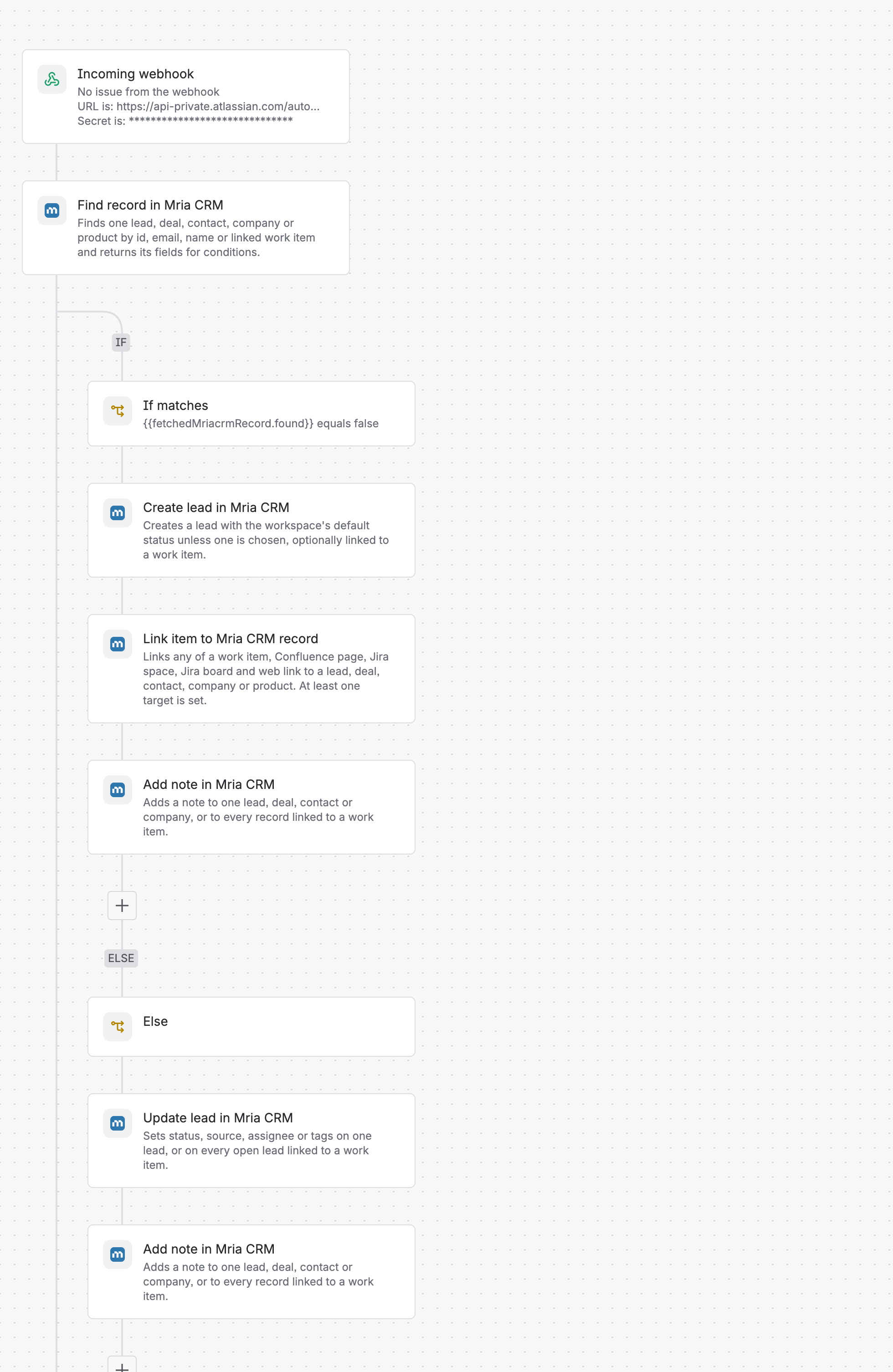
- Incoming webhook — receives the lead from Pipedrive.
- Find record — looks for a Lead with that email.
- If/else —
{{fetchedMriacrmRecord.found}}equals false? - If: Create lead, Link item (web link to the Pipedrive lead) and Add note.
- Else: Update lead (adds the label as a tag) and Add note on the Lead that already exists.
3. Build the Jira side #
You need permission to create automation flows in Jira, and a Mria CRM role that can create and edit Leads; the steps run as you. Section 4 covers Pipedrive.
Step 1. Create the flow and its trigger #
- Open Settings → System → Global automation and choose Create flow → Create from scratch.
- Pick the trigger Incoming webhook.
- Add one action (the Find record below) and save the flow with Save without enabling. Jira cannot issue the webhook URL for a flow that is not saved, and it will not save a flow without an action.
- Back on the trigger, set Work item criteria to No work items from the webhook and click Generate secret. Copy the Webhook URL and the secret for section 4.
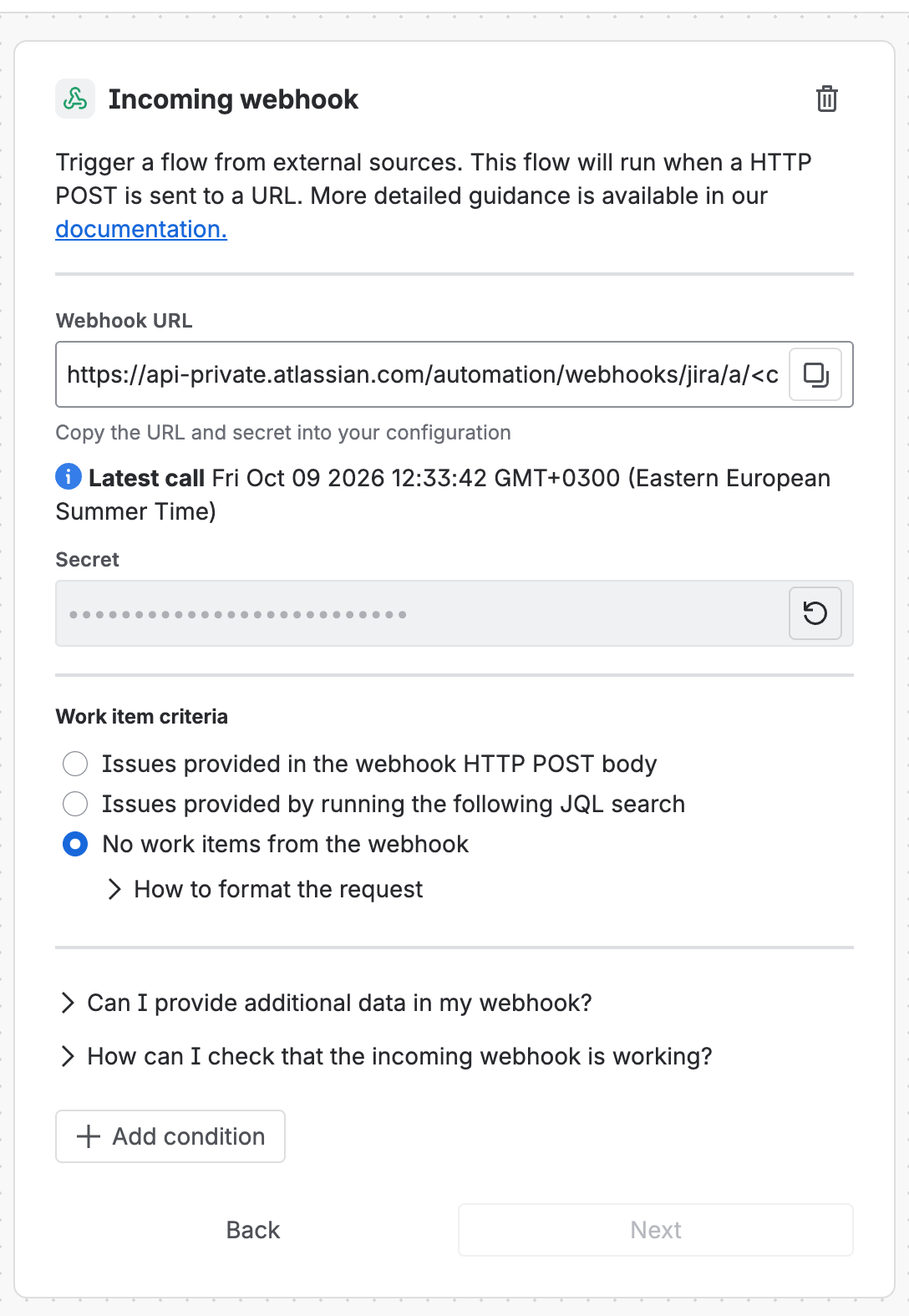
Pipedrive cannot add the token header, so the secret goes into the URL instead. Jira accepts the secret as the last path segment: <Webhook URL>/<secret>. That is the address you will give Pipedrive. It is as sensitive as a password — anyone who has it can create Leads in your CRM — so keep it out of shared documents, and if it leaks, generate a new secret; the old one stops working at once.
Step 2. Find record — is this person already a Lead? #
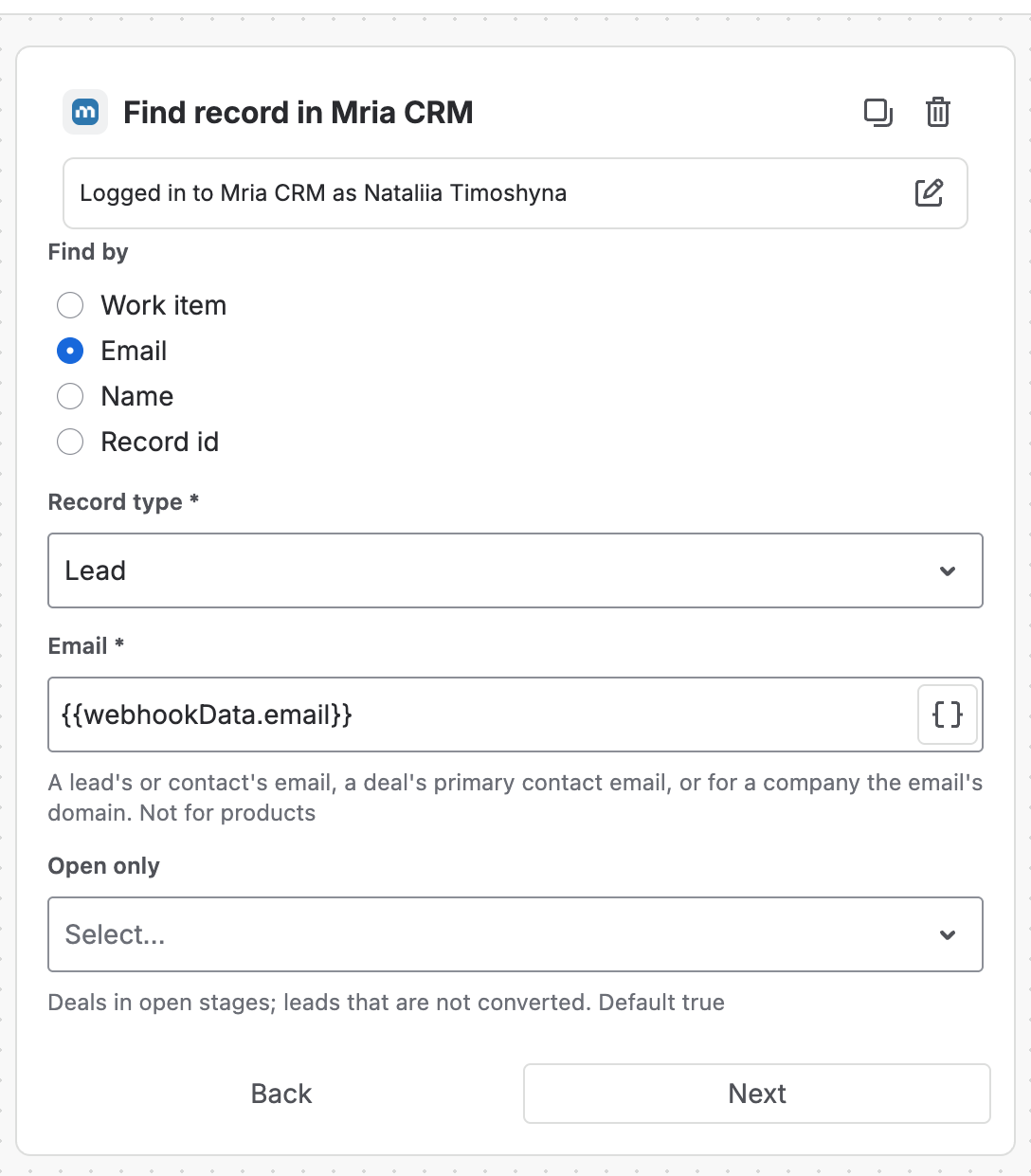
Add Find record in Mria CRM. If this is your first Mria CRM step, click Connect first.
| Field | Value |
|---|---|
| Find by | |
| Record type | Lead |
{{webhookData.email}} |
Step 3. Branch on the result #
Add an If/else block. In the If part choose Add condition → {{smart values}} condition: first value {{fetchedMriacrmRecord.found}}, condition equals, second value false.
Step 4. If not found: create the Lead and link Pipedrive #
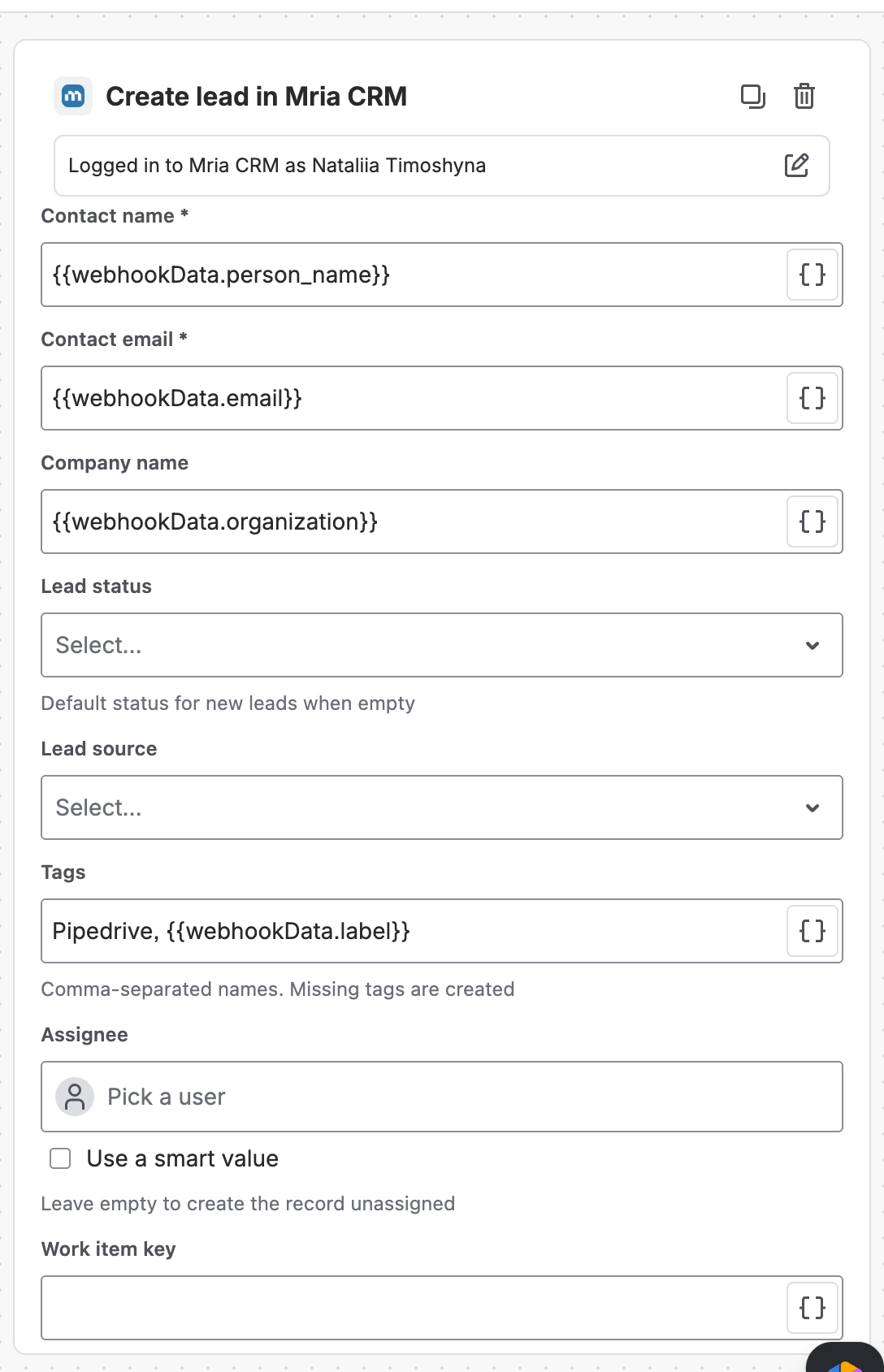
Inside the If part add Create lead in Mria CRM:
| Field | Value |
|---|---|
| Contact name | {{webhookData.person_name}} |
| Contact email | {{webhookData.email}} |
| Company name | {{webhookData.organization}} |
| Lead source | empty, or a source that exists in your workspace (Settings → Lead sources) |
| Tags | Pipedrive, {{webhookData.label}} — the Pipedrive label (Hot, Warm, Cold) becomes a tag; missing tags are created |
| Work item key | empty — there is no work item |
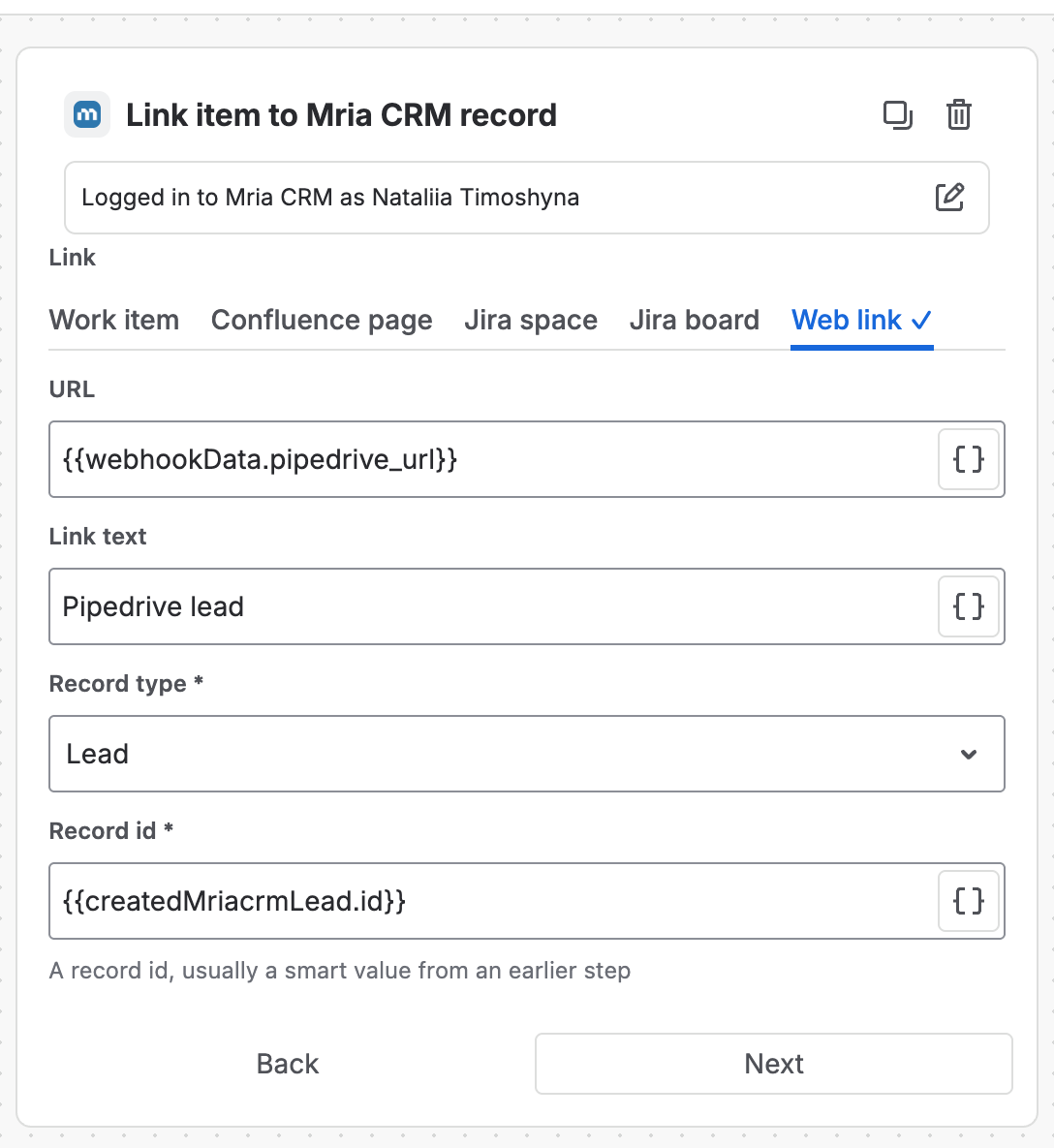
Then Link item to Mria CRM record, tab Web link, so the Lead opens the Pipedrive lead in one click:
| Field | Value |
|---|---|
| URL | {{webhookData.pipedrive_url}} |
| Link text | Pipedrive lead |
| Record type | Lead |
| Record id | {{createdMriacrmLead.id}} |
And Add note in Mria CRM with Add to = One record by id, Record type Lead, Record id {{createdMriacrmLead.id}} and this content:
Added in Pipedrive.
Lead: {{webhookData.title}}
Label: {{webhookData.label}}
Source: {{webhookData.source}}
Owner: {{webhookData.owner}}
Step 5. Else: tag and note the new Pipedrive lead on the existing Lead #
In the Else part add Update lead in Mria CRM with Update = One lead by id, Record id {{fetchedMriacrmRecord.id}} and Tags Pipedrive, {{webhookData.label}}. Leave Tags mode empty: its default, add, keeps the tags the Lead already has and adds the new ones.
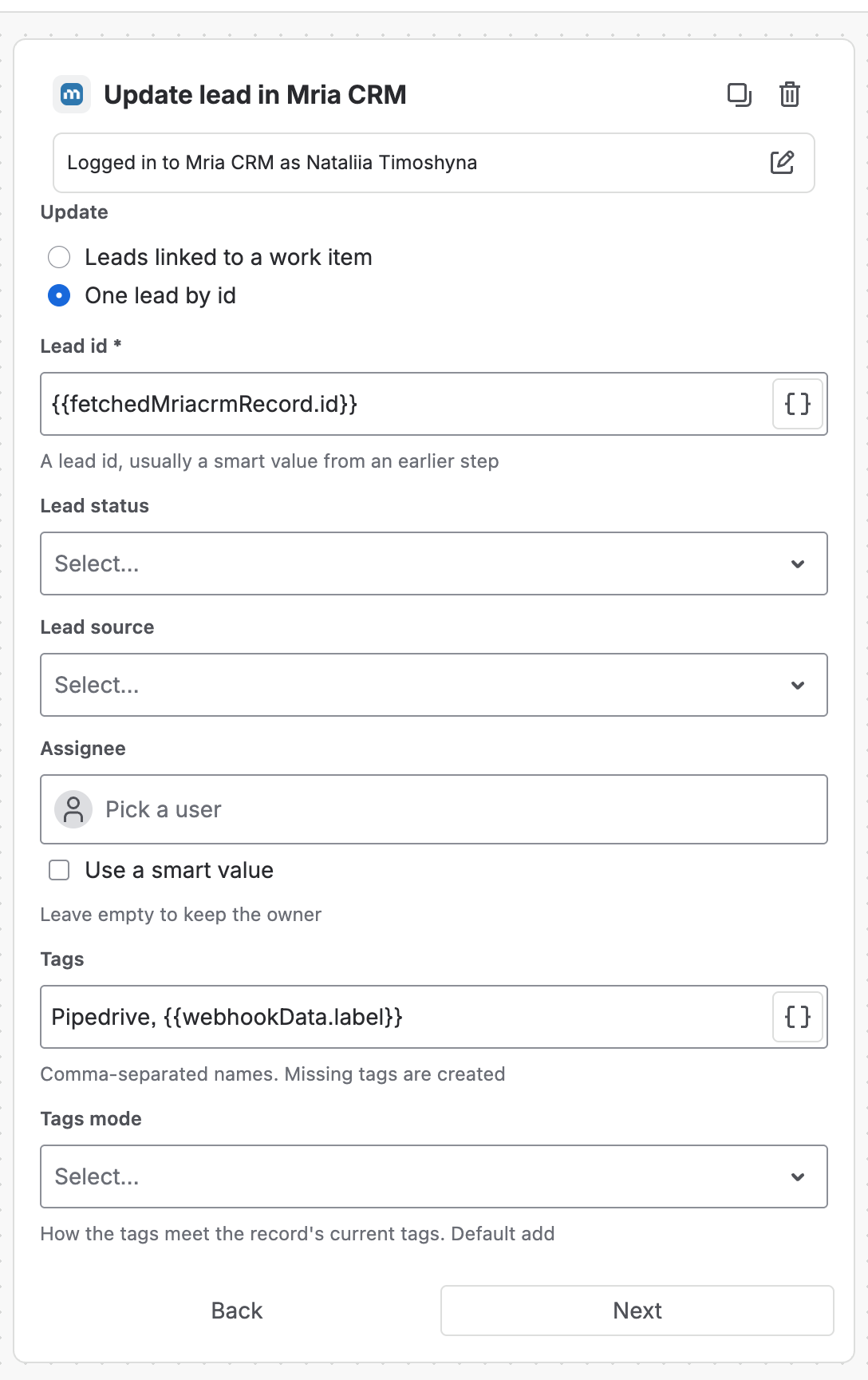
Then another Add note in Mria CRM with Record id {{fetchedMriacrmRecord.id}} and a content such as New Pipedrive lead for this existing Lead. Lead: {{webhookData.title}} / Label: {{webhookData.label}} / Owner: {{webhookData.owner}}.
Step 6. Turn it on #
Save the flow and switch it on. Until it is on, calls to the URL do nothing.
4. Send the lead from Pipedrive #
Pipedrive has two outbound mechanisms. Automations (Advanced plan and above for the webhook action) let you pick the trigger, add conditions and compose the body key by key, which is what the flow above expects. Webhooks (every plan) fire on raw events with Pipedrive’s own payload, which needs different smart values. Start with Automations if your plan has them.
Option A. An Automation with a webhook action #
- As a global admin open Tools and apps → Webhooks, click + Webhook and choose Automation webhook. Name it (for example Jira Automation — Mria CRM), set the Endpoint URL to the Webhook URL from step 1 followed by a slash — Pipedrive insists the base URL ends with
/,&,?or=— and leave the authentication fields empty. - Open Tools and apps → Automations, click + Automation and choose an Event trigger: Lead → added. To send only qualified leads, trigger on Lead → updated instead and add the condition Label is Hot.
- Add the Webhook action: Webhook = the one from step 1, Method POST, Body = Key-value with the keys below (insert each Pipedrive field with the field button), and Path = the secret from the trigger. Pipedrive appends the path to the base URL, which gives exactly
<Webhook URL>/<secret>. - Save and set the automation to Active.
| Key | Pipedrive field |
|---|---|
| title | Lead → Title |
| person_name | Person → Name |
| Person → Email | |
| organization | Organization → Name |
| label | Lead → Label |
| source | Lead → Source |
| owner | Lead → Owner |
| pipedrive_url | switch the body to Raw and build it: https://<yourcompany>.pipedrive.com/leads/inbox/ followed by Lead → ID; or leave the key out and drop the Link item step |
The automation’s History tab shows the final body and path of every request, which is the first place to look when a lead does not arrive.
Option B. A plain Webhook on the person event #
On Tools and apps → Webhooks click + Webhook, choose Webhook, Event action create, Event object person, Endpoint URL <Webhook URL>/<secret>, HTTP auth empty, version 2.0. Pipedrive then posts its own envelope: meta, data and previous. Jira Automation reads a top-level data key as the webhook’s own data, so the fields inside it arrive directly under {{webhookData}}, next to meta and previous. The smart values in the flow therefore change to:
| Flow field | Smart value with a plain Webhook |
|---|---|
| Email (Find record, Create lead) | {{webhookData.emails.get(0).value}} — {{webhookData.emails.first.value}} works too |
| Contact name | {{webhookData.name}} |
| Company name | not available — the payload carries only org_id; leave the field empty |
| Note | Added in Pipedrive ({{webhookData.meta.action}} {{webhookData.meta.entity}} {{webhookData.meta.entity_id}}, owner {{webhookData.owner_id}}) |
Why the person event and not the lead event: Pipedrive’s lead payload carries person_id and organization_id but no email or names, and Jira Automation cannot call back into Pipedrive to resolve them. The Automation route sends the fields you need directly, which is why it comes first on this page. Pipedrive also deletes a Webhook after three days without a successful delivery, so keep the flow on.
Not sure what arrived? Put a temporary Log action with the message {{webhookData}} right after the trigger; the audit log then prints the whole payload as Jira sees it.
Test it from a terminal #
The same request the Automation sends, with a sample lead. The secret is in the path, exactly as Pipedrive will send it:
curl -X POST '<webhook URL from the trigger>/<secret from the trigger>' \
  -H 'Content-Type: application/json' \
  -d '{"title": "Riverside Bikes - fleet quote", "person_name": "Jonas Berg", "email": "jonas.berg@riversidebikes.se",
       "organization": "Riverside Bikes AB", "label": "Hot", "source": "Web form", "owner": "Maja Holm",
       "pipedrive_url": "https://riversidebikes.pipedrive.com/leads/inbox/7c1e9a52-3b7d-4f10-9d2e-5a8c0b4e6f21"}'
5. Check that it worked #
Open the flow’s Audit log. Every accepted call is a row; expand it to see each step and which branch ran. The Lead itself shows the link and the note on its page.
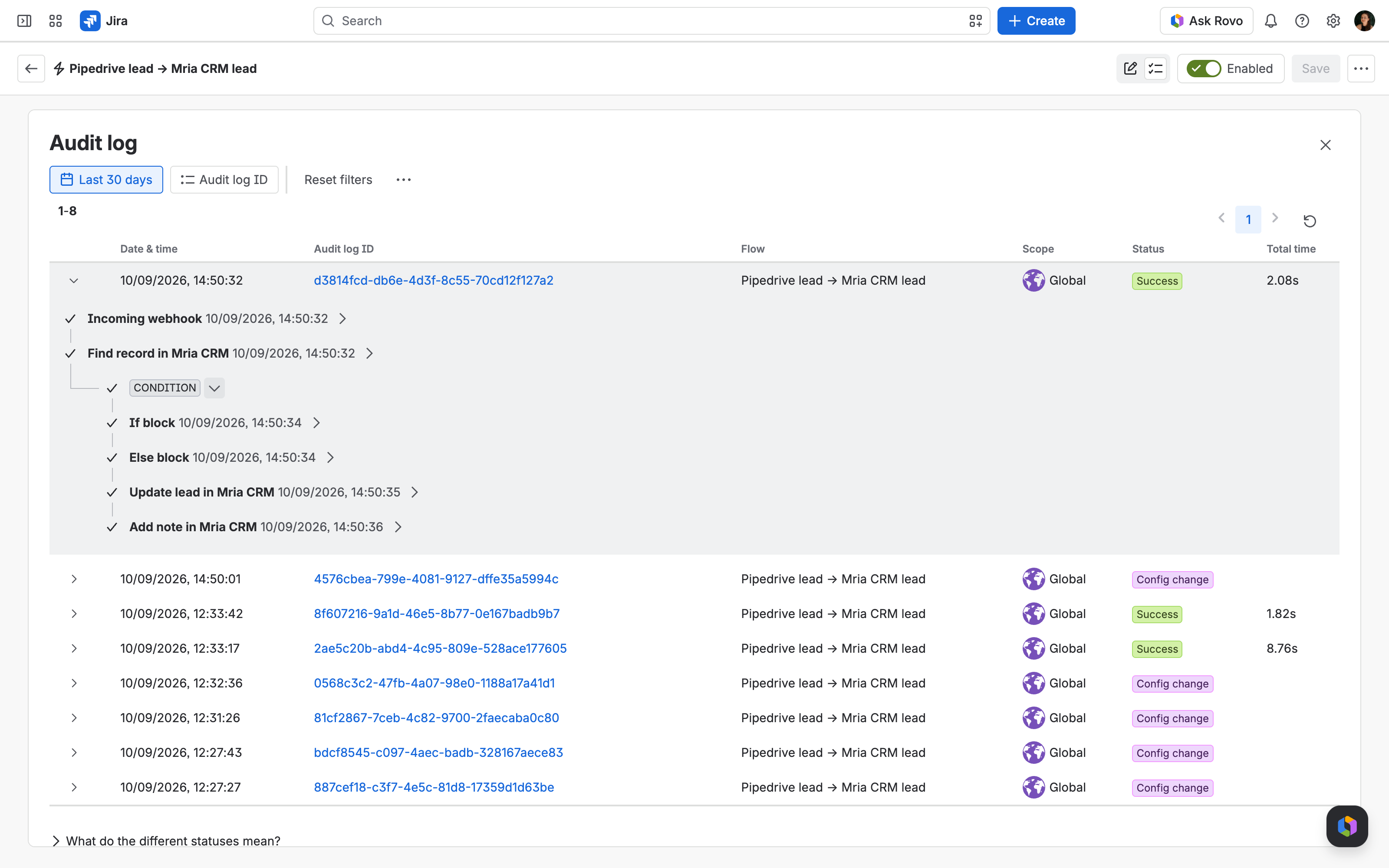
A wrong secret is answered with HTTP 200 and nothing runs. Jira acknowledges the request but drops it silently, so Pipedrive’s history shows a successful delivery while the audit log stays empty. Only a request with no secret at all gets a 400. If the audit log has no row for a call, check the path first.
6. Make it yours #
- Only hot leads. Trigger the automation on Lead → updated with the condition Label is Hot, so cold prospects stay in Pipedrive.
- Deals instead of leads. Trigger on Deal → added and use Create deal with a pipeline and stage of your choice; see the Actions Reference.
- Keep the owner. Send the owner’s email as
owner_emailand branch on it to set the Lead’s Assignee. - Close the loop. A second automation on Deal → updated with status Won can call a flow whose Else branch runs Update lead with status Converted.
- Zoho CRM, Freshsales and others. Any CRM whose workflow can POST JSON to a URL fits the same flow; only the keys in the body change.
7. Troubleshooting #
| What you see | Why, and what to do |
|---|---|
| Pipedrive shows a successful delivery, the audit log has nothing | The secret in the path is wrong or missing: Jira answers 200 and drops the call. Compare the path in the automation’s History with the trigger’s secret. |
| Pipedrive refuses the endpoint URL | The Automation webhook’s base URL must end with /, &, ? or =. Put the Webhook URL plus a trailing slash there and the secret in the action’s Path. |
| The Lead is created but a field is empty | The key in the body and the smart value differ. Open the automation’s History, copy the final body and compare it with the smart values in the flow. |
| Create lead fails on Lead source | The source does not exist in the workspace. Add it under Settings, or leave the field empty. |
| The same person became two Leads | Find record must search by the same email the Lead is created with, and the body must carry the person’s email. |
| The Webhook disappeared from Pipedrive | Plain Webhooks are deleted after three days without a successful delivery (and paused for 30 minutes after ten failed attempts). Turn the flow on, then create the Webhook again. |
| Aborted — Monthly flow executions have been exceeded | The site reached its monthly automation usage. Runs resume next month or on a larger plan; Pipedrive retries plain Webhooks three times, automations keep their own history. |
Related Pages #
- Jira Automation — how Mria CRM steps work, and the other use cases.
- Automation Actions Reference — every field of Find record, Create lead, Link item and Add note.
- HubSpot Leads to Mria CRM — the same flow fed by a HubSpot workflow.
- Pipedrive: Automations webhook requests — Pipedrive’s documentation of the webhook action.
- Pipedrive: Guide for Webhooks v2 — payload format, retries and limits of plain Webhooks.


