The import wizards bring Companies, Contacts, Deals, Leads and Products into Mria CRM from a CSV or XLSX file. They do not bring the history that sat on those records in Salesforce: the logged calls, emails, meetings, tasks and notes. That history can be moved through the REST API.
This page shows how, step by step, and comes with a sample script. Every call below was run against a test site with a real Salesforce export; the Salesforce side comes from a Developer Edition org and from Salesforce’s own object reference.
1. What goes where #
Records first. They are imported with the wizards, one file per record type:
| Salesforce | Mria CRM | Import |
|---|---|---|
| Account | Company | Companies Import |
| Contact | Contact | Contacts Import |
| Opportunity | Deal | Deals Import |
| Lead | Lead | Leads Import |
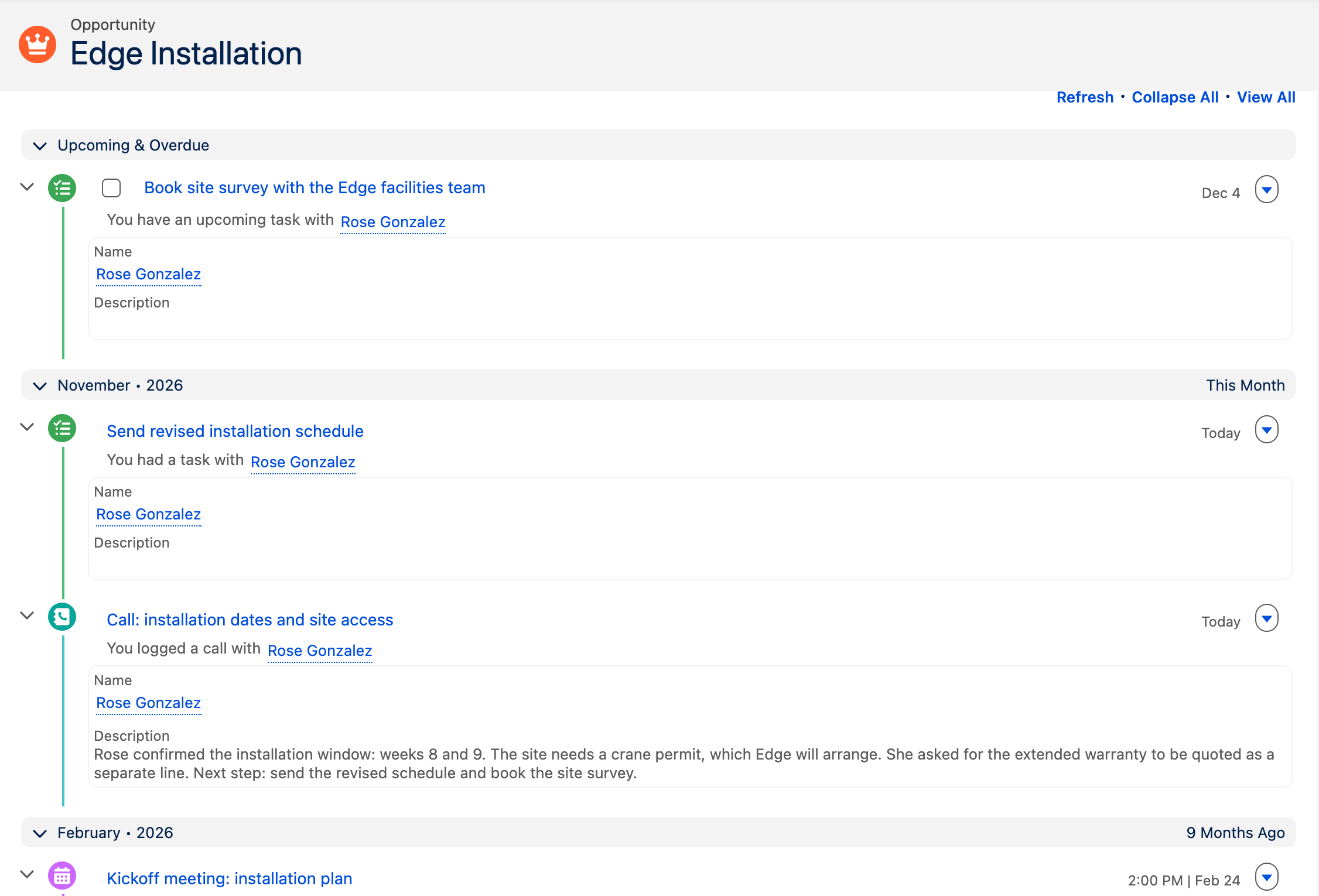
Activities hang off those records. In a Salesforce export every task and event names its records in two columns: WhoId is a person (a Contact or a Lead) and WhatId is everything else (an Account, an Opportunity, or something Mria CRM has no counterpart for, such as a Case or a Campaign). A note names its record in ParentId.
| Salesforce file | Holds | Becomes | Optionally |
|---|---|---|---|
Task.csv | Tasks and logged calls. With Enhanced Email, also one row per email. | A note | An open task becomes a task |
Event.csv | Meetings and other calendar events | A note | A meeting |
EmailMessage.csv | Emails: addresses, subject and body | A note | — |
Note.csv | Notes | A note | — |
Notes for everything is the simple route and the default of the sample script: every activity becomes a note on each record it belonged to, so the Contact and the Deal both show the call. The typed option keeps what is still useful as an object: a meeting keeps its date, place and attendees in the timeline, and a task that is still open stays a task under Planned.
Emails become notes
No endpoint creates an email. The Emails tab of a record shows messages synced from a connected Gmail or Outlook mailbox, and the API cannot add to it. A migrated email is stored as a note with its sender, recipients, subject and body.
The result #
The activity history of an Opportunity in Salesforce:
The same history on the Deal in Mria CRM, as notes:
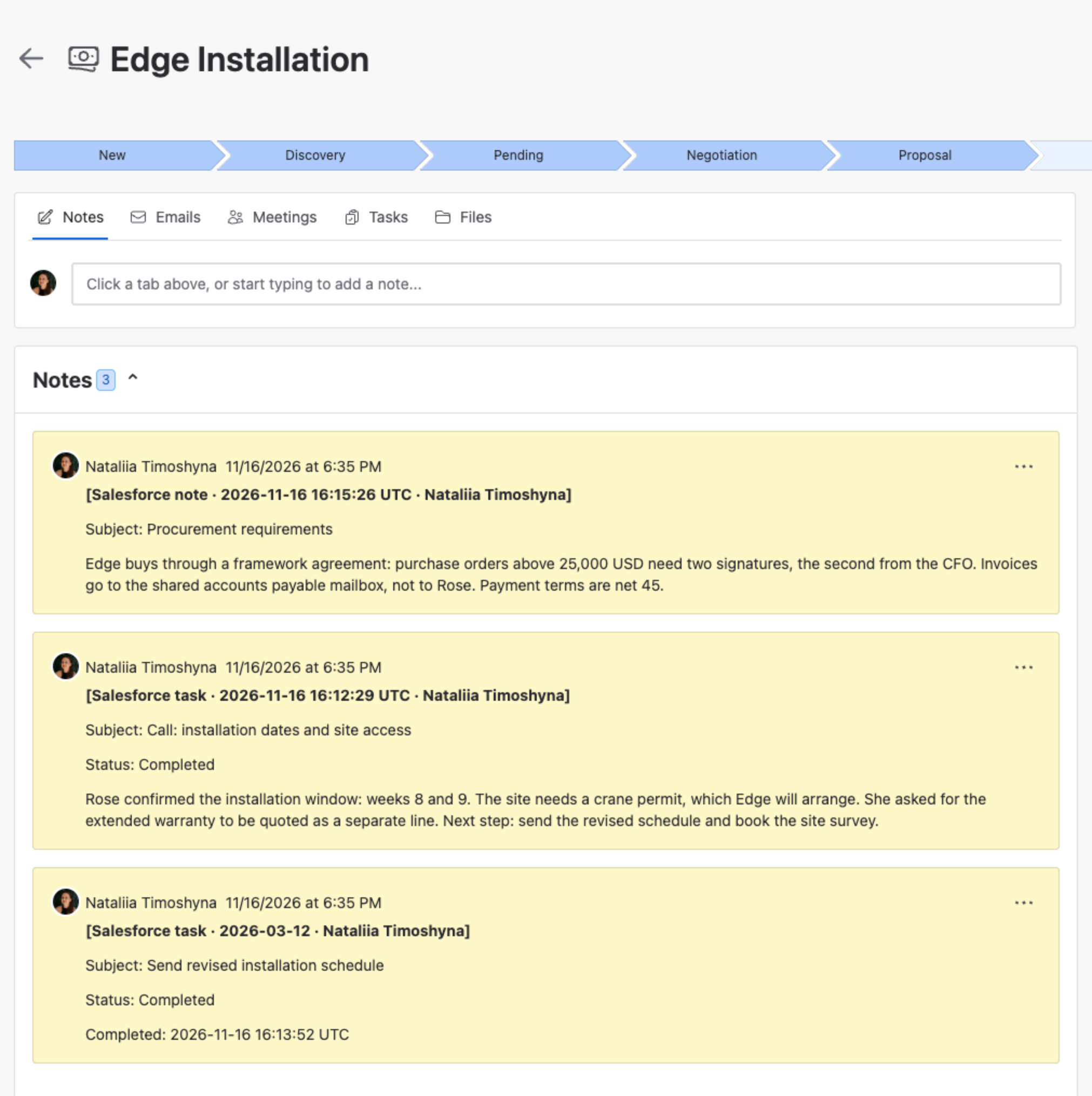
The original date and author cannot be set
A note written through the API is dated at the moment of the call and signed by the user behind the access token. Put the original date and owner in the first line of the note, as above, and write the notes oldest first so that the newest ends up on top.
2. Before you start #
- The API is enabled on the site and you have an OAuth 2.0 integration with
read:crm:customandwrite:crm:custom— see REST API: Setup and REST API: Authorization with curl. - The user who gives consent has Edit permission on Leads, Contacts, Companies and Deals. Adding a note, meeting or task counts as editing the record. Writes also need an active Mria CRM license.
- An access token lives one hour. A migration runs longer, so the client has to refresh it on the way; the sample script does.
- The records themselves are already in Mria CRM, or you import them in step 1.
3. Step 1 — Keep the Salesforce Id on every record #
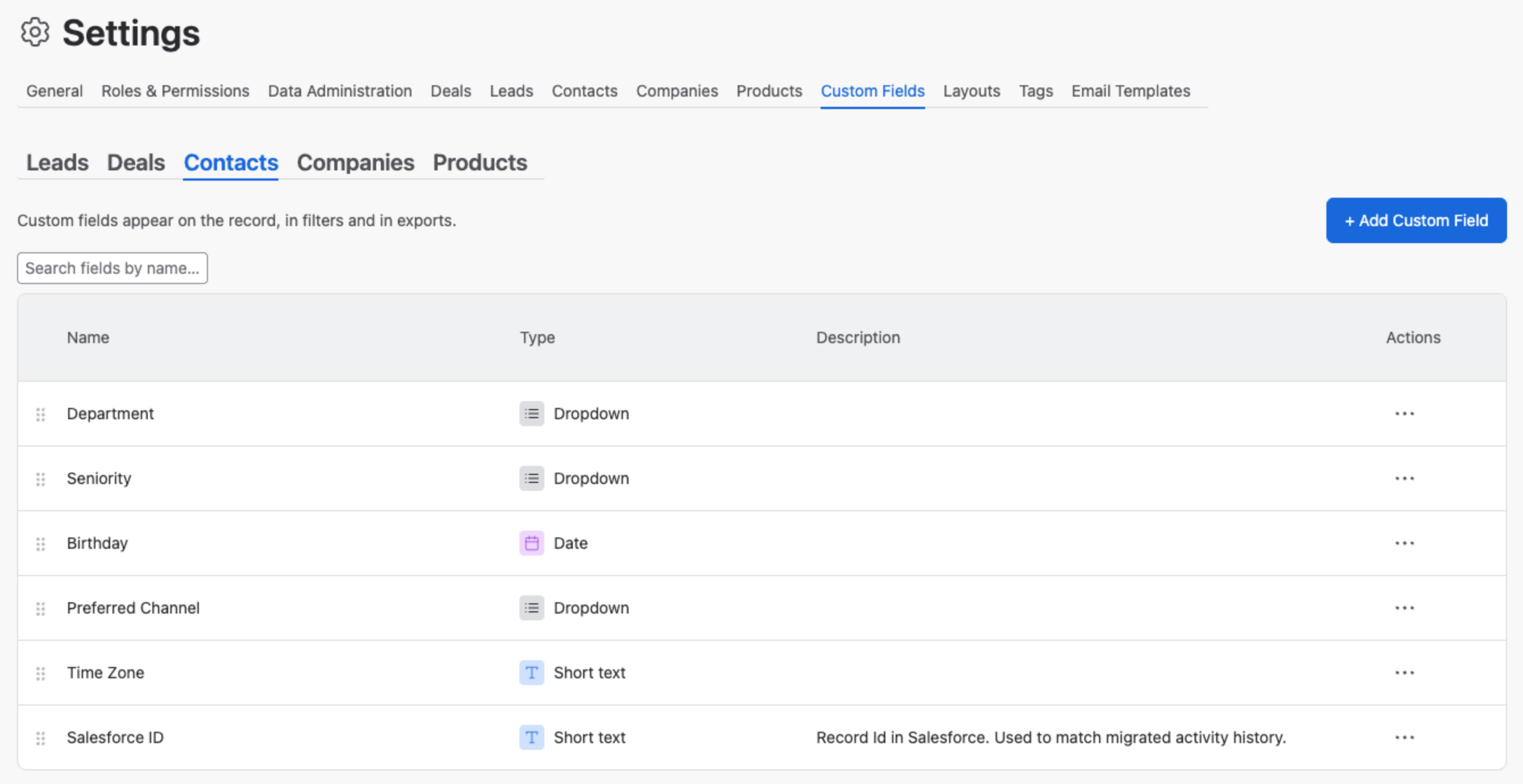
An activity file refers to its records by Id, so each record in Mria CRM has to carry the Id it had in Salesforce. Add a Short text custom field named Salesforce ID to Companies, Contacts, Deals and Leads in Settings → Custom Fields → Add Custom Field (see Custom Fields):
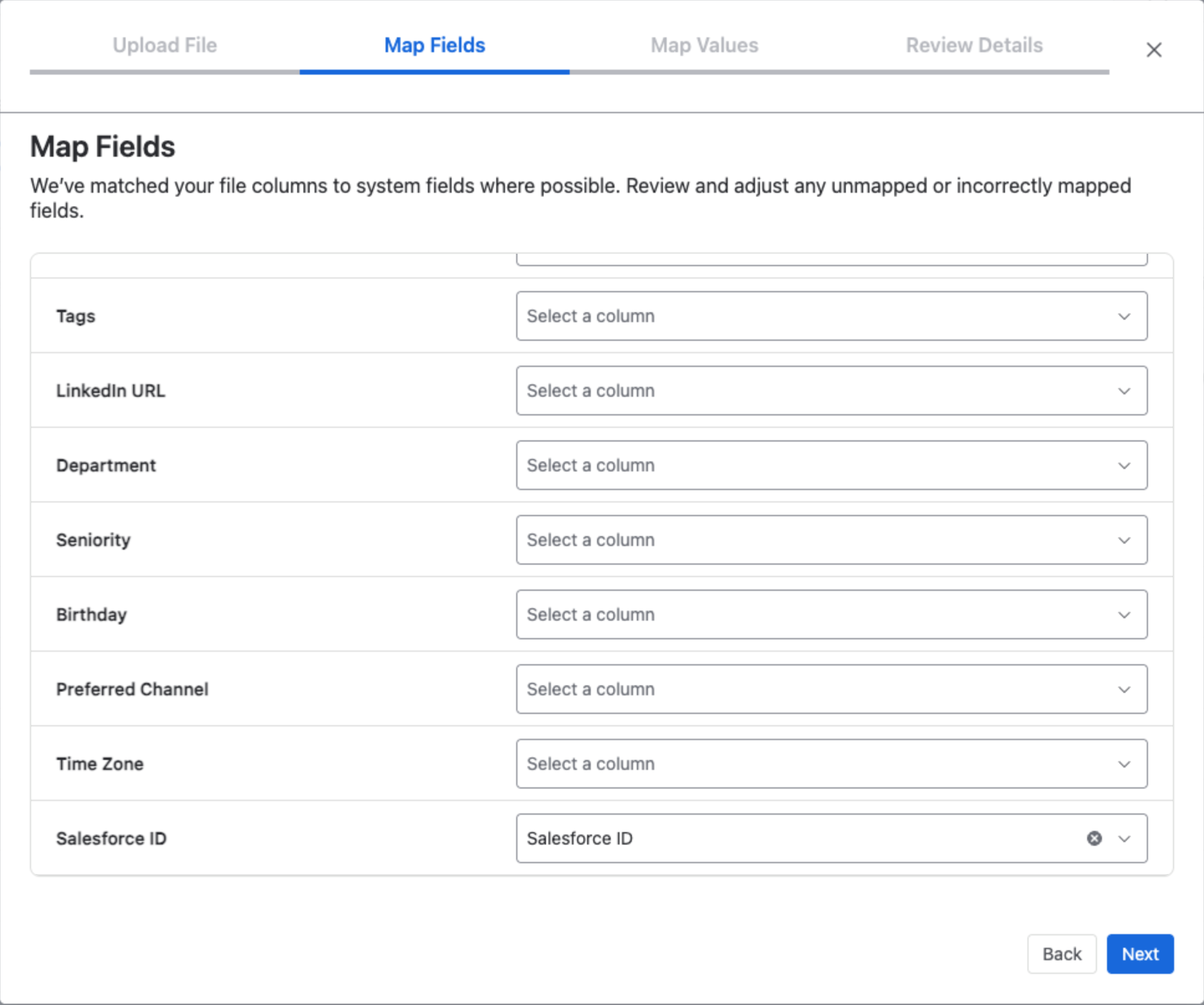
Then import the records with their Id column. In the wizard’s Map Fields step the custom fields are listed below the built-in ones. A column named like the field is matched automatically; otherwise pick the Id column for it:
Use the 18-character Id, exactly as exported
The search for a text custom field is exact and case-sensitive, and two Salesforce Ids can differ in nothing but letter case. An Id also has a 15-character and an 18-character form; Data Export and the Salesforce API write the 18-character one. Store that one: the 15-character form of the same Id, or the Id in another letter case, finds nothing.
Records that are already in Mria CRM without the Id can get it through the API — PATCH /{records}/{id}/customFields with {"values": [{"fieldId": "…", "textValue": "…"}]} — or do without it: the sample script can match Contacts and Leads by email and Companies and Deals by exact name instead (section 6).
4. Step 2 — Export the activities #
Salesforce has two tools for this.
- Data Export (Setup → Data → Data Export → Export Now): one zip with a CSV file per object, named after the object and with the API field names as headers. Choose Unicode (UTF-8) as the file encoding, and clear Replace carriage returns with spaces if you want line breaks in email and note bodies to survive. How often it can run depends on the Salesforce edition; the files stay on the page for 48 hours.
- Data Loader: one export per object, with the fields you select. Use Export All rather than Export for Task and Event: Salesforce archives events and closed tasks that are more than a year old, and Export All is the option that includes archived activity records.
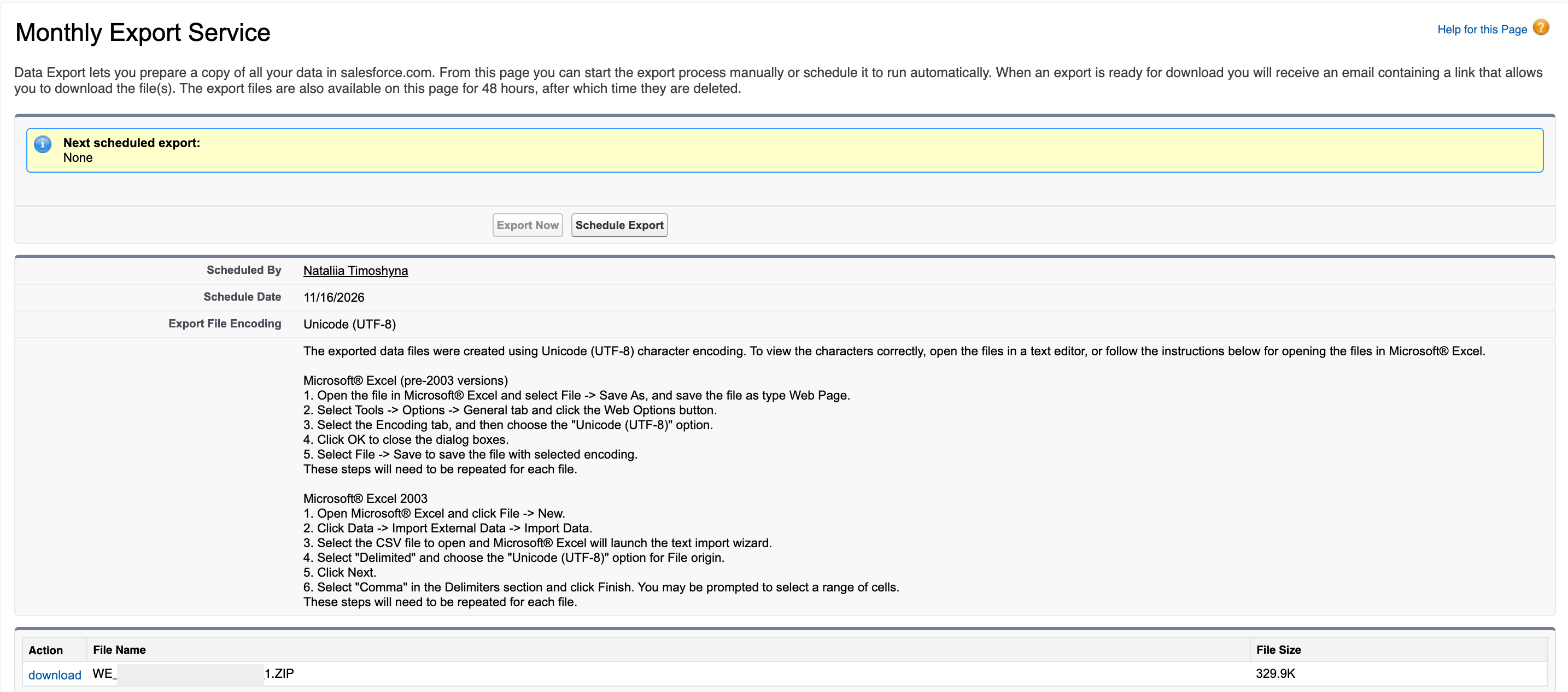
You need Task.csv, Event.csv, EmailMessage.csv and Note.csv, plus User.csv to turn an owner Id into a name.
What the files look like #
Read off a Data Export file. They matter to any script you write:
| In the file | Meaning |
|---|---|
2026-02-24 22:00:00 | Dates and times are UTC. A date without a time is written with 00:00:00. |
000000000000000AAA | An empty lookup, for example a WhatId on a task that has none. It is not an Id. |
1 / 0 | Booleans, for example IsClosed and IsDeleted. |
Task.csv | A logged call is a task with status Completed. Data Export leaves out the TaskSubtype column that tells a call from a task; with Data Loader, select it. |
Event.csv | The start is ActivityDateTime and the length is DurationInMinutes; Data Export has no end-time column. |
EmailMessage.csv | With Enhanced Email every email is an EmailMessage row and a Task row. The EmailMessage has the addresses and the body, the Task has WhoId and WhatId. The EmailMessage names its Task in ActivityId: migrate the pair once. |
5. Step 3 — Find the record, write the activity #
For every row of an activity file: find the Mria CRM record that carries the Id, then create a note, meeting or task on it. $API is the API base, https://api.atlassian.com/svc/jira/{cloudId}/apps/{appId}_{envId}/v1.
Find the record #
# 1. The id of the "Salesforce ID" field on Contacts (once per record type)
curl -s "$API/contactCustomFields" -H "Authorization: Bearer $TOKEN"
#    -> {"values": [ ..., {"id": "2a24ae8e-…", "type": "short_text", "name": "Salesforce ID"} ]}

# 2. The Contact that carries the Salesforce Id of the activity's WhoId
curl -s -X POST "$API/contacts/search" \
  -H "Authorization: Bearer $TOKEN" -H "Content-Type: application/json" -d '{
    "filter": {"customFilters": [
      {"fieldId": "2a24ae8e-…", "op": "equals", "textValue": "003NS000026g7dJYAQ"}
    ]},
    "pagination": {"maxResults": 2}
  }'
#    -> {"values": [{"id": "8b28dad6-…", "name": "Rose Gonzalez", …}], "total": 1, "isLast": true, …}
A WhoId is a Contact or a Lead, so search Contacts, then Leads; a WhatId is a Company or a Deal. Accept a result only when total is 1.
Read the field id from the API, never type it
A custom filter whose fieldId matches no field is not an error: it is ignored and the search returns every record. A typo would attach the whole history to whichever record came first. See REST API: Paging, Filters, Errors and Limits.
Write a note #
curl -s -X POST "$API/contacts/8b28dad6-…/notes" \
  -H "Authorization: Bearer $TOKEN" -H "Content-Type: application/json" -d '{
    "content": "<p><strong>[Salesforce task · 2026-11-16 16:12:29 UTC · Nataliia Timoshyna]</strong></p><p>Subject: Call: installation dates and site access</p><p>Status: Completed</p><p>Rose confirmed the installation window: weeks 8 and 9. …</p>"
  }'
# -> 201 {"id": "ea695eec-…"}| Rule | What to do |
|---|---|
The content is HTML, 1 to 10,000 characters with the tags counted. | Wrap every paragraph in <p>. A plain line break is stored but not shown: the note reads as one long line. |
| The API cleans the HTML: scripts and event handlers are removed; paragraphs, line breaks, bold and links are kept. | Escape the text you insert (&, <, >), or a “<” in an email body is read as a tag. |
| One note holds at most 10,000 characters. | Split a longer email into several notes and number them. |
| One request creates one note. There is no bulk endpoint. | Loop, one request at a time. |
The answer is {"id": "…"}. | Log it. DELETE /{records}/{id}/notes/{noteId} removes a note you want to take back. |
Or a meeting #
A meeting in the past is accepted. It appears in the record’s timeline at its own date, not at the date of the import:
curl -s -X POST "$API/deals/345c96ee-…/meetings" \
  -H "Authorization: Bearer $TOKEN" -H "Content-Type: application/json" -d '{
    "title": "Kickoff meeting: installation plan",
    "startDate": "2026-02-24T22:00:00Z",
    "endDate": "2026-02-24T23:00:00Z",
    "assigneeId": "<Atlassian account id>",
    "location": "Edge Communications HQ, Austin, TX",
    "notes": "<p><strong>[Salesforce meeting · 2026-02-24 22:00:00 UTC · Nataliia Timoshyna]</strong></p>",
    "attendees": [{"kind": "contact", "contactId": "8b28dad6-…"}]
  }'
#    -> 201 {"id": "da5e8b5f-…"}

# It already took place: mark it done
curl -s -X PATCH "$API/deals/345c96ee-…/meetings/da5e8b5f-…" \
  -H "Authorization: Bearer $TOKEN" -H "Content-Type: application/json" -d '{"status": "done"}'
#    -> 204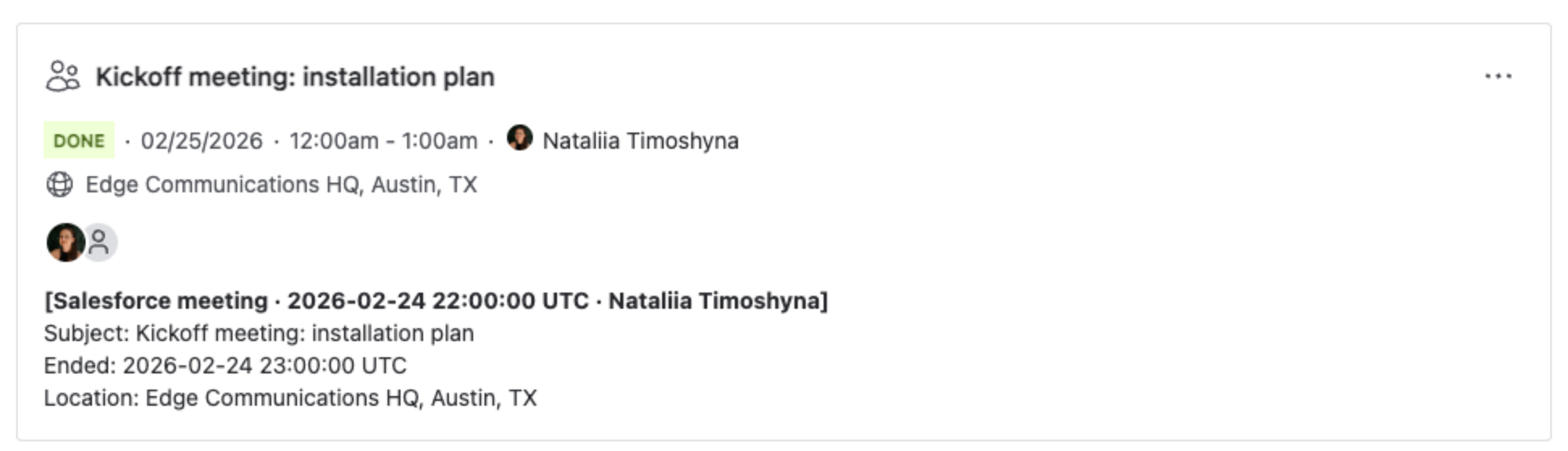
title(up to 250 characters),startDate,endDateandassigneeIdare required. The assignee is the organizer and must be an Atlassian account id;GET /mereturns your own.- Send times in UTC. The app shows them in each viewer’s time zone: 22:00 UTC above reads 12:00am the next day in a browser two hours ahead.
location(up to 1,000 characters),notes(up to 10,000, HTML like a note) andattendeesare optional. An attendee is a user, a Contact or an email address.- Create a meeting on one record — the Deal or Company — and add the Contact as an attendee. Created on both, it exists twice.
Or a task #
curl -s "$API/taskStatuses" -H "Authorization: Bearer $TOKEN"
#    -> {"values": [{"id": "dafc0d76-…", "name": "Done"}, {"id": "0ada7e5b-…", "name": "In Progress"}, {"id": "7ada1db3-…", "name": "To Do"}]}

curl -s -X POST "$API/deals/345c96ee-…/tasks" \
  -H "Authorization: Bearer $TOKEN" -H "Content-Type: application/json" -d '{
    "title": "Book site survey with the Edge facilities team",
    "dueDate": "2026-12-04",
    "statusId": "7ada1db3-…",
    "assigneeId": "<Atlassian account id>"
  }'
#    -> 201 {"id": "0b5a9aad-…"}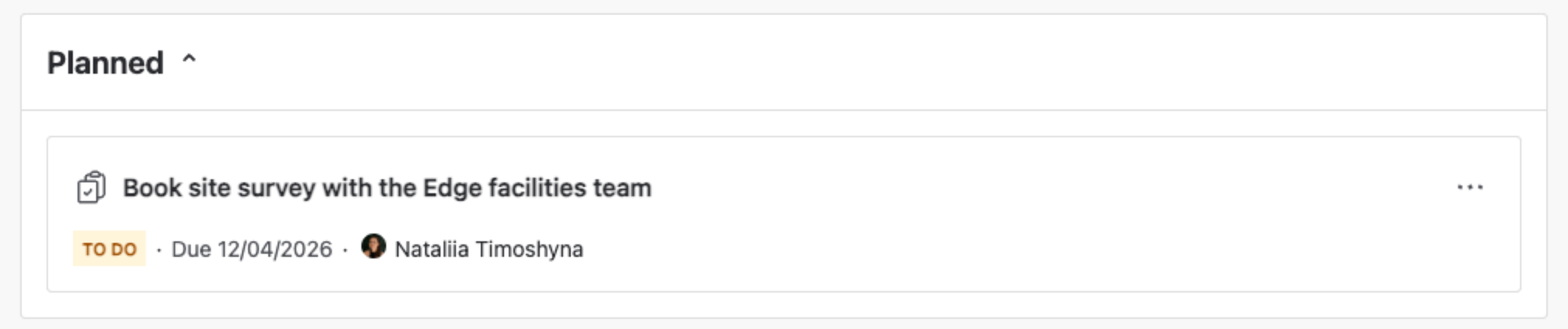
title,dueDateandstatusIdare required. The title holds up to 200 characters on Contacts and Companies and up to 255 on Leads and Deals.- Take
statusIdfromGET /taskStatusesby its name. The list is not in workflow order: on the test site Done came first. dueDateis a calendar day; a time of day is ignored.- A task has no description field. Keep the text of the Salesforce task as a note next to it.
Check a record #
GET /{records}/{id}/timeline?activityTypes=NOTE,MEETING,TASK lists what a record now holds. Name the activity types: without the parameter the call returned no activities on the test site. GET /contacts/{id}/notes and GET /companies/{id}/notes list the notes of a Contact or Company.
6. The sample script #
mria_activity_migration.py does all of the above for a folder of Salesforce export files. It is plain Python 3.9+ with no dependencies and contains no credentials: they come from environment variables or a .env file next to it.
# .env next to the script (never commit it):
#   MRIA_CLIENT_ID=…  MRIA_CLIENT_SECRET=…  MRIA_CLOUD_ID=…  MRIA_ENV_ID=…

python3 mria_activity_migration.py --auth                     # once: consent in the browser
python3 mria_activity_migration.py --dir export/ --dry-run    # look everything up, write nothing
python3 mria_activity_migration.py --dir export/ --limit 20   # a first small batch
python3 mria_activity_migration.py --dir export/              # the rest; safe to stop and re-run
The dry run looks every record up and prints what would be written:
id field found on: company, contact, deal, lead
7 activities in export/; 0 already migrated
  2026-02-24 meeting 'Kickoff meeting: installation plan' -> contact 'Rose Gonzalez'
  2026-02-24 meeting 'Kickoff meeting: installation plan' -> deal 'Edge Installation'
  2026-03-12 task    'Send revised installation schedule' -> contact 'Rose Gonzalez'
  2026-03-12 task    'Send revised installation schedule' -> deal 'Edge Installation'
  2026-11-16 task    'Call: installation dates and site access' -> contact 'Rose Gonzalez'
  2026-11-16 task    'Call: installation dates and site access' -> deal 'Edge Installation'
  2026-11-16 note    'Procurement requirements' -> deal 'Edge Installation'
  2026-11-16 task    'Call: first qualification call' -> lead 'Tidewater Health: Ana Haddad'
  2026-12-04 task    'Book site survey with the Edge facilitie' -> contact 'Rose Gonzalez'
  2026-12-04 task    'Book site survey with the Edge facilitie' -> deal 'Edge Installation'
done: 6 activities would be migrated, 1 skipped (see migration-skipped.csv)| Option | Does |
|---|---|
--dry-run | Reads the files and looks the records up. Writes nothing to Mria CRM. |
--typed | An event becomes a meeting (marked done when it is in the past, with the Contact as an attendee) and an open task becomes a task. Everything else is still a note. |
--match-names | For records without the Salesforce ID field: finds Contacts and Leads by email and Companies and Deals by exact name, read from Contact.csv, Lead.csv, Account.csv and Opportunity.csv in the same folder. A name that matches two records is skipped, not guessed. |
--limit N | Stops after N activities. Start with 20 and look at the records. |
--pause S | Seconds to wait between calls. The default is 0.2. |
It leaves three files next to itself:
migration-state.json— what is done. A run that is stopped, or fails halfway, continues where it was and writes nothing twice.migration-created.csv— every note, meeting and task it created, with the new id.migration-skipped.csv— every activity it did not write, with the reason:
activityId,kind,when,subject,reason
02sNS000007TjYnYAK,email,2026-05-13T11:08:25Z,Post-install script results,no related record
Typical reasons are an activity that belongs to no record, a record that was not imported, and an activity on an object without a counterpart, such as a Case.
Other CRMs
One function knows the Salesforce files: load_activities(), which turns the export into a list of activities with a date, an owner, a subject, a body and the old Ids of their records. Rewrite it for your export, set SOURCE to the CRM’s name and name your custom field in SOURCE_ID_FIELD; the lookups, the writing, the log and the re-run logic stay as they are.
Pace #
Send one request at a time, pause between requests, and when the API answers 429 or a 5xx wait and try again — the script waits longer after each failed try and honors a Retry-After header. The rate figures that apply are on REST API: Paging, Filters, Errors and Limits. A call took one to two seconds on the test site, so ten thousand activities are a matter of hours: run the migration where it can keep running, and re-run it if it stops.
7. What does not carry over #
| What | Why, and what to do |
|---|---|
| The original date and author of a note | Set by the API to the import time and the token’s user. They are kept in the first line of the note text. |
| Emails as emails | There is no email endpoint. They become notes. |
| Attachments of emails and notes | Not part of an activity export. Files can be attached to a record separately: see REST API: Attaching Files. |
| Notes written with Salesforce’s enhanced note editor | Their text is stored as a file, not in Note.csv. The sample script does not read them. |
| Activities on Cases, Campaigns and custom objects | The record has no counterpart in Mria CRM. The activity is still written to its Contact or Lead when it has one; otherwise it is logged as skipped. |
| Further contacts of one activity | With Shared Activities, WhoId holds the primary contact only. The sample script writes to that one. |
Related Pages #
- Salesforce Data Migration to Mria CRM — the whole migration, from scope to cutover; this page is its activity-history step.
- REST API: Setup — enabling the API and creating the integration.
- REST API: Authorization with curl — getting and refreshing the token.
- REST API: Paging, Filters, Errors and Limits — custom filters, the error envelope, sizes and rates.
- REST API: Reference — every field of the note, meeting and task endpoints.
- REST API: Attaching Files — moving documents the same way.
- Activities Breakdown — notes, meetings and tasks in the app.
This API is supported and actively developed, so it can change without notice. It builds on Atlassian’s Forge App REST APIs (Preview). Send feedback to the Mria CRM team.


