Say what a Company or Contact is to you #
Every Company and Contact has a Type — Customer, Vendor, Supplier, Partner and so on. Unlike a tag, a type is one value from a list your administrators manage, so it can be filtered, reported on, queried from Jira and shown the same way everywhere.
Type says what the relationship is. The CRM Status next to it — Active, Prospect, Inactive — says where it stands, and is calculated for you. They are separate on purpose: a Supplier you never sell to stays Inactive, and that is fine.
1. The type lists #
Administrators manage the lists under Settings → Companies and Settings → Contacts, on the Types tab. The two lists are separate, and each starts with the same nine types:
| Type | Description | |
|---|---|---|
| Customer | Buys your products or services | Default — see below |
| Vendor | Sells products or services to you | |
| Supplier | Provides materials or components you build on | |
| Partner | Works with you on shared business goals | |
| Reseller | Sells your products or services to its own customers | |
| Competitor | Offers competing products or services in your market | |
| Investor | Funds or holds a stake in your business | |
| Internal | Part of your own organization | |
| Other | Does not fit any other type |
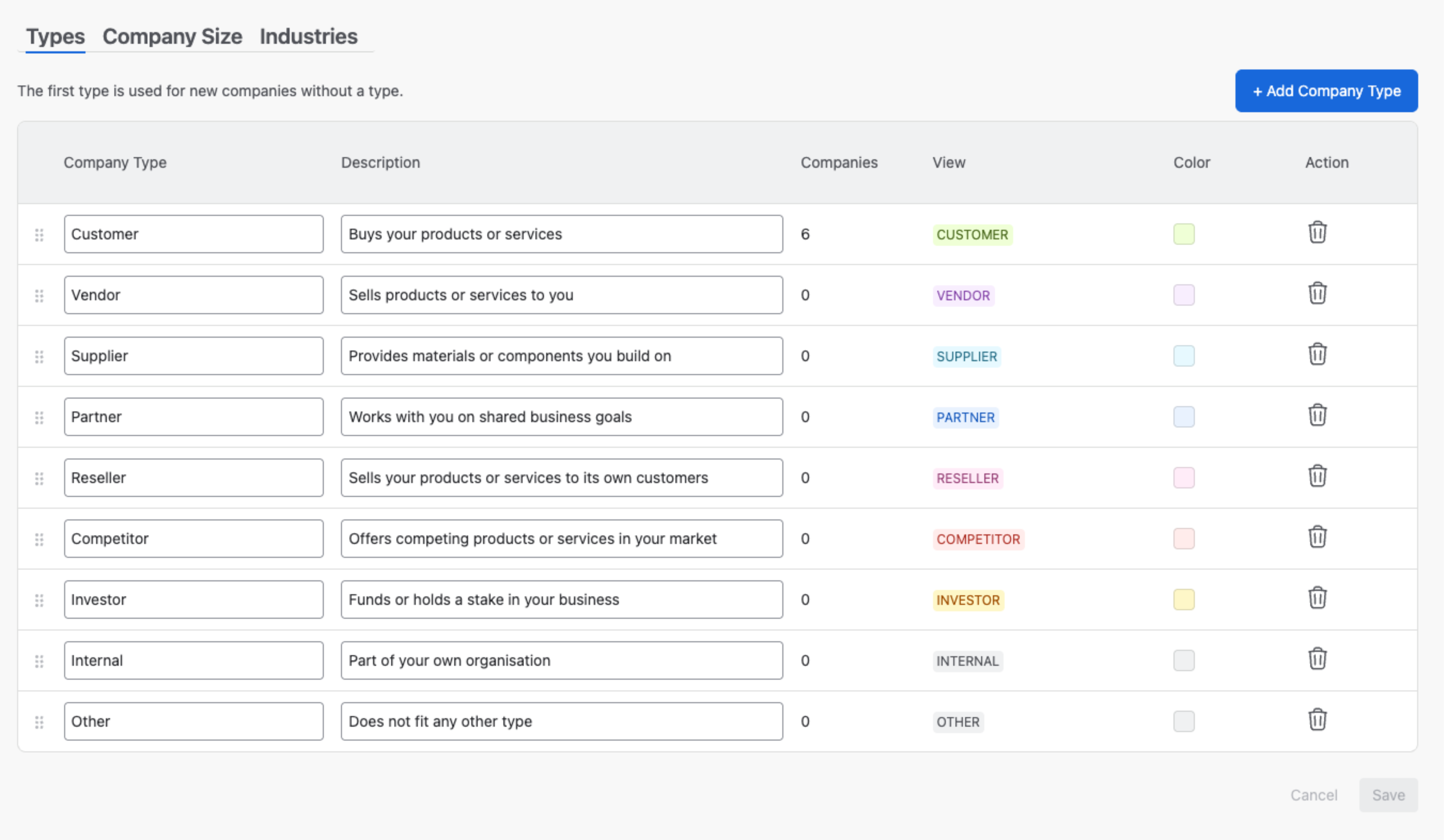
- Add a type with + Add Company Type (or + Add Contact Type), and give it a description — it is shown in every type picker, so people choose the right one.
- Rename, describe, recolor any row in place, and reorder the list by dragging the grip on the left. The View column previews the chip. Click Save to keep your changes.
- Companies / Contacts counts the records that carry each type. For Contacts it counts only a type set on the Contact itself, not one inherited from its Company.
- Every type can be renamed, recolored or deleted — Customer and Other included.
- The first type is the default. The Companies list says so above the table — The first type is used for new companies without a type. New Companies start with it, and so does a Contact with neither a Company nor a type of its own. Drag another type to the top to make it the default. The Contacts list carries Contacts without a type show their company’s type. — see section 3.
Settings → Companies also has a Company Size tab next to Types — see Configurable Lists.
Deleting a type #
A type nobody uses is deleted after a confirmation. A type in use asks where its records should go: pick a type under Move records to and click Delete Type. Deleting the default also says which type takes over:
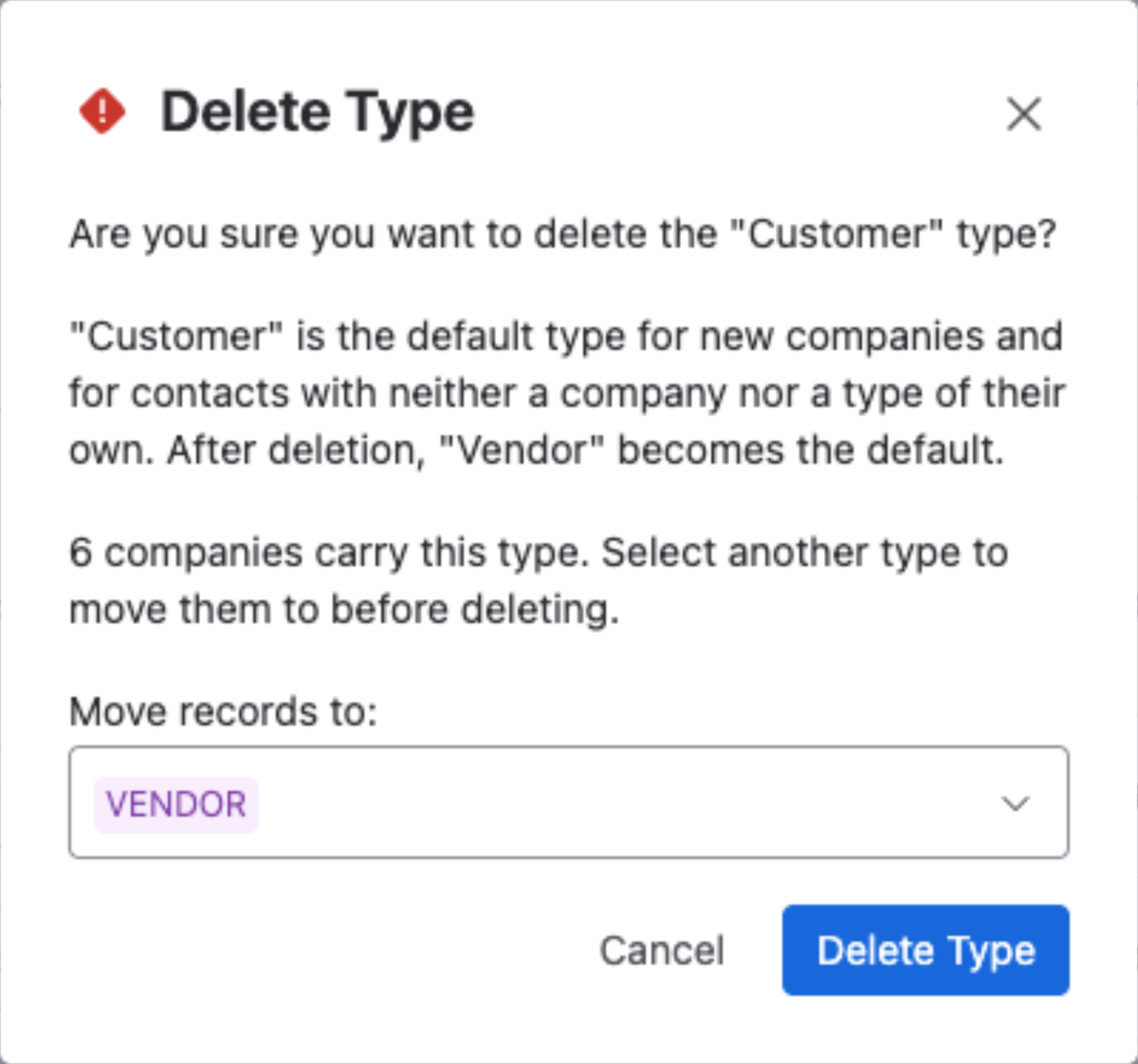
- The last type stays. When only one type is left, its delete control is disabled: This is the only type in the list and cannot be deleted.
- Save first. A type can’t be deleted while the list has unsaved edits — Save or cancel your changes before deleting a type.
2. Setting a type #
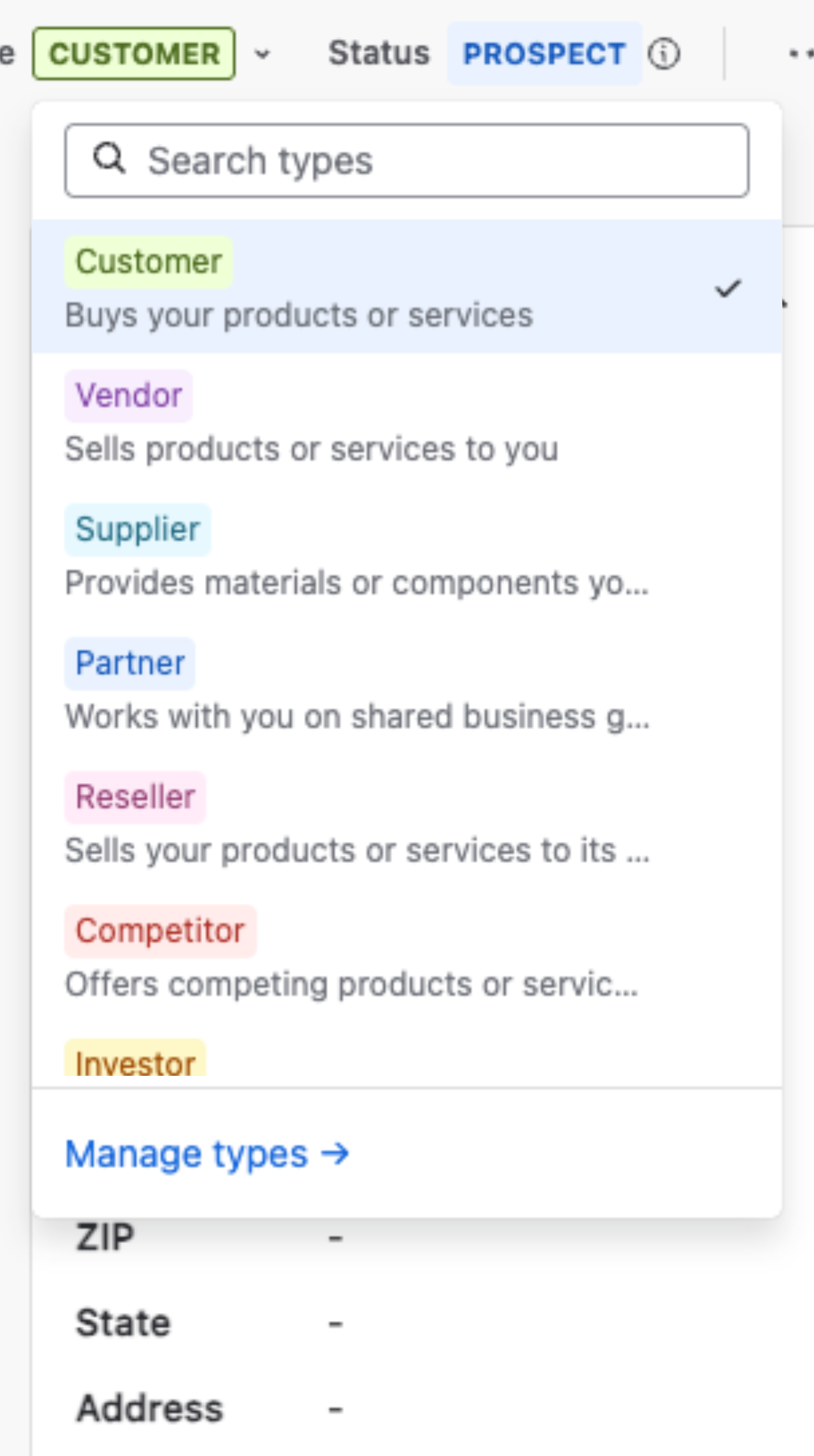
A Company’s type sits in its header, next to the Status chip:

Click the type chip to change it. The picker lists every type with its description, and Manage types → opens the Settings tab for administrators:
- On create: Create Company has a Type field, set to the default type. Create Contact has one set to Inherit — the default type until a Company is chosen.
- In the Details panel: a Type row directly below Name.
- In bulk: select rows in the Companies or Contacts list and choose Edit fields → Type.
- On import: map a Type column; see section 5.
- From Jira Automation: the Create contact action takes a type, or inherits the Company’s.
A change of type is recorded on the record’s timeline, for example Type changed from "Customer" → "Partner".
3. Contacts inherit their Company’s type #
A Contact takes its Company’s type until someone picks a different one for the Contact itself. The picker shows where the type comes from:
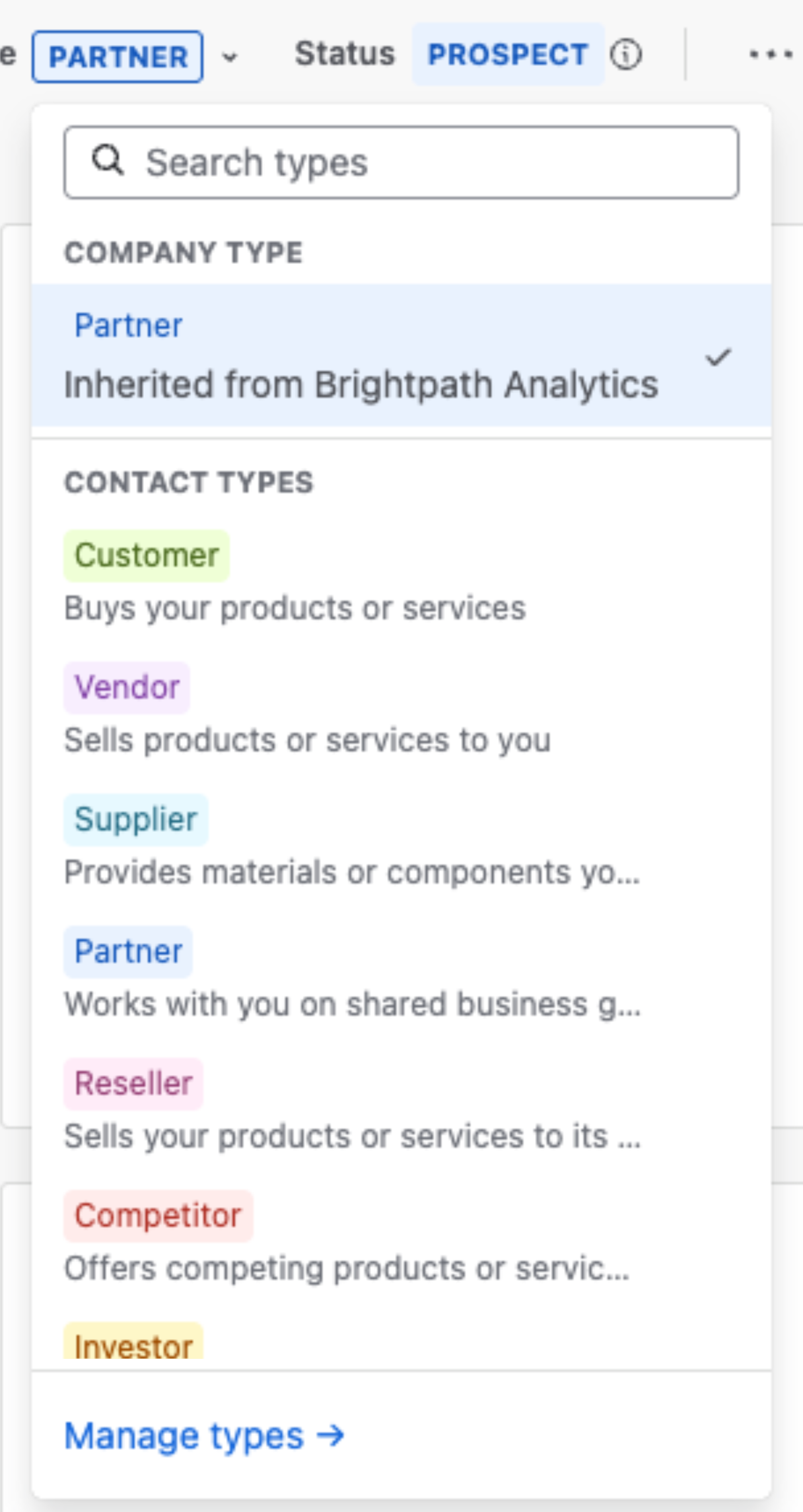
- Under COMPANY TYPE, the inherited value and its source —
Inherited from Brightpath Analytics. - Under CONTACT TYPES, the Contact list’s own types. Pick one to override the Company’s.
- A Contact without a Company has the default type until you choose otherwise.
- Changing the Company’s type changes every Contact that still inherits it.
4. Finding records by type #
- Lists: Companies and Contacts both show a Type column.
- Filters → Basic: Companies have Type and Status facets. Contacts have Contact types, Company types and Status — so “every Contact at a Partner” is one click.
- Dashboards: the Companies by Type widget counts Companies per type.
- Jira: the Mria CRM custom fields carry the type, so JQL can use it:
"Mria CRM Companies.Type" = "Partner"
"Mria CRM Contacts.Type" in ("Vendor", "Supplier")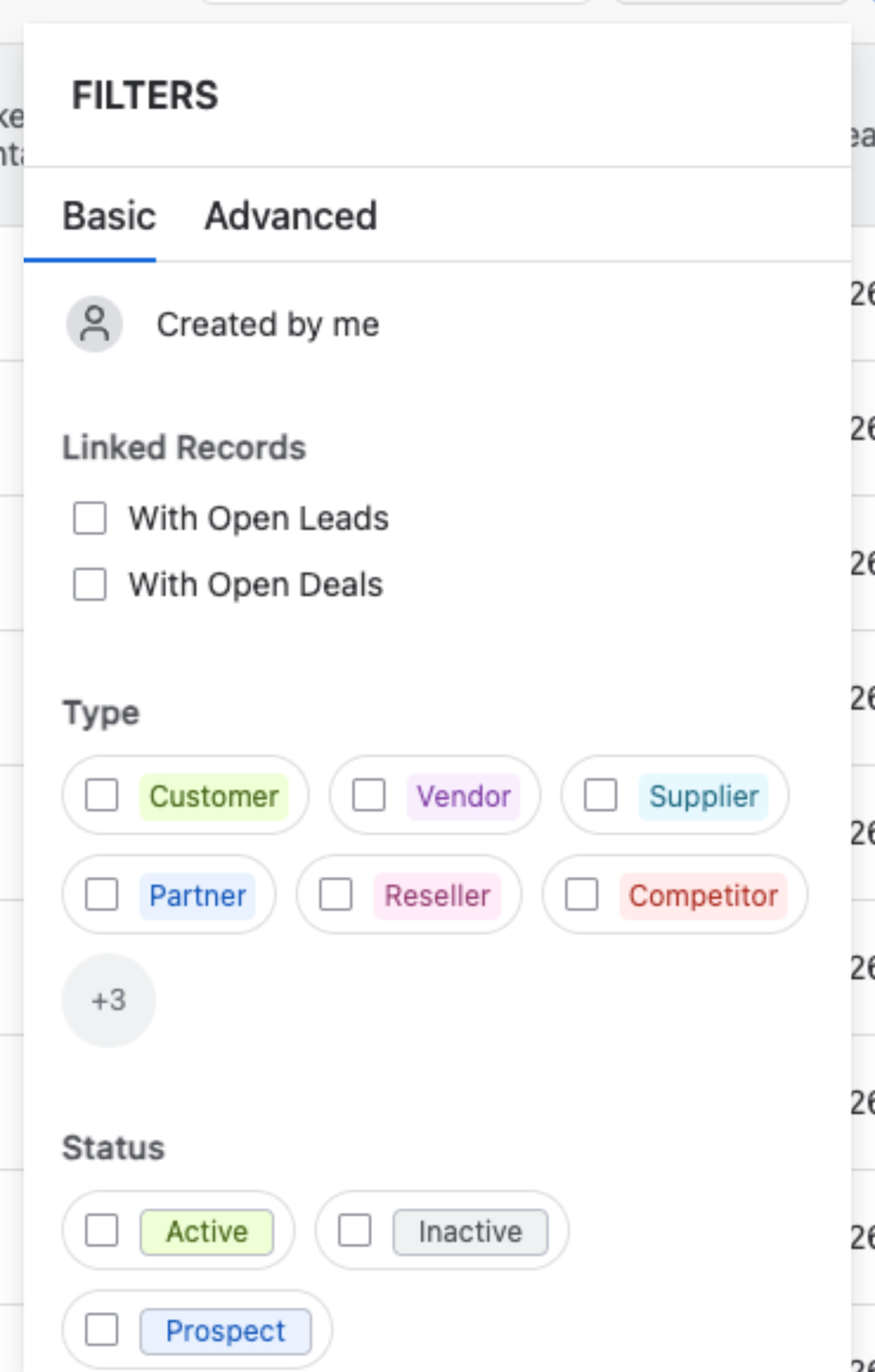
5. Importing types #
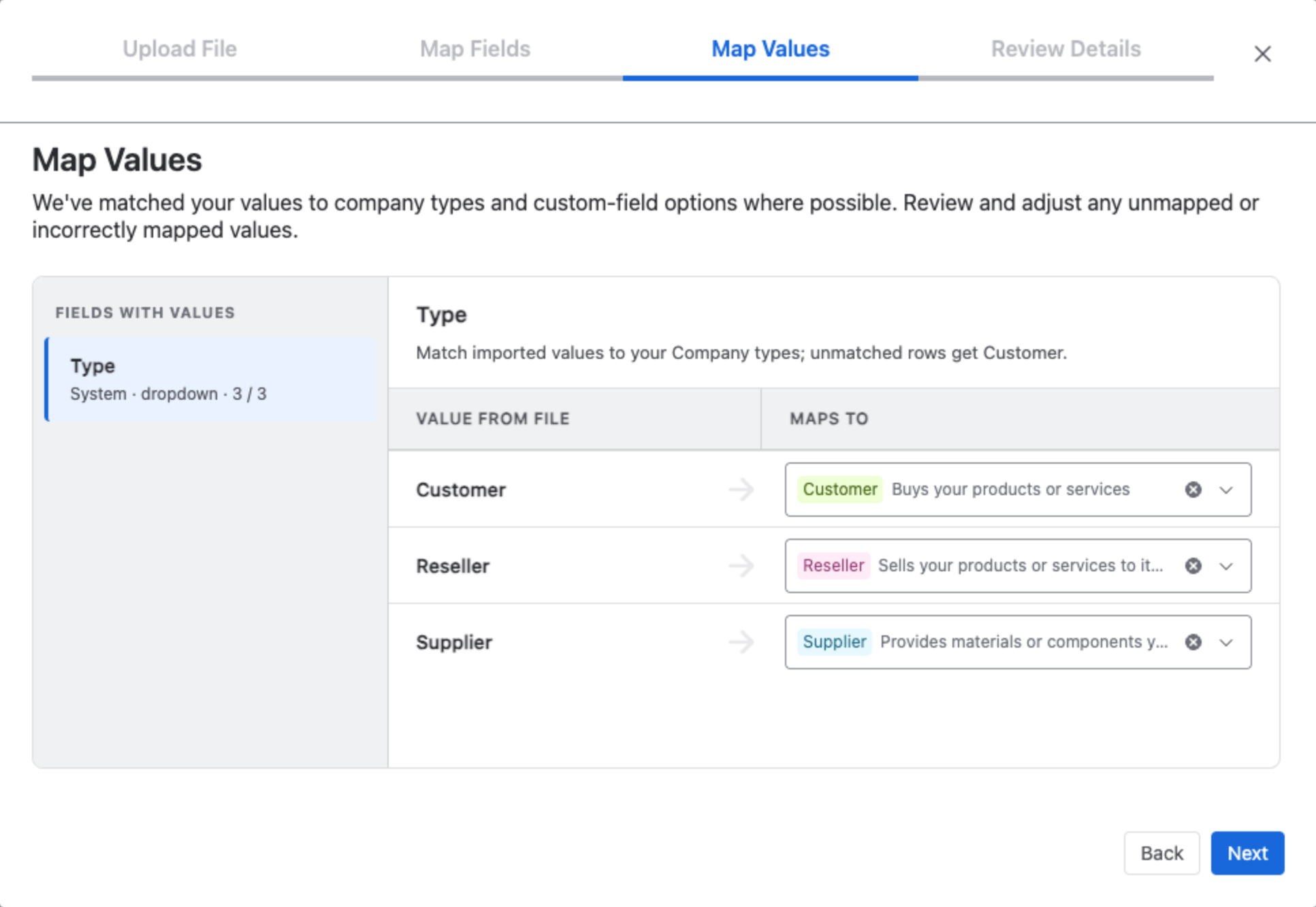
The Companies and Contacts import wizards accept a Type column. On Map Values each value from the file is matched to one of your types. What happens to a value that matches none differs:
- Companies: the row gets the default type.
- Contacts: the Contact inherits its Company’s type.
Check the mapping before you import:
See Companies Import and Contacts Import.
6. Type and Status side by side #
| Type | Status | |
|---|---|---|
| What it says | What the relationship is | Where it stands in your pipeline |
| Values | Your list: Customer, Vendor, Partner … | Active, Prospect, Inactive |
| Who sets it | People, imports and automation | Mria CRM, from the record’s Leads and Deals |
| In the header | A chip with a chevron — click to change | A chip with ⓘ explaining why, e.g. “Prospect — has 0 Leads and 1 Deal. Calculated automatically.” |
The Status rules are on Companies.
Related Pages #
- Companies — the Company full view and list.
- Contacts — the Contact full view and list.
- Mria CRM Custom Fields in Jira — Type in JQL.
- Jira Automation — creating Contacts with a type from a flow.


