ℹHow to Link Jira Issues with CRM Data in Mria CRM for Jira #
The Jira Integration in Mria CRM connects your CRM data (Leads, Deals, Contacts, and Companies) with Jira work items — giving your team full visibility into customer-related work right inside Jira.
You can link and manage entities from both sides:
- From within Mria CRM (e.g., linking Jira work items to a Deal or Lead)
- From within Jira (via the dedicated Mria CRM panel in the issue view)
Linking from Mria CRM #
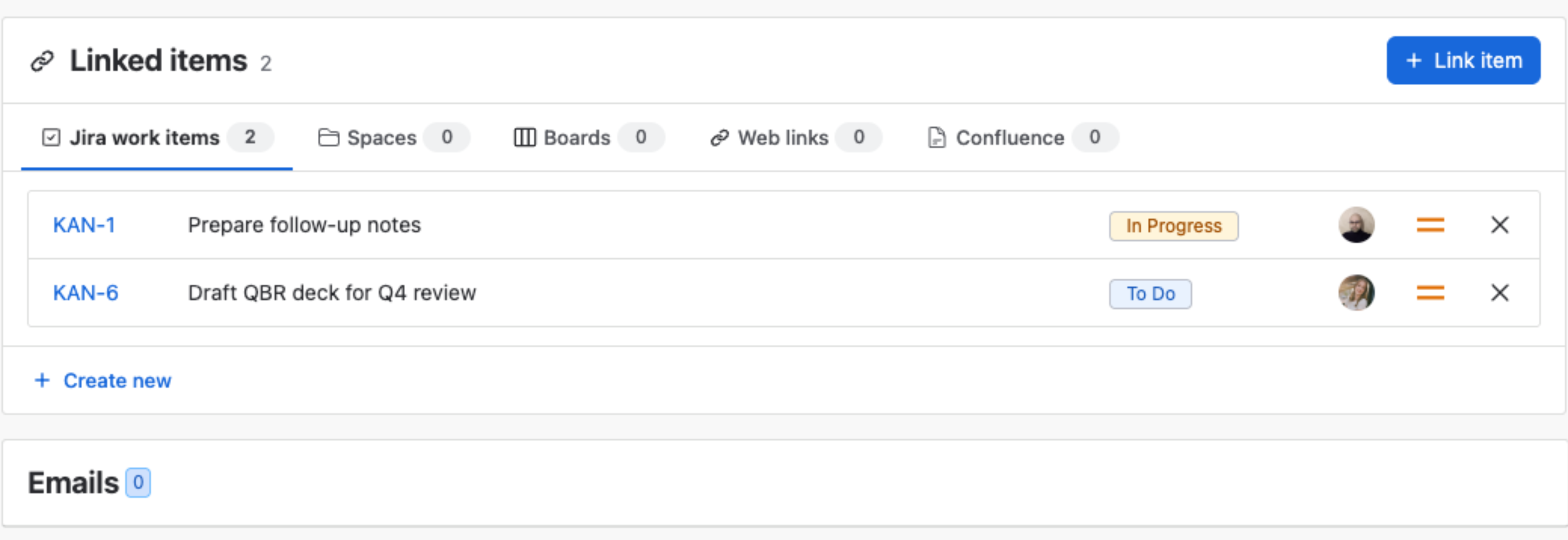
Jira work items are linked from the Linked items section in the full view of a Lead, Deal, Contact or Company. Open the Jira work items tab, then click + Link item to attach an existing issue, or + Create new to raise one that is linked to the record from the start. The connection appears inside the related Jira issue automatically.
👉 Jira work items on Companies
How many you can link, and finding them again #
There is no limit on how many items a record can hold. A long-running account can accumulate as many work items as it needs without anything being dropped.
So that a busy record stays readable, every tab of Linked items is paginated — Jira work items, Spaces, Boards, Web links and Confluence alike:
- The section header carries the total across all tabs, and each tab carries its own count.
- Where a tab holds more than one page, it shows
Showing 1–50 of 55with an items-per-page selector and page buttons. - The list area is tall enough that the pager and + Create new stay reachable without scrolling inside the card.
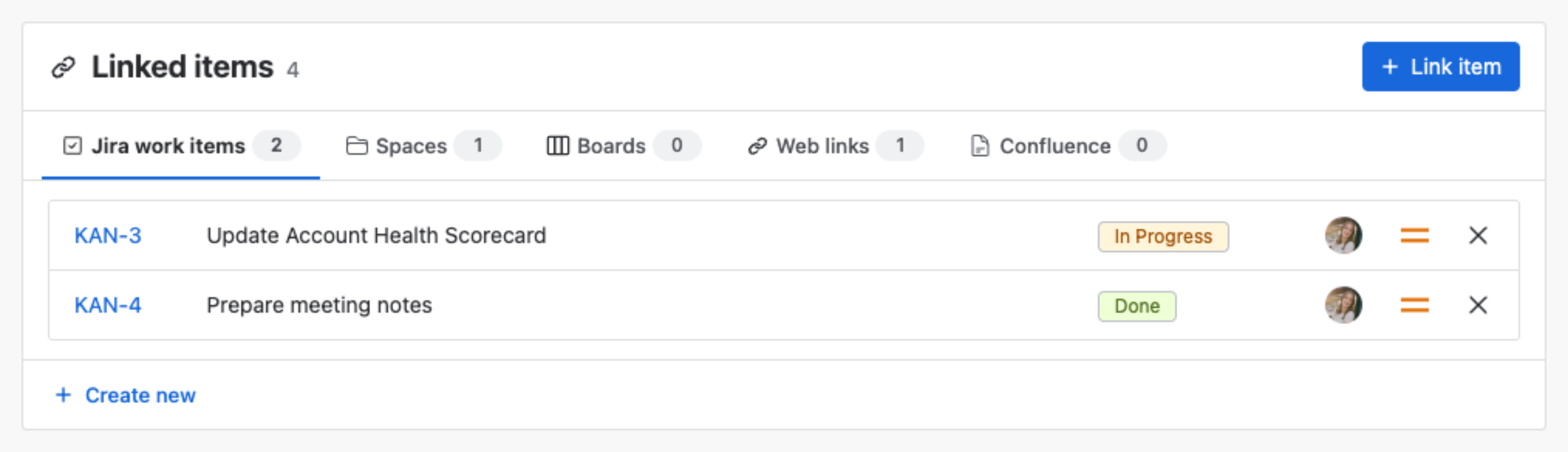
A record with only a few links shows no pager — there is nothing to page through. The controls appear once a tab has more than one page of items.
Mria CRM Panel in Jira #
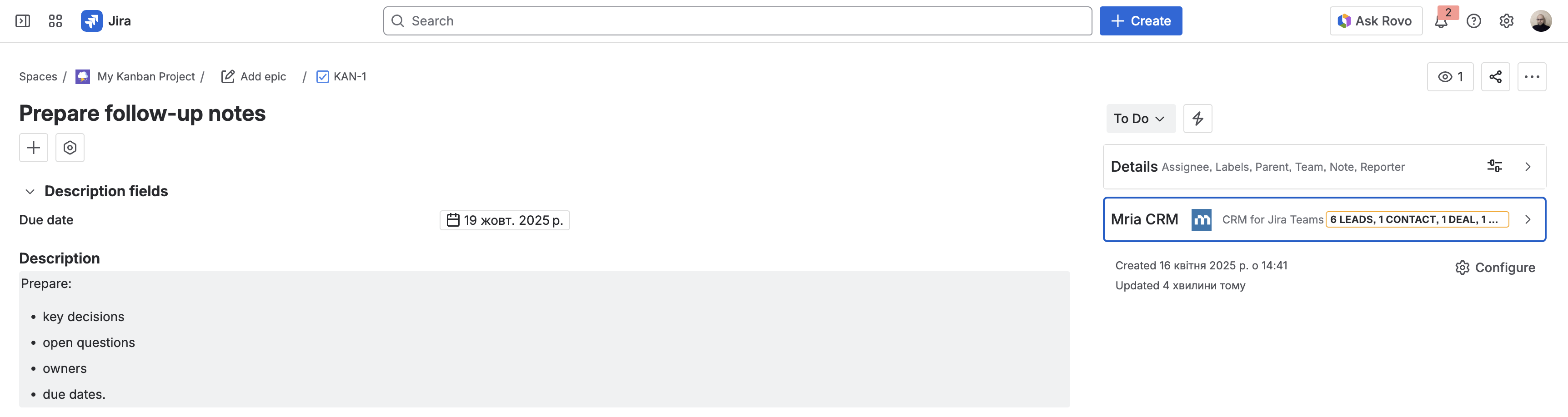
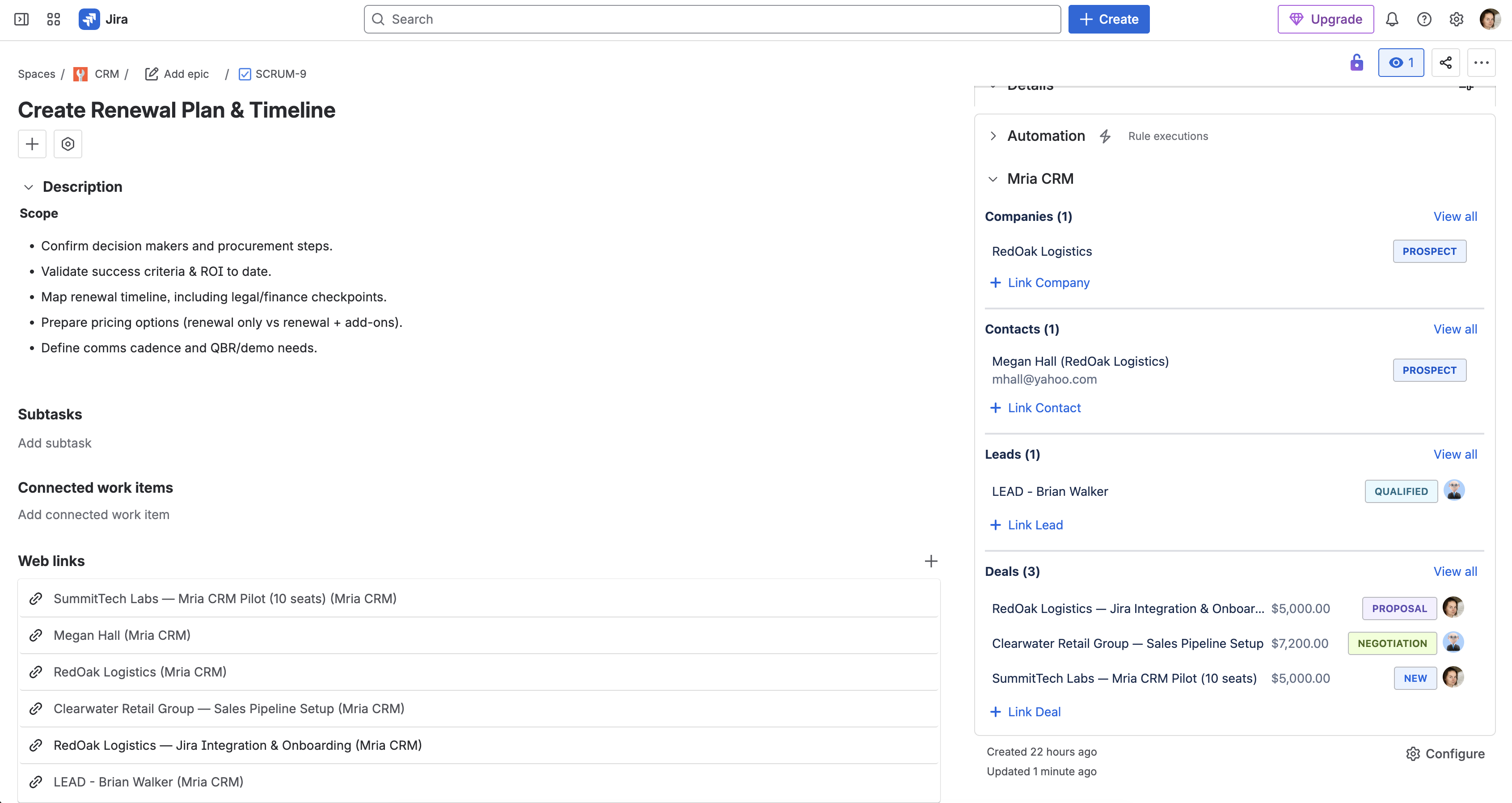
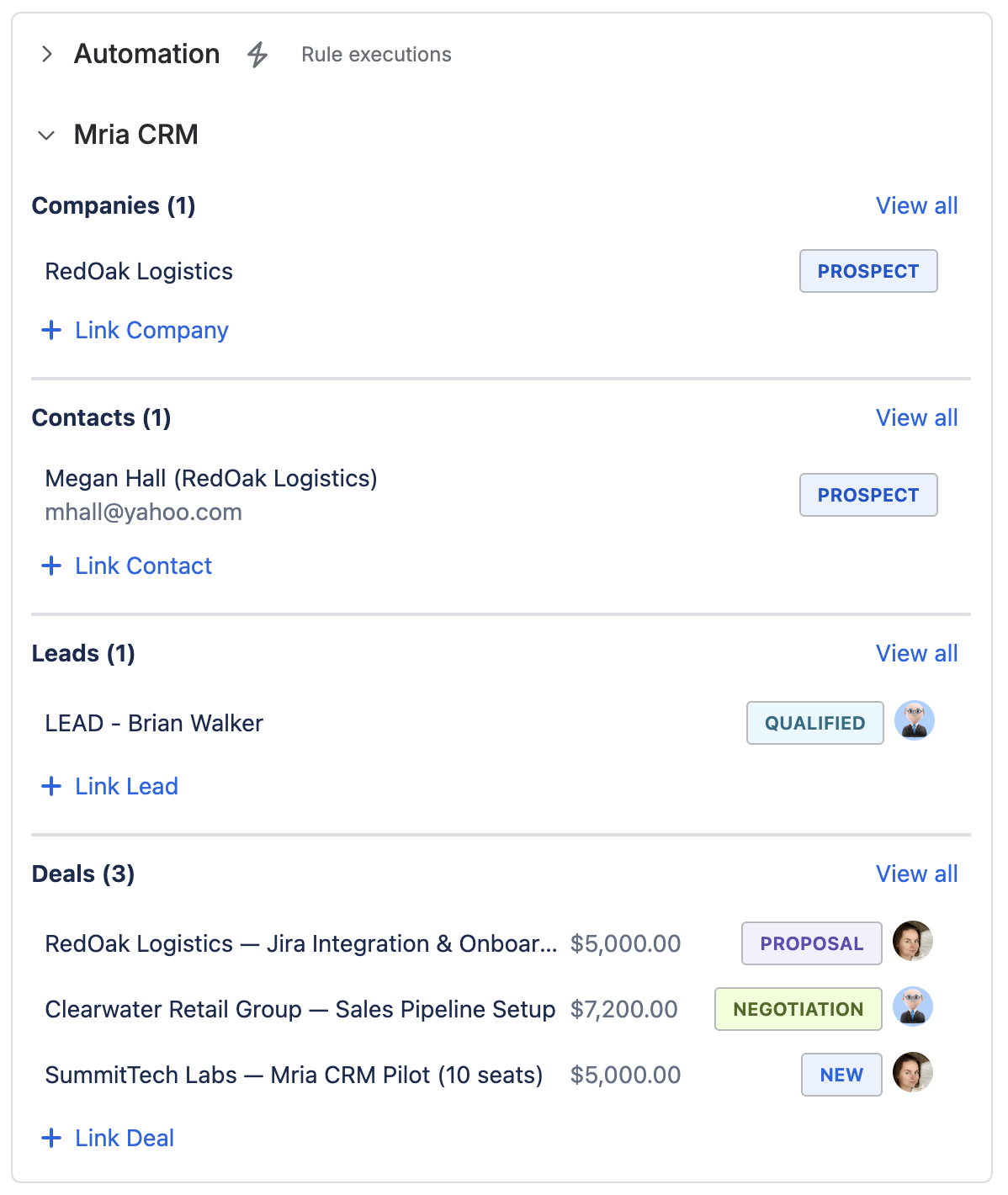
Each Jira work item includes a Mria CRM section in the right-hand panel. It lists the CRM records linked to that work item — Companies, Contacts, Leads, Deals and Products — with their statuses and key details.
When the section is collapsed, it displays a quick summary:
e.g. 9 Leads, 2 Contacts, 4 Deals, 2 Companies, 1 Product
When expanded, it shows a structured list of all linked entities with status badges, values, and quick actions.
Available Actions #
| Action | Description |
|---|---|
| Link a record | In the record’s Linked items section, open the tab you want — Jira work items, Spaces, Boards, Web links or Confluence — and click + Link item. |
| Unlink a record | Click the × at the end of the row. |
| Open record | Click any linked name to open its page in Mria CRM. |
| View all | Opens a filtered view in Mria CRM showing only entities linked to the current Jira work item. |
CRM Statuses #
For Contacts and Companies, Mria CRM automatically calculates a status based on their activity history:
| Status | Condition |
|---|---|
| Active | Has at least one Deal won. |
| Prospect | Has at least one open or lost Lead or open/won/lost Deal. |
| Inactive | Default state before any Leads or Deals are created. |
These statuses help identify where each contact or company stands in your sales process — directly within Jira.
JSM Integration (Service Desk) #
If your team works with Jira Service Management, the JSM Integration adds an extended workflow on top of everything described here. It includes the same core CRM linking features, plus a suggestions tool that helps support agents quickly understand whether a requester already exists in Mria CRM — or if they should create a new Contact and Lead directly from the ticket.
👉 Learn more on the dedicated JSM Integration page.
Tip
Use the Mria CRM panel to keep your Jira issues in sync with your CRM — no need to switch tabs or copy data manually.
Every update you make to linked entities is reflected on both sides.
Linking Jira Spaces & Boards #
As well as individual issues, you can link a whole Jira space (formerly a project) or a board to a Lead, Deal, Contact or Company.
How to link a Jira space or board
- Open the full view of a Lead, Deal, Contact or Company.
- Scroll to Linked items and open the Spaces or Boards tab.
- Click + Link item, start typing the name, pick it from the list and click Link.
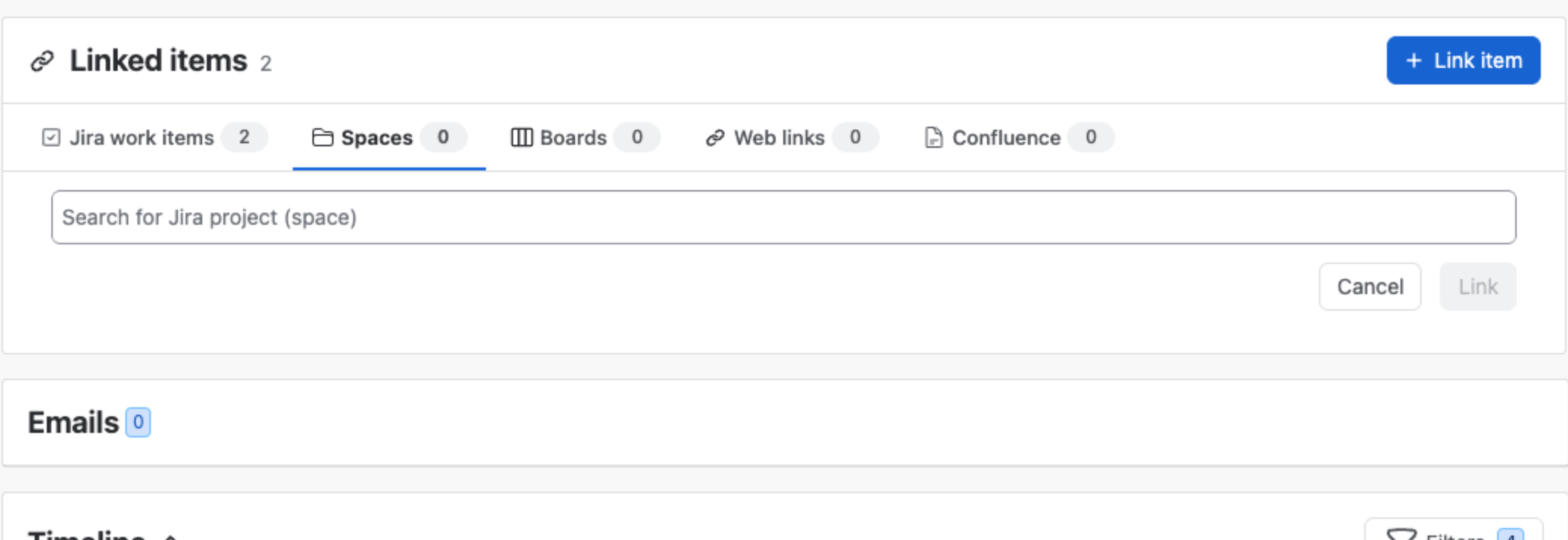
Boards work exactly the same way, from the Boards tab.
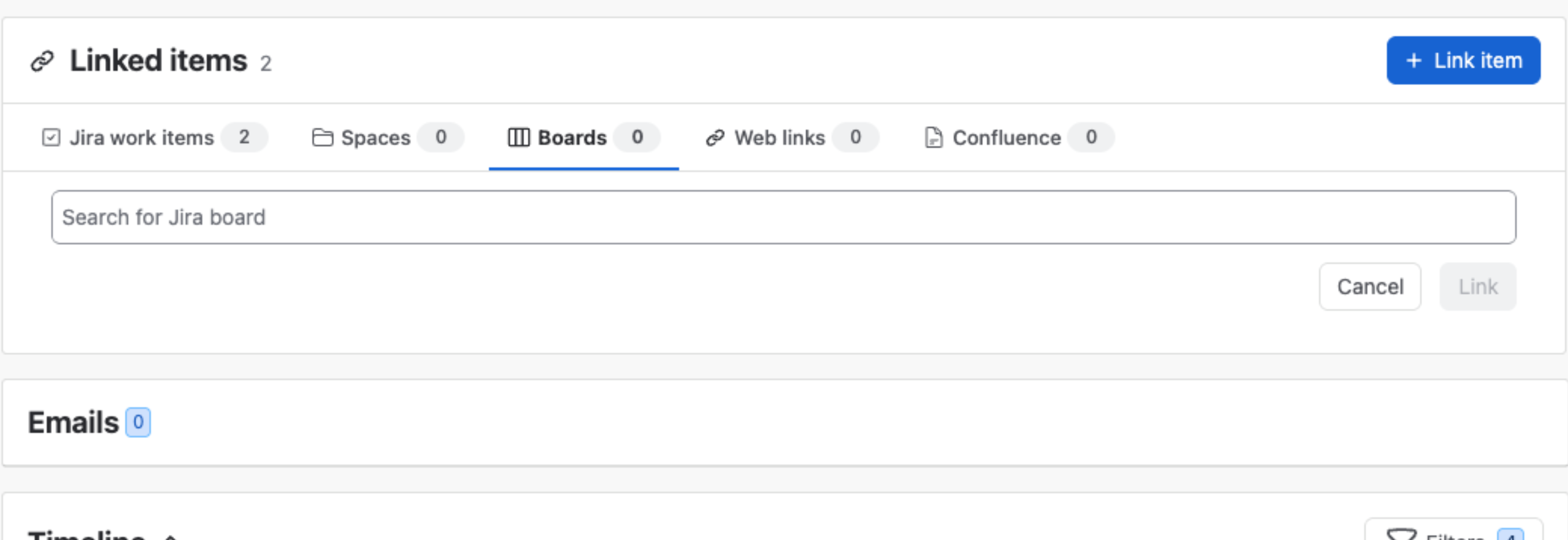
Linked spaces are listed in the Spaces tab, and boards in the Boards tab. Each tab carries a count, so you can tell at a glance what a record is attached to.
Every tab stays visible whether or not it holds anything — an empty one shows a count of 0 and a short placeholder, so there is nothing to switch on before you can link.
Dashboard gadgets #
Mria CRM adds thirteen gadgets to Jira dashboards. In Add gadget, search for Mria CRM:
- Metrics and charts — CRM Metrics, Pipeline Funnel, Revenue Trend, Leads by Status.
- Your own work — My CRM Activities, My Leads, My Deals, and Assigned to Me: your work items that are linked to CRM records.
- Driven by JQL — CRM Records by JQL, Work Items by CRM Attribute, and Revenue at Risk: the open Deals linked to the work items a query finds.
- One record — Company Spotlight and Deal Spotlight.
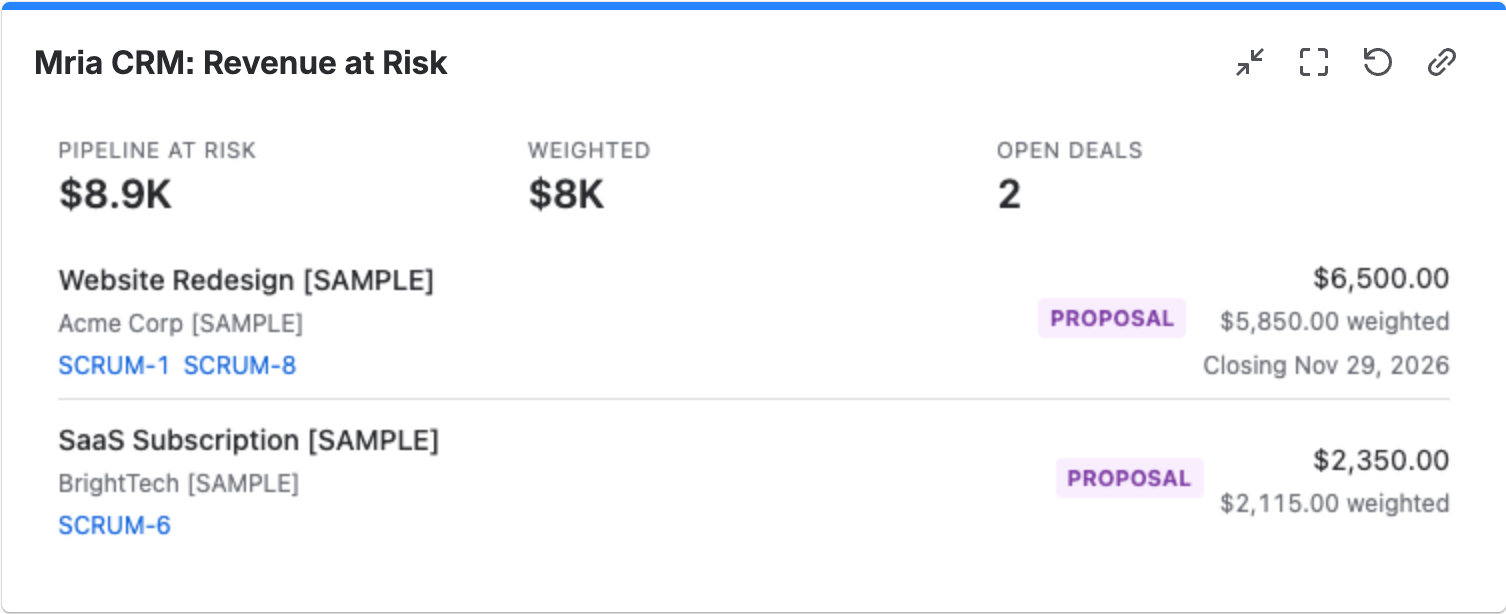
Each viewer sees only what their Mria CRM role allows. Settings, screenshots and the full list are on Mria CRM Gadgets for Jira Dashboards.
Mria CRM Custom Fields in Jira #
Mria CRM adds five read-only custom fields to Jira work items. Each one holds the CRM records linked to that work item, which means CRM data can be used by the parts of Jira that only understand fields — search, filters, boards and automation.
This section is a summary. The full reference — all 65 queryable parameters, what the fields are good for, and how to drive Jira automation from them — is on Mria CRM Custom Fields in Jira.
| Field | Holds |
|---|---|
| Mria CRM Leads | Leads linked to the work item. |
| Mria CRM Deals | Deals linked to the work item. |
| Mria CRM Contacts | Contacts linked to the work item. |
| Mria CRM Companies | Companies linked to the work item. |
| Mria CRM Products | Products linked to the work item. |
The fields are populated from the same links you manage in the record’s Linked items section, so there is nothing extra to maintain — link a work item to a Deal once and both the panel and the custom field reflect it.
Using them in JQL #
The fields are queryable, including their sub-properties. Quote the field name because it contains spaces:
"Mria CRM Leads.Assignee" = currentUser()That finds every work item linked to a Lead assigned to you. The same fields are available in Jira automation, so a rule can react to CRM data — for example transitioning a work item when it is linked to a Deal, or notifying the assignee of the related Lead.
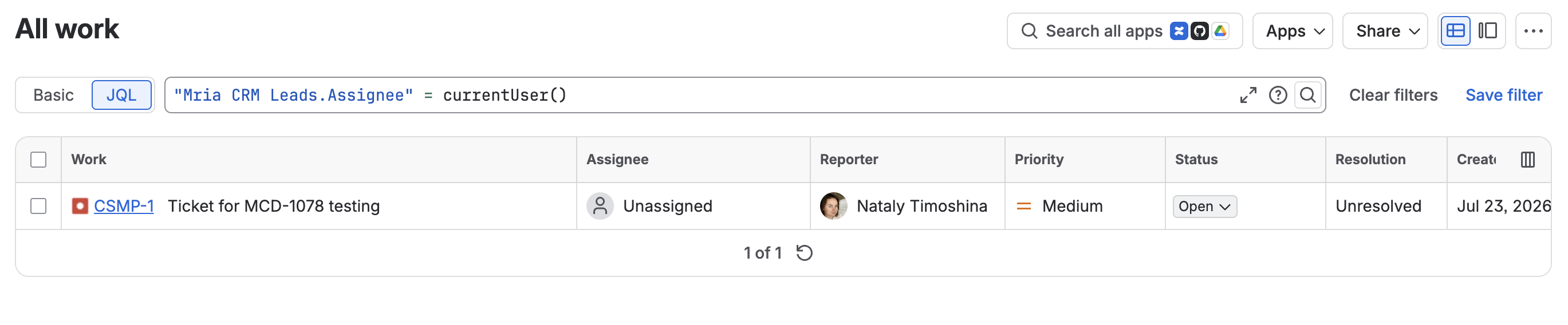
Whether these fields also show on the work item detail view depends on your Jira screen configuration, the same as any other custom field. Search and automation work regardless.
Requires additional permissions
The custom fields stay inactive until a Jira admin approves the additional permissions Mria CRM requests. Features that do not depend on them are unaffected while approval is pending.
How to approve the new permissions
Teamwork Graph support is gated on the same permissions, but it is a separate feature — it makes CRM records findable from Atlassian search rather than adding fields to work items. See Teamwork Graph & Atlassian Search.
The same release also made Mria CRM’s actions available in Rovo Studio, Atlassian’s agent builder — see Rovo Studio: Build Your Own Agent. Like the custom fields, that comes from Mria CRM being a Jira-native app: Atlassian surfaces its actions alongside Jira’s own.
Mria CRM also adds its own actions to Jira Automation, so a flow can create, find and update Leads, Deals and Contacts, link work and add notes — see Jira Automation.


