Mria CRM records in Atlassian search, Rovo and Analytics #
Mria CRM publishes your CRM records to the Teamwork Graph — Atlassian’s shared data layer, the thing that lets Jira, Confluence and connected third-party tools all be searched and reasoned about together.
In practice it means your Leads, Deals, Contacts, Companies and Products stop being locked inside the Mria CRM app. They become findable from Jira’s own search bar, and available to the Atlassian features that read the graph.
1. Why this is useful #
- One search box. A salesperson looking for “Northwind” does not have to decide whether it is a Jira work item, a Confluence page or a CRM record first — Jira search returns all of them.
- Rovo. Graph data is available to Rovo Chat and Rovo Agents, so an agent answering a question about an account can take the CRM side into account rather than only the delivery side. See Mria CRM in Rovo.
- Analytics. Data in the graph feeds Atlassian Analytics, which is where the real payoff sits: reporting that joins commercial data to delivery data. Questions like “which open Deals depend on work items that are behind?” need both halves in one place, and until now the CRM half was not there.
- Relationships travel too. Connectors push relationships alongside objects, so the link between a Deal and the Jira work items delivering it is part of the graph, not just a link inside Mria CRM.
What you can do with the data downstream depends on your Atlassian plan. Search and Rovo surfacing come with the graph; the Atlassian Data Lake — querying this data from BI tools such as Snowflake, BigQuery or Power BI — is an Atlassian Cloud Enterprise feature.
2. Turning it on #
Two separate things have to happen, and the second one is easy to miss: approving the app’s new permissions does not start publishing on its own.
Step 1 — approve the new permissions #
Publishing to the graph needs permissions Mria CRM did not previously request, so a Jira admin has to approve them first. See Updates and New Permissions in the Installation Guide.
Step 2 — connect the Teamwork Graph connector #
Go to Administration → Connected apps → Mria CRM → Connections. Under Teamwork Graph connectors, the Mria CRM connector starts out as NOT CONNECTED with a Connect button:
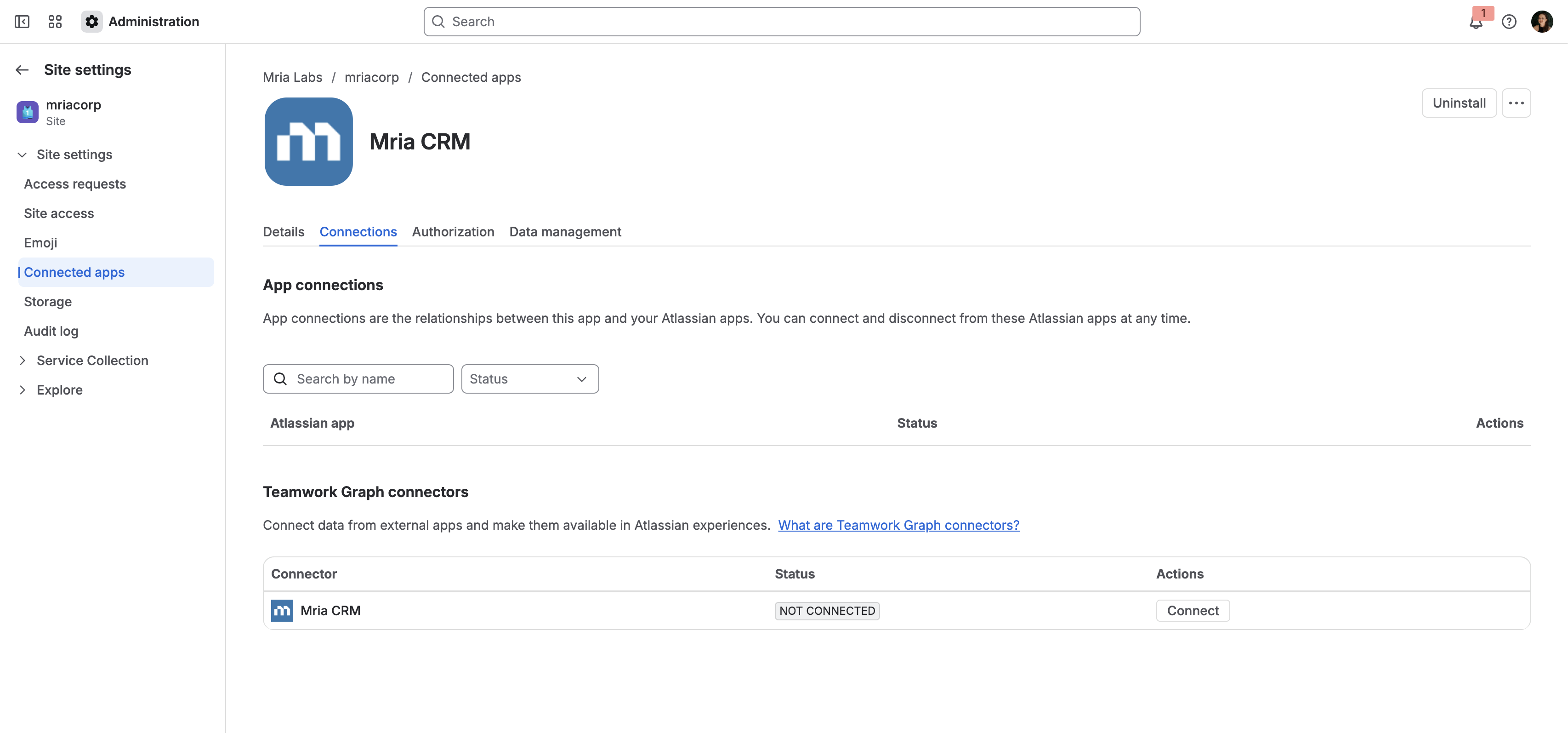
Clicking Connect opens Configure and connect Mria CRM, which states what the connector does and what you are agreeing to. Click Install to finish.
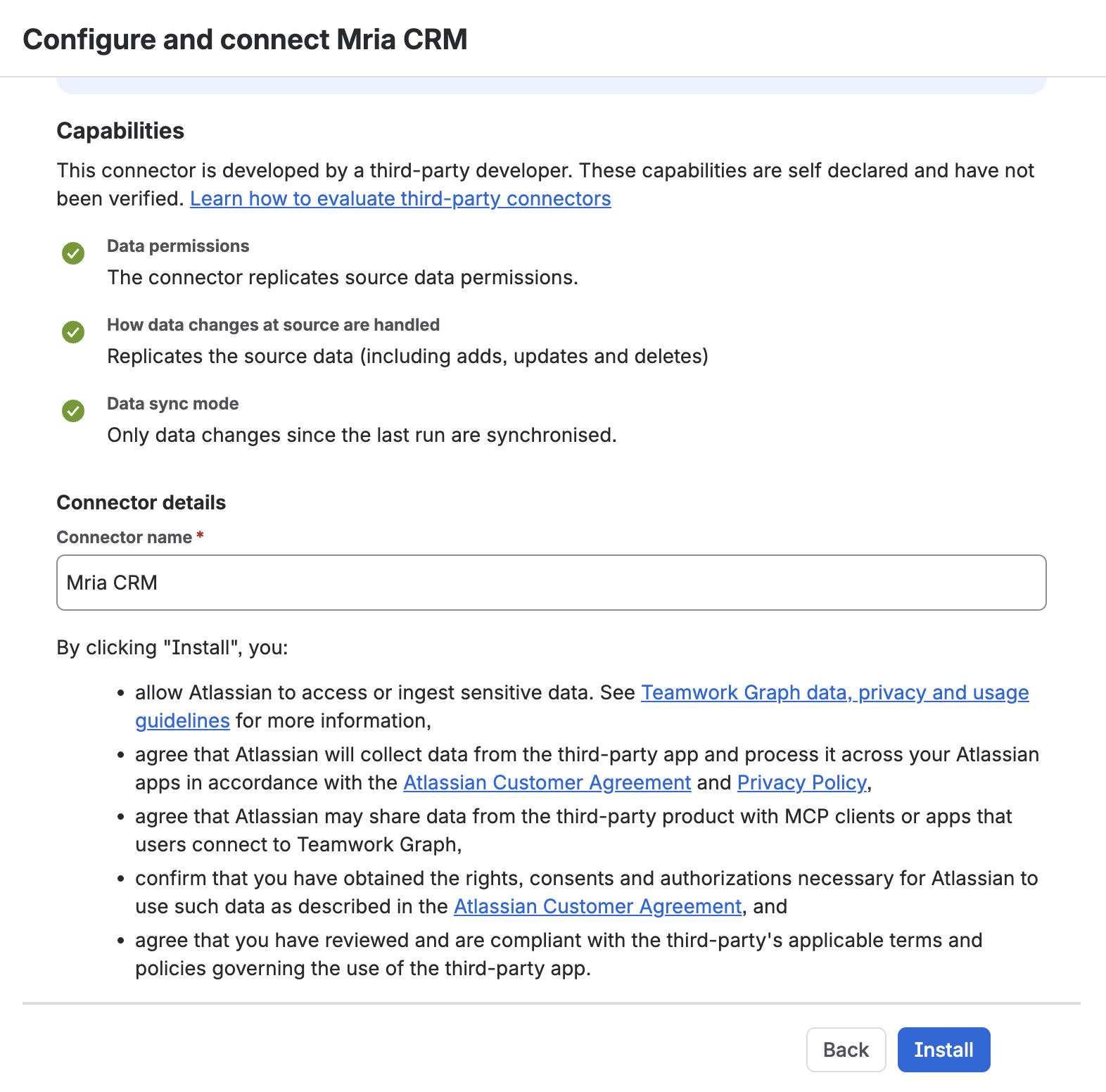
What the connector declares #
| Capability | Mria CRM |
|---|---|
| Data permissions | The connector replicates source data permissions. |
| How data changes at source are handled | Replicates the source data (including adds, updates and deletes). |
| Data sync mode | Only data changes since the last run are synchronised. |
Atlassian shows a “developed by a third-party developer … self declared and have not been verified” notice on every third-party connector, Mria CRM included. The three capabilities above are what Mria CRM declares, and the dialog links Atlassian’s own guidance on evaluating third-party connectors.
What installing consents to #
The dialog is explicit that installing a connector lets Atlassian ingest and process this data. Worth reading before you click, particularly:
- Atlassian may access or ingest sensitive data and process it across your Atlassian apps.
- Atlassian may share data from the third-party product with MCP clients or apps that users connect to Teamwork Graph.
- You confirm you have the rights and consents needed for Atlassian to use the data that way.
This is a data-governance decision, not just a toggle. If your CRM holds personal data, check the Teamwork Graph data, privacy and usage guidelines linked in the dialog before installing — and note that the consent covers sharing with MCP clients connected to the graph, not only with Atlassian’s own apps.
Step 3 — wait for the first sync #
Once installed, the connector reads CONNECTED and Atlassian begins fetching your CRM records. Nothing appears instantly — see section 5.
Until both steps are done, no CRM records reach the graph and nothing shows up in Atlassian search. Features that do not depend on the graph are unaffected.
Release Notes
3. How Mria CRM records are mapped #
The Teamwork Graph is a common data model: every connector maps its own objects onto a fixed set of object types, so that a “deal” from any tool behaves like a deal everywhere in Atlassian. Mria CRM maps its five entities like this:
| Mria CRM entity | Teamwork Graph object type | Why |
|---|---|---|
| Deals | Deal | The graph’s native sales type — the same one Salesforce and HubSpot deals map to. |
| Companies | Customer organization | The graph’s native account type (Salesforce calls it an Account). |
| Leads | Work item | No dedicated Lead type exists in the graph. |
| Contacts | Work item | No dedicated Contact type exists in the graph. |
| Products | Work item | No dedicated Product type exists in the graph. |
Why Leads, Contacts and Products become Work items #
The graph has native types for the two CRM concepts every CRM shares — a deal and a customer organization — so Deals and Companies map straight onto Deal and Customer organization and inherit the behavior Atlassian has built for them.
There is no Lead, Contact or Product type. The alternative to mapping them somewhere would be leaving them out of the graph altogether — invisible to search, Rovo and Analytics. So they are mapped to Work item, which is the graph’s most broadly supported type: it is the one that Jira work items, Asana tasks and GitHub issues all unify into. Anything mapped to it is a first-class, searchable object that can carry relationships and permissions like any other piece of work in Atlassian.
The practical consequence: a Lead, Contact or Product found through Atlassian search is labeled as coming from Mria CRM, and it behaves like a work item rather than like a CRM-specific object. That is a deliberate trade — being present and searchable beats being absent but perfectly typed.
4. Finding CRM records from Jira #
- Type what you are looking for into the Jira search box — the name of a Lead, Deal, Contact, Company or Product, or other details from the record.
- In the dropdown, choose the All apps row. By default Jira search only looks at Jira; All apps widens it to everything connected to the graph, Mria CRM included.
- On the results page, Mria CRM appears in the right-hand panel with a count. Select it to narrow the results to CRM records only.
If you have already run a search and only got Jira results, you do not have to start again — Search all apps on the results page does the same thing as picking All apps in the dropdown.
CRM records also remain linked from the other direction: the Mria CRM panel and the Mria CRM custom fields on a Jira work item are unaffected by any of this and do not depend on the graph.
5. How often data syncs #
- Not instantly. Mria CRM hands records to Atlassian, and Atlassian fetches and indexes them on its own schedule. A record you create or edit now will not be searchable a second later.
- Atlassian syncs on a daily cycle. That cadence is Atlassian’s, not ours — we do not trigger the runs and cannot speed one up. In normal operation it means changes show up in search within about a day.
- It is a schedule, not a guarantee. A run that fails, is throttled, or is delayed on Atlassian’s side leaves the index stale for longer, and nothing inside Mria CRM will tell you that has happened. Treat the lag as usually under a day rather than always under a day.
- Each run carries only what changed since the last one — including deletions, so a record removed in Mria CRM stops appearing in search rather than lingering.
- Nothing needs to be triggered by hand — there is no “sync now” button in Mria CRM, and none is needed.
Checking the connector
The connector’s own state is visible to a Jira admin under Administration → Connected apps → Mria CRM → Connections, which is where it reads CONNECTED or not. If records stop appearing in search, check there first: a disconnected connector, not a slow sync, is the usual cause. If it reads connected and a record you changed days ago still has not updated, that is an Atlassian-side sync problem rather than something to fix in Mria CRM.
Treat Atlassian search as a way to find a record, not as a live view of it. Mria CRM is the source of truth: open the record in the app to see its current state. This matters most for fast-moving fields such as a Deal’s stage or amount.
6. Permissions #
Records published to the graph keep the permissions they have in Mria CRM. Connectors push permissions alongside the objects, so the graph knows who is allowed to see what.
- A user who cannot see a record in Mria CRM does not see it in Jira search either.
- Two people searching the same term can therefore get different CRM results, exactly as they would inside the app.
- Publishing to the graph does not widen access to anything — see Roles & Permissions.
Because permissions come from Mria CRM, the way to control what shows up in Atlassian search is to manage roles in Mria CRM as you already do. There is no separate visibility setting for the graph.
✅ With Teamwork Graph support enabled, your CRM stops being a separate silo: the same search that finds a Jira work item finds the Deal it belongs to.


