ℹHow to Manage Products in Mria CRM for Jira #
The Products module allows you to store and manage all the items or services your business offers.
1. Viewing Products #
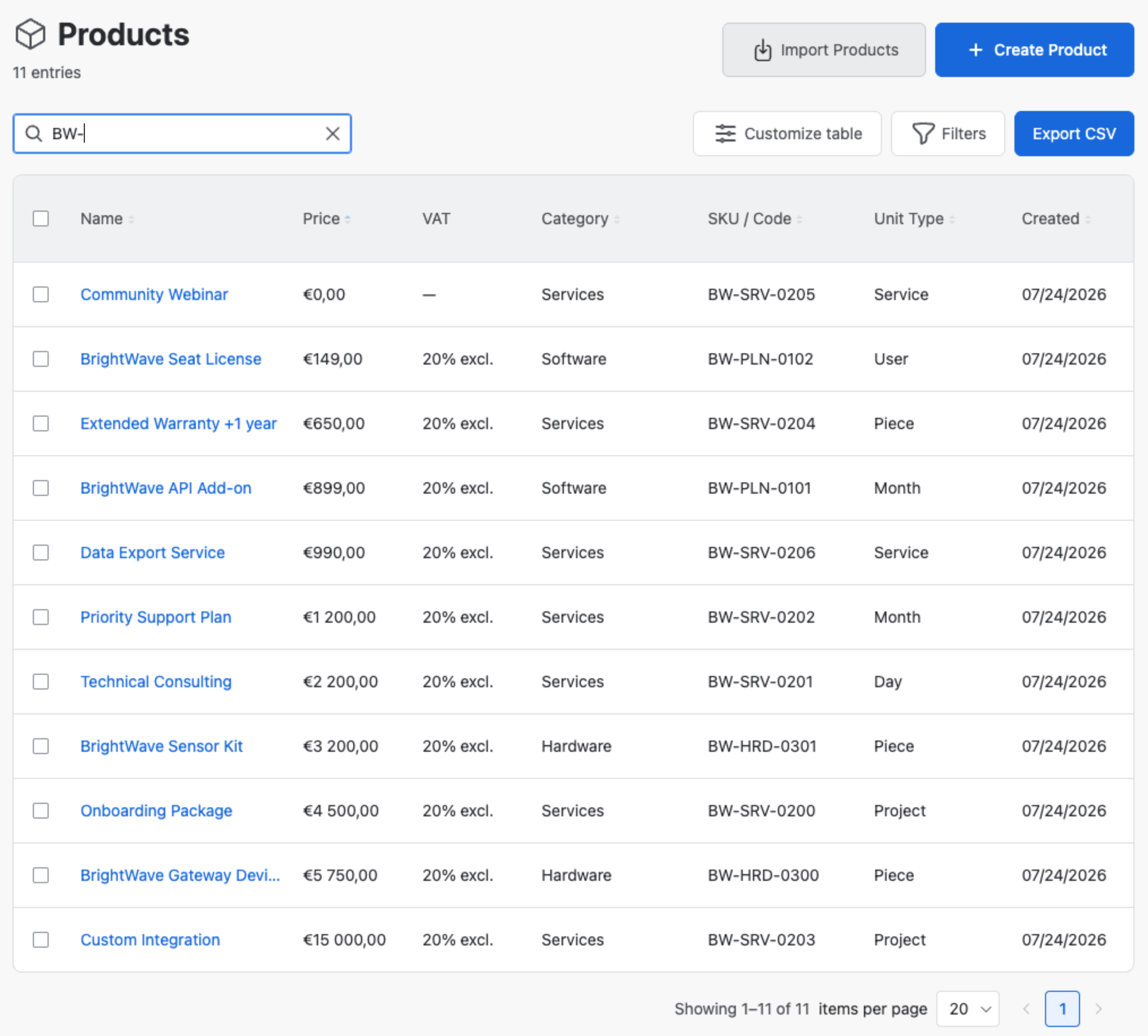
You can view Products in a table view with key details such as Name, Price, VAT, Category, SKU/Code, Unit Type, and Creation Date. The VAT column reads, for example, 20% excl., 20% incl. or — for a product without VAT.
In the table view, you can also:
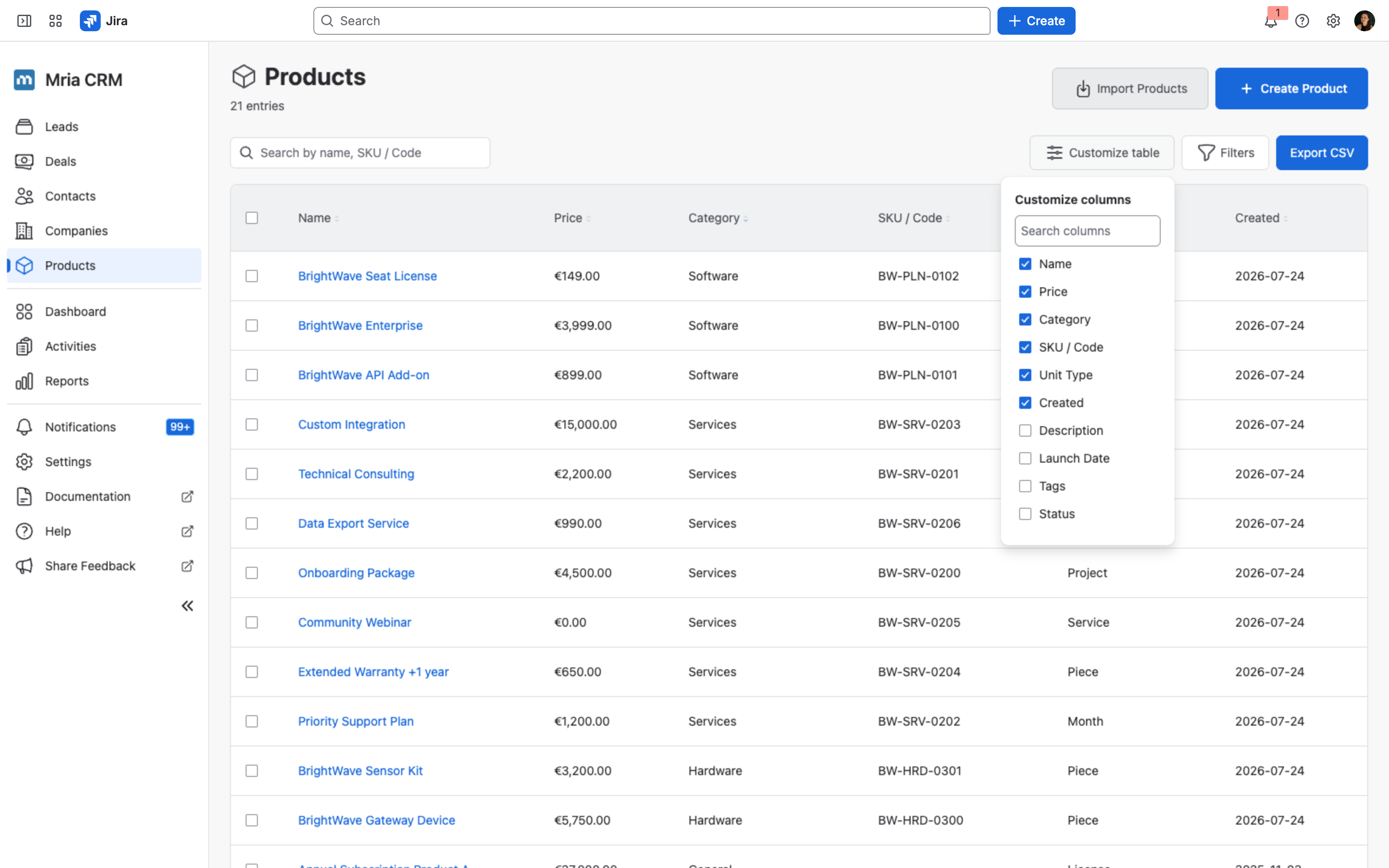
- Customize table — choose which columns are displayed in the Products list (including custom fields — see Custom Fields on Products below).
- Filter Products — narrow down the list using Basic and Advanced filters (see Filtering Products below).
- Export CSV — exports the current list of products to a
.CSVfile, including applied filters and selected columns from the table view. - Import Products — bulk upload Products from a
.CSVor.XLSXfile using the Import Products button in the top-right. See Products Import for the full flow. - Bulk actions — select several Products with the row checkboxes to edit their fields or delete them together (see Bulk actions below).
2. Creating Products #
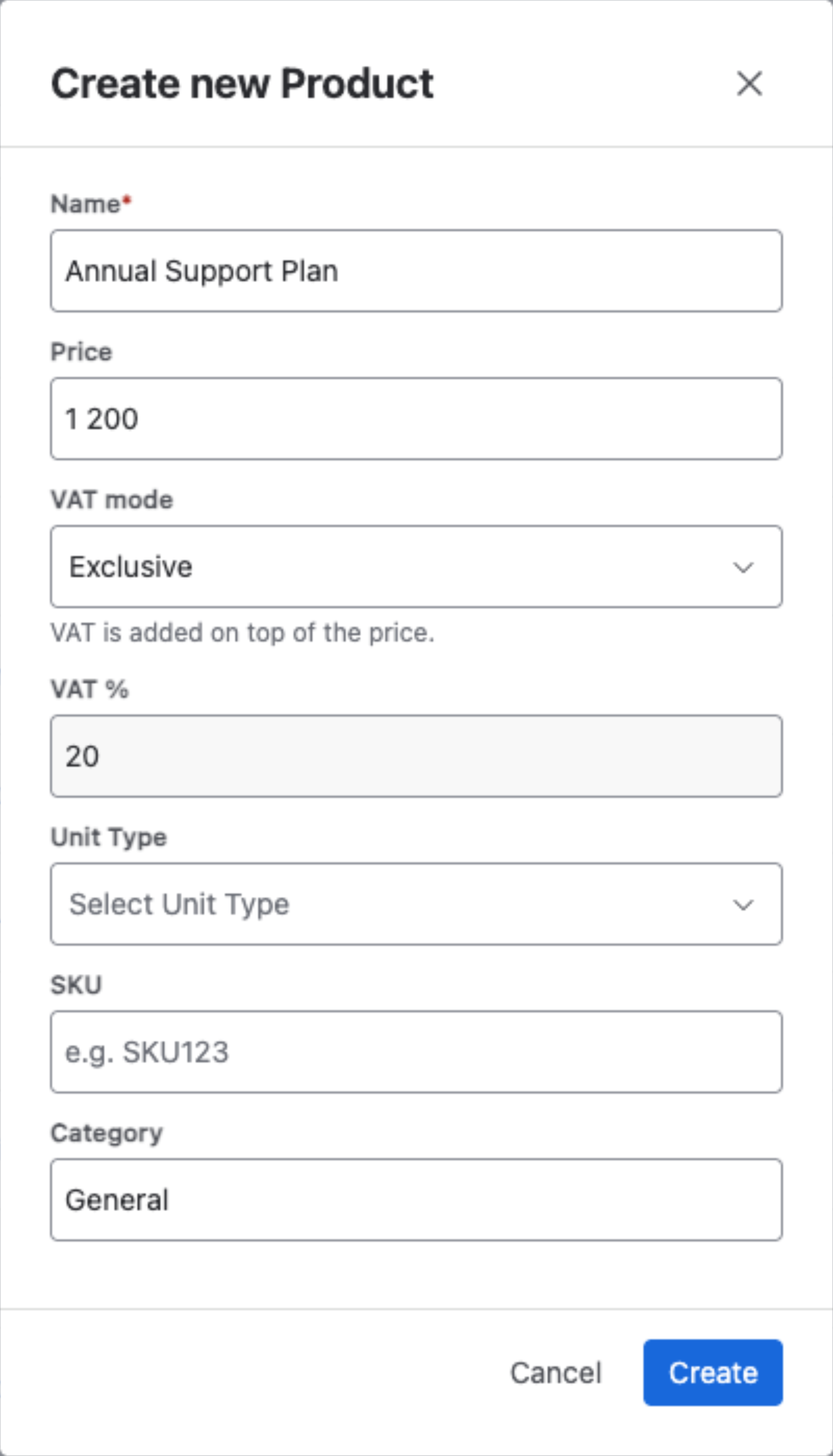
- New Products can be created with fields like:
- Name (required)
- Price
- VAT mode — None, Exclusive (VAT is added on top of the price) or Inclusive (the price already includes VAT). A new product starts with the workspace default — see General Settings.
- VAT % — the rate. It is disabled while the mode is None; with Exclusive or Inclusive it is required, and 0 is allowed for zero-rated products.
- Unit Type (e.g., License, Service, Piece)
- SKU/Code
- Category (choose existing or create new)
Products have their own full view, where you can edit details or delete a Product.
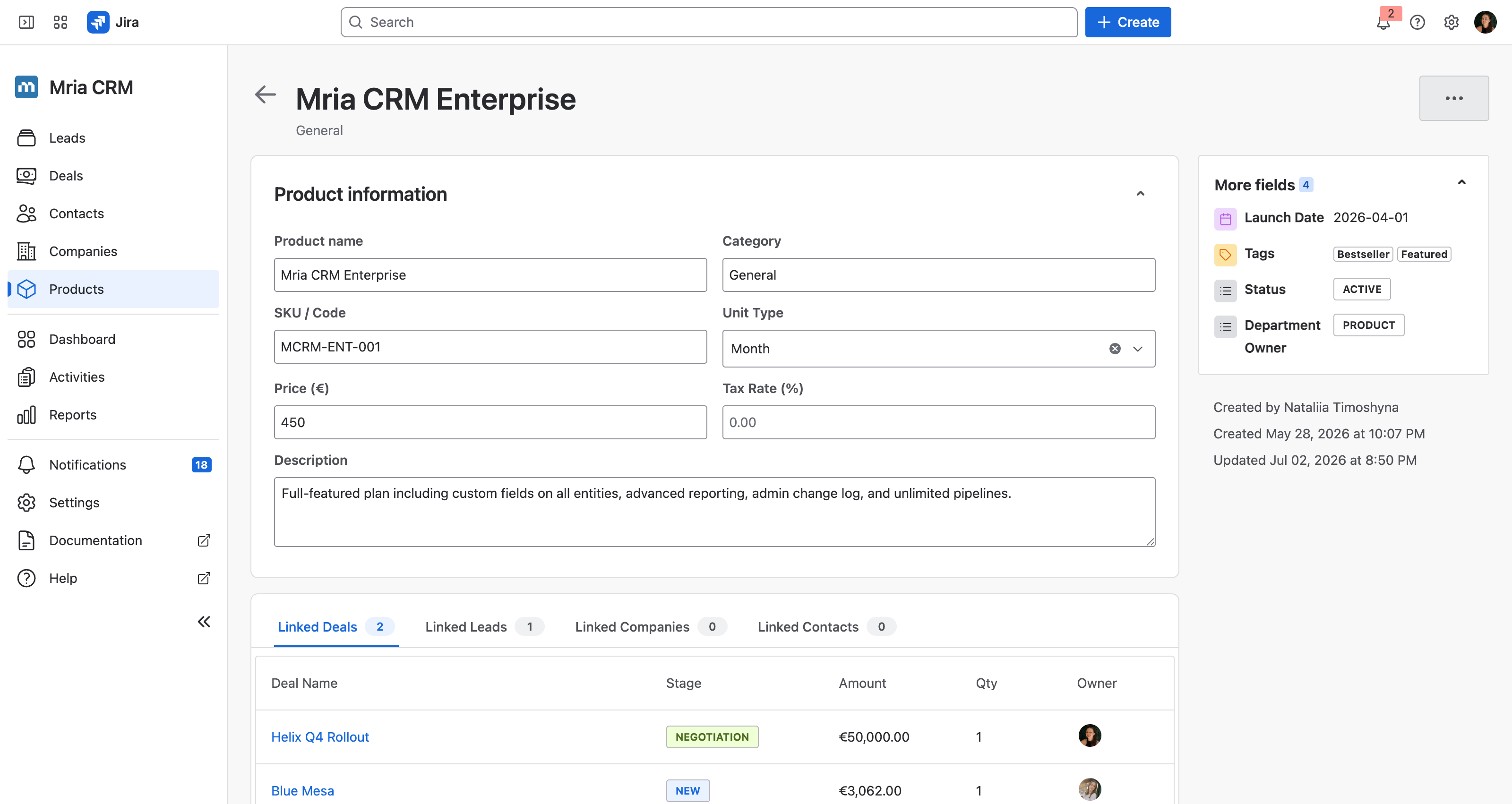
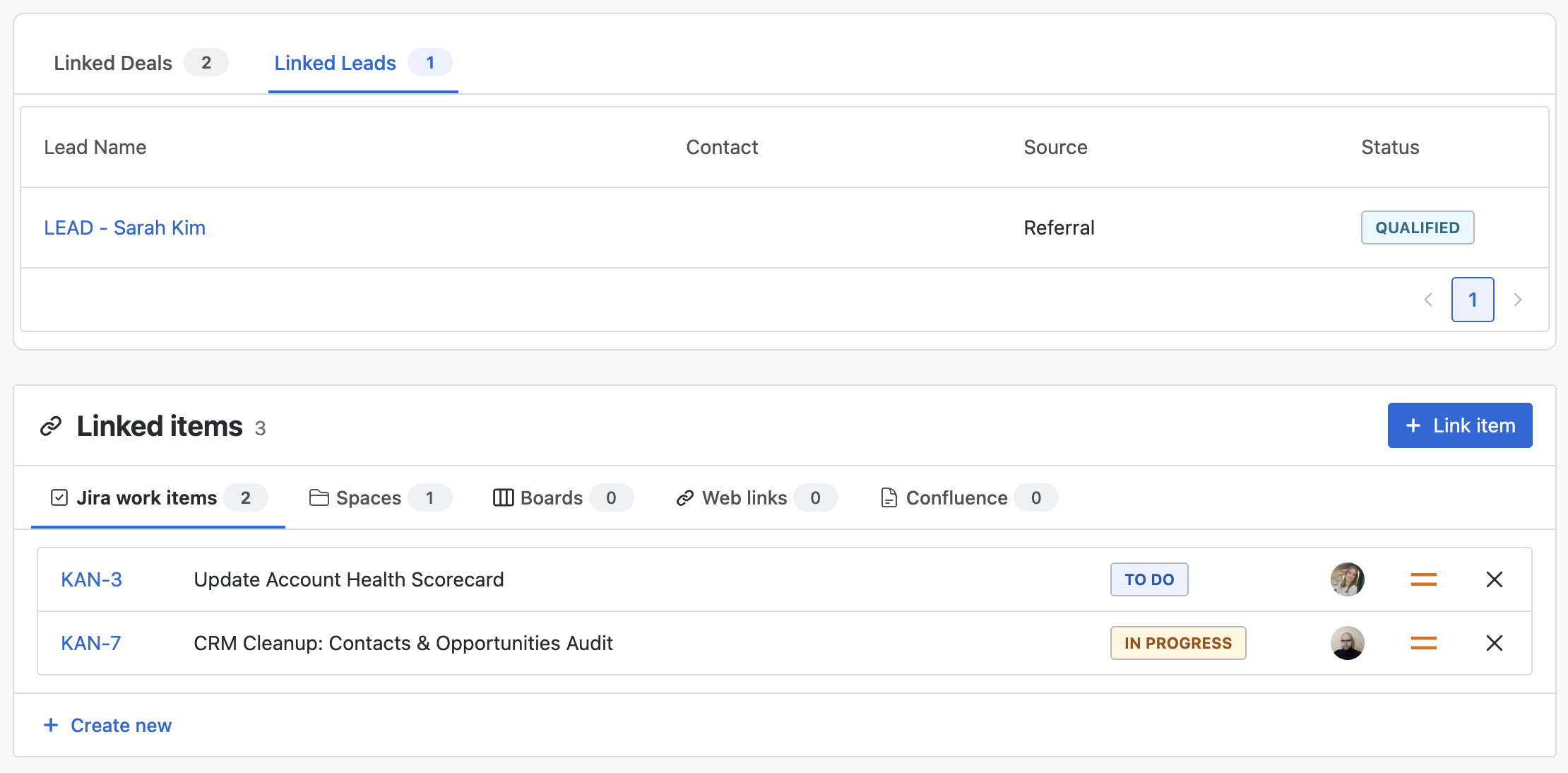
The Product full view brings everything about a Product together. Alongside the standard fields, it includes:
- Description — a free-text field for a fuller, sales-facing summary of the Product.
- Linked items — attach Jira work items, Confluence pages, and web links directly to a Product, just like on Leads, Deals, Contacts, and Companies.
- Linked Leads, Deals, Contacts, and Companies — the full view shows the Leads, Deals, Contacts, and Companies a Product is linked to, so you can see where it’s being used without opening each record.
📌 You can also link Products to Contacts and Companies — add a Product from a Contact or Company record, and it will appear here in the Product’s full view.
Arranging this page
Administrators can move, hide or collapse the blocks of the Product page and reorder the fields in Details — in Settings → Layouts, or from ⚙ Configure at the foot of the side panel. See Layouts. Product categories and unit types are managed in Settings → Products — see Configurable Lists.
3. Custom Fields on Products #
Custom fields let your team capture extra information on every Product beyond the standard fields. For example, you can add Description for a sales-facing summary, Status to flag whether a product is Active / Beta / Deprecated, Launch Date to track when the product became available, or Tags to mark Bestsellers and Featured items.
Custom fields are managed by administrators under Settings → Custom Fields. See Custom Fields for the full setup guide and field type reference.
Once a custom field is created on the Product entity, it shows up in several places:
- Product full view — populated values appear in the More fields section on the right-hand panel. Click any field to edit inline.
- Table view — open the Customize table menu and toggle any custom field on to add it as an optional column.
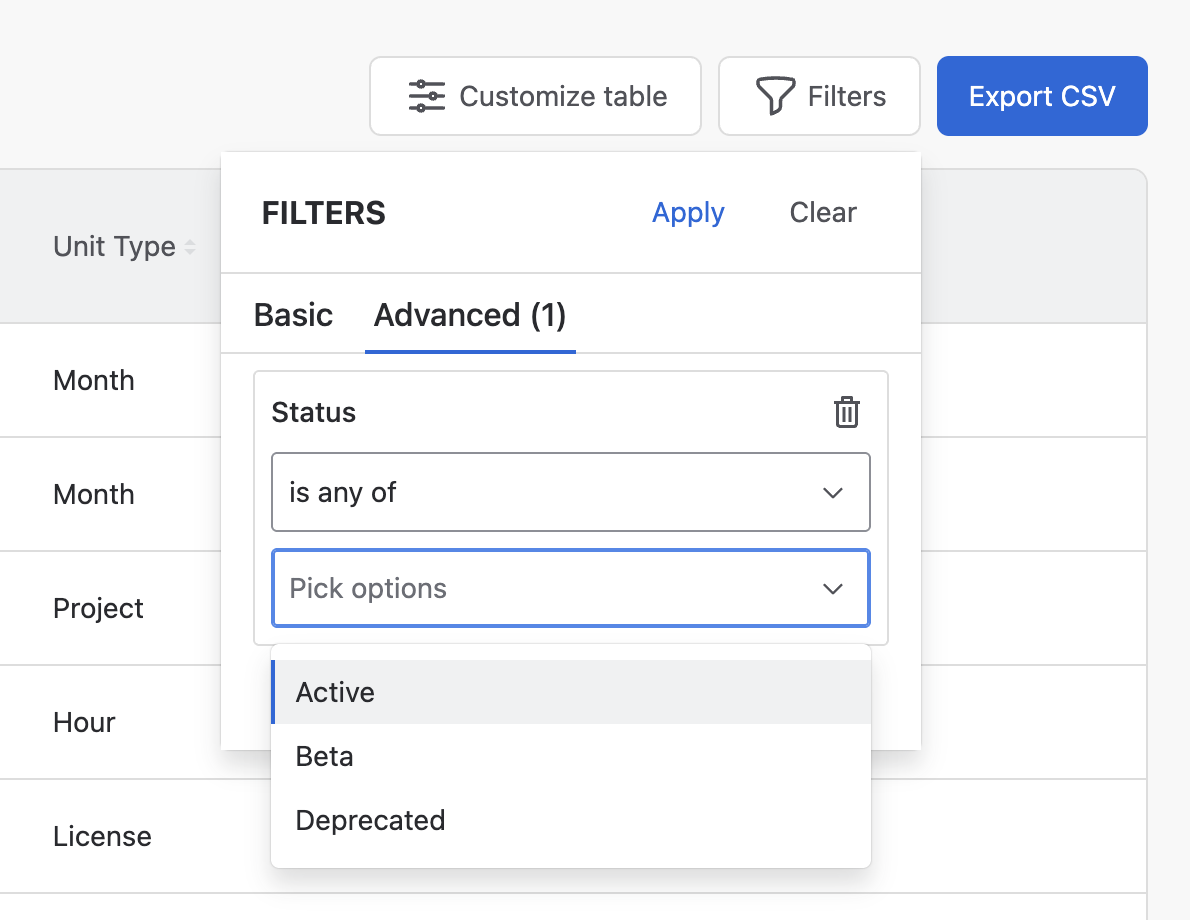
- Filters panel — every custom field appears under the Advanced tab as a filterable criterion (see Filtering Products below).
- CSV export — visible columns are included in the export, so custom fields show up in the CSV when they’re toggled on in the table view.
- Products Import — custom fields are also mappable when bulk-importing Products from CSV/XLSX. See Products Import.
4. Filtering Products #
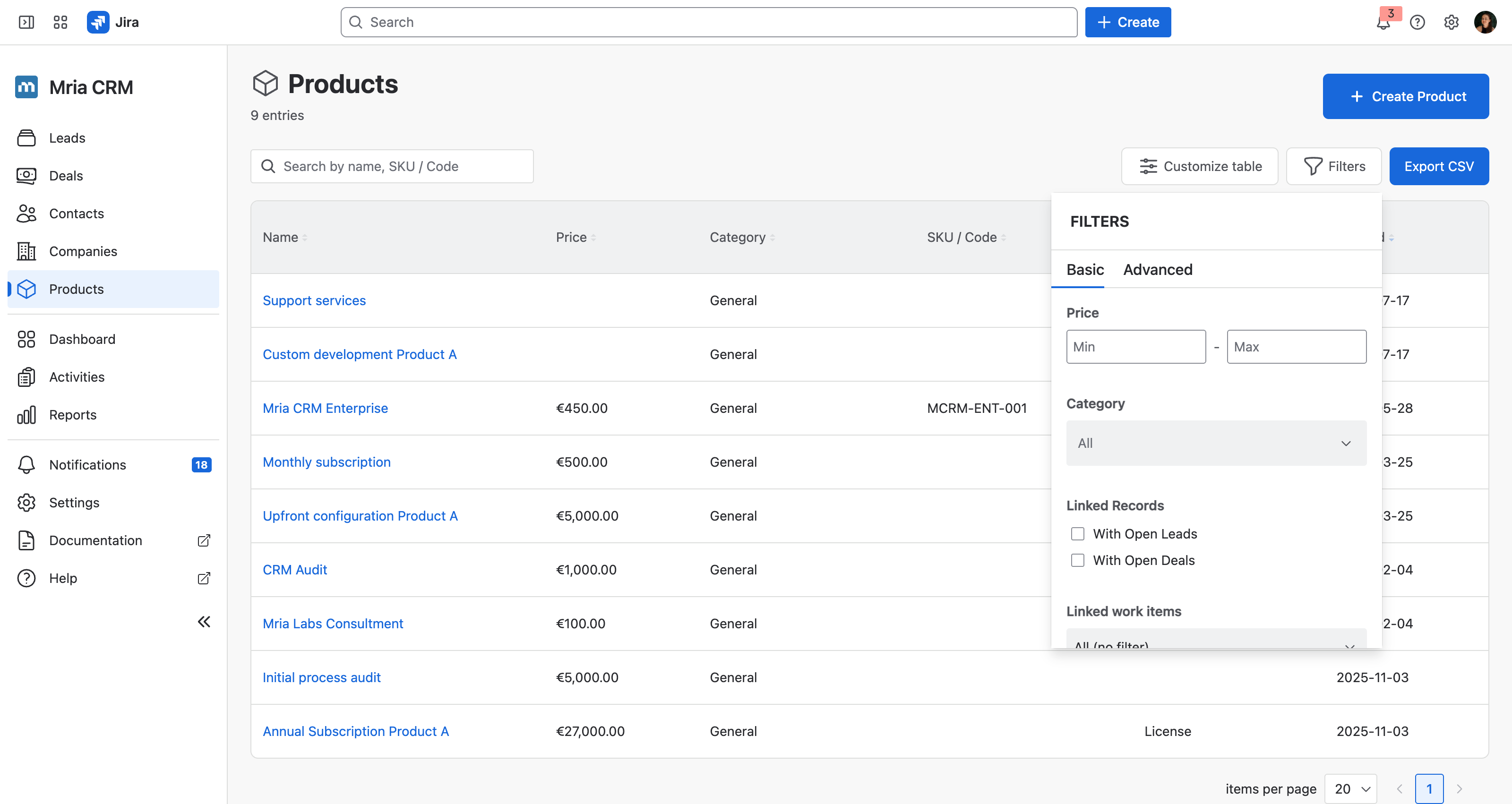
The Filters panel lets you narrow down the Products list. It has two tabs:
- Basic — the standard filter set, always available.
- Advanced — every custom field on the Product is automatically available here as a filterable criterion. The available comparators depend on the field type (for example, dropdowns use is any of, numbers use is greater than, dates use is on or before).
Available Basic filters include:
- Price range (min–max)
- Category
- Linked Records — show only Products With Open Leads or With Open Deals.
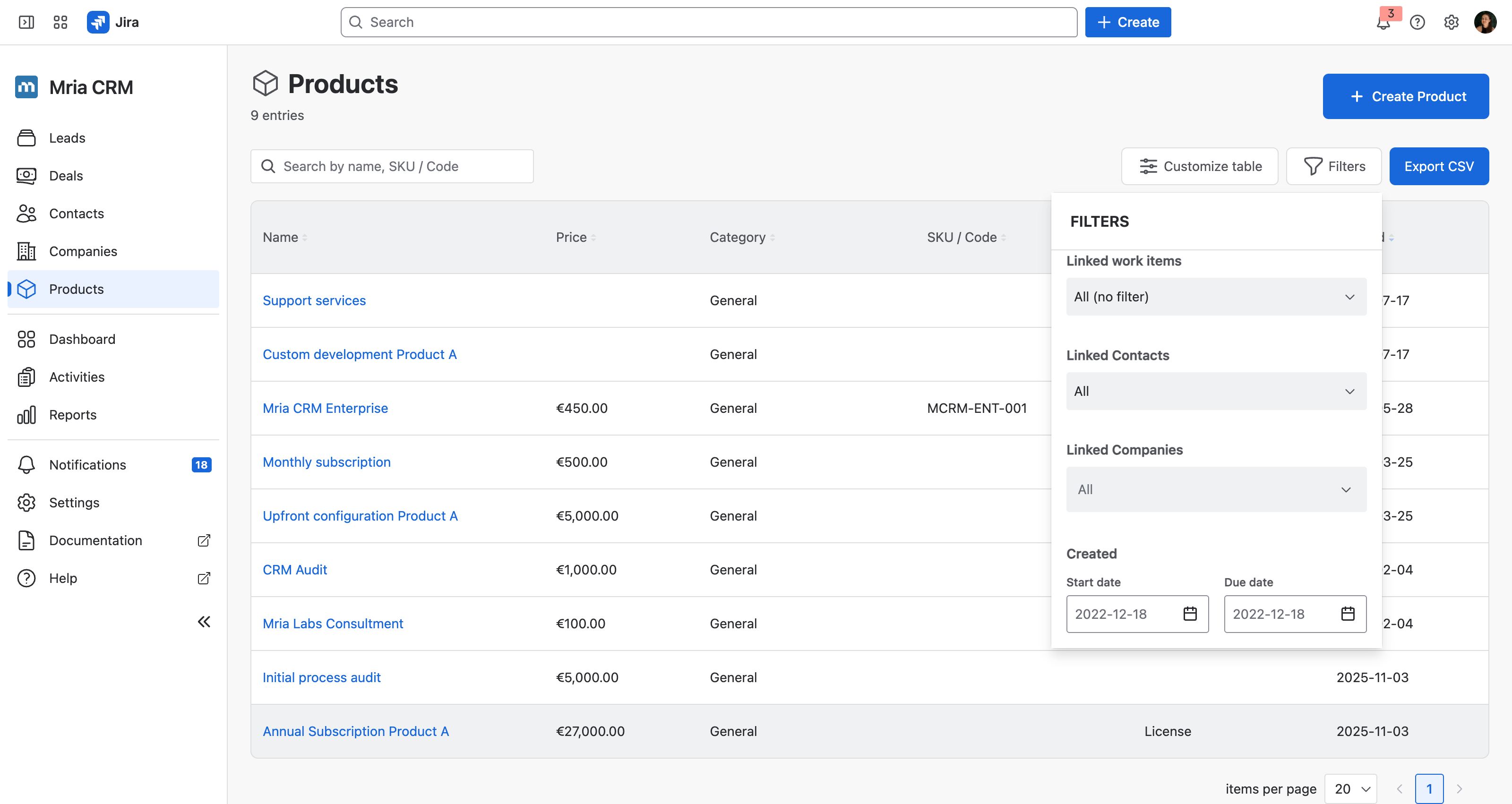
- Linked work items — filter by Products linked to Jira work items.
- Linked Contacts — filter by the Contacts a Product is linked to.
- Linked Companies — filter by the Companies a Product is linked to.
- Import files — filter Products by the import file they came from.
- Created date (date range)
📌 Filters are optional and don’t change the underlying Products data — they only affect how the list is displayed.
5. Products in Leads #
Products can also be linked to Leads. Since Leads do not have an amount, Products serve an informational role here — they show what the Lead is interested in.
- This linking becomes especially important during Lead conversion.
- When you convert a Lead to a Deal, the linked Products are carried over, helping to shape the new Deal with the right context.
6. Products in Deals #
Products can also be linked to Deals. When managing Products inside a Deal:
- You can add one or multiple Products from your catalog.
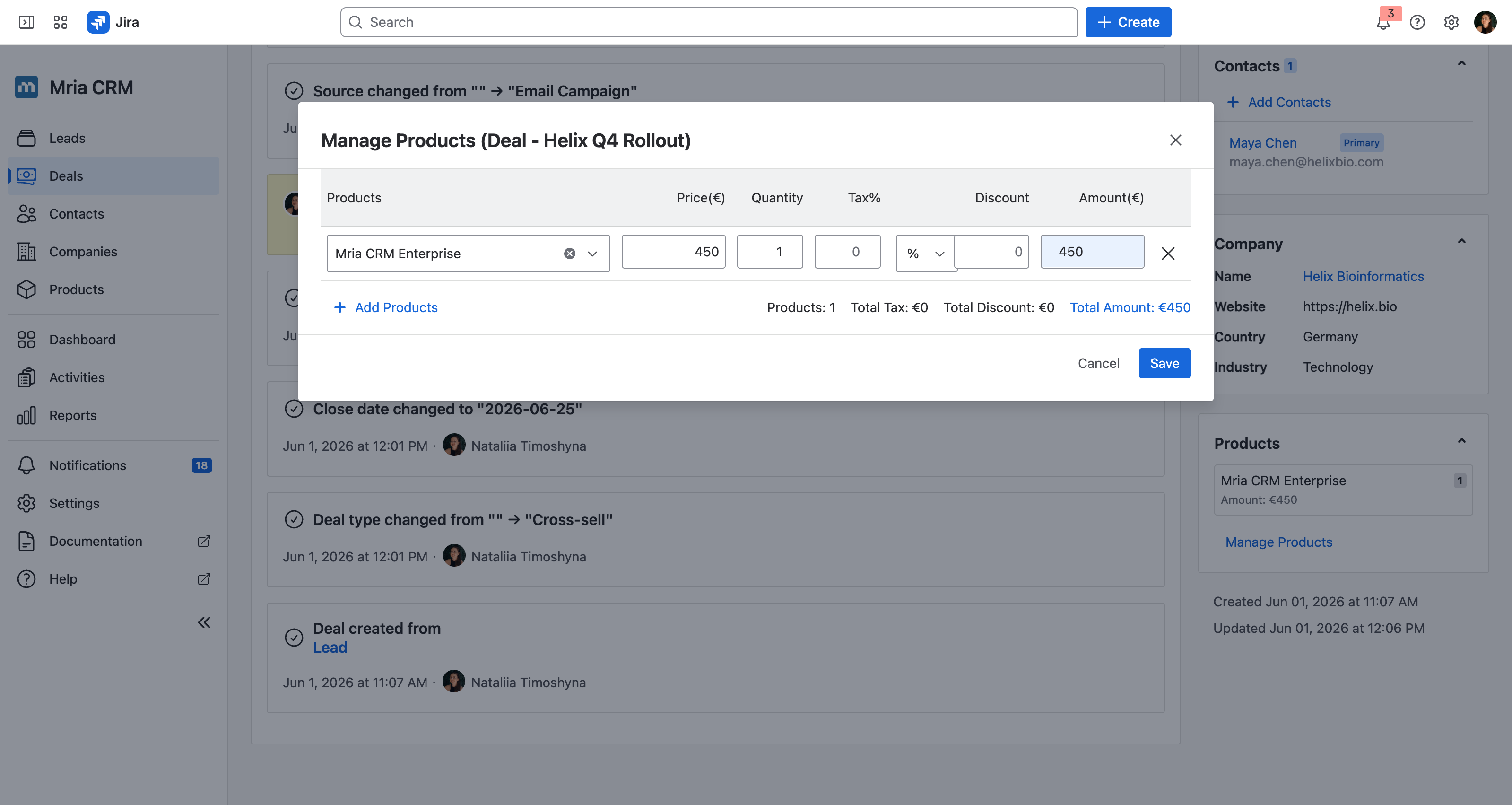
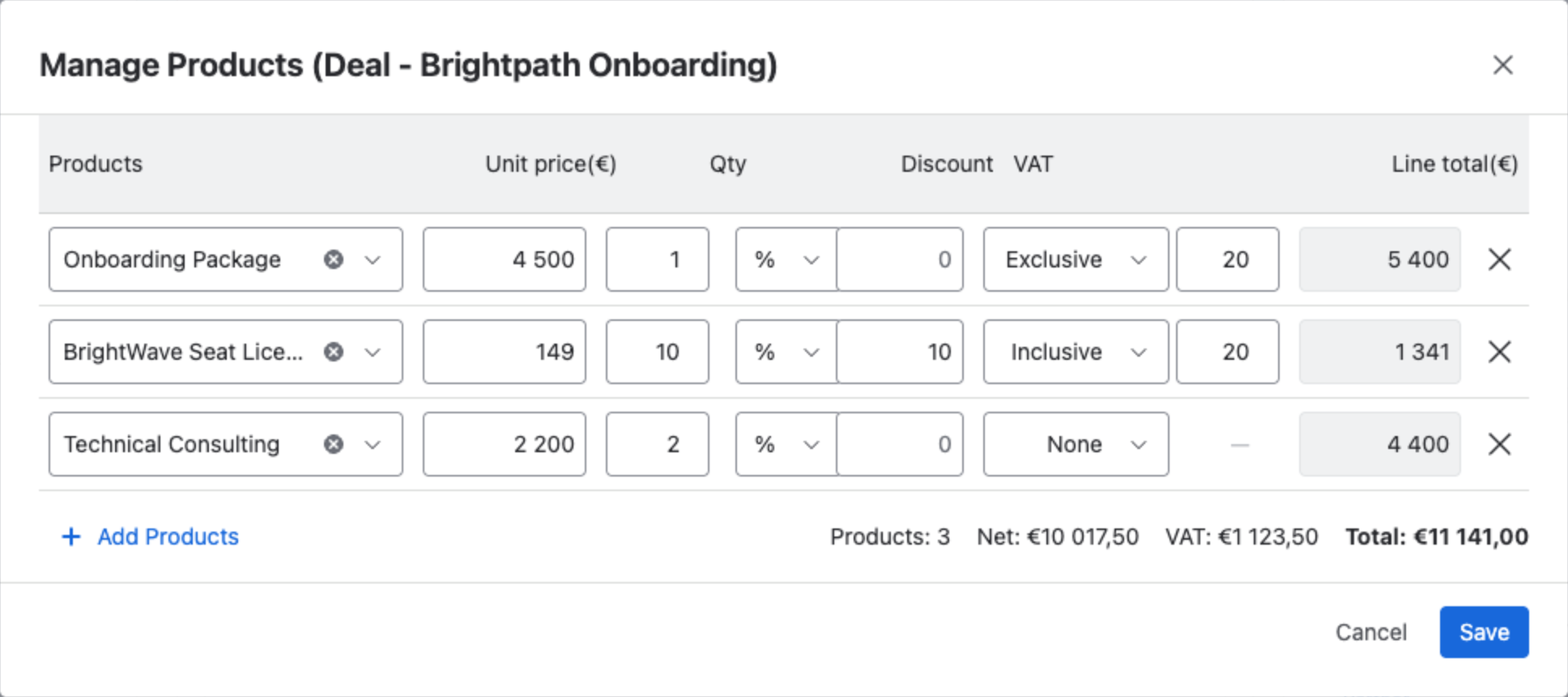
- Each Product added to the Deal can have its own price adjustment, discount, VAT and quantity.
- A new line takes the product’s VAT mode and VAT %; change either on the line. Editing the product later does not change lines already on Deals.
- These changes do not affect the original Product record in the Products module — they apply only within this specific Deal.
How a line total is calculated #
The discount always comes off first. VAT is then worked out from the line’s VAT mode. With base = Qty × Unit price × (1 − Discount%) and r = VAT % ÷ 100:
| VAT mode | Net | VAT | Line total |
|---|---|---|---|
| Exclusive | base | base × r | base × (1 + r) |
| Inclusive | base ÷ (1 + r) | base − Net | base |
| None | base | 0 | base |
Worked example. A product priced 120.00 with VAT 20%, quantity 1, no discount:
| VAT mode | Net | VAT | Line total |
|---|---|---|---|
| Exclusive | 120.00 | 24.00 | 144.00 |
| Inclusive | 100.00 | 20.00 | 120.00 |
Discount first, in every mode. On a line priced 149 × 10 with a 10% discount and VAT 20% Inclusive, the base is 1,341.00; Net is 1,117.50 and VAT 223.50. Net and VAT are rounded per line to the currency’s precision, then added up.
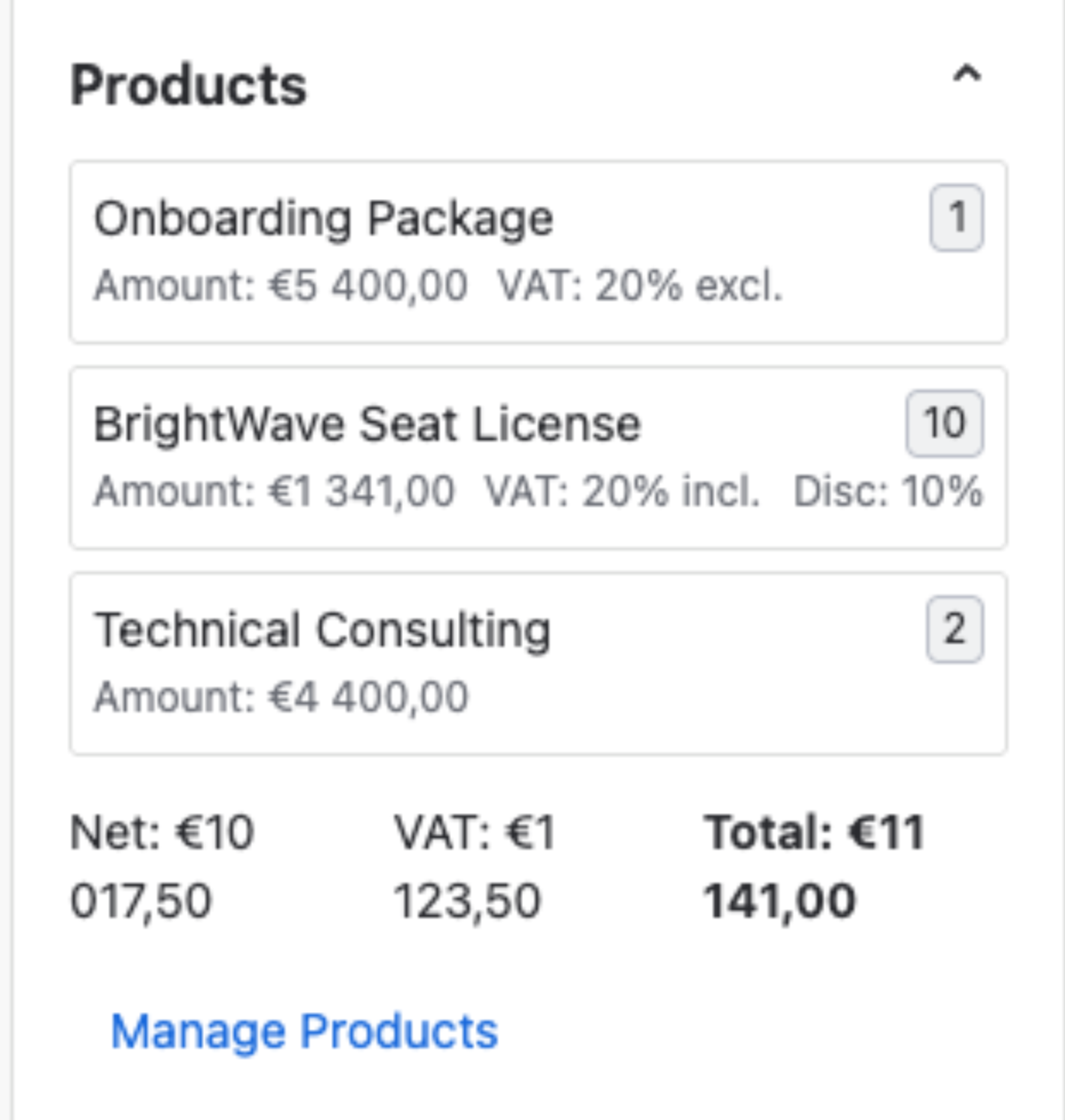
- The Deal’s Products block lists every line with its amount and VAT, and ends with Net, VAT and Total. Lines in different VAT modes can sit on one Deal. Total is the Deal amount — the pipeline, weighted amount, dashboards and reports keep using it.
- If the total amount of Products differs from the current Deal amount, the CRM will suggest updating the Deal amount. You can either:
- Keep Current (leave the original Deal amount unchanged), or
- Update Amount (synchronize Deal amount with Products total).
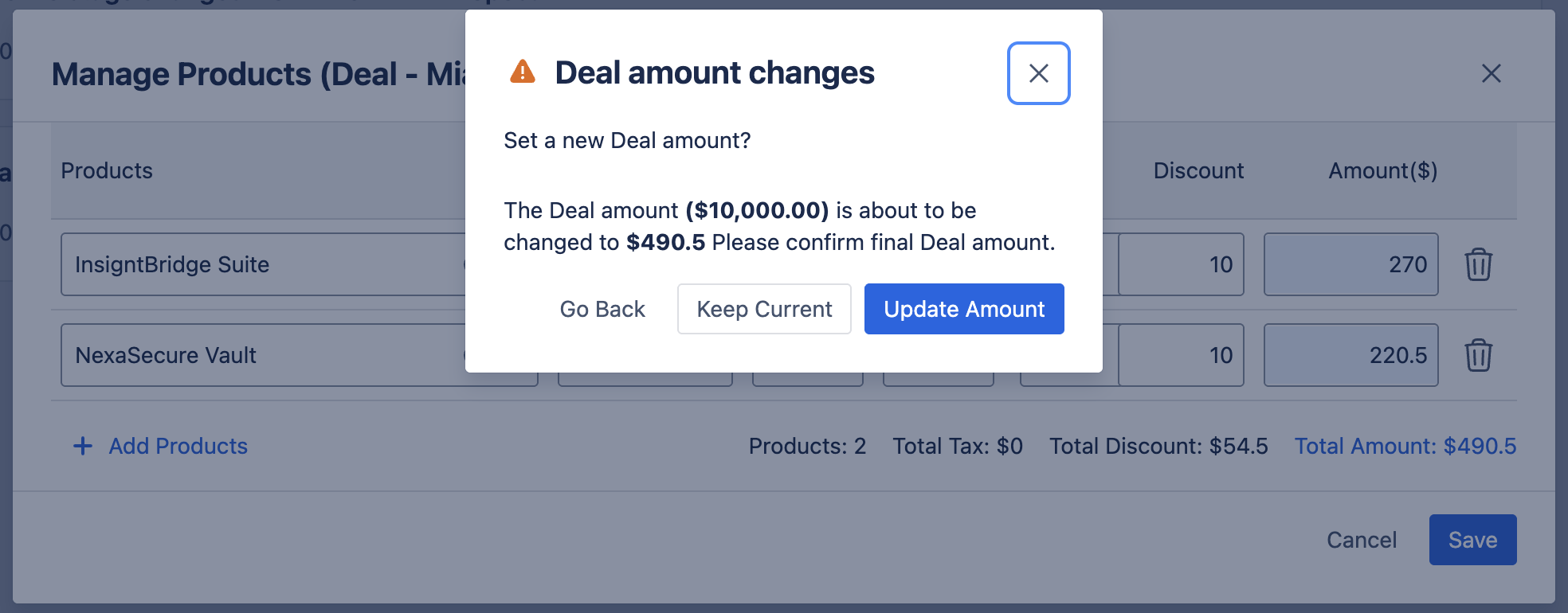
This ensures flexibility — you can maintain catalog pricing while still customizing each Deal.
7. Deleting a single Product #
To delete one Product, open the ... menu in the top right corner of a Product full view and select Delete.
- ❌ Products linked to Leads or Deals cannot be deleted. You’ll see a warning.
- ✅ Products not linked anywhere can be hard deleted.
8. Bulk actions #
From the table view you can update or delete many Products at once — re-categorizing a range, correcting a VAT rate across a batch, or clearing out an import that went wrong.
Selecting Products #
- Apply Filters if you want to target a specific set (for example by Category or by the Import file the Products came from).
- Tick the checkbox on each row. The header checkbox selects every Product on the current page.
- A bulk actions bar appears at the bottom showing the count, for example 2 selected. Click Select all N in that bar to extend the selection to every Product matching your current filters.
- The × at the end of the bar clears the selection.
The count in the bar is the number you’re about to act on. Read it before you click anything, especially before Delete.
Edit fields #
Click Edit fields to open a panel that applies your changes to every selected Product. Every field starts at Keep as is, so nothing changes unless you deliberately set it.
Fields available on Products:
- Category
- Unit Type — with a Clear link to empty it across the selection.
- VAT mode and VAT %
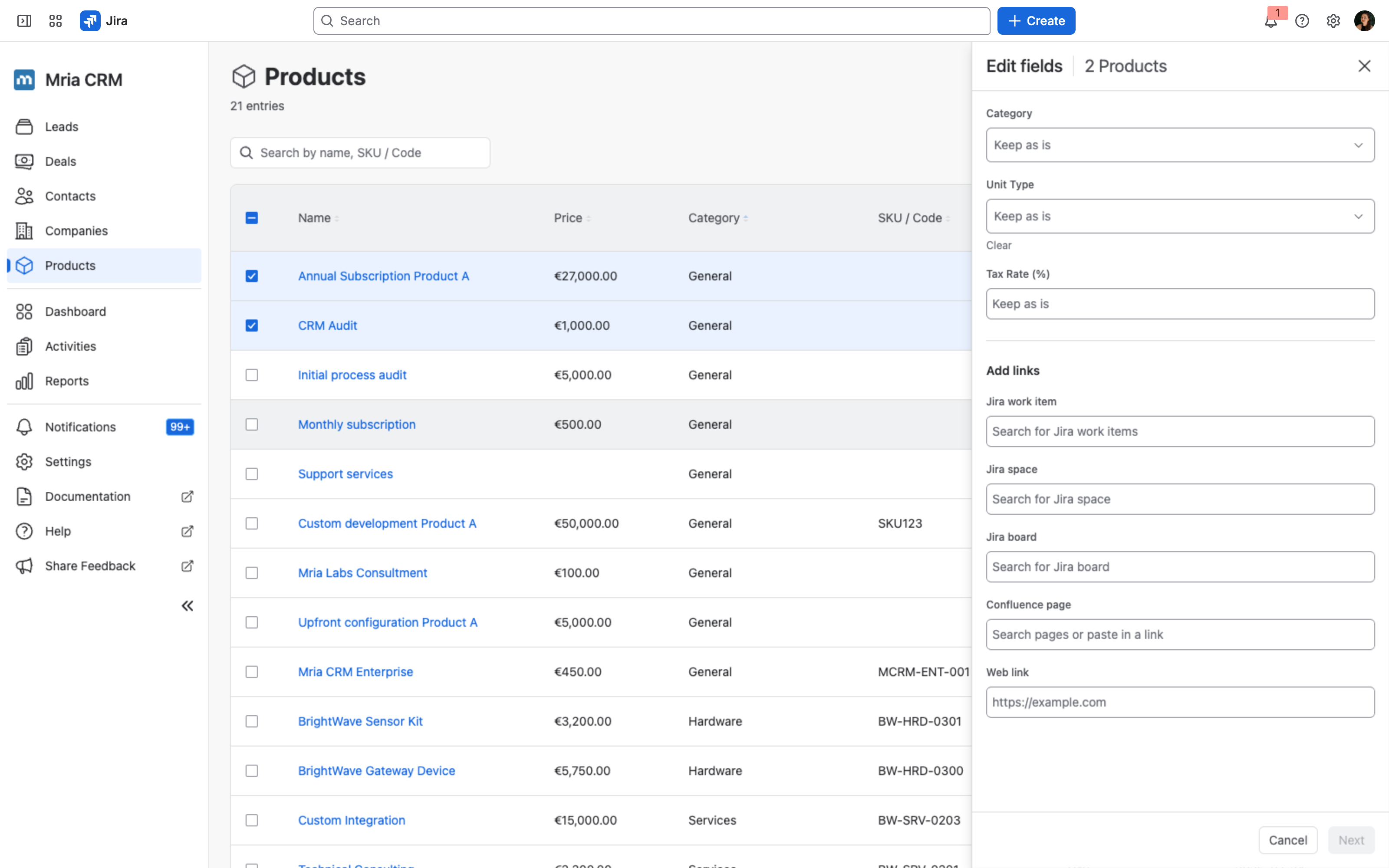
Below the fields, Add links attaches the same link to every selected Product — a Jira work item, Jira space, Jira board, Confluence page, or Web link.
Click Next to review, then confirm to apply.
Price, Name, and SKU/Code are not bulk-editable — they are specific to each Product. A blanket price change is not something you’d want a single click to perform, so edit those on the individual record or re-import the catalog. VAT mode and VAT % are bulk-editable, which is what you want when a VAT rate changes. Setting VAT % alone skips products whose mode is None — set the mode to Exclusive or Inclusive in the same edit.
Delete #
Click Delete in the bulk actions bar and confirm.
Linked Products are skipped, not blocking. The single-delete rule applies to every record in the batch: a Product still linked to a Lead or Deal is left in place, and Mria CRM continues with the rest of the selection instead of failing the whole operation. Unlink the Product from those records first if you need it removed.
Bulk delete is permanent and cannot be undone. Review your filters and the selected count before confirming.


