When a Lead is qualified, it can be converted into a Deal. Conversion allows you to track opportunities in your sales pipeline while keeping associated Contacts, Companies, and Activities connected.
Case 1: Lead with Linked Contact and Company #
If the Lead already has a Contact and Company linked, they are automatically used in the conversion process.
Steps to Convert a Lead:
- Open the Lead you want to convert and click Convert.
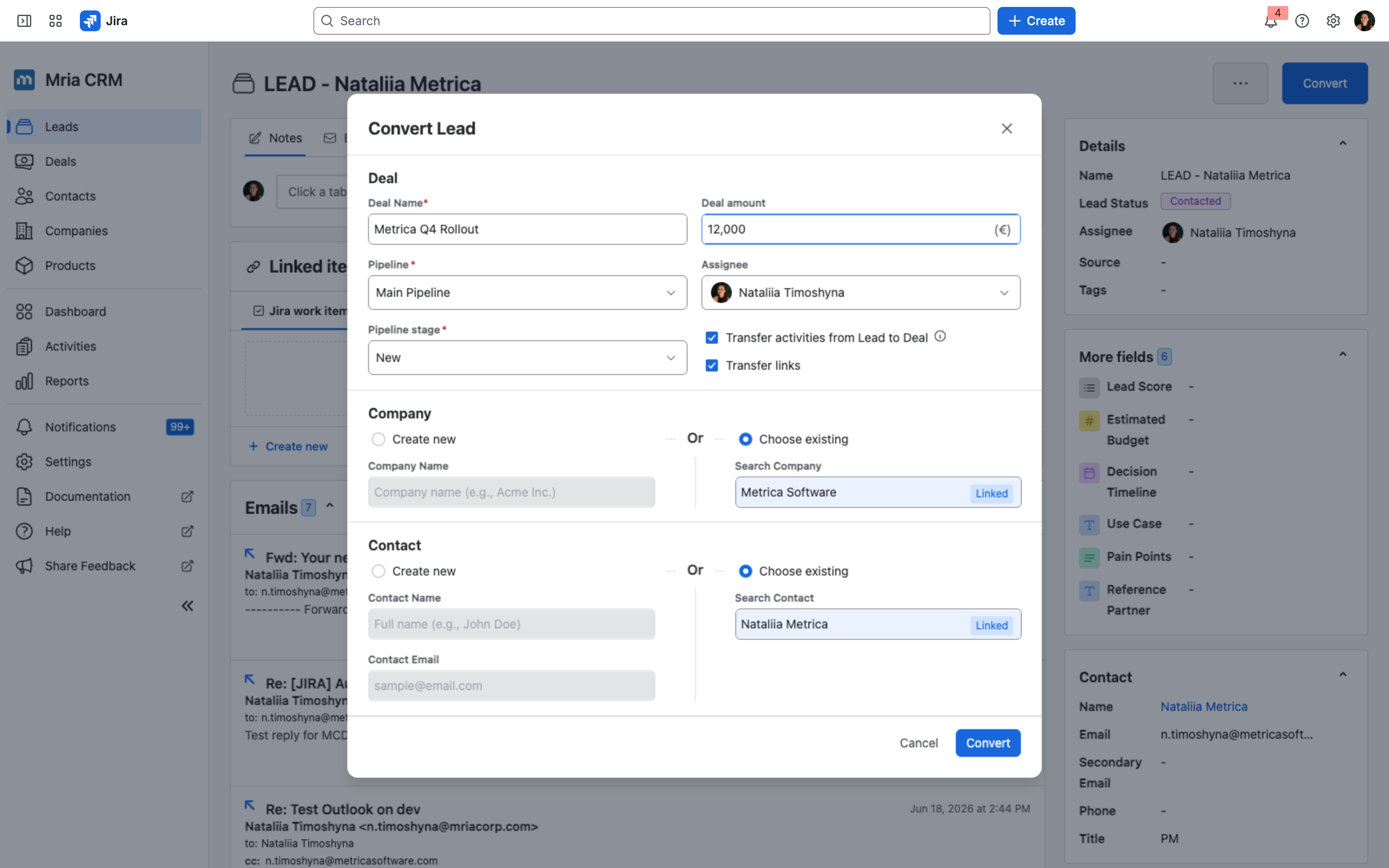
- In the Convert Lead window, fill in the Deal details:
- Deal Name — required.
- Deal amount — optional, shown in the workspace currency.
- Pipeline — required; which pipeline the Deal belongs to.
- Pipeline stage — required; the starting stage, for example New or Discovery.
- Assignee — who becomes responsible for the Deal.
- Under Company and Contact, the linked records are already chosen — Choose existing is pre-selected and each shows a Linked badge.
- Transfer activities from Lead to Deal and Transfer links are selected by default. Leave them on to carry the Lead’s history into the Deal, or clear either box to convert without it.
- Transfer activities moves Notes, Meetings and Tasks across. Transfer links moves Web, Jira and Confluence links. Files stay on the Lead record either way.
- Click Convert.
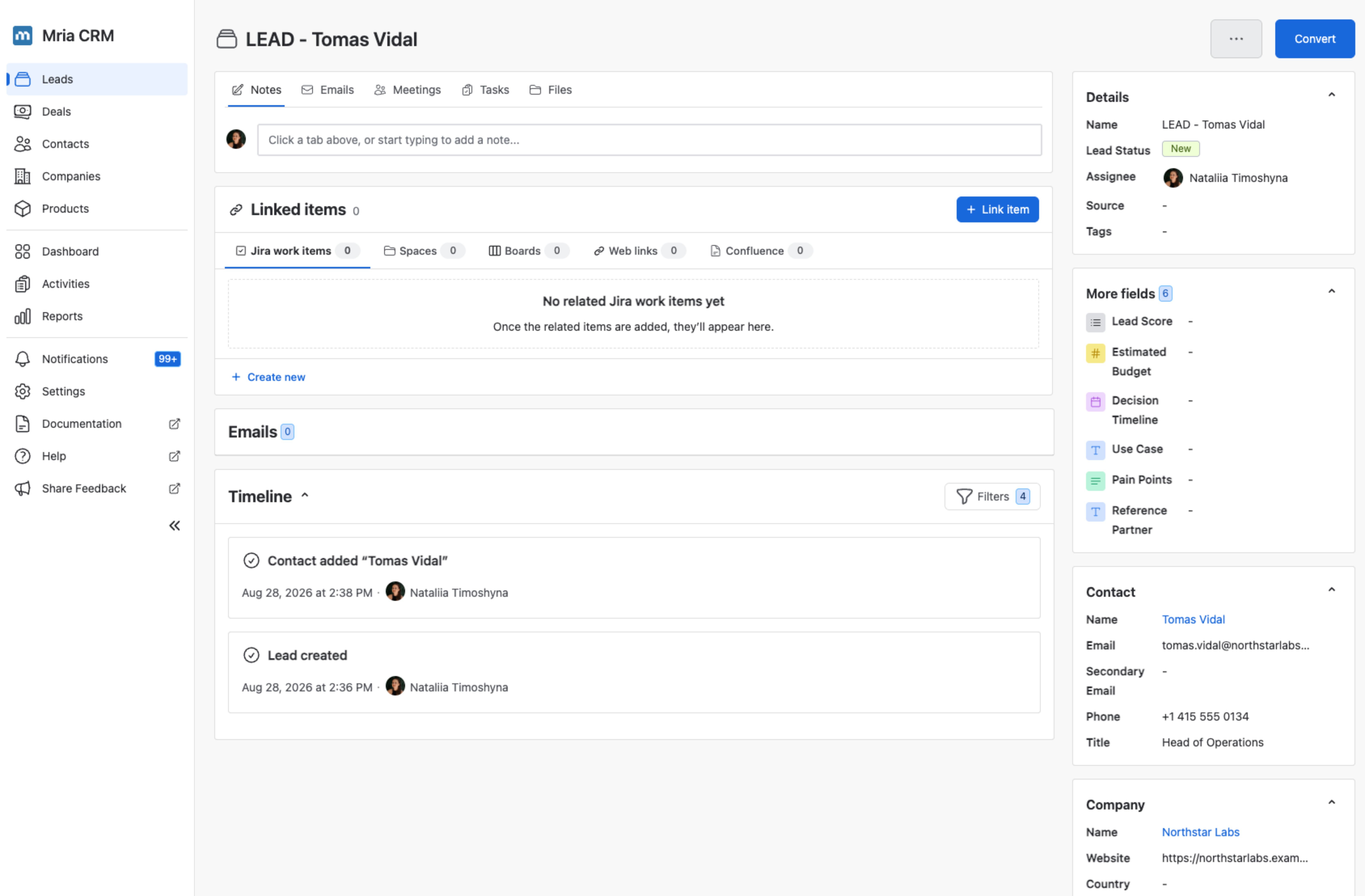
➡️ Result:
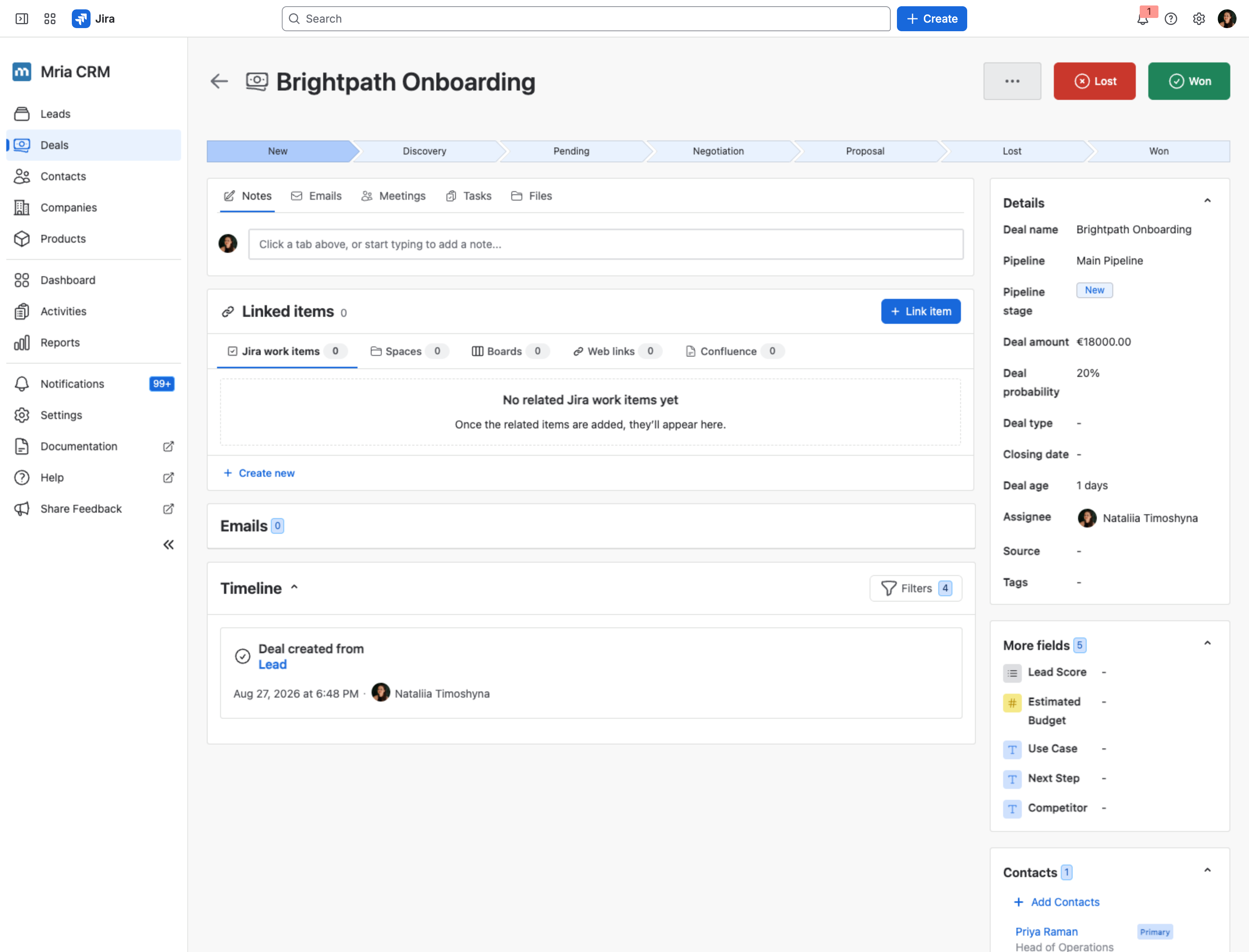
- The Lead’s status changes to Converted.
- A new Deal is created in the Deals module, with the selected details.
- If activities were transferred, they will appear in the Deal’s Planned section (for open Meetings and Tasks) and Timeline (for completed or past activities).
- The Deal inherits linked Contact and Company from the Lead.
Case 2: Lead without Linked Contact or Company #
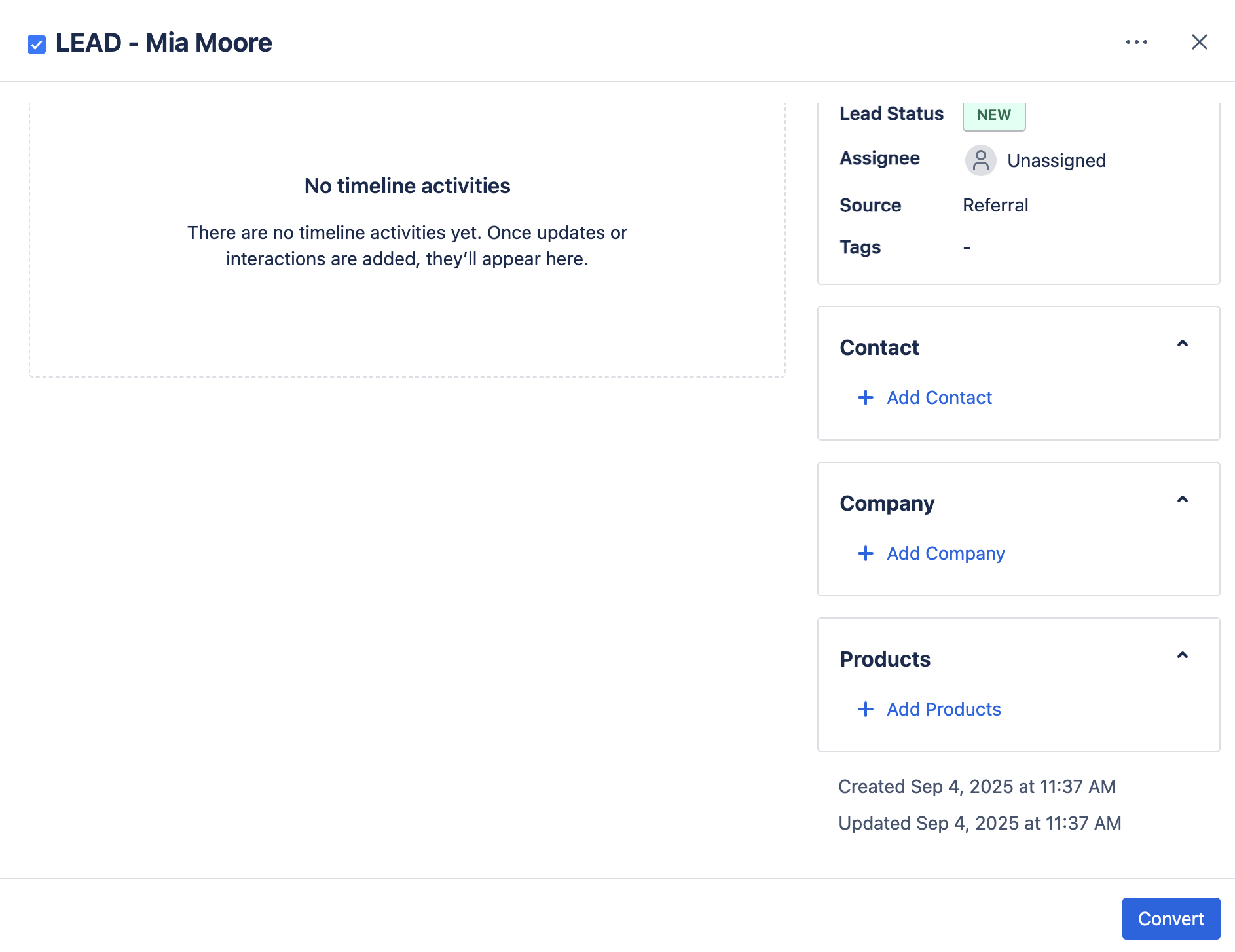
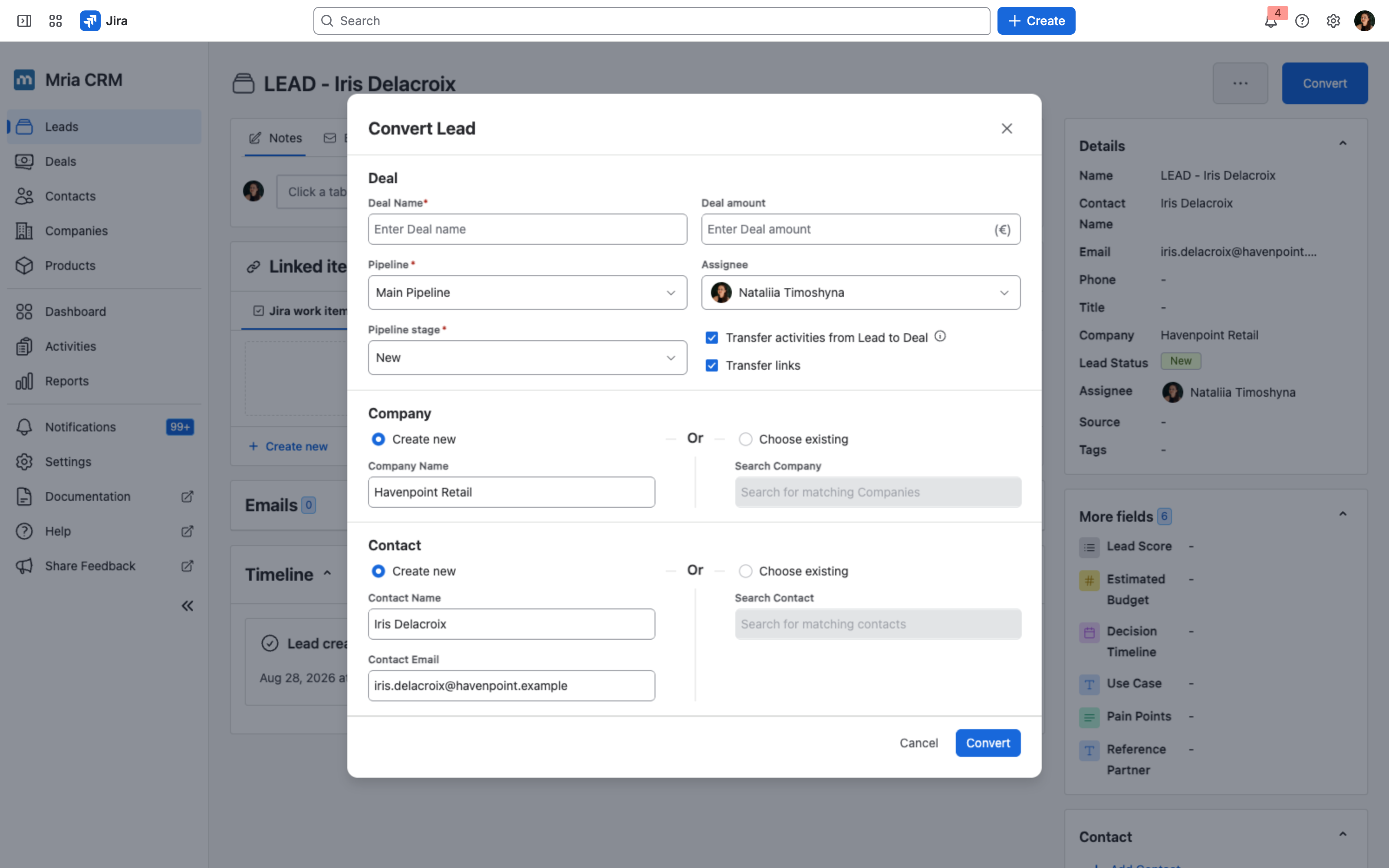
If a Lead does not yet have a Contact or Company, you can create or choose them during conversion.
- Open the Lead and click Convert.
- Fill in the Deal details — Deal Name, Pipeline and Pipeline stage are required; Deal amount and Assignee are optional.
- In the Company section, either pick Create new and enter a name — it is pre-filled from the Lead — or pick Choose existing and search for one.
- In the Contact section, either pick Create new and enter a name and email, or Choose existing and search.
- Transfer activities from Lead to Deal and Transfer links are selected by default. Clear either box if you do not want that data carried over.
- Click Convert.
➡️ Result:
- The Lead is marked as Converted and linked to whichever Company and Contact you supplied on the form.
- The Deal is created and linked to the same entities.
- Additional Contact and Company details (such as Phone, Title, Website, Industry, Country) can be added later in their full views.
Mixed Cases #
Any combination of Case 1 and Case 2 is supported. For example:
- A Lead may already have a Contact linked, but not a Company → you can create or choose a Company during conversion.
- A Lead may already have a Company linked, but not a Contact → you can create or choose a Contact during conversion.
Company and Contact are optional. On the Convert Lead form only Deal Name, Pipeline and Pipeline stage are marked required. If you leave the Company section and the Contact section empty, the Lead still converts and the Deal is created with neither attached — you can link them from the Deal later.
Where the Lead already had a Contact or a Company linked, that record is carried over, so in practice most conversions do end up with both.
Custom Field Carryover on Conversion #
If your team uses Custom Fields, values can copy from the Lead to the new Deal automatically during conversion — no need to retype them.
The rule: a custom field’s value copies over only when both of these match between the Lead and the Deal entity:
- The field names are identical.
- The field types are the same (for example, a Dropdown on the Lead won’t copy into a Short text on the Deal, even if the names match).
Custom fields that exist only on the Lead stay on the Lead record after conversion — they have nowhere to go on the Deal. Custom fields that exist only on the Deal remain empty after conversion, ready for the sales rep to fill in.
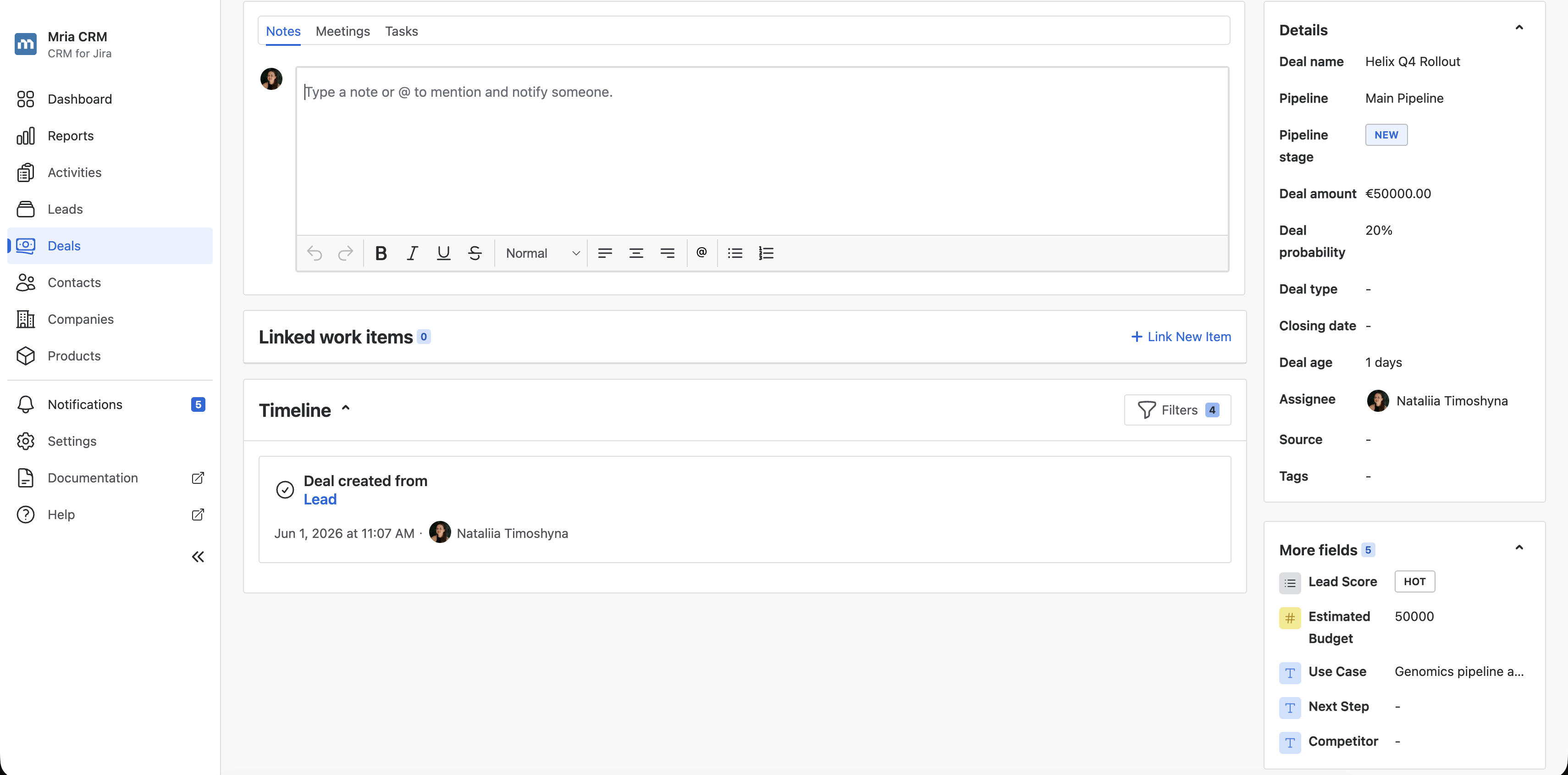
Example. A qualified Lead has five custom fields populated — Lead Score, Estimated Budget, Decision Timeline, Use Case, and Pain Points. On the Deal entity, three of those names also exist (Lead Score, Estimated Budget, Use Case), plus two Deal-specific fields (Next Step, Competitor).
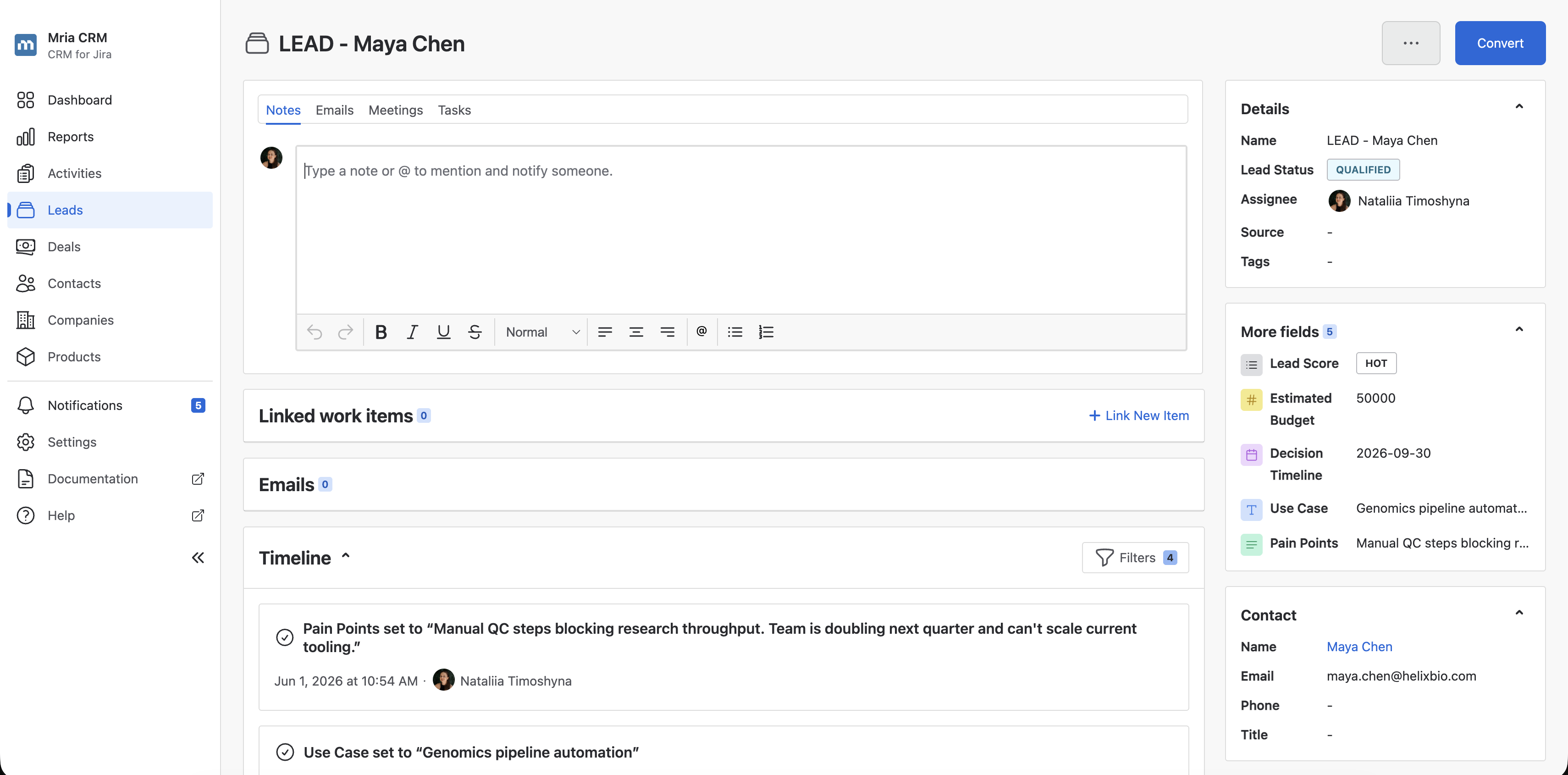
When the Lead is converted into a Deal, Lead Score, Estimated Budget, and Use Case carry their values straight over because the names and types match on both entities. Decision Timeline and Pain Points are not copied — the Deal entity doesn’t have those fields, so the values stay on the original Lead record. Next Step and Competitor remain empty on the new Deal for the sales rep to fill in as the Deal progresses.
Tip: If you want a Lead field to carry into the Deal, create a matching custom field on the Deal entity with the same name and the same type. See Custom Fields for setup instructions.
✅ After conversion, you can manage the Deal in the Deals module, move it across pipeline stages, and mark it as Won or Lost.


