The General Settings section allows administrators to configure workspace-wide CRM preferences — the currency, the default VAT for new products, and the date, time and number formats — that apply to all users within the same Jira instance.
Workspace Currency (admins only can change it) #
The Workspace Currency defines which currency is used across Mria CRM for all monetary values.
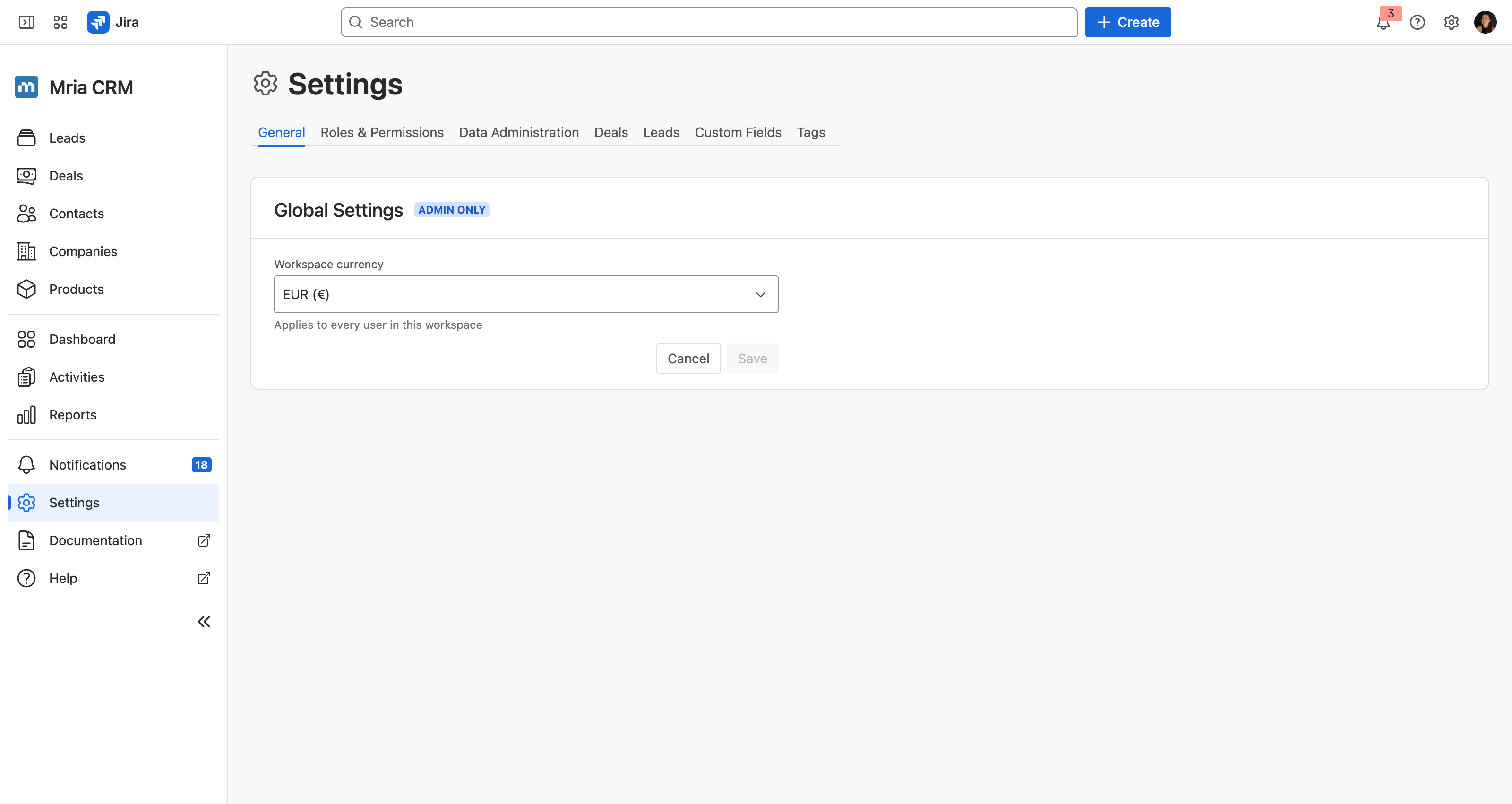
This includes:
- Deal amounts
- Product prices
- Revenue and pipeline metrics
- Reports and summaries
This setting is global and applies to all users in the workspace.
Who can see and change it #
- Everyone can see it. General Settings is View-on for User and Viewer as well as Administrator, so any role can open the page and read the workspace currency.
- Only Administrators can change it. Edit on General Settings is off for User and Viewer — they see monetary values and the current setting, but the control is not theirs to change. See Roles & Permissions.
Jira administrators are automatically assigned the Administrator role in Mria CRM and therefore have access to this setting.
How it works #
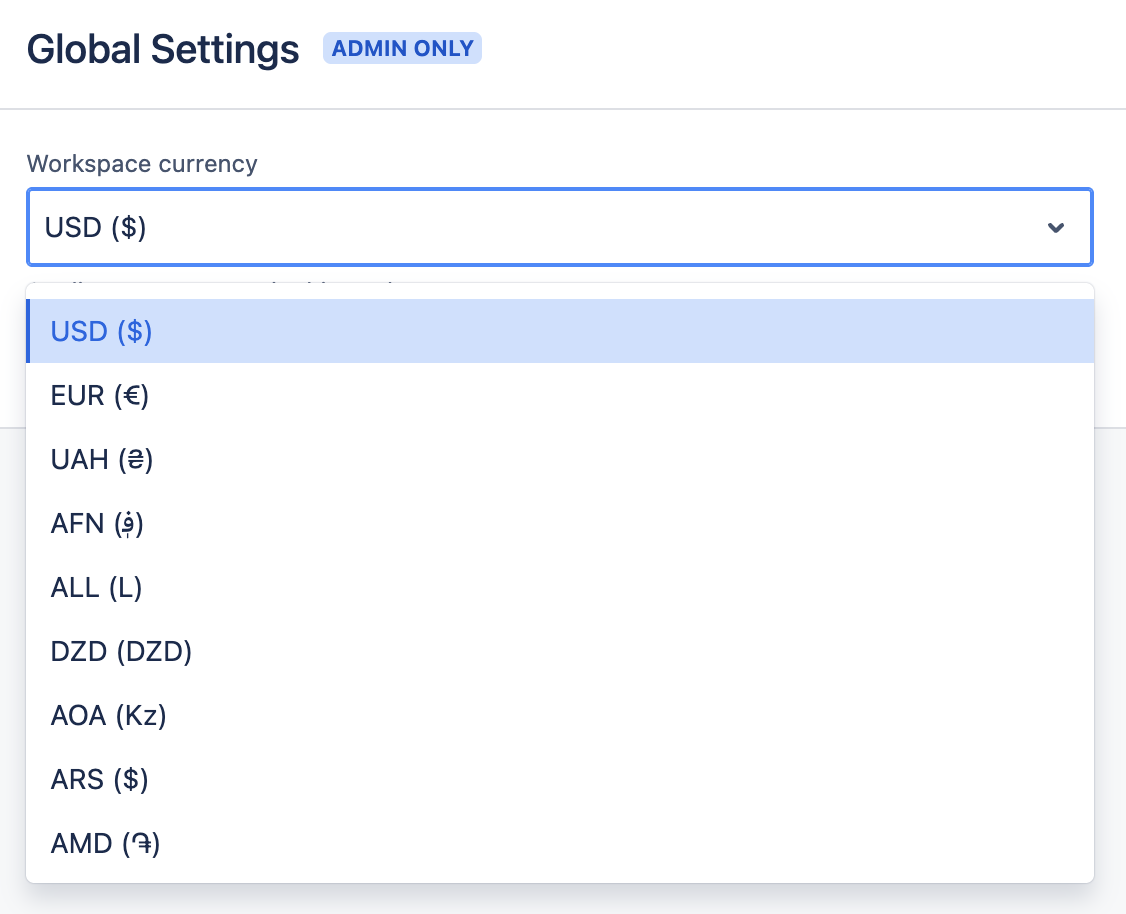
- Only one currency can be active per Jira instance.
- Once selected, the currency is used everywhere in the CRM.
- All users see the same currency — personal or per-user currencies are not supported.
Important limitations #
- Mria CRM does not convert values when the currency is changed.
- Existing amounts remain stored as-is; only the currency symbol changes.
- Multiple currencies within the same workspace are not supported.
For this reason, we recommend choosing your workspace currency before actively using Deals and Products.
Example #
If the workspace currency is set to USD ($):
- All Deals will display amounts in USD
- All Products will use USD pricing
- Reports and totals will be calculated in USD
Changing the currency later will update the display currency, but will not recalculate historical values.
Default VAT (admins only can change it) #
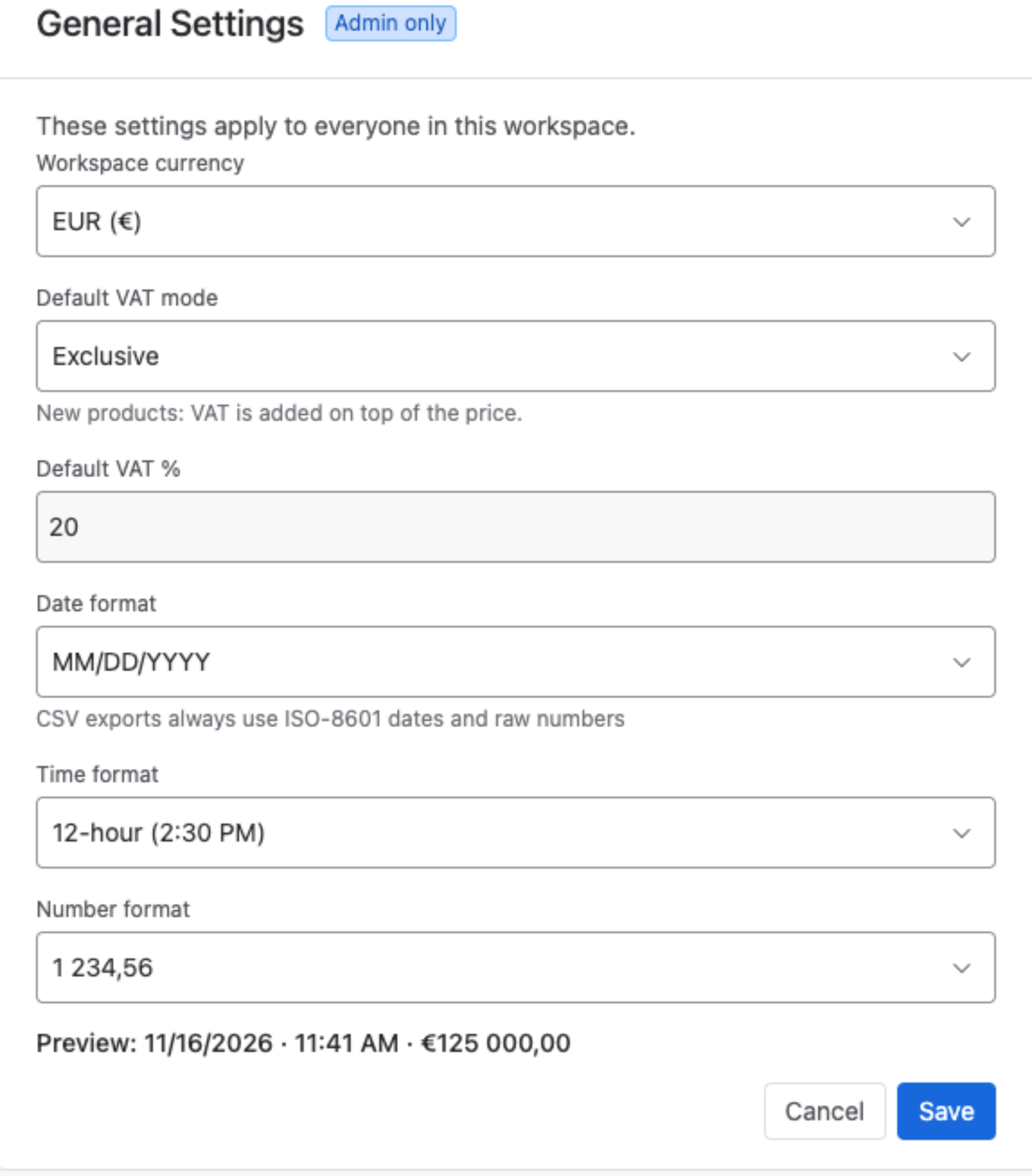
Two settings under Workspace currency decide the VAT a new product starts with:
- Default VAT mode — None, Exclusive or Inclusive. The line under it says what new products get, for example New products: VAT is added on top of the price..
- Default VAT % — the rate. Disabled while the mode is None.
- The setting starts at None, so a new product has no VAT until someone gives it one.
- It only pre-fills the Create Product form. Existing products and the lines already on Deals do not change.
- A line added to a Deal takes its VAT from the product, not from this setting.
How VAT modes work on a Deal is described on Products.
Date, Time and Number Formats (admins only can change them) #
Three settings under Workspace currency, on the same card, decide how every user sees dates, times and amounts.
| Setting | Options |
|---|---|
| Date format | DD/MM/YYYY · MM/DD/YYYY · YYYY-MM-DD · D MMM YYYY |
| Time format | 12-hour (2:30 PM) · 24-hour (14:30) |
| Number format | 1,234.56 · 1 234,56 · 1.234,56 |
Each starts at Not set (current behavior), which leaves every screen as it was. Under the three settings, Suggested from your Jira profile offers the formats your own Jira profile uses — Use suggested fills them in.
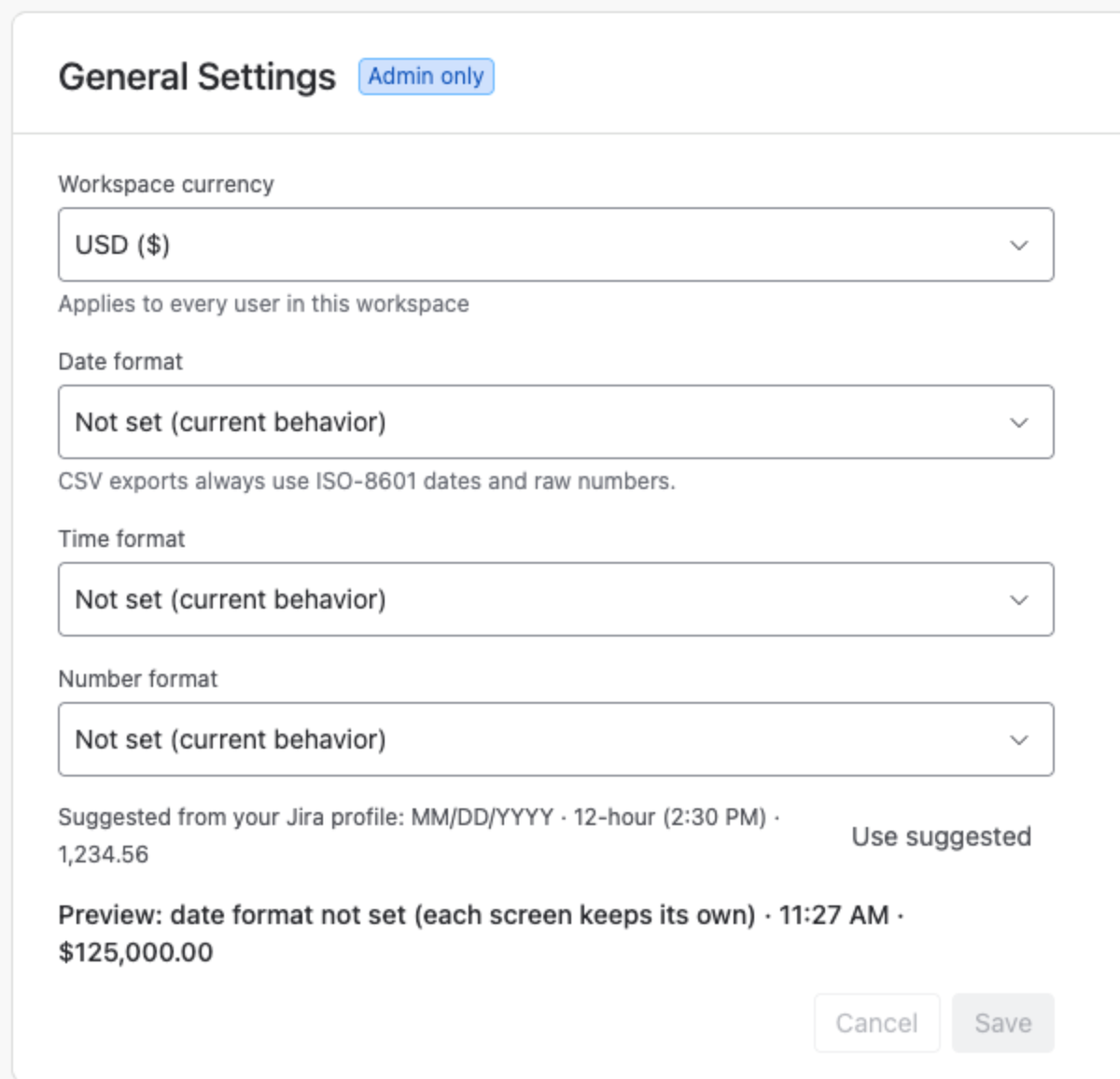
The Preview line shows a sample date, time and amount as they will appear. Click Save, and Jira confirms with Workspace settings updated successfully.
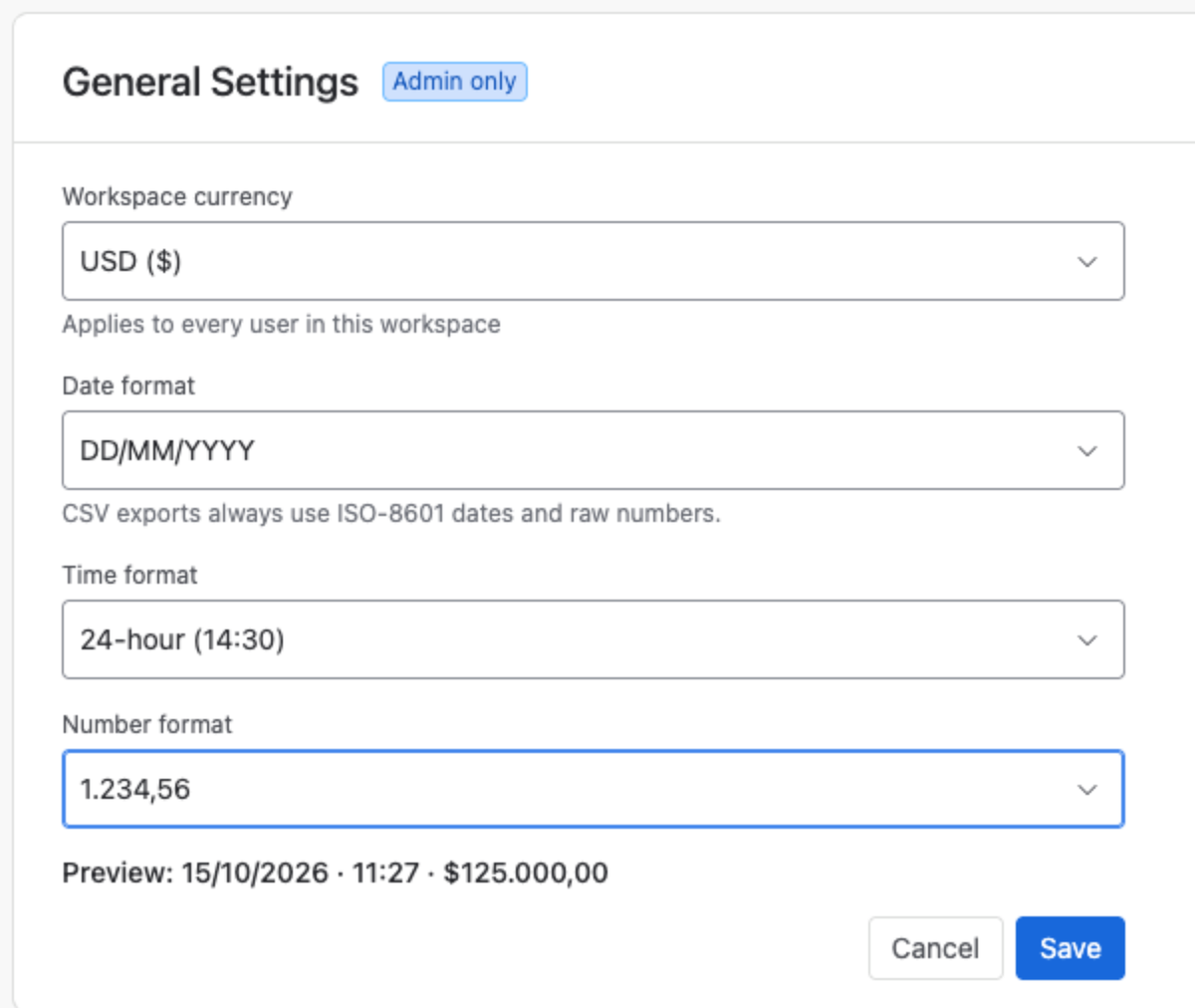
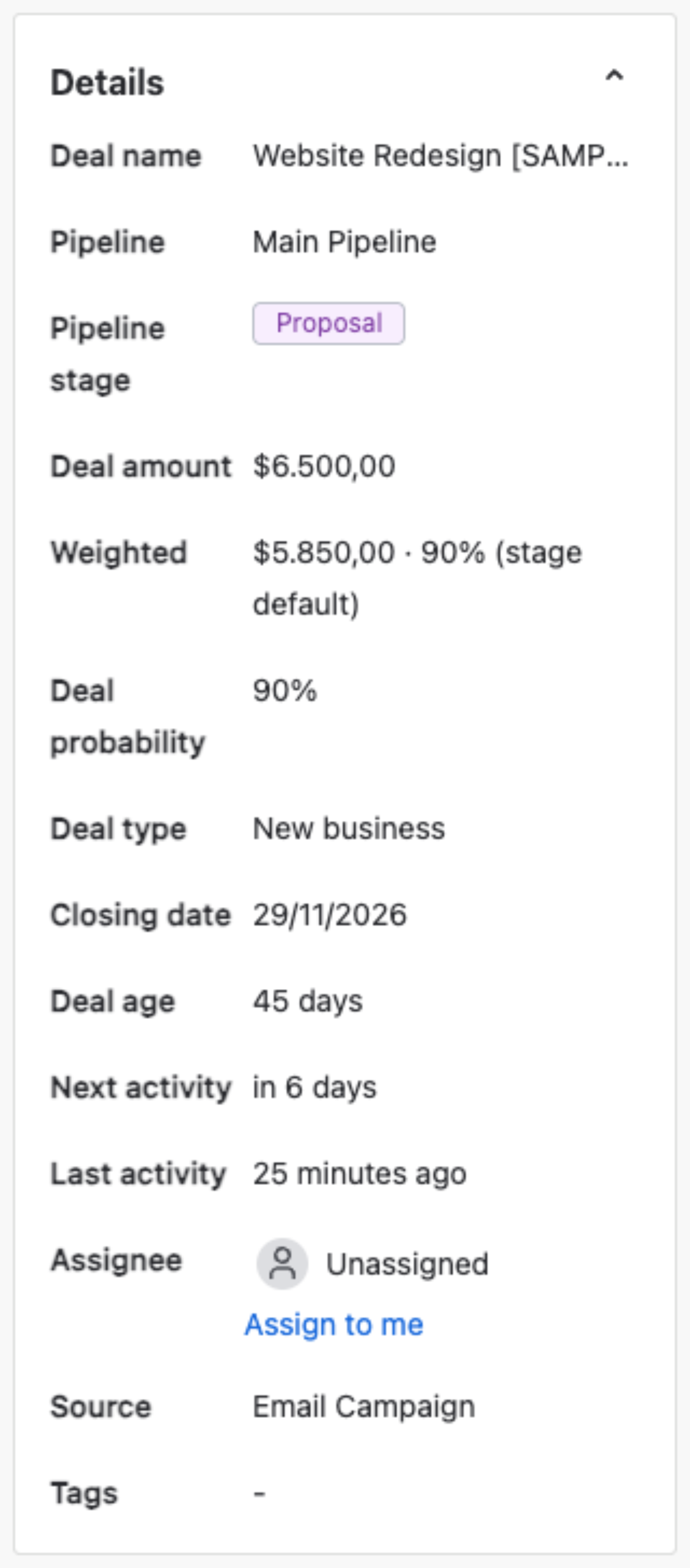
From then on the formats apply everywhere Mria CRM shows a date or an amount — lists and Kanban boards, record panels, Timeline, tasks and meetings (including the time pickers), dashboards and reports:
What they do not change #
- Stored data. Formats are display only. Changing one re-renders the screens; it never rewrites a value.
- CSV exports. Exports always use ISO-8601 dates and raw numbers, so a file can be re-imported or processed anywhere. The card says so under Date format.
- The REST API keeps returning ISO-8601 dates.
- Imports accept the same date and number styles as before, whatever the display setting.
- Time zones. There is no time zone setting in Mria CRM.
Who can change the formats follows the same rule as the currency: Edit on General Settings, which only Administrators have by default.
Product overview #
A short, nine-slide introduction to Mria CRM. Every new user sees it once, the first time they open the app. Anyone can watch it again from this card:

- Show product overview replays it from the first slide.
- Open documentation opens this documentation in a new tab.
The slides cover, in order:
- Welcome to Mria CRM
- Leads — capture and qualify potential customers
- Deals — move opportunities to Won or Lost
- Contacts — the people you talk to
- Companies — the account record
- Products — what you sell
- Activities & Notifications
- Dashboard & Reports
- Documentation & Get Support
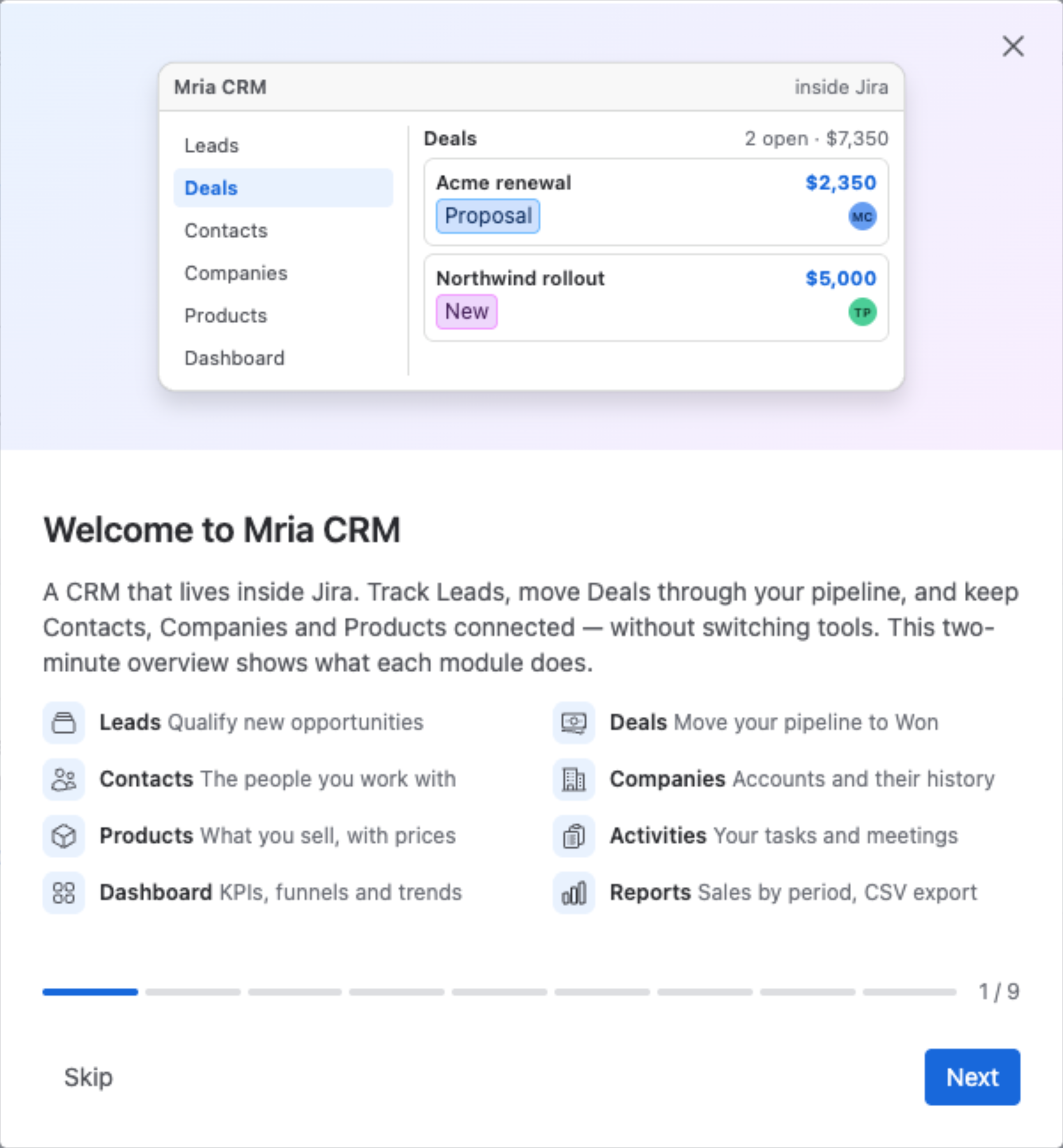
Move through it with Next and Back, or leave with Skip, the ✕ or Get started on the last slide. However you leave it, it does not open by itself again — on this or any other device.
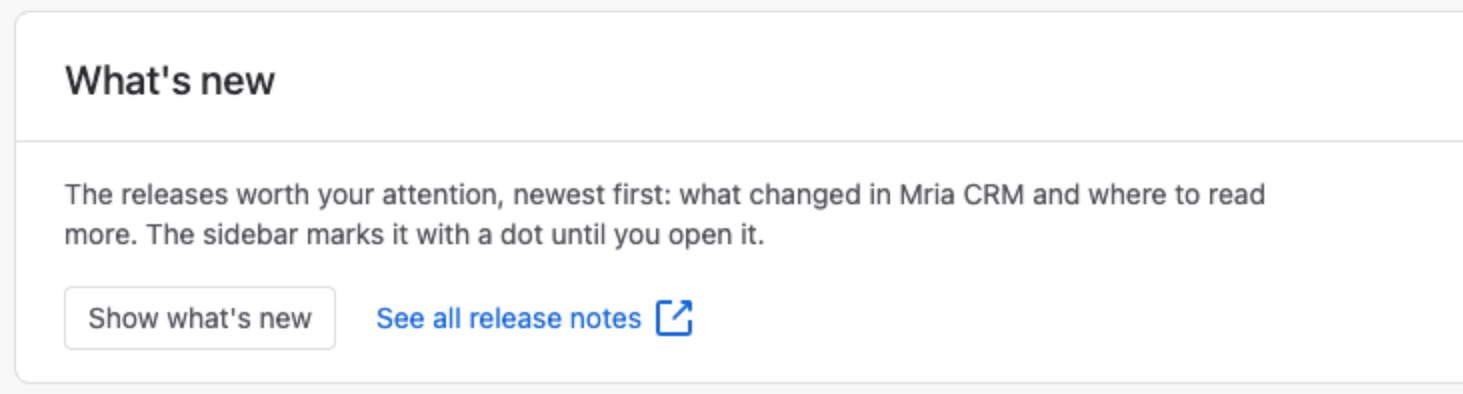
What’s new #
Mria CRM tells every user what changed in a release. The last item in the sidebar, What’s new, carries a purple dot when there are release notes you have not opened yet:
Click it to open the notes — newest release first, each with a short line per change and a Learn more link to the matching page of this documentation. See all release notes opens the full Release Notes in a new tab.
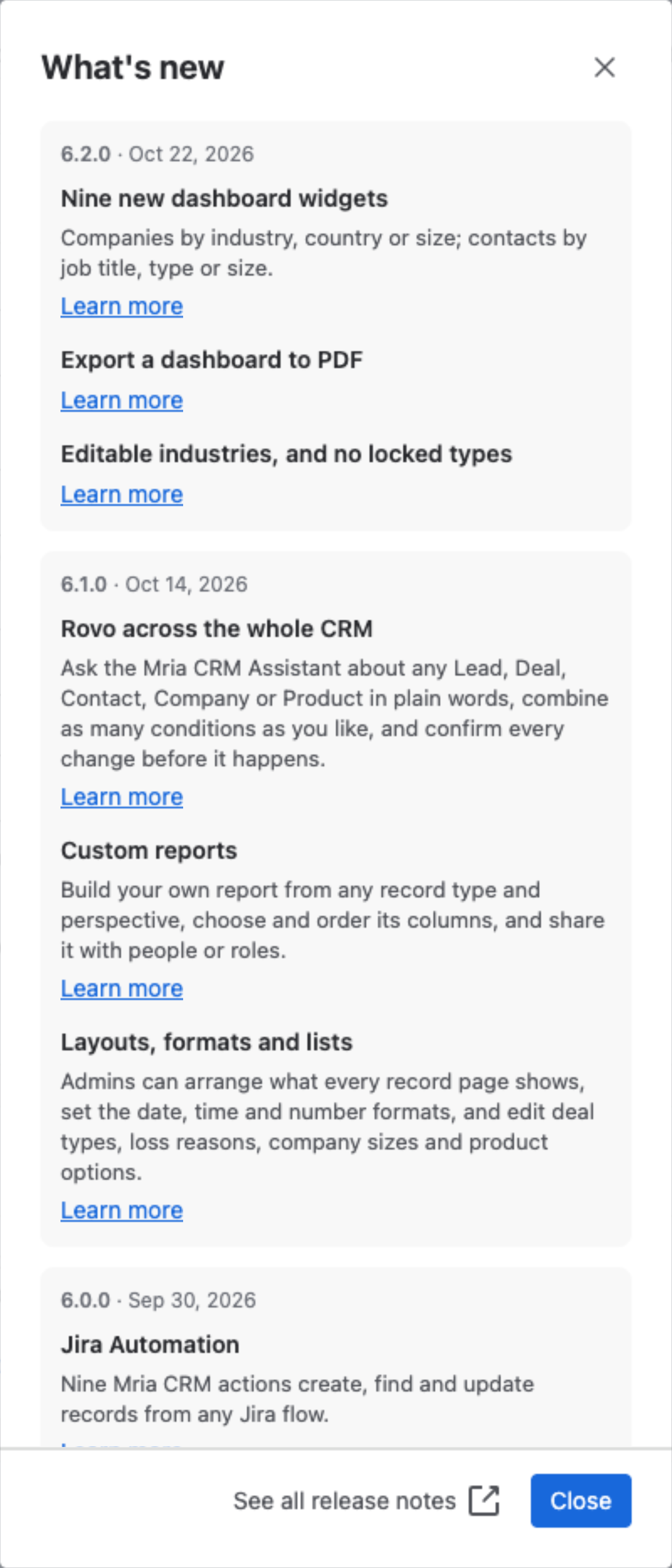
- Opening the list clears the dot — for you only. Each user has their own, so a colleague still sees theirs.
- The dot comes back when an update adds a new release to the list. Maintenance releases with nothing to tell don’t raise it.
- The notes ship with the app, so they always describe the version you are running.
To read them again after the dot is gone, use the What’s new card here, under Product overview: