Custom Fields let you extend Leads, Deals, Contacts, Companies, and Products with fields that fit how your team actually sells — deal probability, decision timeline, account tier, anything you need to track that isn’t covered by the standard fields.
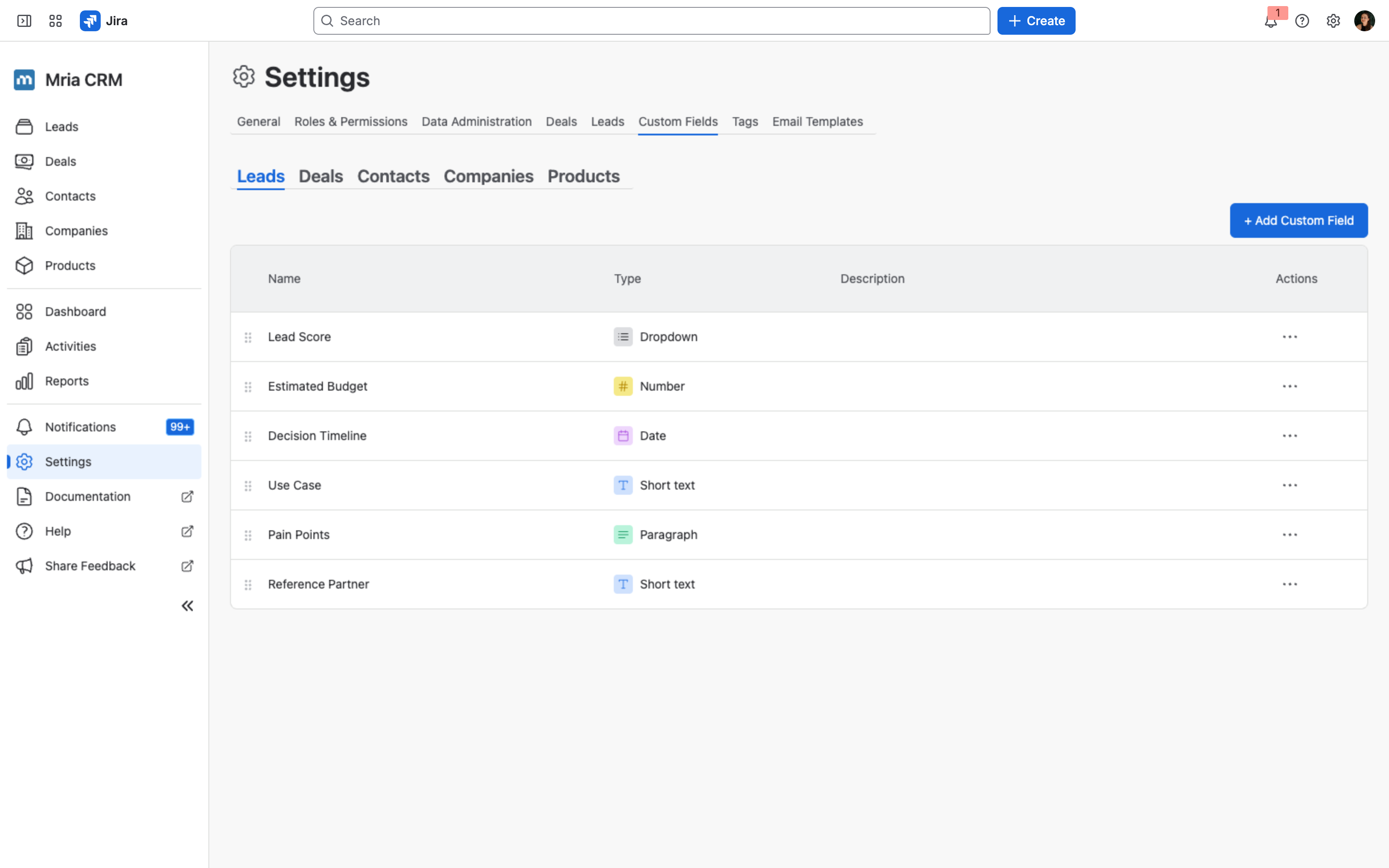
Custom Fields are configured under Settings → Custom Fields, on five sub-tabs — one per entity.
Supported field types #
Twenty types are available. Ten hold a value of their own; the other ten link the record to another Deal, Lead, Contact, Company or Product. The right type makes filtering, exporting, and reporting much easier later, so pick deliberately.
| Type | Use for |
|---|---|
| Short text | Up to 255 characters. Names, codes, one-line notes. |
| Paragraph | Multi-line free text. Pain points, meeting notes, descriptions. |
| Dropdown | Single choice from a fixed list of options you define. |
| Multi-select | Multiple choices from a fixed list. |
| Labels | Free-form multi-select tags. You can pre-fill suggested labels users can choose from. |
| Number | Numeric values. Budget, employee count, score. |
| Date | Date only. Decision timeline, renewal date, launch date. |
| Timestamp | Date and time. For events tied to a specific moment. |
| People | User picker. Champion, technical owner, executive sponsor. |
| URL | Web address with validation. LinkedIn, vendor profile, internal wiki link. |
The other ten point at a record:
| Type | Use for |
|---|---|
| Deal | One Deal. The renewal that follows a Won Deal, the Deal a Contact champions. |
| Deal (multiple) | Several Deals. Every Deal a partner Company sourced. |
| Lead | One Lead. The Lead a Contact first came in through. |
| Lead (multiple) | Several Leads. All the Leads a campaign generated for a Company. |
| Contact | One Contact. Executive sponsor on a Company, decision maker on a Deal. |
| Contact (multiple) | Several Contacts. A buying committee, the stakeholders on a Deal. |
| Company | One Company. A Company’s parent, a Product’s vendor. |
| Company (multiple) | Several Companies. Subsidiaries, partners, competitors. |
| Product | One Product. The main Product a Company runs on. |
| Product (multiple) | Several Products. Everything a Company has licensed. |
Reference types are available on all five entities, and a field may point at the entity’s own type: a Company field named Parent of type Company gives you an account hierarchy with no extra setup. How these fields behave in pickers, columns, filters, exports and imports is covered under Record reference fields.
Adding a custom field #
Go to Settings → Custom Fields, pick the entity tab, and click + Add Custom Field.
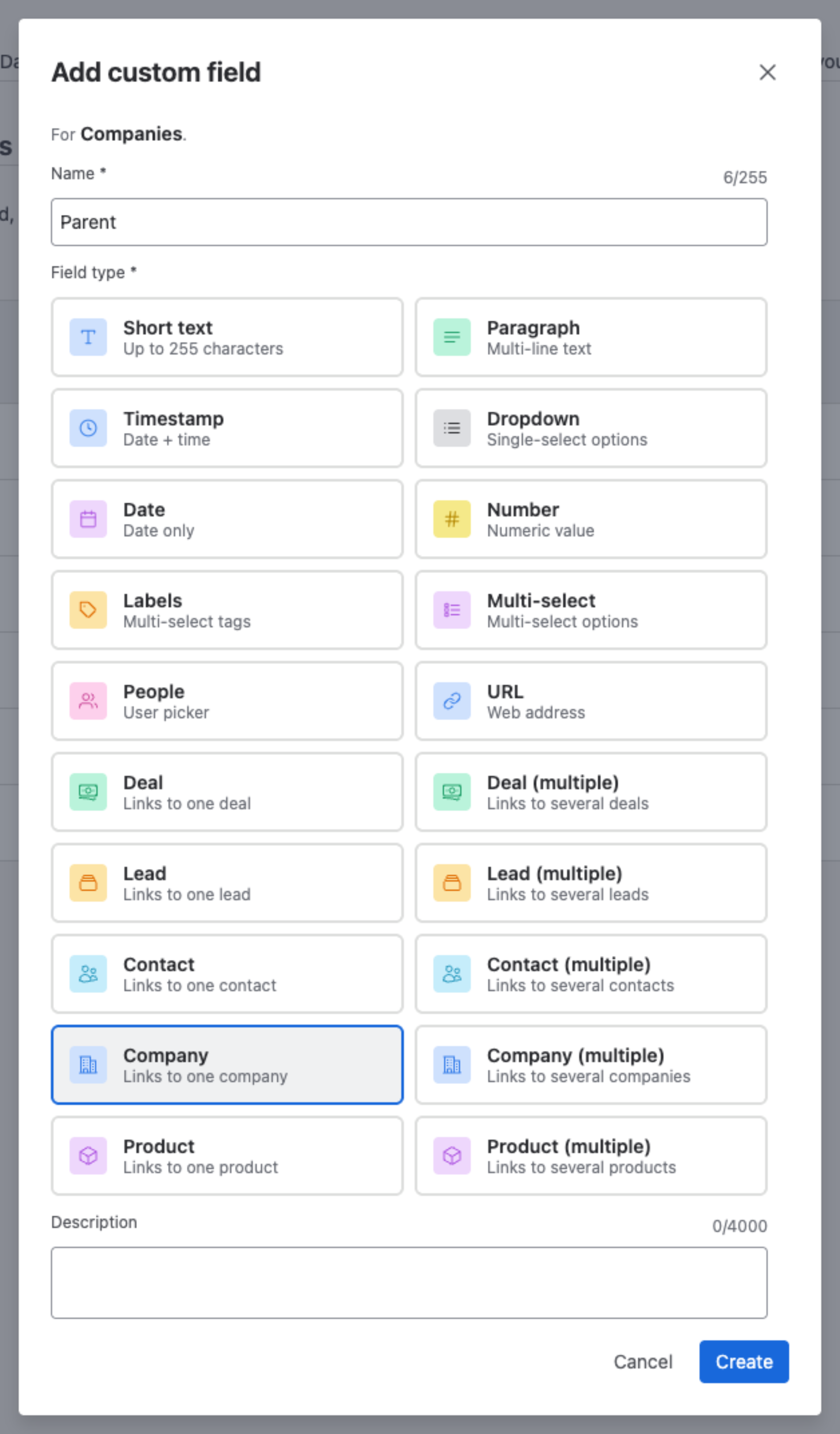
Fill in:
- Name — up to 255 characters. This is what users see on the entity’s detail page, in filters, and in column headers.
- Field type — pick one of the twenty options above.
- Description — optional, up to 4,000 characters. Helps your teammates understand what the field is for.
Some field types need a little extra setup:
- Dropdown and Multi-select — add at least one option. Each option has a name up to 80 characters. Use + Add Option for each value, and the X next to a row to remove it.
- Labels — you can optionally pre-fill Suggested labels. Users can still type any label they want; suggestions just appear in the autocomplete to keep teams aligned.
- Deal, Lead, Contact, Company, Product and their (multiple) variants — nothing to configure. The field offers a picker over that entity’s records.
Click Create when you’re done. The field appears immediately on every record of that entity, ready to be filled in.
Each entity can have up to 1,000 custom fields. Once an entity reaches the limit, + Add Custom Field is disabled until a field is deleted.
Custom fields per entity #
Each of the five core entities has its own set of custom fields — up to 1,000 each — configured on its own sub-tab. There is no shared field across entities — if you want the same field to exist on Leads and Deals (for example, a Lead Score), you create it on both sub-tabs.
That said, when a Lead converts to a Deal, matching fields do carry over automatically. See Lead to Deal Conversion for the full rules and the cross-entity flow below.
Leads #
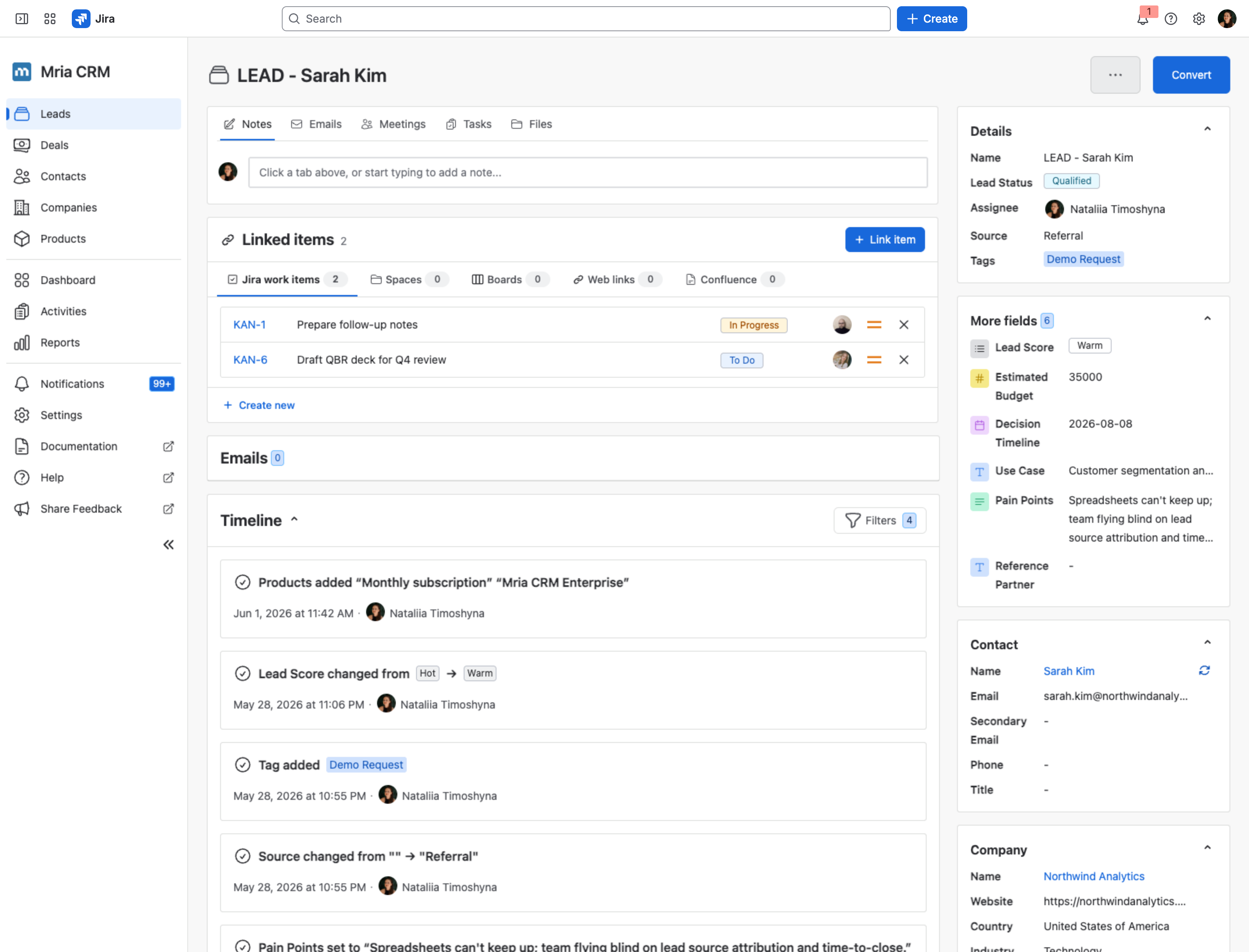
Lead custom fields show up on the Leads list (as optional columns), in the filter panel, on the Lead detail page’s More fields section, and in CSV exports. They’re also available when bulk-importing Leads — see Leads Import.
Deals #
Deal custom fields appear on the Deals list, in filters, on the Deal detail’s More fields section, and in exports. They’re also available when bulk-importing Deals — see Deals Import.
Contacts #
Contact custom fields appear on the Contacts list, in filters, on the Contact detail’s More fields section, and in exports. They’re also available when bulk-importing Contacts — see Contacts Import.
Companies #
Company custom fields appear on the Companies list, in filters, on the Company detail’s More fields section, and in exports. They’re also available when bulk-importing Companies — see Companies Import.
Products #
Product custom fields appear on the Products list, in filters, on the Product detail page’s More fields section, and in exports. They’re also available when bulk-importing Products — see Products Import.
Lead → Deal conversion copy #
When you convert a Lead to a Deal, Mria CRM automatically copies the value of any custom field that exists on both Leads and Deals with the same name and the same type.
For example, if you have a Lead Score Dropdown on Leads and a Lead Score Dropdown on Deals, the value carries over on conversion. If the names differ, or the types differ (one Dropdown, one Short text), the value will not copy — the system treats them as separate fields.
Want a value to follow a Lead through to its Deal? Create the field on both entities with the exact same name and type. A good convention is to define the Lead version first, then copy its setup over to the Deal tab.
Where custom fields appear #
Once created, custom fields are usable across the CRM:
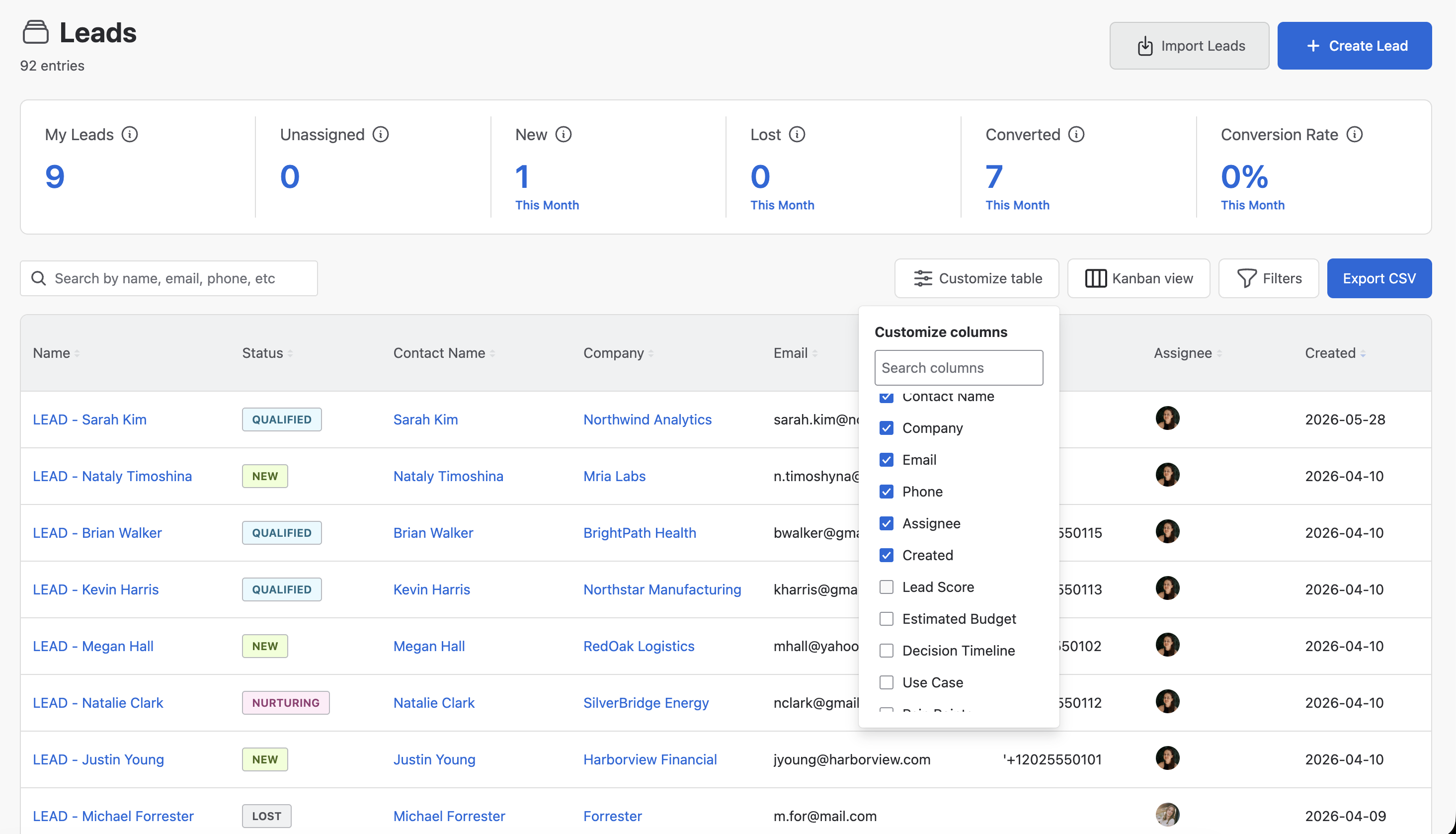
- List views — click Customize table on the entity list to show or hide custom-field columns. The order of columns is saved per user.
- Filters — custom fields appear in the filter panel under their entity. Dropdown/Multi-select/Labels filter as picklists; Number and Date filter as ranges. Reference fields filter with a record picker — see below.
- Detail pages — the right-side More fields section lists every custom field for that entity. Click a value (or the “-” placeholder) to edit inline.
- CSV exports — custom fields are included automatically when you export the list. A reference field exports as two columns, the record’s name and its ID.
- Bulk imports — Leads, Deals, Contacts, Companies and Products imports all support mapping CSV/XLSX columns to custom fields. See Leads Import, Deals Import, Contacts Import, Companies Import and Products Import.
- Reports — the seven reports are a fixed set, all of them deal-based; there is no report builder. Custom fields reach them as columns, through Customize table on the report itself.
Which custom fields a report offers
Deal custom fields appear in the deal reports — for example Pipeline by Stage and Open Deals by Period both list them under Customize table.
Deal Contacts by Product additionally offers Contact and Company custom fields, suffixed (Contact) and (Company) so you can tell them apart.
Lead custom fields do not appear in any report, because no report is Lead-based. To analyze on one, use the Leads list with Customize table, Filters and Export CSV. See Reports.
Record reference fields #
A field of type Deal, Lead, Contact, Company or Product holds a link to another record rather than a value of its own; the (multiple) variants hold several. The record is stored by its ID, so renaming it updates every field that points at it — no re-typing, no migration.
Filling one in #
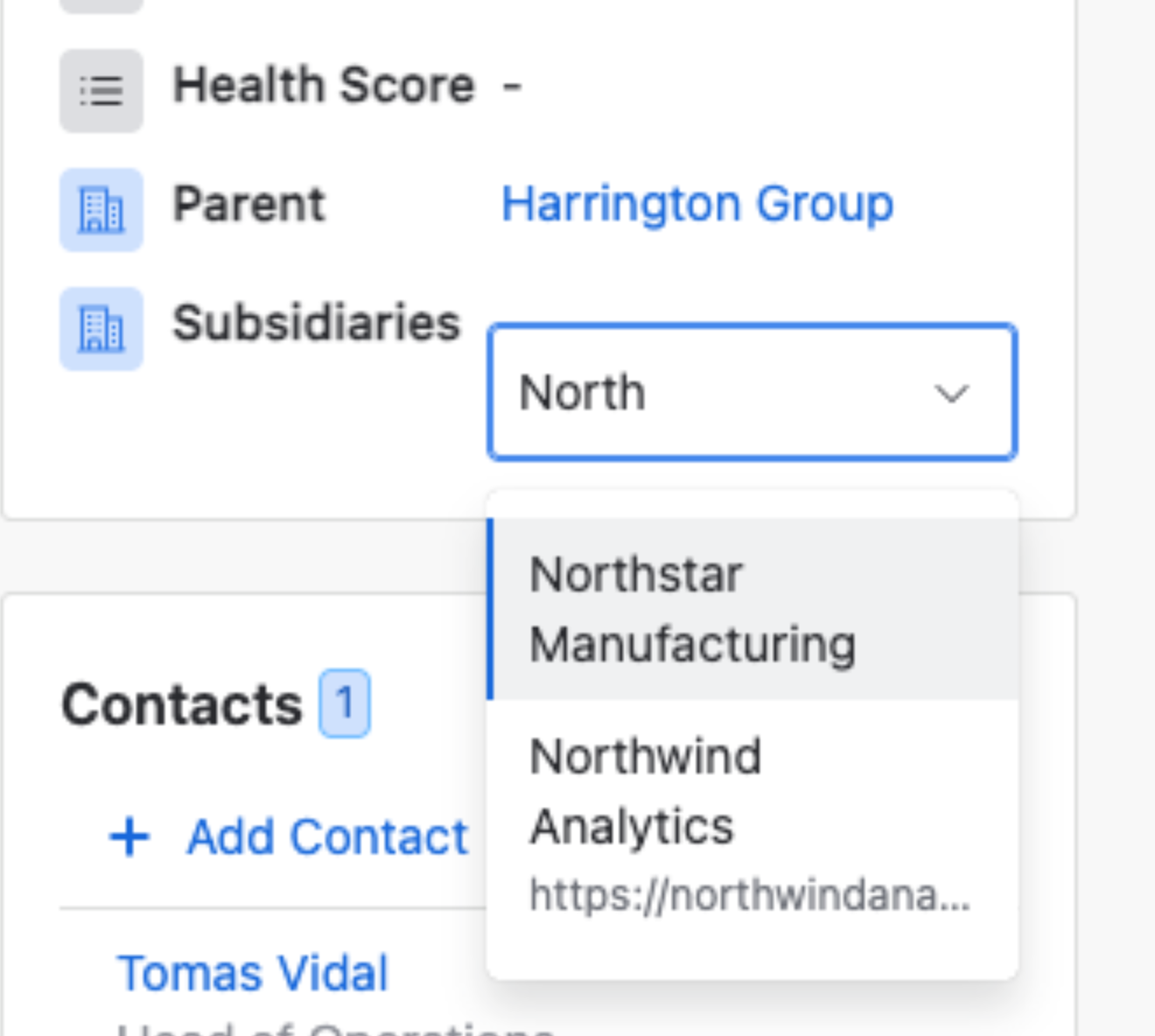
- On the record, click the field in More fields. A picker opens over that entity’s records: start typing a name and pick the match. Each result shows enough to tell lookalikes apart — a Company’s website, a Contact’s email.
- The record you are editing is never offered, so a Company cannot be its own Parent.
- On a (multiple) field each chosen record becomes a chip. Remove one with its
×, add more from the same picker.
Where the link shows #
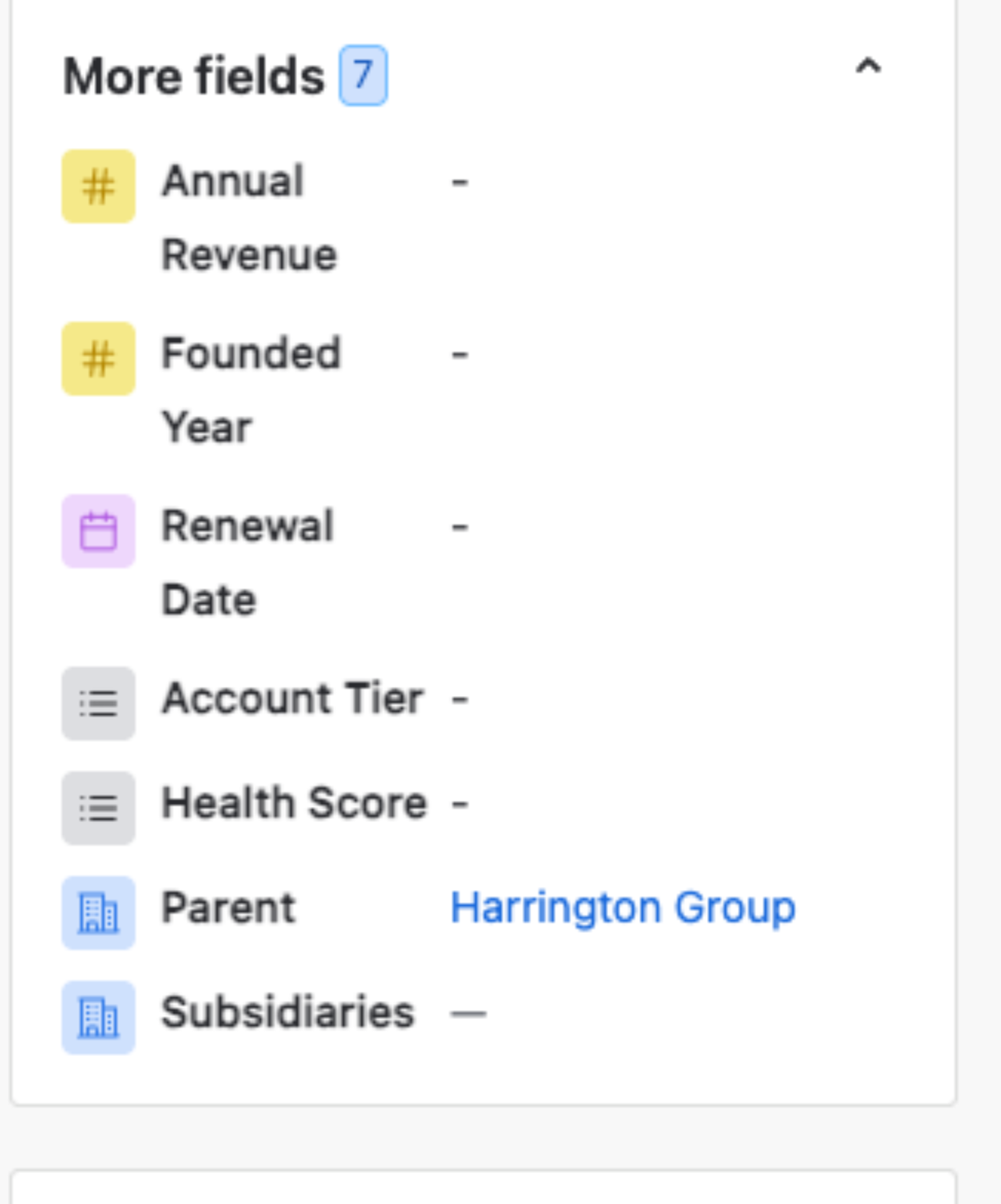
- More fields — the referenced record’s name, as a link that opens it.
- Table columns — add the field through Customize table; the column shows the name, linked. A multiple field shows the first name followed by
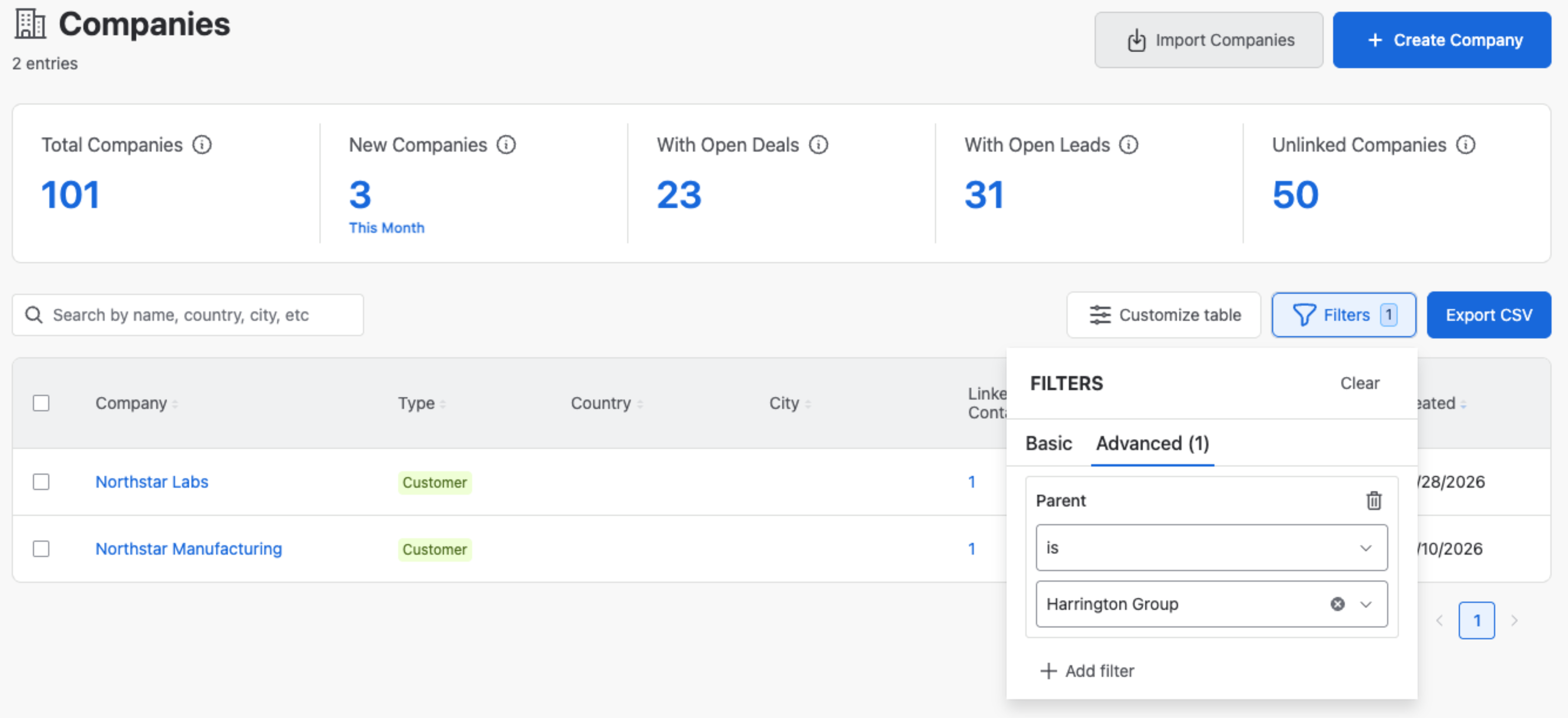
+N. - Filters → Advanced —
is,is any of,is emptyandis not empty, with a record picker in place of a text box. - CSV export — two columns per field:
<Name>with the record’s name and<Name> IDwith its ID. Several records are comma-separated in both. The ID is what a re-import can rely on, because names are not unique. - Import → Map Values — a column of names is matched to records by name. A row whose name matches no record, or more than one, is reported, and the import waits until you pick the record for it. See Companies Import.
When the referenced record changes #
- Renamed — the new name appears everywhere the field is shown, immediately.
- Deleted — the field keeps the last name and shows it as
Acme Inc (deleted): grey, no longer a link. The value still sorts, filters and exports, so a report does not lose the row, and the referencing record’s Timeline notes that the record was deleted. Replace or clear it like any other value.
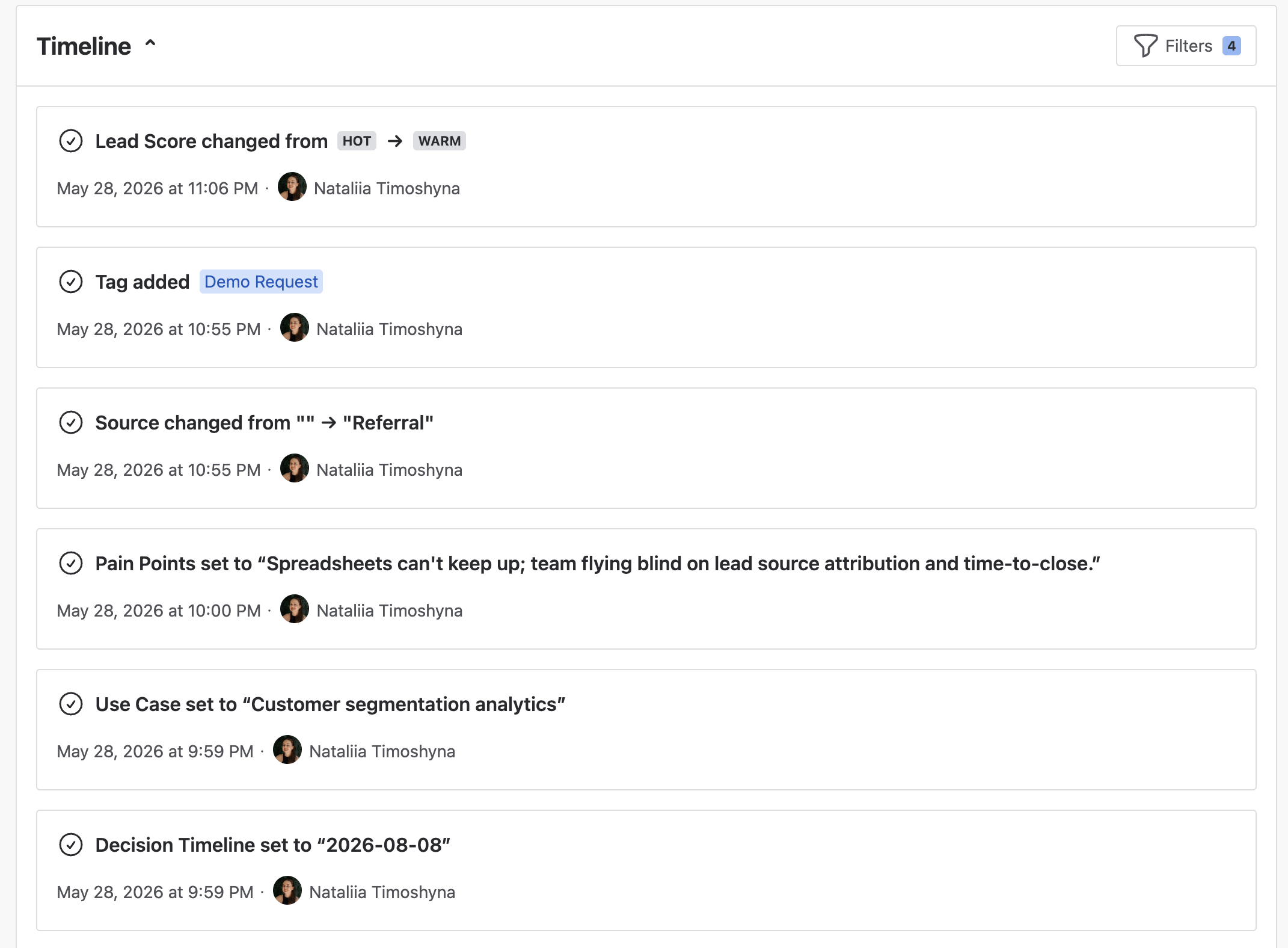
Setting, changing or clearing a reference is recorded on the record’s Timeline, with the names of the records involved:

Permissions
Reference fields follow Roles & Permissions. A user whose role cannot view the referenced entity’s records sees a placeholder instead of the record’s name.
Change log #
Mria CRM keeps a running history of every custom-field change made on Leads and Deals — who edited which field, when, and what the value was before and after. Open a Lead or Deal’s Timeline tab to review the change log alongside other activity.
Editing, reordering, deleting #
Back on Settings → Custom Fields:
- Rename a field by clicking its row and editing the Name. Existing data is preserved.
- Reorder fields with the drag handle on the left of each row. The order shown here is the order custom fields appear on detail pages and in exports.
- Edit options on a Dropdown or Multi-select — add, rename, or remove options. Removing an option clears it from any records currently using it.
- Delete a field with the … menu on the right of its row. Deletion is permanent and removes the value from every record — you’ll be asked to confirm.
Deleting a custom field doesn’t remove history of that field from the change log.
Tips #
- Keep field names short. They show up as column headers and in filter dropdowns — long names get truncated.
- For values you’ll filter or report on, prefer Dropdown over Short text. A controlled list keeps reports clean.
- To point at another record, use a reference type rather than a Short text copy of its name. The link opens the record and stays right when the record is renamed.
- If you want a value to follow Leads as they convert to Deals, create a matching field on the Deal tab with the same name and type.
- Use Labels when you want a flexible tag-style field (Bestseller, Strategic, Champion). Suggested labels keep usage consistent without locking the list down.
- Use Description on each field to explain what it’s for — especially helpful for newer team members reading reports six months later.


