Ask Mria CRM in plain words #
The Mria CRM Assistant is a Rovo agent that ships with Mria CRM. Ask it a question the way you would ask a colleague — which leads came in last week and still have no owner, which deals have gone quiet, what is going on with a customer — and it looks the answer up in your CRM. Ask it to change something, and it prepares the change for you to confirm.
It works across the whole CRM: Leads, Deals, Contacts, Companies and Products, their notes, tasks and meetings, custom field values and linked items. It can also convert a Lead, close a Deal and change many Leads at once. There is nothing to install or configure — if Rovo is available on your Atlassian site, the agent is there.
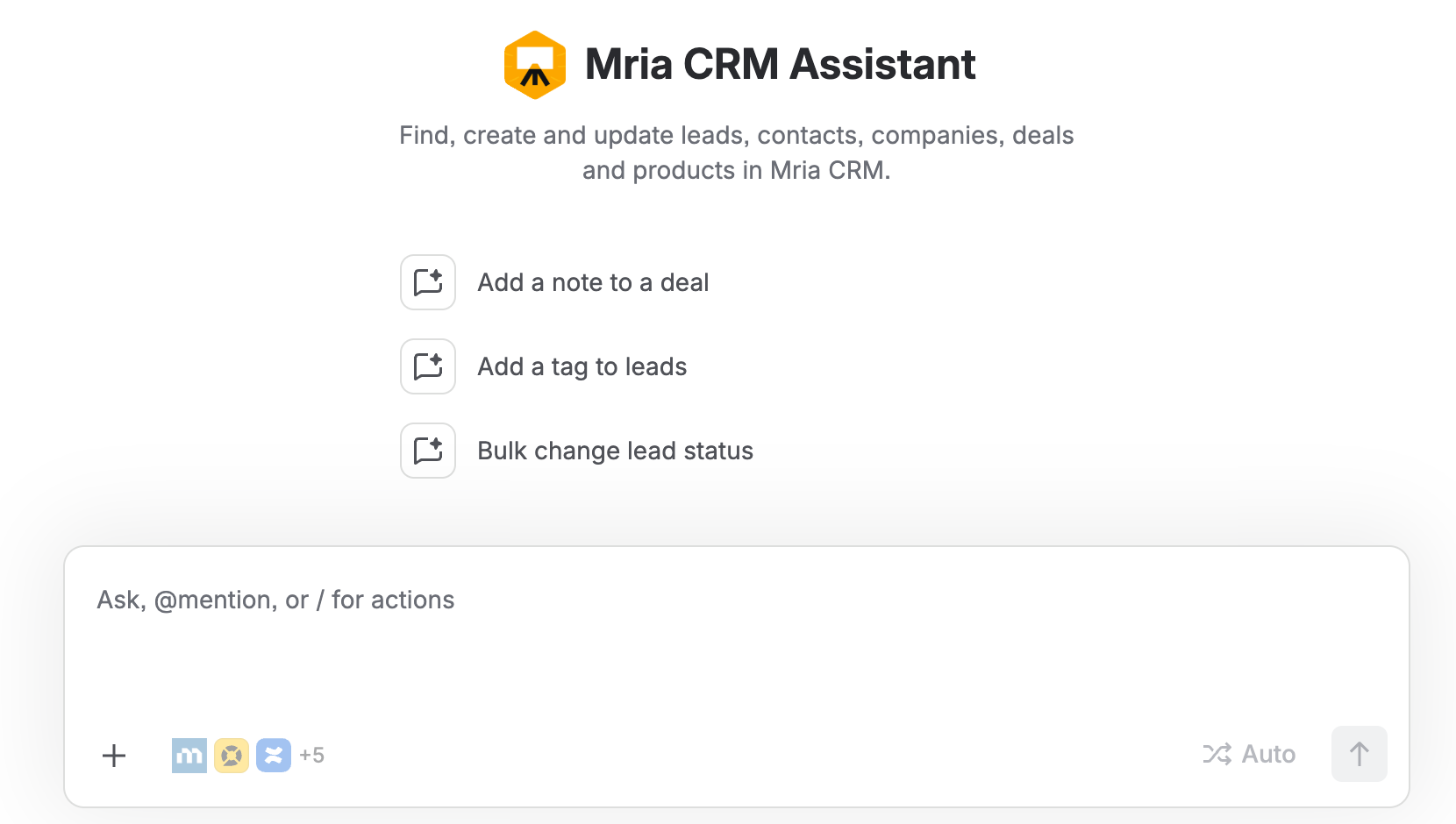
1. Getting started #
- Open Rovo chat. Use Ask Rovo where your site shows it, or open Rovo from the app switcher and choose Chat.
- Open Agents, find Mria CRM Assistant and click Chat to agent.
- Type your question, or start from one of the suggestions under the agent’s name — “Add a note to a deal”, “Add a tag to leads”, “Bulk change lead status”.
The agent’s profile lists what it can use. Star it to keep it at the top of your agent list.
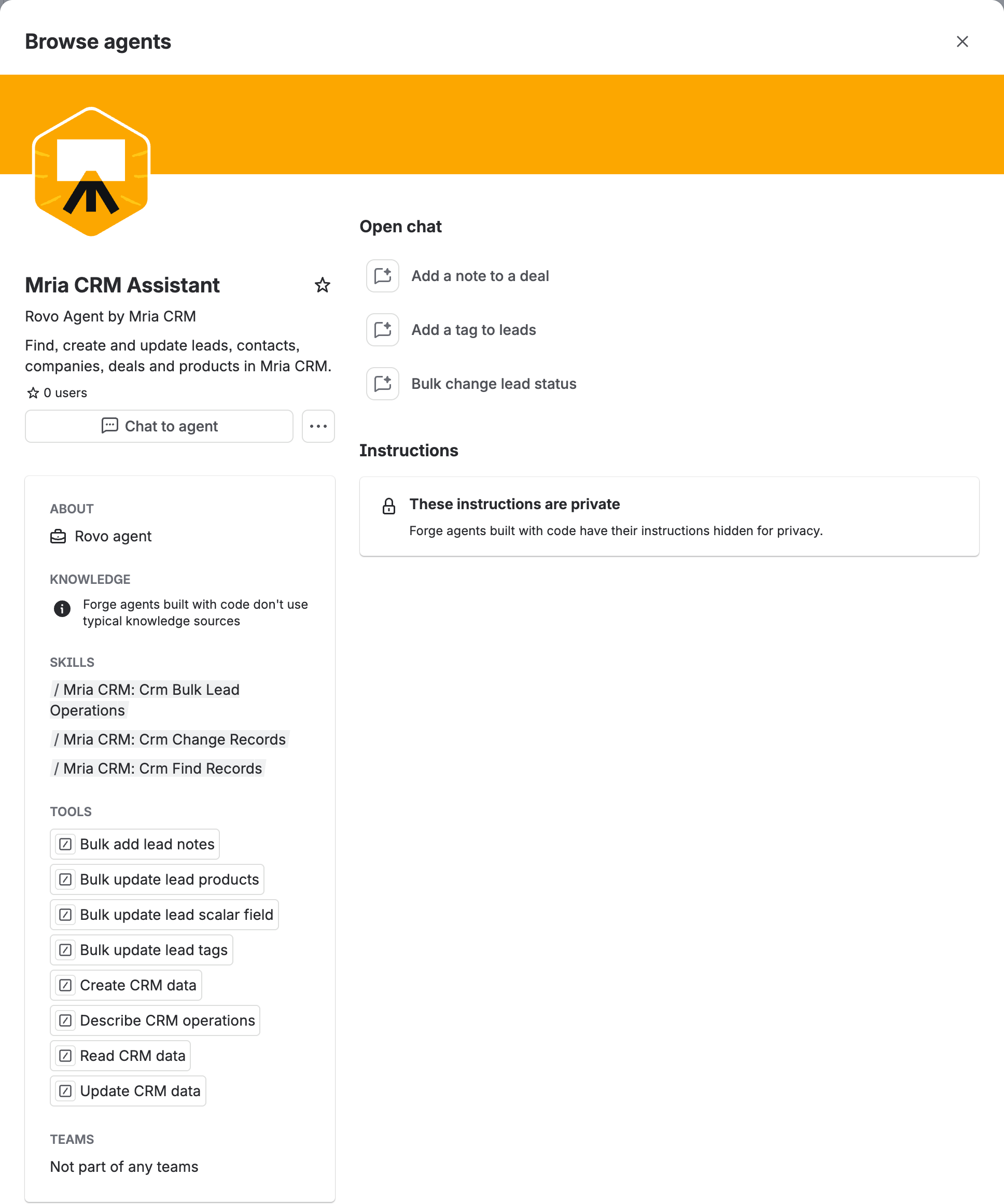
Every record named in a reply is a link. Click it to open the record in Mria CRM.
2. What you can ask #
The assistant is not limited to a fixed list of commands. It can read anything you can see in Mria CRM and combine every filter the CRM supports in one question — status, source, tag, owner, pipeline and stage, amount and probability, created, updated and closing dates, products, linked Jira work items and custom fields — then follow up on the answer in the same chat.
| To… | Ask something like | More on |
|---|---|---|
| Find and summarize | “Which leads were created in the last two weeks, are still in New status and have nobody assigned? Show the company and source for each.” | Finding Information |
| See a whole account | “Give me the full picture of Northwind Retail: its contacts, every deal with stage, amount and whether it was won or lost, and any open leads.” | Finding Information |
| Change one record | “On the Website Redesign deal: move it to Proposal, raise the amount to 6,500, add a note and a task for me to follow up next Tuesday.” | Creating and Updating Records |
| Convert or close | “Convert the Mei Tanaka lead into a deal called Kiyomi Bakeries POS rollout, amount 12,000, in the Discovery stage.” | Creating and Updating Records |
| Change many leads | “Add the note ‘Reached out via email’ to all Contacted leads.” | Bulk Changes to Leads |
| Chain several steps | “Find all leads John Doe created last week that weren’t converted…” then “…create the companies that are missing.” | Complex Requests Step by Step |
3. Every change is confirmed twice #
Reading is immediate. Anything that changes data waits for you:
- The assistant says what it is about to do in plain words and asks whether to go ahead.
- Rovo shows a Please review card with each change and its exact values. Nothing happens until you click Confirm selected. Untick any change you do not want, or click Cancel to drop them all.
The review card comes from Rovo itself, not from the assistant, so no instruction can skip it. Confirming does not give anyone a right they did not have — the change is still checked against your role. See Creating and Updating Records for what the card looks like.
4. Who can see and change what #
The assistant acts as the person asking. It sees exactly the records you can see in Mria CRM and can change only what your role allows; nothing is configured for the agent itself. It never deletes anything, and changes need an active Mria CRM license. Admins: the details are on Permissions and Safety.
5. Tips for better results #
- Use the names your workspace uses. Statuses, stages, sources and tags are matched by name. If a name does not match, the assistant tells you what exists or proposes the closest value — check it before you confirm.
- Say “my” for your own records: “my open deals”, “which of my leads are New?”.
- Ask for the shape you want. Name the columns (“show the company and source for each”), the order (“sort by amount”) and the totals (“give me the total and the weighted total”).
- Build on the last answer. The chat remembers what it found: “which of those companies already exist?” works right after a list of leads.
- Narrow ambiguous names. If several records match, the assistant asks which one. Add a company, an email or a pipeline to settle it.
- Read the review card. It shows what will actually be sent — for bulk changes, the filter that picks the Leads. Bulk Changes to Leads shows why that matters.
6. Limitations and FAQ #
What it cannot do #
- Delete. Nothing can be deleted through Rovo. Ask for a deletion and the assistant offers an alternative, such as marking a Deal Lost. Delete in Mria CRM itself.
- Reports, dashboards, import and export, email and settings. These stay in Mria CRM. The assistant cannot change pipelines, statuses, tags or other workspace settings, so a value that does not exist yet has to be added in Settings first.
- Undo. A confirmed change is a real change. Ask the assistant to set a value back, or fix it in Mria CRM.
“I don’t have permission” #
Your Mria CRM role does not cover that data or that action. The same request would fail in the app. Ask your CRM admin.
“The license is not active” #
Nothing can be changed through the assistant until the Mria CRM license is active again.
A contact with this email already exists #
Emails are unique across Contacts. The assistant checks before it creates one and offers the existing contact instead.
The answer looks wrong #
Rovo is AI and can make mistakes. Every record in a reply links to Mria CRM, so open the record and check anything important before you act on it.
Do I need Rovo? #
Yes. The assistant and Rovo Studio are part of Atlassian Rovo, which your Atlassian admins turn on for the site. Rovo usage is governed by your Atlassian plan, not by Mria CRM. To use the same tools from ChatGPT, Claude or another AI client instead of Rovo, see Mria CRM MCP server.
Related Pages #
- Rovo: Finding Information — questions across leads, deals, contacts, companies and products.
- Rovo: Creating and Updating Records — new records, edits, notes, tasks, conversions and closing deals.
- Rovo: Bulk Changes to Leads — one change on many leads, and the limits that apply.
- Rovo: Complex Requests Step by Step — real multi-step conversations, from triage to a closed deal.
- Rovo: Permissions and Safety — for admins: whose rights apply and what can never happen.
- Rovo Studio: Build Your Own Agent — use the same CRM tools in an agent you design.
- Mria CRM MCP server — the same tools from ChatGPT, Claude and other AI clients.
- Teamwork Graph & Atlassian Search — how CRM records reach Atlassian’s shared data layer.
- Jira Automation — the same CRM actions in rule-based flows, without chat.


